

CapaOne CustomApp Fails to Install in the Console
Problem
Section titled “Problem”When downloading a Custom App from CapaOne deplyoing it to a endpoint in the CapaInstaller console, the installation fails.
example from failed log:
2025-04-04 14:27:10 - Shell_Execute: Calling function with args: command: ‘C:\ProgramData\CiBaseAgent\Temp\tmp-7-Zip\7z2408-x64.exe’, arguments: ‘/S’, wait: ‘True’, windowstyle: ‘0’, mustexist: ‘False’, workingdirectory: ‘’
2025-04-04 14:27:10 - ***************** Something bad happened at line 73: Exception calling “Shell_Execute” with “6” argument(s): “An error occurred trying to start process ‘C:\ProgramData\CiBaseAgent\Temp\tmp-7-Zip\7z2408-x64.exe’ with working directory ‘C:\Windows\system32’. The system cannot find the file specified.”
2025-04-04 14:27:10 - SCRIPT ENDED WITH EXITCODE: -2146233087
Solution
Section titled “Solution”The CapaOne CustomApp has a PowerBrick that needs to be updated.
-
Go to your CapaOne Portal
-
Select Applications under Windows.
-
Find your application, click on the 3 dots to the right of the name and select edit.

-
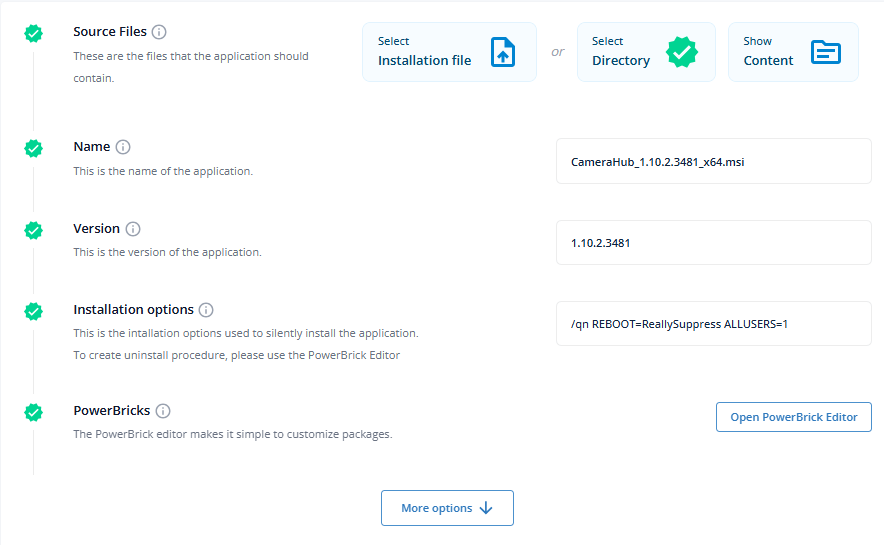
Click on Open PowerBrick Editor
-
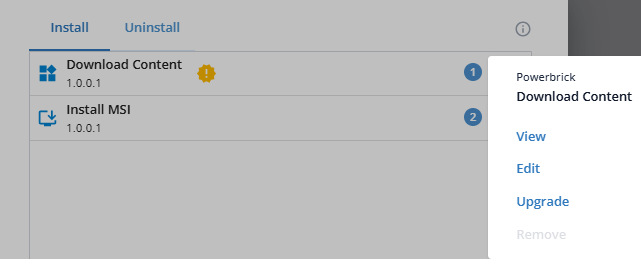
Click on the 3 dots to the right of the PowerBrick with the exclamation mark and select Upgrade.
-
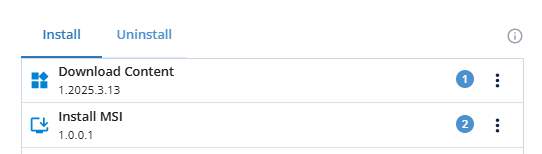
The exclamation mark is now gone and the PowerBrick has been upgraded.
-
Download the CustomApp and import it into the CapaInstaller console (remember to delete earlier package first)