

Toolbar and menu description for Configuration Management
The following is a description of the toolbar and menus in Configuration Management. The general menu items are explained in the general description for the console. Click on the links below to display a description of the individual menu.
Toolbar
| Element | Description |
 |
Navigates back, selecting the previously selected node, in the navigation pane. |
 |
Navigates forward, selecting the next node from history, in the navigation pane. |
 |
Opens the unit buffer window. |
 |
Opens the package buffer window. |
 |
Opens the profile buffer window. |
Menus
 |
 |
 |
 |
 |
 |
| File Menu | Item | Description | Keyboard shortcut |
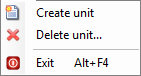 |
Create a new computer | Creates a new item of the selected type. | |
| Delete a unit | Delete a unit of the selected type. | ||
| Exit | Closes the CapaInstaller Console | Alt + F4 |
| Edit menu | Item | Description | Keyboard shortcut |
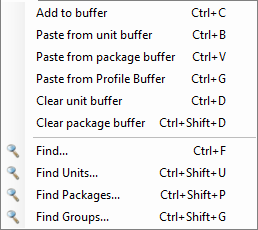 |
Adding to the buffer | Will add the selected unit, package or profile to the buffer. | Ctrl + C |
| Paste from the unit buffer | Will add units in the buffer to the selected item. | Ctrl + B | |
| Paste from package buffer | Will add packages in the buffer to the selected item. | Ctrl + V | |
| Paste from profile buffer | Will add profiles in the buffer to the selected item. | Ctrl + G | |
| Clear Unit Buffer | Will remove all units from the unit buffer. | Ctrl + D | |
| Clear Package Buffer | Will remove all packages from the package buffer. | Ctrl + Shift + D | |
| Search for item | Open the Search window | Ctrl + F | |
| Search for item | Open the Search window, with units preselected. | Ctrl + Shift + F | |
| Search for item | Open the Search window, with packages preselected. | Ctrl + Shift + P | |
| Search for item | Open the Search window, with groups preselected. | Ctrl + Shift + G |
| View menu | Item | Description | Keyboard shortcut |
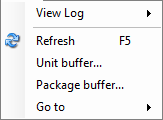 |
View log - Current Log | Opens the current CMS log in notepad. | F2 |
| View Log - View History | Opens the file location where the CMS logs are located | ||
| Refresh | Refreshes the content view | F5 | |
| Adding to the buffer | Opens the unit buffer window | ||
| Adding to the buffer | Opens the package buffer window | ||
| Go to - Back | Navigates back, selecting the previously selected node, in the navigation pane. | Ctrl + Shift + B | |
| Go to - Forward | Navigates forward, selecting the next node from history, in the navigation pane. | Ctrl + Shift + F |