

Option menu
The program options control the general behavior of CIPC.
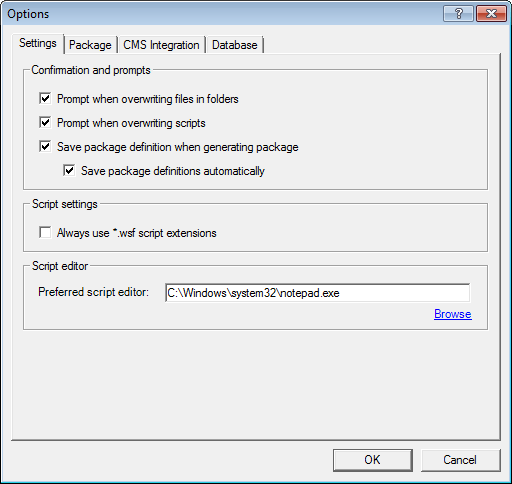
Settings Tab
Section titled “Settings Tab”| Element | Subtitle | Description |
| Confirmation and prompts | Prompt when overwriting files in folders | Mark, this checkbox to receive a warning before overwriting any existing installation-program parts of existing packages. Clear this checkbox to overwrite automatically without notice |
| Prompt when overwriting scripts | Mark, this checkbox to receive a warning before overwriting any existing installation scripts. Clear this checkbox to overwrite automatically without notice. Note that customization that has been made to an existing script will not be reproduced in your re-generated scripts. You will have to manually edit those changes into the new script. A backup file is made when overwriting | |
| Save package definitions when generating package | When this box is checked, CIPC will save package definition each time the package is generated, using the name and version settings to identify it. This will overwrite your previously saved definition | |
| Script settings | Always use .wsf extensions | The standard extension for generated scripts is .cis |
| Script editor | Preferred script editor | When a package is generated a dialog window is displayed listing each generated script. From this window, it is possible to double-click on the listed scripts to open and edit them |
Package Tab
Section titled “Package Tab”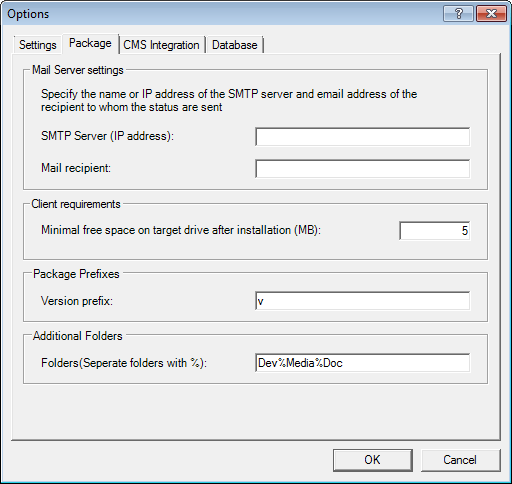
| Element | Subtitle | Description |
| Mail server settings | SMTP Server (IP Address) | Enter the IP address of your SMTP server. This server is required to process and forward outgoing mail |
| Mail recipient | Enter the e-mail address of a person/list who should receive status emails about the success and/or failure of each script/program run | |
| Client requirement | Minimal free space on target drive after installation | The Client Requirements area controls how much extra disk space must be left on a target computer after the installation is finished. This is important because space must still be available for temporary system files, swap disk space, user data, etc. When a finished script is run on a client computer, it starts by making sure enough space exists on the target hard drive. If there is not enough space, then the script/program will cancel the installation and generating an error message |
| Package Prefix | Version prefix | Set the default setting for the package eg. v |
| Additional folders | Folders | If a list of folders needs to be created during the generating process this setting can be used. By separating words with % more folders can be created. In this case, a Dev, a Media, and a Doc folder will be created |
CMS integration Tab
Section titled “CMS integration Tab”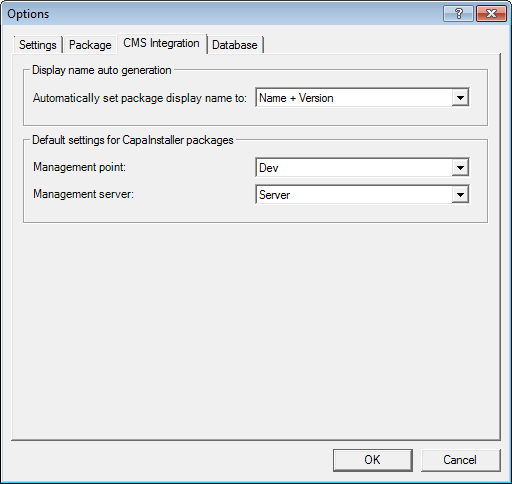
| Element | Subtitle | Description |
| Display name auto-generation | Automatically set package display name to | Set CMS Package naming standard. Choose either between: Name: Name(General) Name + Version: Name(General) + Version(General) Description: Description (General) () = Section name |
| Default settings for CapaInstaller packages | Management Point | The packages created will be stored on this Configuration Management Point. |
| Management Server | The packages will automatically be linked to this Configuration Management Server. |
Database Tab
Section titled “Database Tab”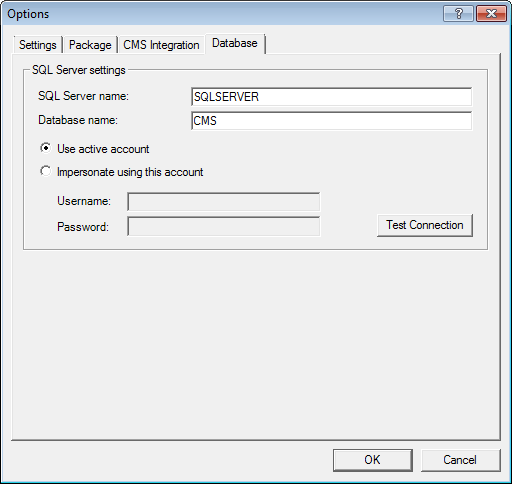
| Element | Subtitle | Description |
| SQL server setting | SQL Server name | Enter the name of the server where the database located. |
| Database Name | Enter the name of the database itself | |
| Impersonate using this account | Mark the Impersonate using this account radio button if the database connection should be established using SQL Server authentication. Afterwards specify a user name and password. Mark the Use active account radio button if the database connection should be established using Window authentication. In this case, CIPC will access the database as the Windows user running CIPC. Be aware that the user has to be granted access (read/write) to the database to be able to use CIPC. |
|
| Test connection | Use the Test Connection button to test SQL server settings. Note: Changing the server/database requires that CIPC is restarted. |