

CapaWinUpgrade 4.3 - Release Notes
Released on July 15, 2021 - Updated on July 13, 2021
New Features
Section titled “New Features”Colored Wallpaper
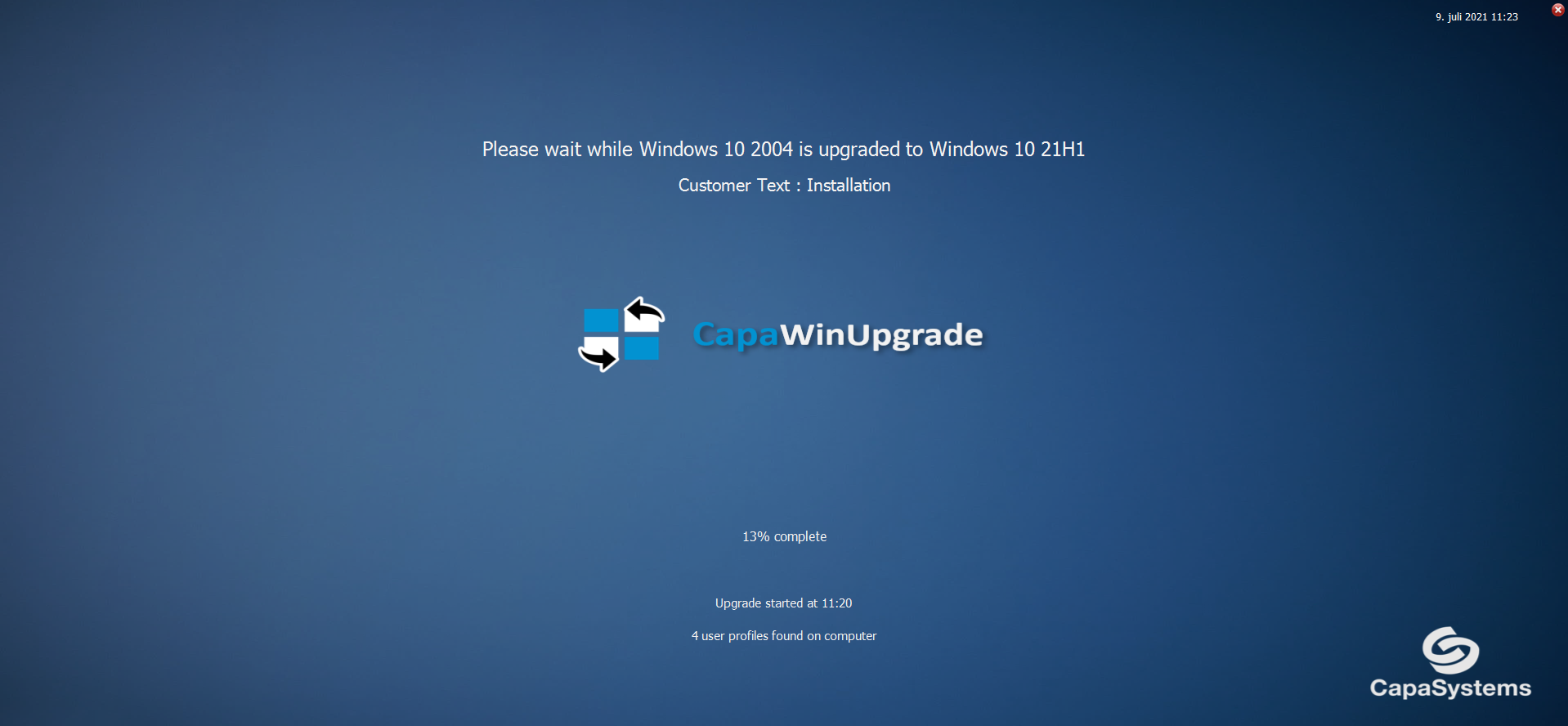
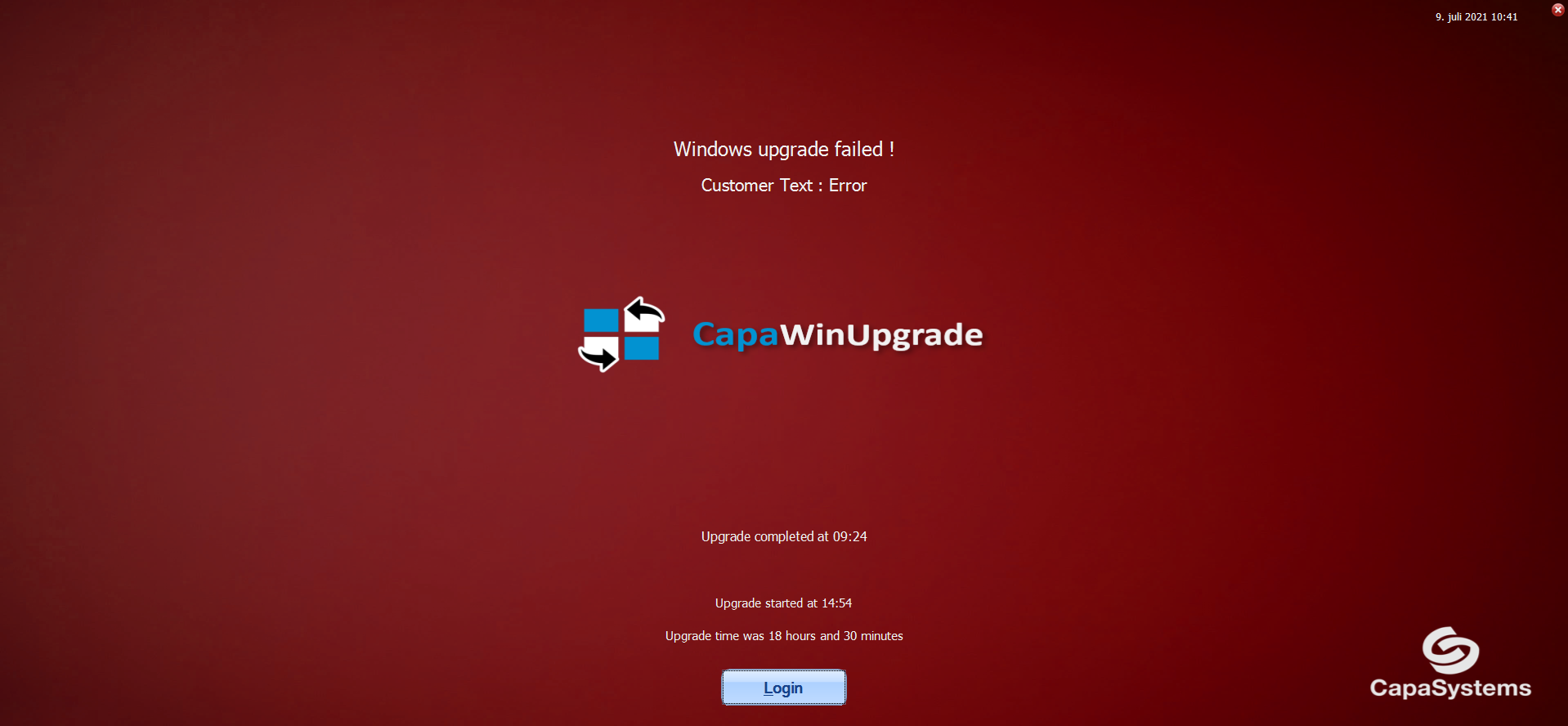
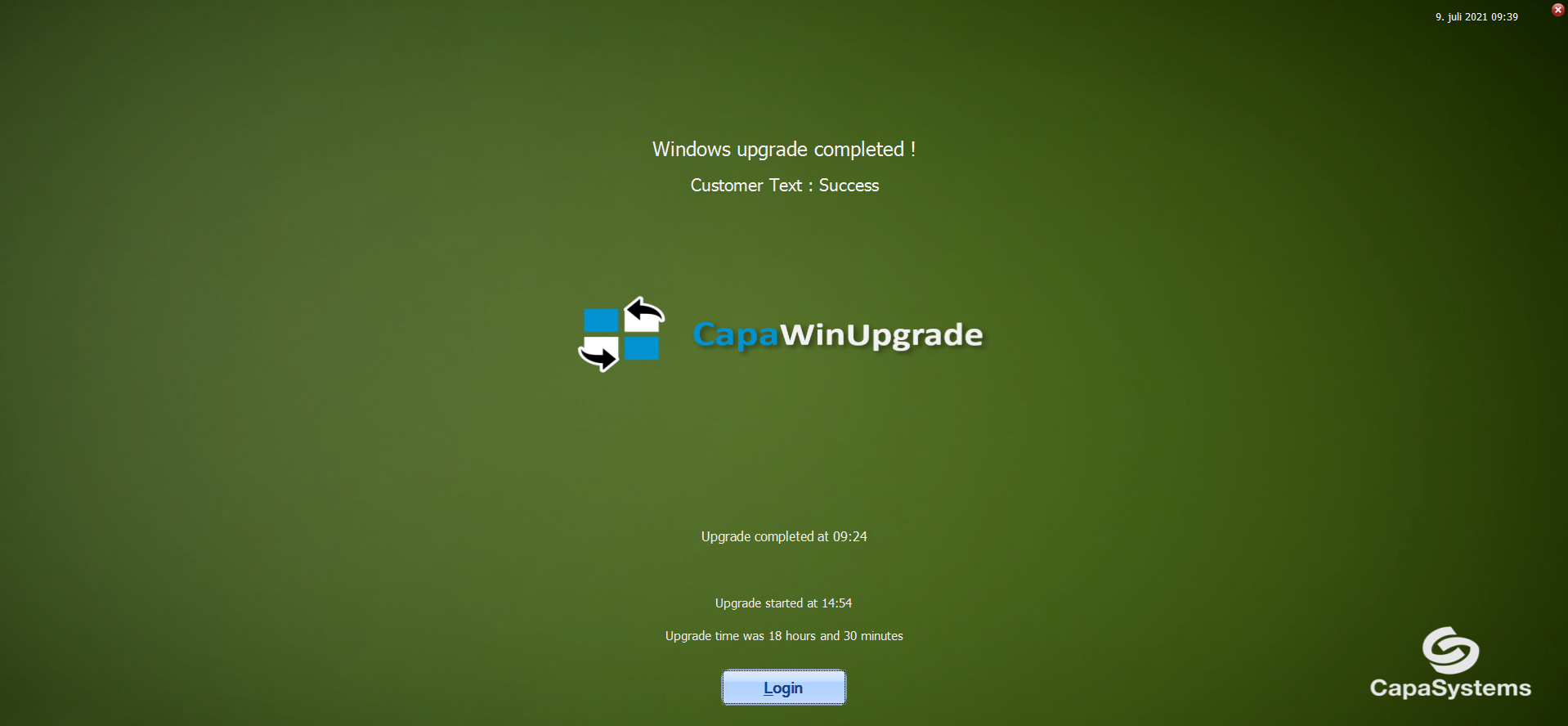
It’s now possible to use colored wallpaper on the dynamic installation screen, based on the result of a feature upgrade.
Setting the global variable gbUseColoredWallpaper to True in the “Post Upgrade” package will result in a green wallpaper when a feature upgrade is successful and a red wallpaper when a feature upgrade has failed.
The wallpaper is always blue during the feature upgrade.
Custom Text
It’s now possible to show custom text on the dynamic installation screen, based on the result of a feature upgrade.
- The value of the global variable gsInstScreenCustomerTextOnInstallation in the “Upgrade” package is presented to the end-user during the feature upgrade.
- The value of the global variable gsInstScreenCustomerTextOnError in the “Post Upgrade” package is presented to the end-user when a feature upgrade has failed.
- The value of the global variable gsInstScreenCustomerTextOnSuccess in the “Post Upgrade” package is presented to the end-user when a feature upgrade has succeeded.
Warning Prompt
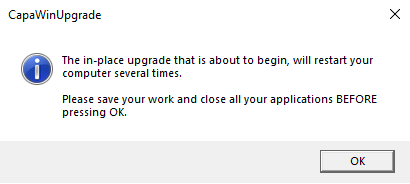
It’s now possible to show a warning prompt to the end-user, using the global variable gbShowCloseAppPrompt in the “Upgrade” package.
Setting the value to True will show the following prompt to the logged on user. The language can be controlled by setting the gsMessageBoxLanguage global variable value to either “DA” or “EN”.
Microsoft PDF and XPS printers
The solution detects if the optional features containing Microsoft PDF printer and Microsoft XPS printer are enabled.
If the optional features are enabled, they are automatically disabled during the feature upgrade and are re-enabled afterwards.
New and renamed packages
It’s now possible to cache extracted installation files, using the “Download Content Package” package.
The “Post Install” package has been renamed to “Post Upgrade”.
Improvements
Section titled “Improvements”Package Status
The “Check PreRequisites” package will show status Failed in the CapaInstaller Console, when a computer is not ready for a feature upgrade.
The “Post Upgrade” package will show status Failed in the CapaInstaller Console, when a feature upgrade has failed.
File Handling
It’s now possible to leave the installation files extracted on the computer by setting the global variable gbKeepUpgradeFilesOnClient to True in the “Check PreRequisites” package.
It’s also possible to download and extract only the installation files, using the new “Download Content Package” package. The package can be used for caching installation files or for troubleshooting.
The solution automatically detects if the extracted installation files on the computer match the expected version. This ensures that neither the compatibility scan nor the upgrade is started with an unexpected version of the installation files from Microsoft.
Logging
When a computer is ready for feature upgrade, the “Check PreRequisites” package no longer includes the content of the SetupErr.log in the package log. This makes it easier to read the log.
If a feature upgrade has failed, SetupDiag is automatically executed and the contents of the SetupDiag log is included in the package log. This makes troubleshooting easier, because SetupDiag processes the contents of several logfiles and filters the result, before writing its own log.
When a content package is not downloaded to the on-prem CapaInstaller environment, just before running a compatibility scan or an upgrade, the name of the content package is written to the top of the log.

Cleanup
Cleanup after feature upgrade is now handled before the end-user is shown the “Login” button on the dynamic installation screen. This means that end-users will no longer experience a “slow computer” after logging in.
Package re-run
It’s now possible to automatically re-run the “Upgrade” package if it fails, because the expected content package is not yet downloaded to the on-prem CapaInstaller environment.
Package re-run can be activated using the gbRetryLaterOnMissingOnPremPackage variable in the “Upgrade” package.
This way, IT administrators are no longer forced to take manual action when a feature upgrade fails due to missing content packages on-prem.
Technical Stuff
Section titled “Technical Stuff”Bug Fixes
- The user profile count displayed on the dynamic installation screen is now correct.
- System volume partition check on Windows 10 1703/1709 is now supported.
- The “Check PreRequisites” package now waits for the compatibility scan to start, before updating the log.
- The value of the gbUpgradeReady variable is now saved in custom inventory.
- The dynamic installation screen is now only shown if the upgrade process starts successfully.
Scripting Libraries
Some of the improvements and bug fixes are integrated in the scripting libraries, and will also apply to CapaWinUpgrade v4.2.