

Fix an SSL Certificate Thumbprint Without the Console
This article describes how to view and correct the SSL certificate thumbprint for the Mobile Device Management (MDM) Service and the Front-end Service directly in the CapaInstaller database. Use this when the CapaInstaller console can’t reach the service, for example a Front-end Service placed in the DMZ, and Configuring or Updating a Certificate isn’t an option.
Find the current thumbprint
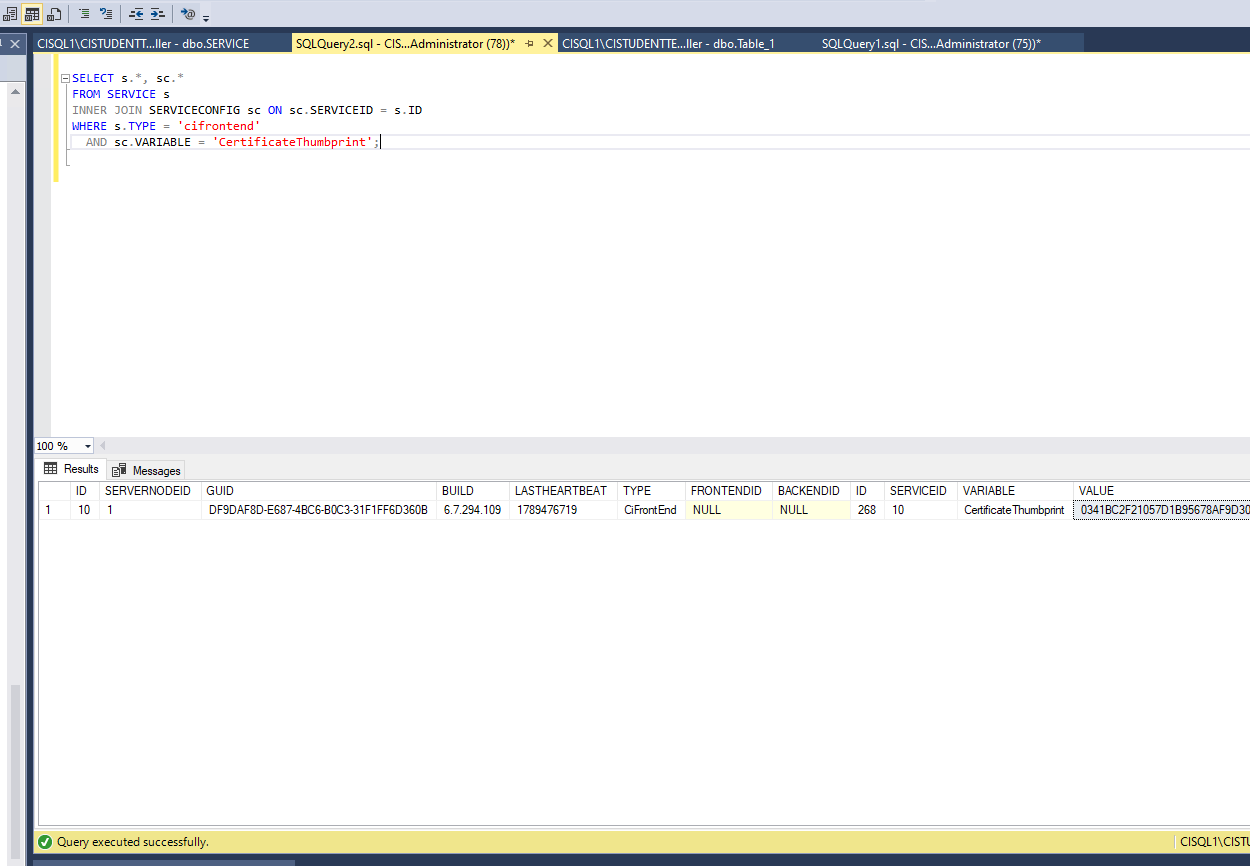
Section titled “Find the current thumbprint”The thumbprint is stored as a CertificateThumbprint variable in the SERVICECONFIG table, linked
to its service through SERVICEID. Run the query for the service type you’re checking.
SELECT s.*, sc.*FROM SERVICE sINNER JOIN SERVICECONFIG sc ON sc.SERVICEID = s.IDWHERE s.TYPE = 'cifrontend' AND sc.VARIABLE = 'CertificateThumbprint';SELECT s.*, sc.*FROM SERVICE sINNER JOIN SERVICECONFIG sc ON sc.SERVICEID = s.IDWHERE s.TYPE = 'cimdm' AND sc.VARIABLE = 'CertificateThumbprint';The VALUE column of the returned row holds the thumbprint currently configured for the service.
Update the thumbprint
Section titled “Update the thumbprint”To correct the thumbprint, update the same VALUE column. Replace <NewThumbprint> with the
thumbprint of the certificate as it appears in the Windows Personal Certificate Store, with no
spaces.
UPDATE scSET sc.VALUE = '<NewThumbprint>'FROM SERVICECONFIG scINNER JOIN SERVICE s ON sc.SERVICEID = s.IDWHERE s.TYPE = 'cifrontend' AND sc.VARIABLE = 'CertificateThumbprint';UPDATE scSET sc.VALUE = '<NewThumbprint>'FROM SERVICECONFIG scINNER JOIN SERVICE s ON sc.SERVICEID = s.IDWHERE s.TYPE = 'cimdm' AND sc.VARIABLE = 'CertificateThumbprint';Restart the service on its host server for the new thumbprint to take effect.