

Categories and Classifications
Categories and classifications are used to control which updates are applied to a given Patch Management point. Updates under categories and classifications that have not been selected will not be approved.
Categories and classifications can be selected and deselected from the child point. Deselecting a category or classification removes the updates linked to it from the groups under the child point. Some updates are linked to more than one category and can therefore still be approved if another of their categories is selected. During an upgrade, the categories and classifications shown in the old plugin are selected; on a new installation, all categories and classifications are deselected.
Categories
Section titled “Categories”A product is a specific edition of an operating system or application, for example Microsoft Windows Server. A product family is the base operating system or application from which the individual products derive — for example, Microsoft Windows, of which Windows Server is a member. You can select the products or product families for which the server synchronizes updates, either a whole product family or individual products within it. Selecting a product or product family means updates are retrieved for current and future versions of the product.
| Element | Description |
| Group | The Categories folder is found under each Patch Management group and under All updates. It contains one subfolder for each category. When you click a subfolder, its updates are shown in the content pane. |
| Tree view | The categories shown in the tree view reflect the products selected on the WSUS server in the WSUS management console. They are synchronized every 12 hours, or when you click Sync updates. |
Classifications
Section titled “Classifications”Update classifications indicate the type of the update. For a product or product family, updates can be available in multiple update classifications. For example, the Windows family can have both Critical Updates and Security Updates.
| Element | Description |
| Group | The Classification folder is found under each Patch Management group and under All updates. It contains one subfolder for each classification. When you click a subfolder, its updates are shown in the content pane. |
| Tree view | The classifications shown in the tree view reflect the classifications selected on the WSUS server in the WSUS management console. They are synchronized every 12 hours, or when you click Sync updates. |
Classification descriptions
Section titled “Classification descriptions”| Classification | Description |
| Critical updates | Broadly released fixes for specific problems addressing critical, non-security-related bugs. |
| Definition updates | Updates to virus files or other definition files. |
| Drivers | Software components designed to support new hardware. |
| Feature packs | New feature releases, usually rolled into products at the next release. |
| Security Updates | Broadly released fixes for specific products, addressing security issues. |
| Service packs | Cumulative sets of all hotfixes, security updates, critical updates, and other updates created since the release of the product. Service packs might also contain a limited number of customer-requested design changes or features. |
| Tools | Utilities or features that aid in accomplishing a task or a set of tasks. |
| Update Rollups | Cumulative sets of hotfixes, security updates, critical updates, and other updates packaged together for easy deployment. A rollup generally targets a specific area, such as security, or a specific component, such as Internet Information Services (IIS). |
| Updates | Broadly released fixes for specific problems addressing non-critical, non-security-related bugs. |
Select categories and classifications for a child point
Section titled “Select categories and classifications for a child point”Updates under categories and classifications that are not selected are not approved.
-
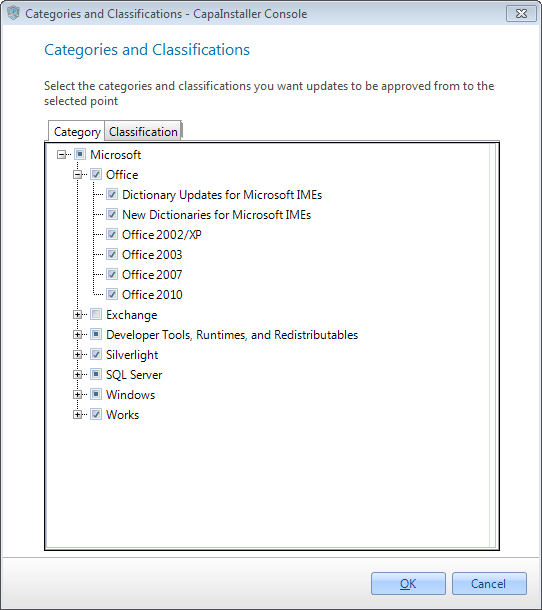
In the Patch Management tree, right-click the child point and select Categories and classifications. When you create a child point, you’re also asked whether you want to select them right away.
-
On the Category tab, select the categories to approve updates from.
-
On the Classification tab, select the classifications to approve updates from.
-
Click OK, and then confirm that you want to save the changes.
Related tasks
Section titled “Related tasks”- Customize categories and classifications - Control which categories and classifications are shown in the tree view (in the WSUS console).