

Patch Management Service settings
The CapaInstaller Patch Management Service can be altered from the System Administration Plug-in of CapaInstaller Management Solution. The service settings consist of three tabs. The Patch Management Service will run computer synchronization every 10 minutes and update synchronization every 6th hour. To force the update synchronization click Sync Updates in the Patch Management plugin.
General
This tab resembles the property page for the service found in the services of the control panel. Each of the settings available in each tab of this dialog is described below.
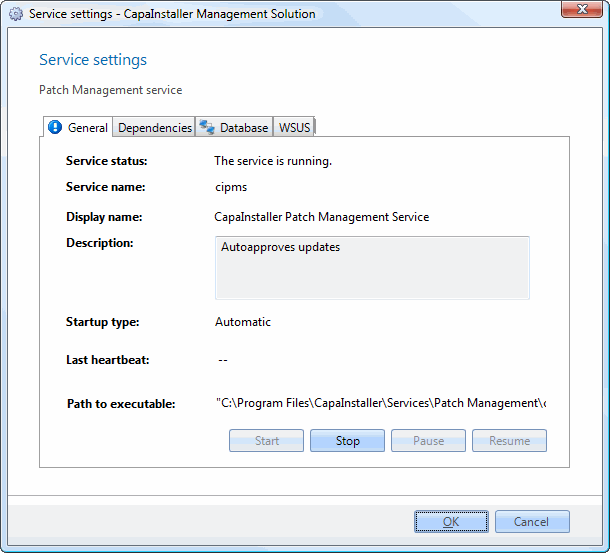
| Element | Description |
| Service status | Status of the Patch Management service. Equivalent to services in the control panel. |
| Service Name | The name of the service used by the operating system. |
| Display name | The name you will see in services in the control panel. |
| Description | Description of the service. |
| Startup type | The type of service. This can be either; automatic, manual, or disabled. The default value is automatic. |
| Last heartbeat | This is a timestamp for the last Patch Management service activity. |
| Path to executable | The full path to the program that is started by the service. |
Dependencies
On this tab, you will be able to view and set dependent services for cisync. For instance, you could require a VPN client service to run, to establish the network connection to the parent point.
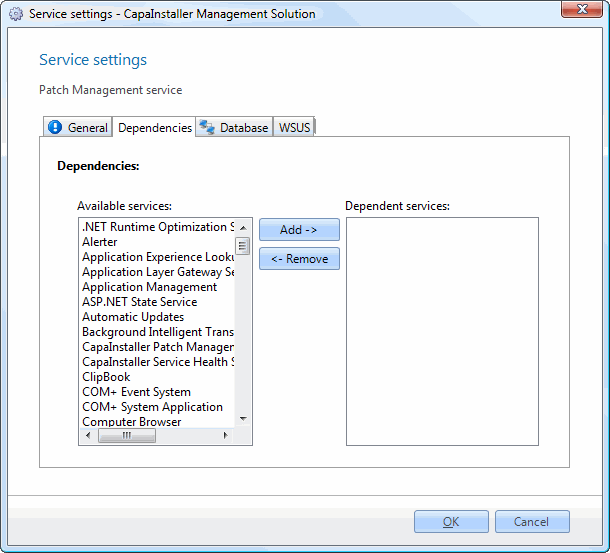
| Element | Description |
| Available services | A list of services available on the computer. |
| Add - > | Adds the selected service in ‘Available services’ to the list; ‘Dependent services. |
| < - Remove | Removes the selected service in ‘Dependent services’ and adds it to the list, ‘Available services’. |
| Dependent services | A list of services required to run for the operating system to allow the CapaInstaller Patch Management Service to start. |
Database
On the database tab, you can change the authentication method to the SQL server.
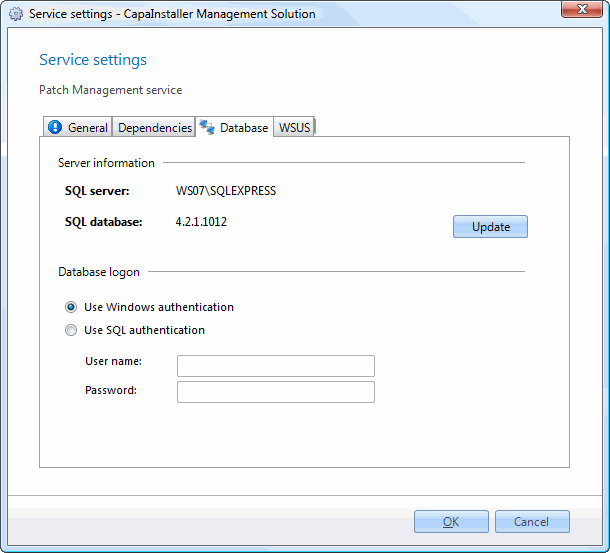
| Element | Description |
| SQL server | The SQL server that the CapaInstaller Patch Management Service connects to. |
| SQL database | The SQL database that holds the CapaInstaller Management Solution database. |
| Update | Clicking on this button the CIPMS settings.xml is updated with the correct database. |
| Use Windows authentication | Instructs CapaInstaller Patch Management Service to establish a database connection by identifying itself with the computer account. |
| Use SQL authentication | When this radio button is selected CapaInstaller Patch Management Service will connect to the database with the credentials in the user name and password fields. |
| User name | The user name used to connect to the database when SQL authentication is selected. |
| Password | The password that goes with the user name stated above. |
| Element | Description |
| OK | Clicking this button commits any changes that you may have made and closed the dialog. |
| Cancel | Cancels any changes made and closes the dialog. |
WSUS
On the database tab, you can change the authentication method to the SQL server.
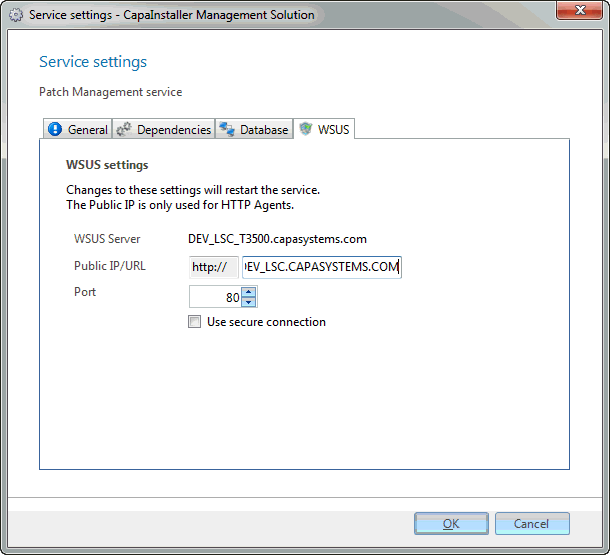
| Element | Description |
| WSUS server | The name of the WSUS server where the Patch Management service is installed. |
| Port | The port that the Patch Management service will use to communicate with the WSUS server. This port is set when the WSUS server is installed. By default, in Windows Server 2012, WSUS 4.0 uses port 8530. However, WSUS uses port 80, by default |
| Public IP/URL | IP/URL is used for HTTP agents. |
| Use secure connection | The security level that the Patch Management service will use to communicate with the WSUS server. This is set when the WSUS server is installed. |
| Element | Description |
| OK | Clicking this button commits any changes that you may have made and closes the dialog. |
| Cancel | Cancels any changes made and closes the dialog. |
Move
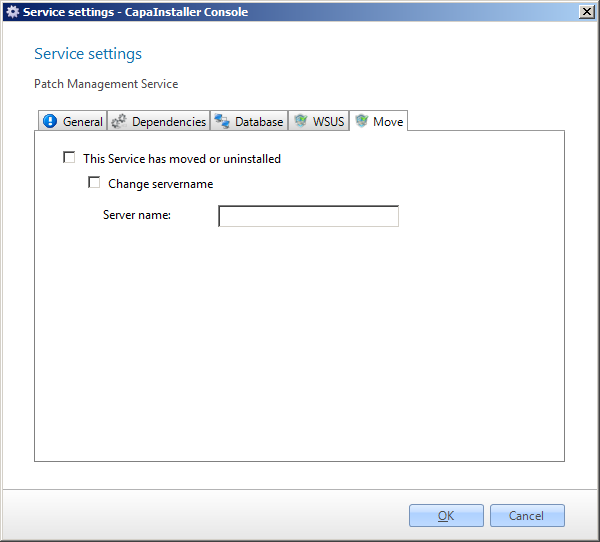
On this tab, you can indicate that the service has been moved. This will have the service check if each point and Groups exist on the Wsus Server. If they do not exist, the service til re-create them.
After that the update approval status from the database will be synchronized to the Wsus Server.
If the Service has been moved to another server, change the server name.
| Element | Description |
| OK | Clicking this button commits any changes that you may have made and closed the dialog. |
| Cancel | Cancels any changes made and closes the dialog. |
Right-click on the patch management services brings the following possibilities:
| Element | Description |
| Deploy Patch Management Service | Install a Patch Management Service. |
Right-click on the patch management service brings the following possibilities:
| Element | Description |
| Remove Patch Management Service | This will delete the Service with or without the log files. |