

Changelog advanced search
Changelog Advanced search is used to specify the changelog search more specifically. You can search for a specific user name within a specific time frame.
| Step | Action |
| 1 | To open Changelog Advanced Search, click on the Advanced search button  |
| 2 | The Changelog Advanced Search looks like below. In all the text fields, you must insert the wildcard yourself. Wildcard can be * or %. * With full-text index enabled, you can only insert wildcard at the end of the word. 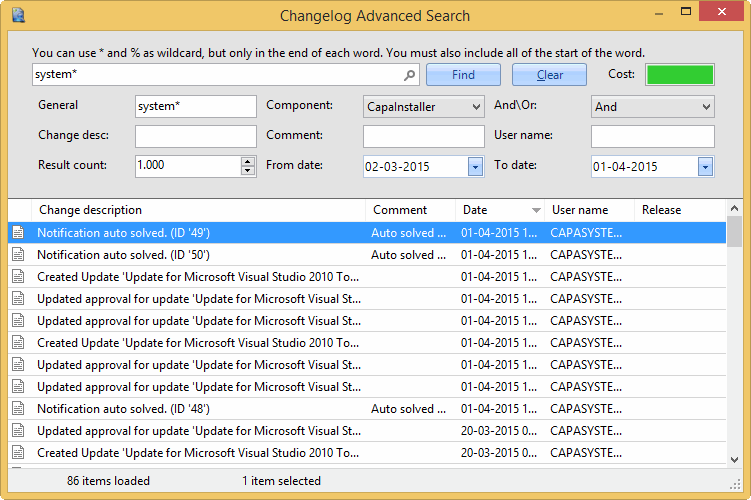 |
This is the advanced search panel
Section titled “This is the advanced search panel”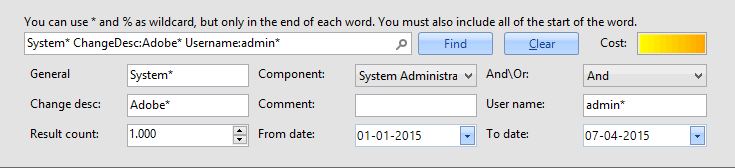
| Element | Description |
| Cost | Cost tries to visualize how long time the current changelog search will take. The color goes from green, yellow, orange to dark red. Limit the changelog search cost by selecting a low result count and selecting a narrow from and to date. |
| General | Enter your search string here, to search in both change description, comment, and user name at the same time. If the search string is found in just one of the columns, the row is returned. |
| Component | Select which components changelog you want to search in. It could be CapaInstaller, Setup Wizard, or Configuration Management |
| And\Or | If you select And, the string in change desc, comment, and user name must exist in the database record, for the record to be returned. If you select Or, just one of the string must be found. |
| Change desc | Enter your search string here, to the only search in change description |
| Comment | Enter your search string here, to the only search in comment |
| User name | Enter your search string here, to the only search in user name |
| Result count | Select the number of rows returned from the search result. A lower number of rows is faster to load |
| From and to date | Select a from and to date, to narrow down the number of changelog records in the search result. If no from or to date is selected, all the changelog records will be returned. |