

Updating with an expired license
License expired
Section titled “License expired”You can’t update your system if your service and support agreement has expired.
Find the expiration date in your Service and Support Agreement contract, or under Help → About in the CapaInstaller Console.
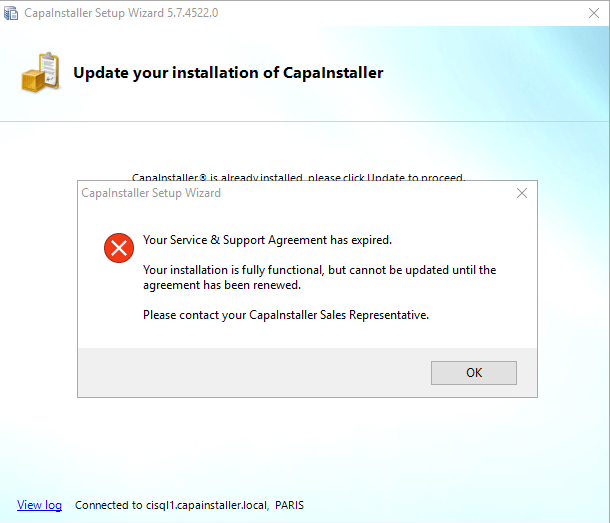
If you try to update with an expired license, you get a message informing you to contact CapaSystems A/S to renew the license.
Update the license
Section titled “Update the license”- Dismiss the message by clicking OK.
- Select Update License.
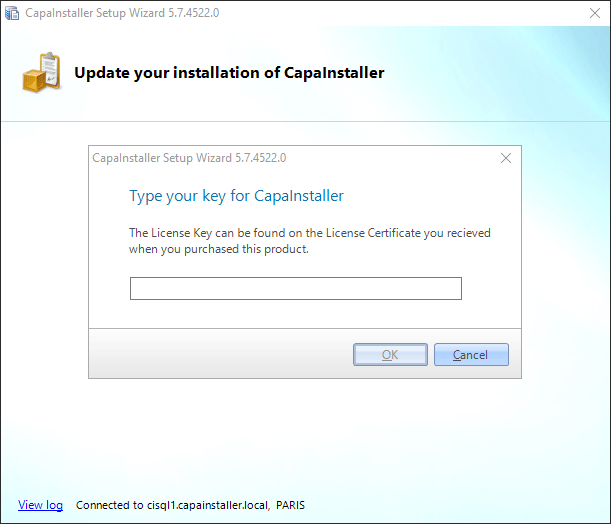
- Enter the newly acquired license key and continue.
If you don’t have a new license key
Section titled “If you don’t have a new license key”If CapaInstaller shows the license expired message and you don’t have a new license key to enter:
- Confirm that your organization’s Service and Support agreement is active or has been renewed.
- If the agreement is active but you haven’t received a new license key, the key usually hasn’t been issued on your account yet.
- Contact CapaSystems Support with your organization name and account email address, and ask for a new license key.
- Once you receive the key by email, enter it as described in Update the license.
For more on changing your license from the CapaInstaller Console menu, see Change license.