

Global Security Configuration
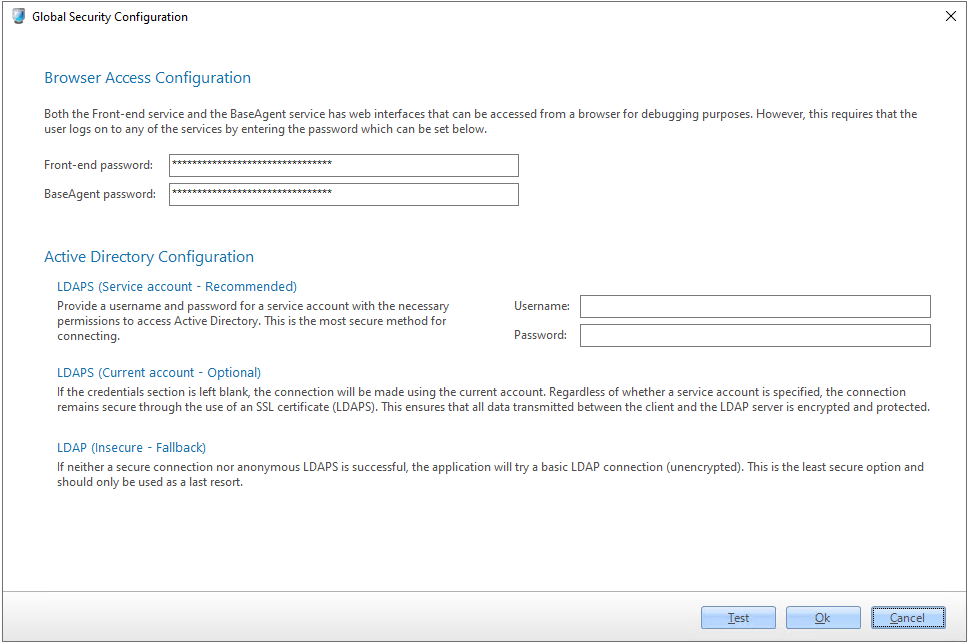
The Global Security Configuration dialog sets the passwords for the Front-end and BaseAgent web interfaces, and how CapaInstaller communicates with Active Directory (AD).
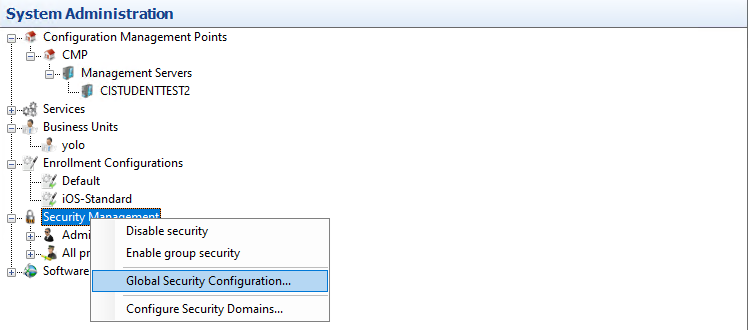
To open the dialog, go to System Administration, right-click Security Management, and select Global Security Configuration….
Browser Access Configuration
Section titled “Browser Access Configuration”The Front-end service and the BaseAgent service both have a web interface for troubleshooting. To open either web interface in a browser, the user must enter its password.
- In Front-end password, enter the password for the Front-end web interface.
- In BaseAgent password, enter the password for the BaseAgent web interface on port 7778.
- Click Ok.
You don’t need the old password to set a new one. This is useful if you don’t know the current password, for example because a former administrator set it.
Active Directory Configuration
Section titled “Active Directory Configuration”This section sets up how CapaInstaller communicates with AD using LDAP.
LDAPS (Service account - Recommended)
Section titled “LDAPS (Service account - Recommended)”This is the most secure method for connecting to Active Directory. It uses LDAP over SSL (LDAPS) and requires a service account with the necessary permissions.
- Username: Enter the username of the service account in the format
[email protected]ordomain.com\username - Password: Enter the password for the service account.
Using this method ensures that all data transmitted between the client and the LDAP server is encrypted and protected. This is the recommended option for most environments.
LDAPS (Current account - Optional)
Section titled “LDAPS (Current account - Optional)”If the credentials section is left blank, the connection will be made using the current account. This method also ensures a secure connection through the use of an SSL certificate (LDAPS).
- Username: Leave this field blank if you want to use the current logged-in account.
- Password: Leave this field blank if you want to use the current logged-in account.
This option can be useful if the current account already has the necessary permissions and you prefer not to use a separate service account.
LDAP (Insecure - Fallback)
Section titled “LDAP (Insecure - Fallback)”If neither LDAPS option is successful, CapaInstaller tries a basic LDAP connection, which is unencrypted.
Warning: This is the least secure option and should only be used as a last resort. It is not recommended for production environments due to the lack of encryption, which could expose sensitive information.
Configure Active Directory
Section titled “Configure Active Directory”- Enter credentials: If you use the LDAPS (Service account - Recommended) option, enter the service account’s user name and password.
- Test the connection: Click Test to verify that the application can successfully connect to Active Directory using the provided configuration.
- Save the configuration: When the connection test is successful, click Ok to save the configuration. If you wish to discard changes, click Cancel.
Example
Section titled “Example”For a secure connection using a service account:
- Username:
[email protected](ordomain.com\serviceaccount) - Password: (Enter the password for the service account)
Additional notes
Section titled “Additional notes”- Always prefer the LDAPS (Service account - Recommended) method for enhanced security.
- Regularly update the service account password and keep it secure.
- Ensure that the service account has the necessary permissions in Active Directory to perform required operations.
Troubleshooting
Section titled “Troubleshooting”- Connection Failed: If the connection test fails, check the username and password. Ensure that the service account has the correct permissions and that the AD server is reachable.
- SSL issues: If you use LDAPS, ensure that the SSL certificate is correctly installed and trusted by the client machine.
- Firewall: LDAPS uses port 636 and LDAP uses port 389 on the domain controllers. Make sure that these ports are open from the computers that run the CapaInstaller Console and services.