

Check application group license
Application group licenses can be used to validate licenses per department and get an overall status on registered and used licenses.
| Step | Action |
| 1 | Choose the Reporting and Queries plugin. |
| 2 | Click on Software in the toolbar  |
| 3 | Right-click on the Application groups treenode 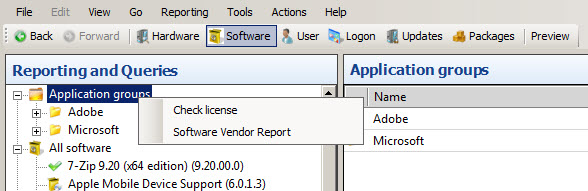 |
| 4 | ClickCheck license and this view is displayed 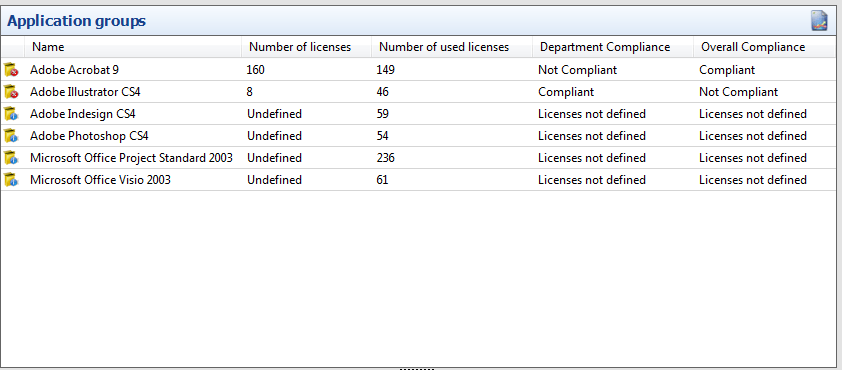 |
The compliance check is based on the specifications in Options for Reporting and Queries (Reporting and Queries options)
| Department Compliance | |
| Compliant | All departments have the number of licenses required. |
| Not Compliant | One or more of the departments is using more licenses than registered. |
| Licenses not defined | Licenses have not been entered for any departments. |
| Overall Compliance | |
| Compliant | The number of registered licenses is higher then the used licenses. |
| Not Compliant warning | The number of registered licenses is between zero and the warning number. |
| Not Compliant | More licenses are used, than the number of registered licenses. |
| Licenses not defined | Licenses have not been entered. |
| If you want to… | You can… |
| Work with application groups | Work with application groups |
| Create a new application group | Create an application group to see how. |
| Work with an application group license | Work with application group license to see how. |
| Set software license warning | Reporting and Queries options |
| Process Software Group | Process Software Group |