

OS Deployment Service
In here you will find specifications as well as requirements and design of the CapaInstaller OS Deployment Service.
Requirements
Section titled “Requirements”- The OS Deployment service exposes the same boot interface that ciBoot does for Bios Boot
- The OS Deployment service supports UEFI boot support with the new OS Client
Design
Section titled “Design”- The OS Deployment Service is a Windows Service that can run on both x64 and x86 processors.
- The service requires .NET Framework 4 to be installed.
- The service is installed from the CapaInstaller console by the ‘System’ plugin.
- The service is installed in C:\Program Files\CapaInstaller\Services\ciOSDeploy
- One logfiles are written in C:\Program Files\CapaInstaller\Logs\Services during execution; ciOSD
Command Line Interface
Section titled “Command Line Interface”The service retrieves its configuration from the SQL server but can take different command-line arguments. As the BackEnd Server is a windows service, any arguments must be supplied to either the net.exe command or the sc.exe command.
Parameter syntax
Section titled “Parameter syntax”sc [\\computer] start ciosdeploy [/debug|/d] [/noupdate|/n] [/refresh|r] [/xmlfile|/x]| Parameter | Meaning |
|---|---|
| /debug or /d | Run the service in debug mode. |
| /noupdate or /n | Skips the update of CiBack-end from the database |
| /refresh or /r=## | The rate in seconds used for updating the service settings from the database. |
| /xmlfile or /x | Specify the service to use a different configuration XML file, primarily meant for debugging purposes. |
Examples
Section titled “Examples”sc \\Serverstart ciosdeploy /dStart the service on the server; backend01 in debug mode
sc start ciosdeploy /refresh=10Start the service and use using a 10 seconds refresh rate.
OS Deployment Service General information
Section titled “OS Deployment Service General information”General information and status for the service…
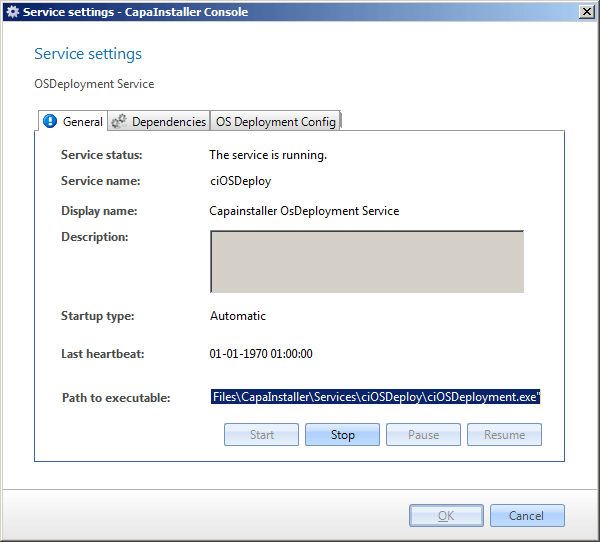
| Element | Description |
|---|---|
| Service status | Status of the Service. Equivalent to services in the control panel. |
| Service Name | The name of the service used by the operating system. |
| Display name | The name you will see in services in the control panel. |
| Description | Description of the service. |
| Startup type | The type of service. This can be either; automatic, manual, or disabled. The default value is automatic. |
| Last heartbeat | This is a timestamp for the last synchronization activity. |
| Path to executable | The full path to the program that is started by the service. |
Database Configuration
Section titled “Database Configuration”Database configuration…
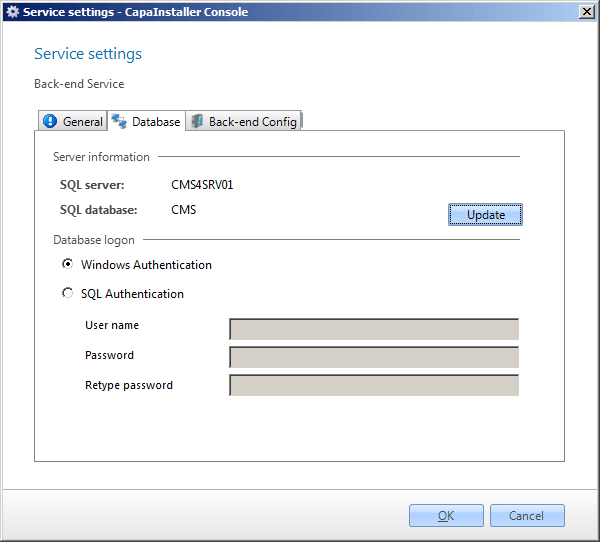
| Element | Description |
|---|---|
| SQL server | The SQL server that the Data Connection Service connects to. |
| SQL database | The SQL database that holds the CapaInstaller Management Solution database. |
| Update | Clicking on this button the CIDal settings.xml is updated with the correct database. |
| Use Windows authentication | Instructs Data Connection Service to establish a database connection by identifying itself with the computer account. |
| Use SQL authentication | When this radio button is selected, the Data Connection Service will connect to the database with the credentials in the user name and password fields. |
| User name | The user name used to connect to the database when SQL authentication is selected. |
| Password | The password that goes with the user name stated above. |