

How to install Outlook App on an iOS device and configure Outlook using AppConfig
This article describes how to install the MS Outlook App and use AppConfig to setup Outlook for the linked user. It will setup email, calendar and contacts (not to the local contacts app. It very system- and device-dependent and will be a subject for another article).
- Prerequisites :
An iOS device and an active AD user with Exchange / Office 365 email linked to the device.
Test user: [email protected]
Exchange server: ciexchange1.capainstaller.com (on premise)
- The Appconfig keys to be used:
The AppConfig keys used to configure MS Outlook are shown in the table below. It is the minimum set of keys that can be used to configure the Outlook app. The “$Email$” and “$LoginName$” means that the linked user’s email and login name will be used (like $user in Windows).
| Key | Type | Value |
|---|---|---|
| com.microsoft.outlook.EmailProfile.EmailAccountName | String | Name $LoginName$ |
| com.microsoft.outlook.EmailProfile.EmailAddress | String | $Email$ |
| com.microsoft.outlook.EmailProfile.ServerHostName | String | Exchange server / office365 |
| com.microsoft.outlook.EmailProfile.EmailUPN | String | $Email$ |
| com.microsoft.outlook.Contacts.LocalSyncEnabled | Boolean | True / (False) |
- How to install the Outlook app with Appconfig for iOS:
| Step | To do |
|---|---|
| 1 | Go into your Configuration Management Point |
| 2 | Expand your point, expand “Application and Packages”, and right-click “Device Applications”, and click “Create application”. 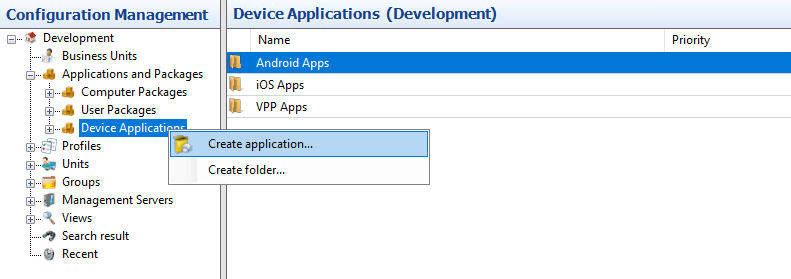 |
| 3 | First, click on App Store for iOS. Share for “outlook”, and click on the outlook application. When you have done that, add AppConfig for iOS. 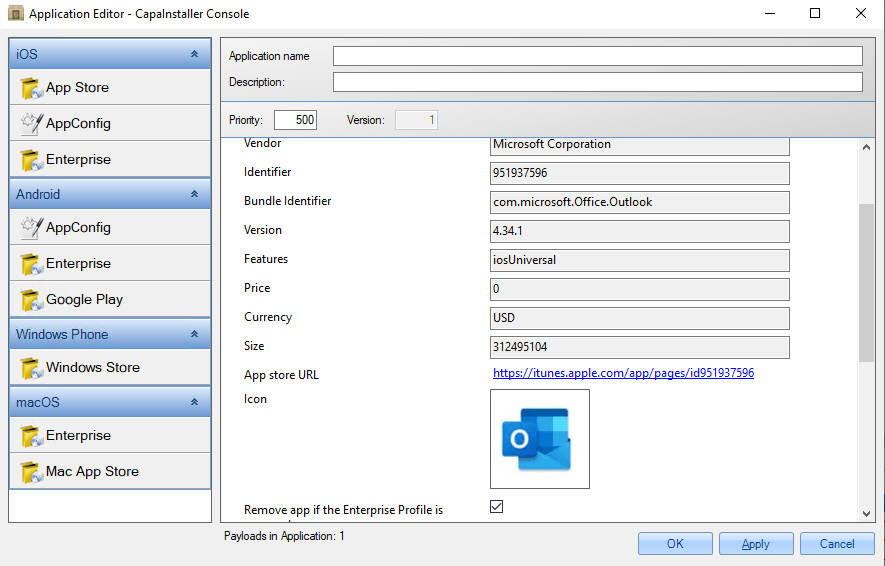 |
- The Appconfig keys and values visual:
| Step | To do |
|---|---|
| 1 | Click “Create Key/Value”. Paste the AppConfig keys, select type “String” and type the value. Do this for all 4 keys. 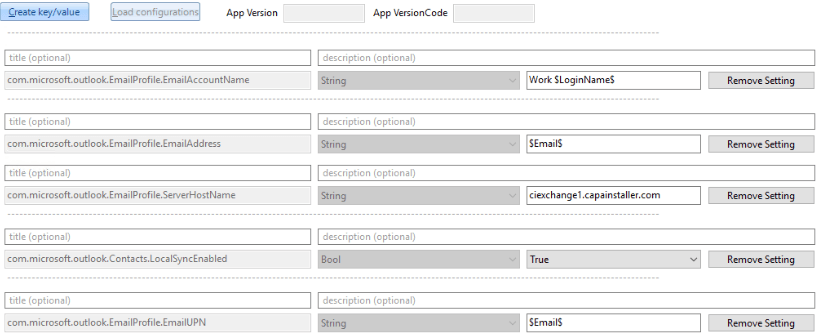 |
- Link the profile to device
| Step | To do |
|---|---|
| 1 | Link the profile to the device and wait for Outlook to be installed on the device. After the app has been installed, the keys and values are applied.  |
-
Installation and setup on device
A popup on the device will appear and ask you to install the Outlook app (if it is a VPP App on a supervised device, Outlook will be installed without prompting). After be app has been installed, click on the icon to start the setup wizard.
| Step | To do |
|---|---|
| 1 | In the Outlook Setup Wizard: On 1 Account Found, check that the email is correct. Then click Add Account 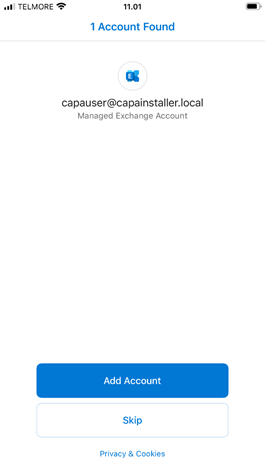 |
| 2 | Type the password and click on Sign In: 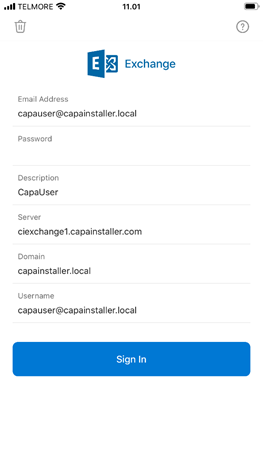 |
| 3 | A popup will appear to allow the Outlook app to access the Contact app. Click OK to allow access. 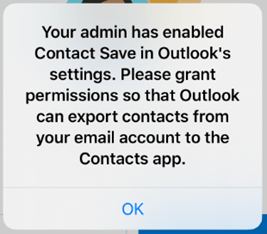 |
| 4 | Click on Maybe Later to complete Outlook setup: 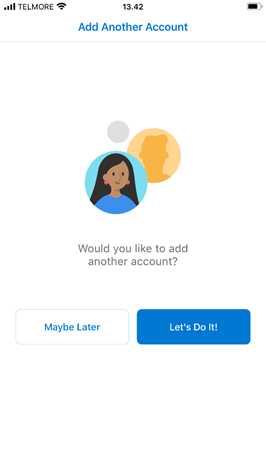 |
| 5 | Click OK to allow Outlook to access contacts. 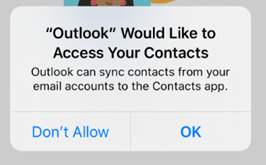 |
| 6 | Click Turn On to enable notifications. 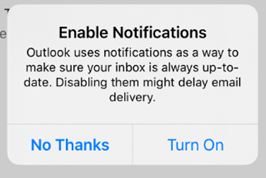 |
| 7 | Click on Allow to get notifications: 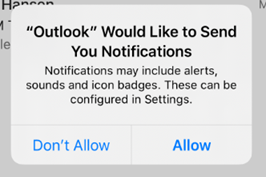 |
| 8 | Outlook app is now synchronized with inbox, contacts, and calendar. Ready for use. 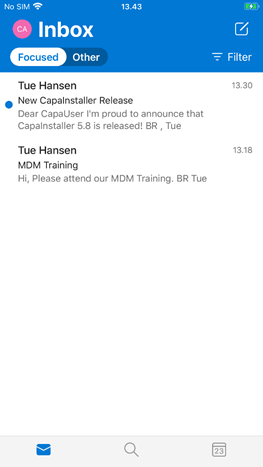 |