

How to Add a NIC Driver to boot.wim for PXE Boot Failures
Overview
Section titled “Overview”When PXE booting a device into CapaInstaller, the process may fail because the WinPE boot image (boot.wim) does not include the NIC driver for that hardware model. This article explains how to inject the correct NIC driver into the boot image and redistribute it to all OSD servers.
For the standard console procedure without troubleshooting context, see How to add NIC to boot.wim.
Prerequisites
Section titled “Prerequisites”- Access to CapaInstaller Console with OS Deployment permissions.
- The correct NIC driver package extracted on the CapaInstaller server. The extracted folder must contain an
.inffile — do not use a.exeinstaller directly. - Windows Assessment and Deployment Kit (Windows ADK) and the Windows PE add-on installed on the CapaInstaller server. Both components must be the same version.
Step-by-Step Instructions
Section titled “Step-by-Step Instructions”1. Download and extract the NIC driver
Section titled “1. Download and extract the NIC driver”Obtain the NIC driver for your hardware model from the manufacturer’s support site. Extract the package to a local folder on the CapaInstaller server. Confirm the extracted folder contains an .inf file — this is what WinPE requires. Do not point to the .exe directly.
The following vendor WinPE driver pack pages are a good starting point:
- Dell: Dell Command Deploy WinPE Driver Packs
- HP: HP WinPE Driver Pack
- Lenovo: SCCM Package for Windows PE 11/10 64-bit (ThinkPad)
Alternative — pre-placing drivers on the server: If you have a large number of drivers to inject, you can place them directly into the following folder on the CapaInstaller server before running the Create Boot File wizard:
<OSD POINT>\MediaMaster\Kit\uefi\amd64\driverAny drivers placed in this folder will be picked up automatically during the boot image build, without needing to add them individually through the Additional Drivers step in the wizard.
2. Open the Create Boot File wizard
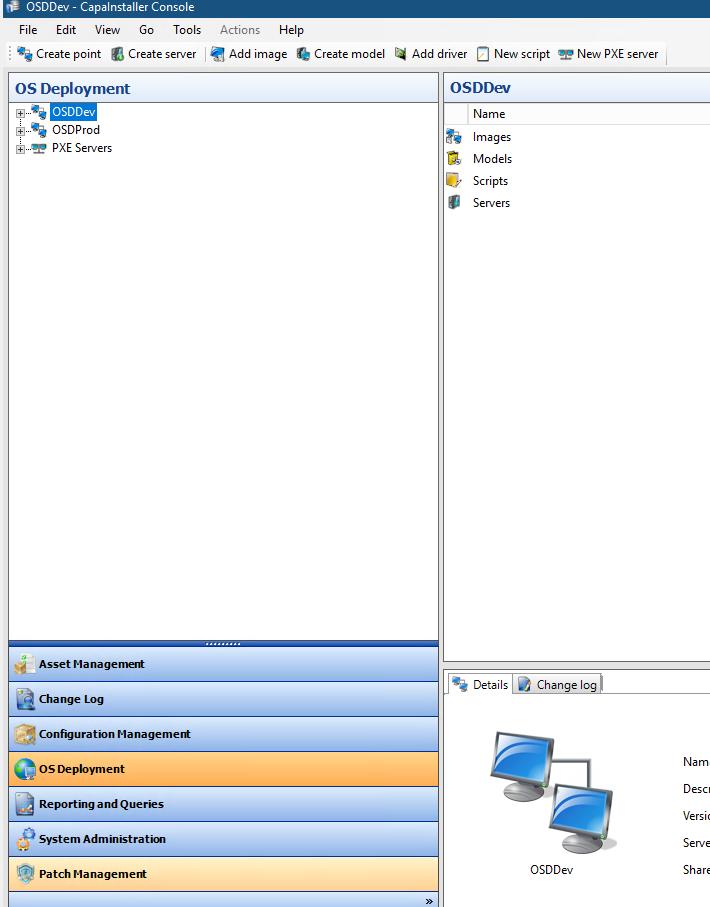
Section titled “2. Open the Create Boot File wizard”In CapaInstaller Console, navigate to OS Deployment in the left panel.
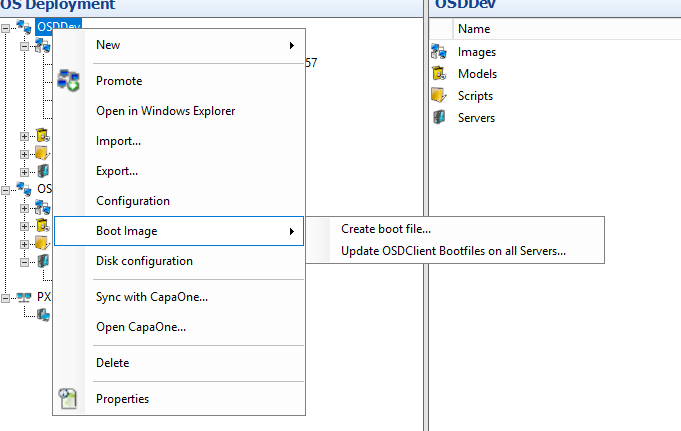
Right-click your OSD point (e.g., OSDDev or OSDProd) and select Boot Image → Create boot file…
3. Configure the WinPE settings
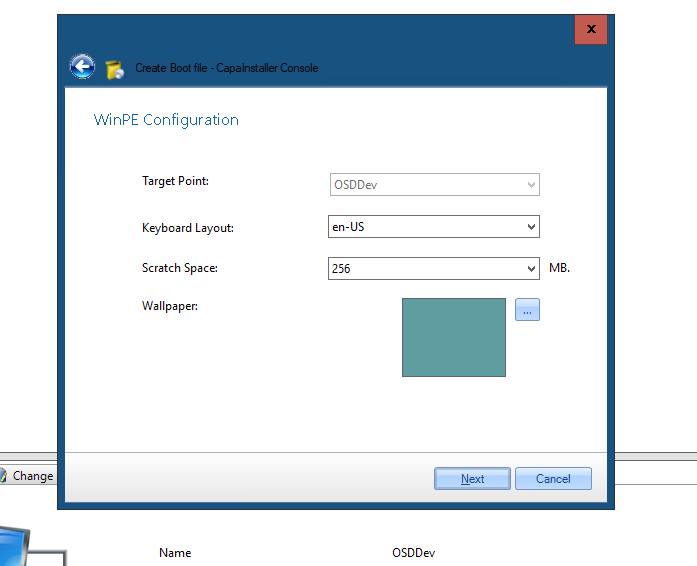
Section titled “3. Configure the WinPE settings”On the WinPE Configuration screen, set the following:
- Target Point: Select your deployment point (e.g.,
OSDDev). - Keyboard Layout: Select the layout used in your environment (e.g.,
en-US). - Scratch Space:
256MB is a safe default. - Wallpaper: Optional — leave blank or select an image.
Click Next to continue.
When prompted for architecture, select Create Boot Image for 64-bit UEFI systems unless your environment requires 32-bit.
4. Inject the NIC driver
Section titled “4. Inject the NIC driver”On the Additional Drivers step, click Add… and browse to the folder containing the extracted .inf driver file. Confirm the driver appears in the driver list before proceeding.
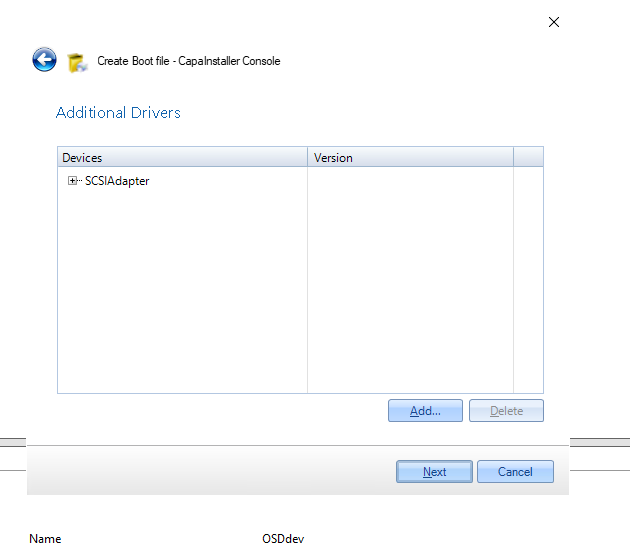
Click Next to begin the build.
5. Build the boot image and update all OSD servers
Section titled “5. Build the boot image and update all OSD servers”Wait for the build to complete. When the wizard reports that the boot image build is complete, click Update servers to push the new boot.wim to all configured OSD/PXE servers immediately.
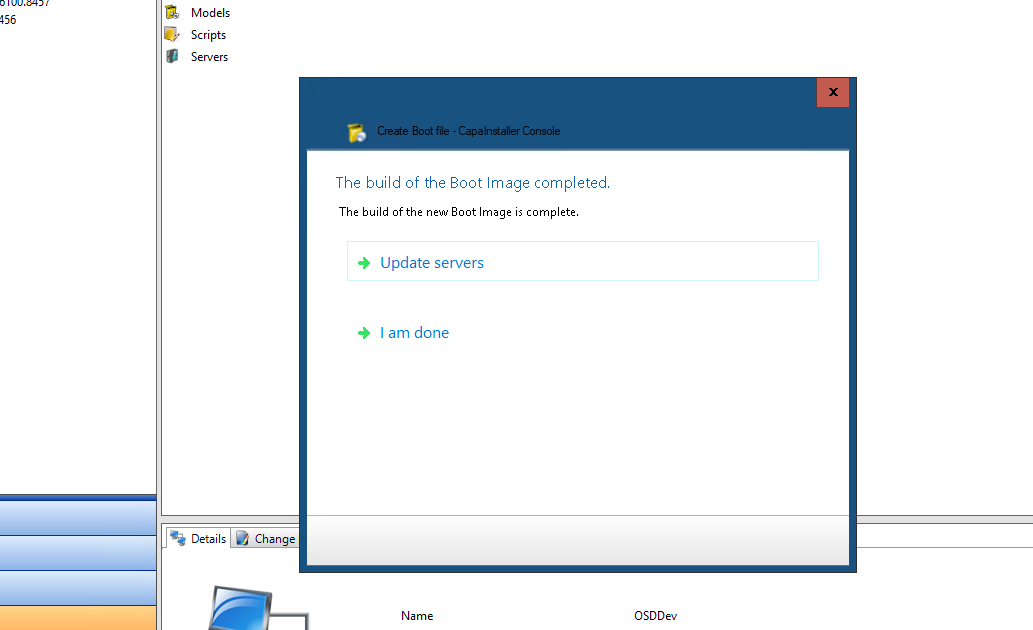
Alternatively, you can trigger this later by right-clicking the OSD point → Boot Image → Update OSDClient Bootfiles on all Servers… → Yes.
6. Test PXE boot
Section titled “6. Test PXE boot”Attempt a PXE boot on the affected device. It should now acquire a network connection in WinPE and proceed with the CapaInstaller OSD workflow.
Troubleshooting
Section titled “Troubleshooting”-
PXE boot still fails after injecting the driver: The most likely cause is that the wrong driver version was used, or the driver was not correctly added during the wizard (e.g., the
.exewas selected instead of the extracted folder containing.inf). Re-run the wizard, verify the driver appears in the Additional Drivers list, and rebuild. It may be necessary to rebuild and redeploy more than once. -
ADK version mismatch: Verify that both the Windows ADK and the Windows PE add-on installed on the CapaInstaller server are the same version. A mismatch can prevent drivers from loading correctly in WinPE. Uninstall both, restart the server, then reinstall matching versions before rebuilding the boot image.