

How to Update the Android Agent - Google Play Works
If you want to keep the Android Agent updated on your devices linked to an Android Enterprise, you can create a Google Play Work App of the CapaInstaller Agent and link it to your devices.
When a newer version is uploaded to Play Store, all linked devices will automatically be updated by the Play Store.
Step-by-step guide
Section titled “Step-by-step guide”This guide describes how to create the app in the MDM Portal and the CapaInstaller Console.
| Update Android Agent | |
|---|---|
| Open MDM Portal | Browse to https://mdm.capaone.com/ and login |
| Open Manage Applications | Select Applications in the menu and click “Manage Applications” |
| Search in Play Store | Search for CapaInstaller Agent in Play Store 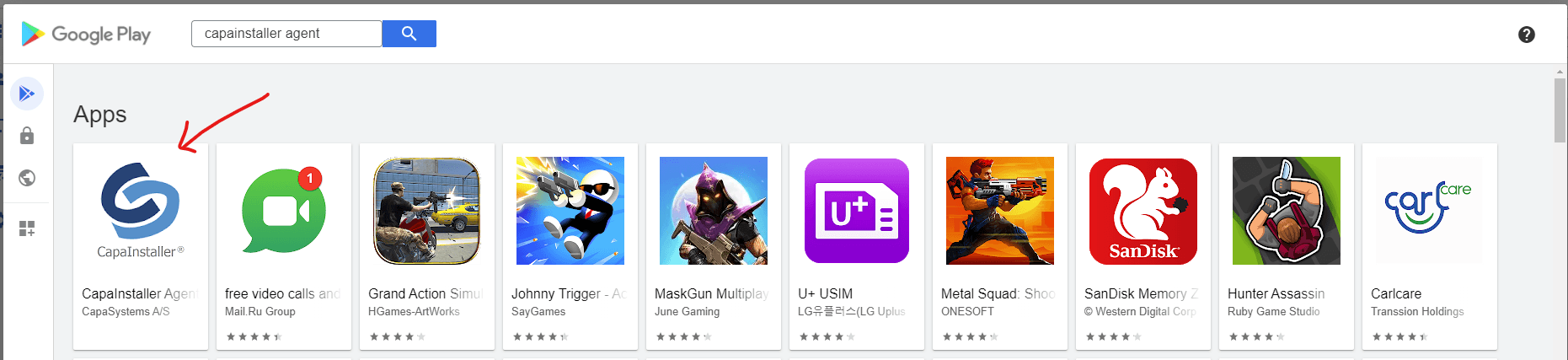 |
| Select app | Click Select on CapaInstaller Agent 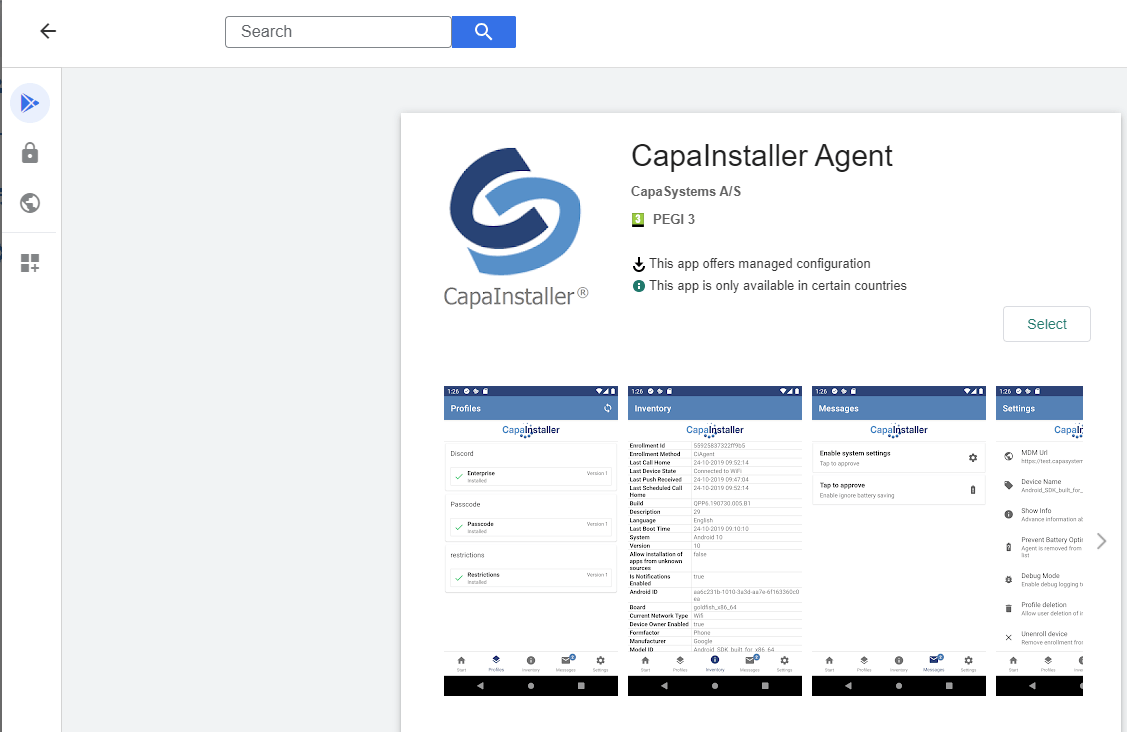 |
| Click Confirm | Click Confirm and wait for the app to be created 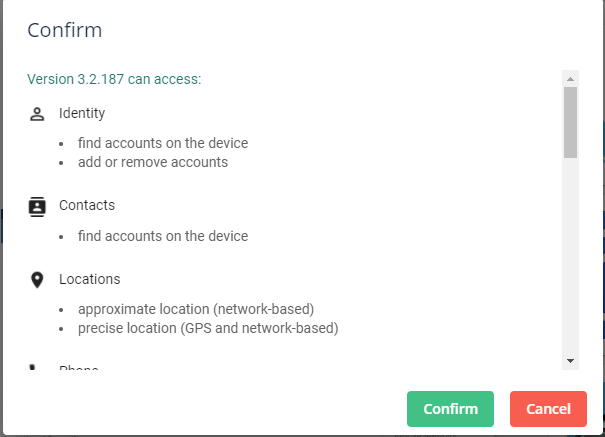 |
| Check app is created | CapaInstaller Agent is created and is in the list of approved apps  |
| Create a device app | Open the CapaInstaller Console and go to Configuration Management Module Open Applications and Packages Right Click on Device Applications and select Create Application Select Android → Google Play Work in Application Editor 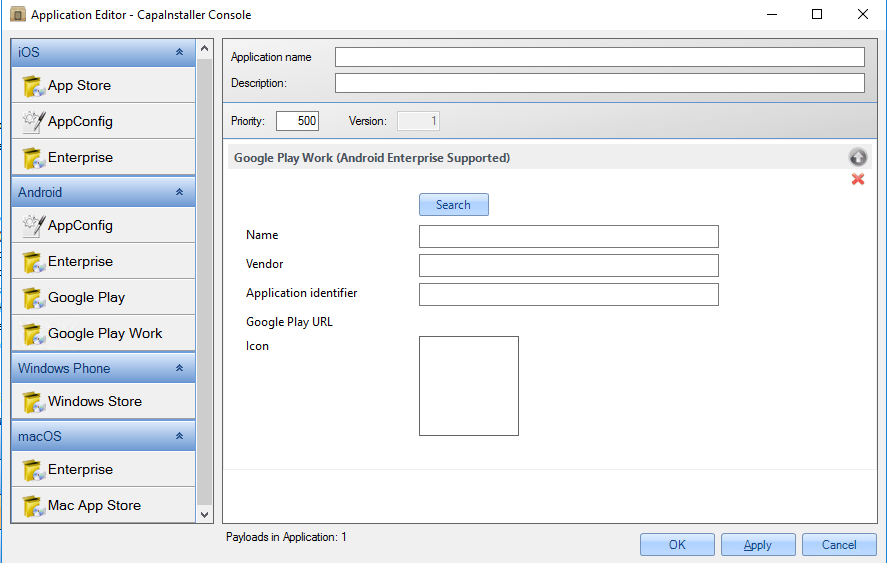 |
| Search for CapaInstaller Agent | Click twice and scroll down to locate CapaInstaller Agent Mark it and click OK 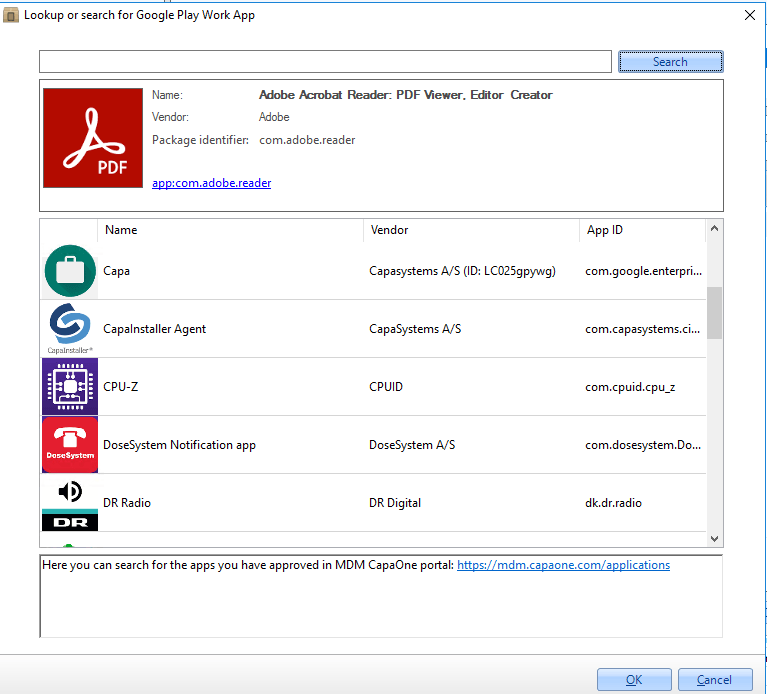 |
| Name the App | Type an Application name and click ok 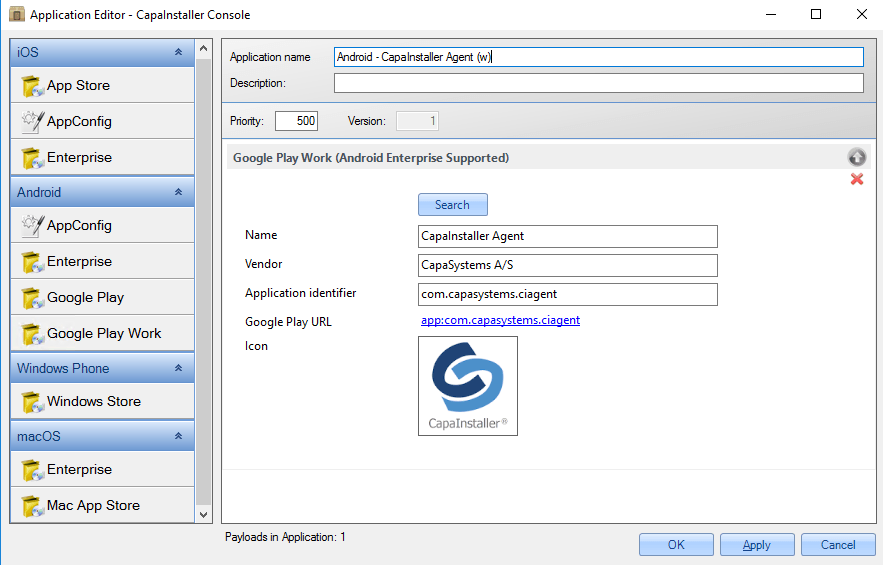 |
| Link app to the device(s) | Add App to buffer and link to the device(s) Play Store will install the app and keep it updated |