

Windows Endpoint Details
Each Windows endpoint has its own page with everything CapaOne knows about it. To open it, go to Windows → Endpoints → List and click the endpoint’s name.
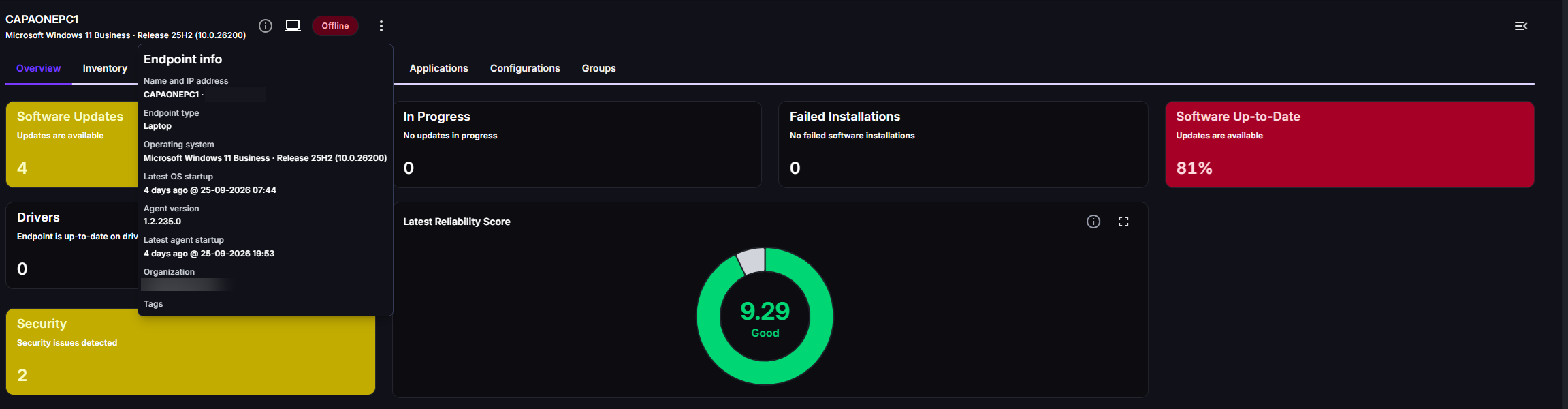
Header
Section titled “Header”The header shows the endpoint name, its operating system and version, the device type, and the agent status. Select the Endpoint info icon to see:
- Name and IP address
- Endpoint type and operating system
- Latest OS startup and latest agent startup
- Agent version
- Organization and tags
The actions menu (⋮) and the command log are also in the header. See Send Requests to a Windows Endpoint.
Some tabs require a specific feature. If your organization doesn’t have the feature, the tab either isn’t shown or shows a short introduction to the feature instead.
| Tab | What it shows | Requires |
|---|---|---|
| Overview | Summary cards for application patching, drivers, security, and the reliability score. | Cards follow the features you have. |
| Inventory | Software, hardware, drivers, and users collected by the agent. | — |
| Experience | The endpoint’s Reliability score and Event Log. See Reliability. | Experience Monitor |
| Security | The endpoint’s security summary, vulnerable software, and CVEs. See Endpoint Security. | Security Monitor |
| Privileges | Elevations on this endpoint. See Elevation Analytics. | Privilege Manager |
| Drivers | Installed drivers and available driver updates. See Update Drivers on Windows Endpoints. | Provision Manager |
| Applications | Company Apps, Scripts, and Repository Apps for this endpoint. A red badge means that at least one patch failed. | Application Manager |
| Configurations | The Windows configurations assigned to the endpoint. | Privilege Manager or Provision Manager |
| Groups | The groups the endpoint belongs to. | — |
Inventory
Section titled “Inventory”The Inventory tab has four sub-tabs: Software, Hardware, Drivers, and Users. Each sub-tab shows when the data was collected.
- Software lists installed programs with their name, publisher, version, language, platform, install date, size, user account, upgrade code, product code, package identifier, and type.
- Hardware lists hardware components, such as memory, drives, display adapters, and the Trusted Platform Module.
- Drivers lists installed drivers.
- Users lists the name and user principal name of the active users. Only active users are shown.
If no data has been collected, the tab offers Scan software now or Scan hardware now. The button is unavailable while the endpoint is offline.
Configurations
Section titled “Configurations”The Configurations tab lists each configuration that’s assigned to the endpoint, how it’s assigned, and whether it’s applied:
- Assigned Directly, Assigned via Group, or Assigned via group and directly.
- A configuration that’s assigned but not applied has been overruled, for example by a configuration with a higher priority. See Configuration Priority.
To change assignments, see Windows Configurations.
Groups
Section titled “Groups”The Groups tab lists the groups the endpoint is a member of. You can add the endpoint to more groups or remove it from a group here. Click a group to open it. See Managing Groups.