

Apple VPP License Tracking
Apps purchased through Apple’s Volume Purchase Program (VPP) via Apple Business Manager require a license for each device or user they are assigned to. CapaOne tracks these licenses automatically and displays the current allocation under Apple → VPP Licenses.
How VPP licenses work
Section titled “How VPP licenses work”When you purchase app licenses in Apple Business Manager, they sync to CapaOne automatically. You do not add licenses manually in CapaOne — the counts update after each sync with Apple.
When you assign a VPP app to a group or endpoint in Apple → Applications, CapaOne automatically allocates a license from the available pool. When a device is removed from an assignment, the license is returned to the available pool and can be reused.
CapaOne releases the license as soon as the app is no longer assigned to the device. The device doesn’t need to be online or check in first. When you delete, wipe, or unenroll a device, CapaOne releases all of its licenses. Apple can take a few minutes to process a release before the counts update.
Reading the license list
Section titled “Reading the license list”Each row shows:
- Name — the app name and its bundle ID (the unique Apple identifier, e.g.,
com.adobe.Adobe-Reader) - Available — licenses that are purchased but not yet assigned to any device
- Assigned / Total — how many of the total purchased licenses are currently in use
For example, 9 / 1000 means 1000 licenses were purchased and 9 are currently assigned, leaving
991 available.
Apple gives most free apps an unlimited number of licenses. For these apps, Available and
Total show Unlimited, so 8 / Unlimited means the app is assigned to 8 devices and can be
assigned to as many more as you need.
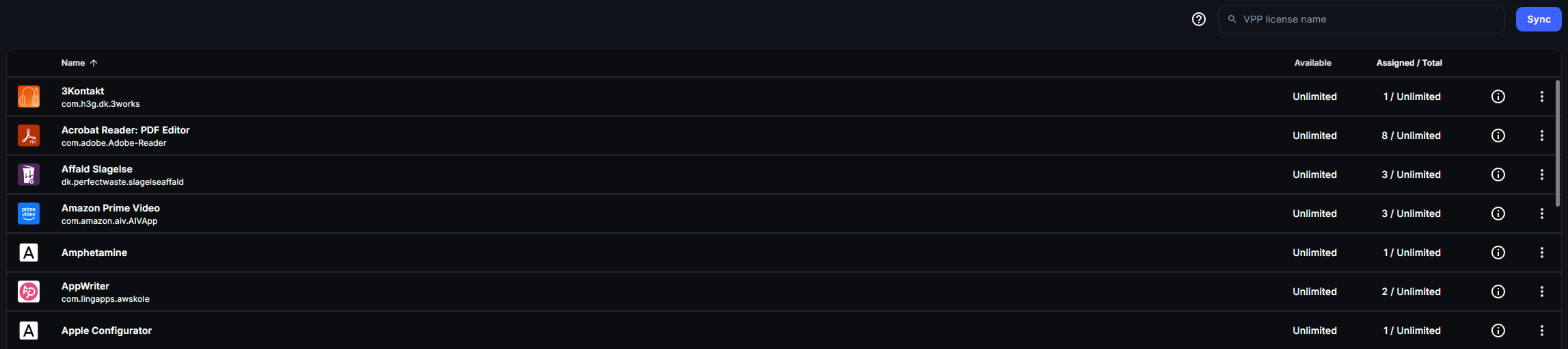
Click an app’s name to open VPP Assignments, which lists the devices that use a license for the app, with their name and serial number. The header shows how many licenses are in use, and how many of them are held by serial numbers with no endpoint in CapaOne.
To fetch the latest license counts from Apple Business Manager right away, select Sync next to the search field.
Release a license from a device that isn’t in CapaOne
Section titled “Release a license from a device that isn’t in CapaOne”A serial number can hold a license even though no endpoint in CapaOne has that serial number. For example, the endpoint was deleted, or the device is enrolled in another MDM that shares the same Apple Business Manager or Apple School Manager account. These rows have no Name in VPP Assignments. CapaOne can’t release these licenses automatically.
- Go to Apple → VPP Licenses and click the app’s name.
- In VPP Assignments, find the serial number and click Release License.
- In Release VPP License?, click Release License.
The button shows Releasing… until Apple has processed the release. The serial number then disappears from the list and the license is available again.
When licenses run out
Section titled “When licenses run out”This applies to apps with a limited number of licenses, usually paid apps. Apps that show Unlimited never run out.
If Available reaches 0, CapaOne cannot assign the app to additional devices. Attempts to expand the assignment will fail until more licenses are purchased.
To get more licenses, purchase them in Apple Business Manager. They will appear in CapaOne after the next sync.
Good to know
Section titled “Good to know”- License reclamation is automatic — when a device is deleted, wiped, or unenrolled, or an app assignment is removed, the license is freed without any manual action.
- Purchased but unassigned licenses are visible in the list with an Assigned count of 0 — they are ready to use but have not yet been deployed.
- Bundle IDs are useful for troubleshooting app conflicts or identifying apps when display names are ambiguous.
- VPP licenses are per-organization — if you manage multiple organizations in CapaOne, each has its own VPP token and license pool.