

Set Up Google Sign-in
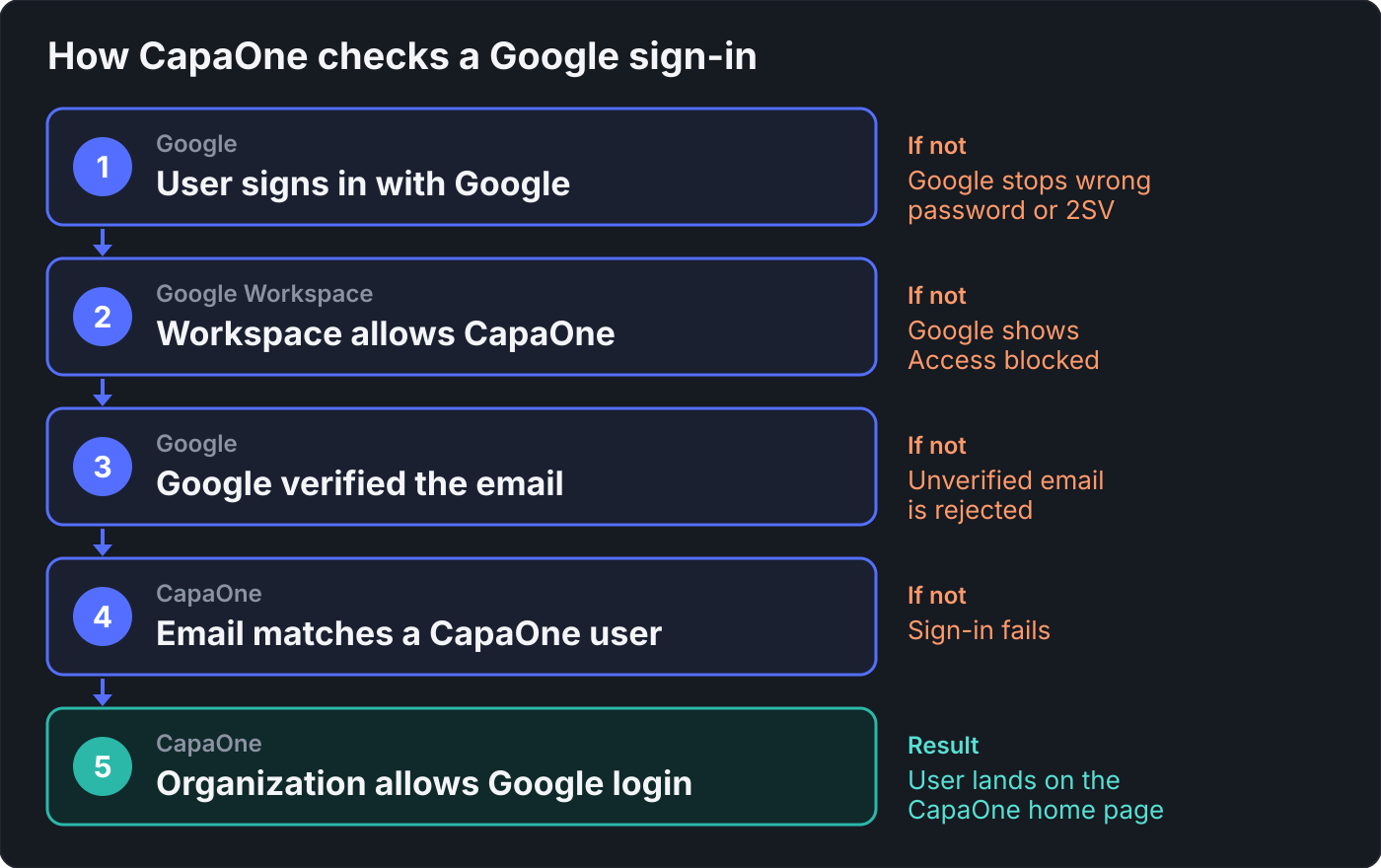
With Sign in with Google, users sign in to CapaOne with a Google account. Google handles the password and 2-Step Verification. CapaOne then matches the account’s email address to a CapaOne user.
The user doesn’t need Gmail or Google Workspace. Any Google account works, as long as its email
address is the same as the user’s CapaOne email address. CapaOne asks Google only for the user’s
basic sign-in information and email address (openid and email). It can’t read Gmail, Drive, or
other Google data.
Turn on Google sign-in in CapaOne
Section titled “Turn on Google sign-in in CapaOne”- Open Users & Organization. See Accessing account administration inside CapaOne.
- Click Edit on the organization, and select the Security tab.
- Select Allow Google login.
- Click Save Changes, and confirm the change in the Confirm Login Security Changes dialog.
CapaOne now accepts Google sign-ins for the organization. Users who sign in with a CapaOne password can keep doing so. See Manage Sign-in Methods.
Choose the type of Google account
Section titled “Choose the type of Google account”| Your organization’s email | Google account to use | Setup in Google |
|---|---|---|
| Runs on Google Workspace | The user’s Google Workspace account | Usually none. See Allow CapaOne in Google Workspace if your organization restricts third-party apps |
| Runs elsewhere, for example Microsoft 365 | A Google account the user creates with their work email address | Each user creates the account once. See Create a Google account with a work email address |
| Is a Gmail address | The user’s Gmail account | None |
Create a Google account with a work email address
Section titled “Create a Google account with a work email address”If your organization doesn’t use Google Workspace, each user can create a free Google account with their existing work email address. No Gmail address is created, and no administrator is involved.
- Go to https://accounts.google.com/signup, or click Create account on a Google sign-in page.
- Select the option for personal use.
- Enter your name and the other basic information.
- On the step where Google suggests a Gmail address, click Use your existing email.
- Enter your work email address, the same one as your CapaOne account, and click Next.
- Enter the verification code that Google sends to your work email, and click Next.
- Follow the instructions to create a password and finish the setup.
The Google account now uses your work email address. You can use it with Sign in with Google in CapaOne. Google verifies the email address in step 6, which CapaOne requires.
Allow CapaOne in Google Workspace
Section titled “Allow CapaOne in Google Workspace”This section only applies to Google Workspace accounts.
By default, Google Workspace lets users sign in to third-party apps that request only basic sign-in information. CapaOne requests only that, so most organizations don’t need to change anything.
If your organization blocks unconfigured third-party apps, or has blocked CapaOne, Google shows users an Access blocked message. To allow CapaOne, you need a super administrator account, or an administrator role with the Security settings privilege:
-
Sign in to the Google Admin console.
-
Go to Security → Access and data control → API controls.
-
Under App access control, click Manage Third-Party App Access.
-
Click Configure new app, and search by OAuth client ID.
-
Enter this client ID, and then select the app for
capaone.com:273149112726-f4brjg372jl9tsvkfhgj8k59iouaf0t2.apps.googleusercontent.com -
Select the scope: the whole organization, or the organizational units that use CapaOne.
-
Select the access level. Limited is enough, because CapaOne doesn’t access Google services. You can also select Trusted.
-
Click Configure or Finish.
CapaOne appears under Configured apps. Changes usually apply within minutes but can take up to 24 hours. To limit who can sign in, configure CapaOne as blocked for the organizational units that shouldn’t use it. See Control which third-party & internal apps access Google Workspace data.
Test Google sign-in
Section titled “Test Google sign-in”After the user has a Google account with the right email address, test with one user before you tell everyone.
-
Sign out of CapaOne.
-
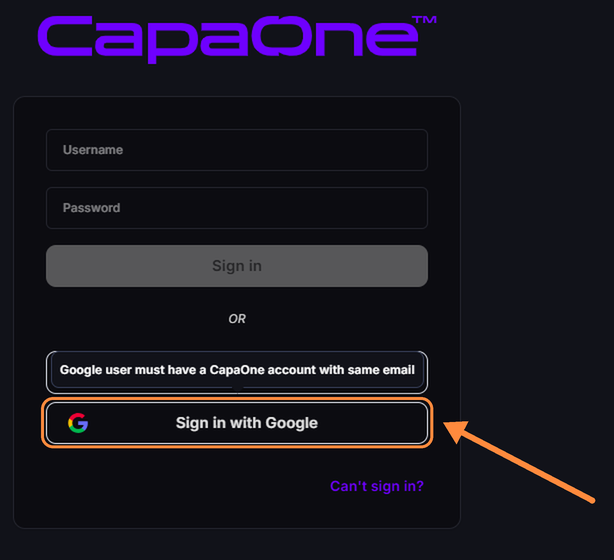
On the sign-in page, click Sign in with Google.
-
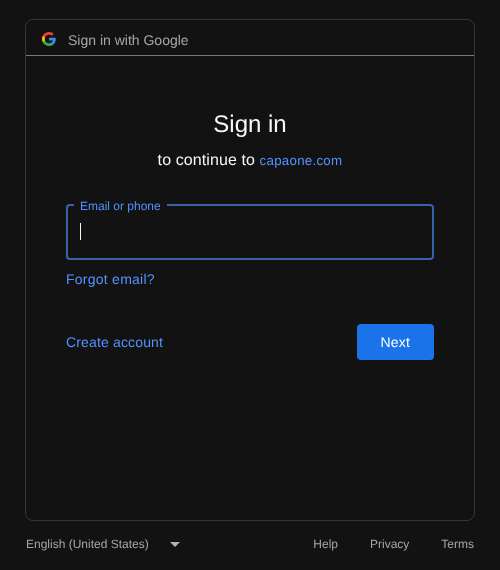
On the Google page, which says to continue to capaone.com, choose or enter your Google account and complete the sign-in.
You land on the CapaOne home page. If the browser is already signed in to Google, Google might use that account without asking. To use another account, sign out of Google first or select Use another account on the Google page.
Troubleshoot Google sign-in
Section titled “Troubleshoot Google sign-in”| What the user sees | Cause | Fix |
|---|---|---|
| Google shows Access blocked and says the administrator hasn’t allowed the app | Google Workspace blocks CapaOne or all unconfigured apps | Allow CapaOne in Google Workspace |
| Google says the email address is already in use when you create an account | A Google account with that address already exists | Sign in with that account, or recover its password |
| CapaOne shows “Wrong username, password or login method not allowed.” | Allow Google login is off for the organization | Turn on Google sign-in in CapaOne |
| No CapaOne user has the Google account’s email address | Compare the Google account’s primary email address with the CapaOne user’s email address. An alias doesn’t match | |
| The browser signed in with a different Google account | Sign out of Google, or choose the right account | |
| Google hasn’t verified the email address of the account | Confirm the email address in the Google account settings |