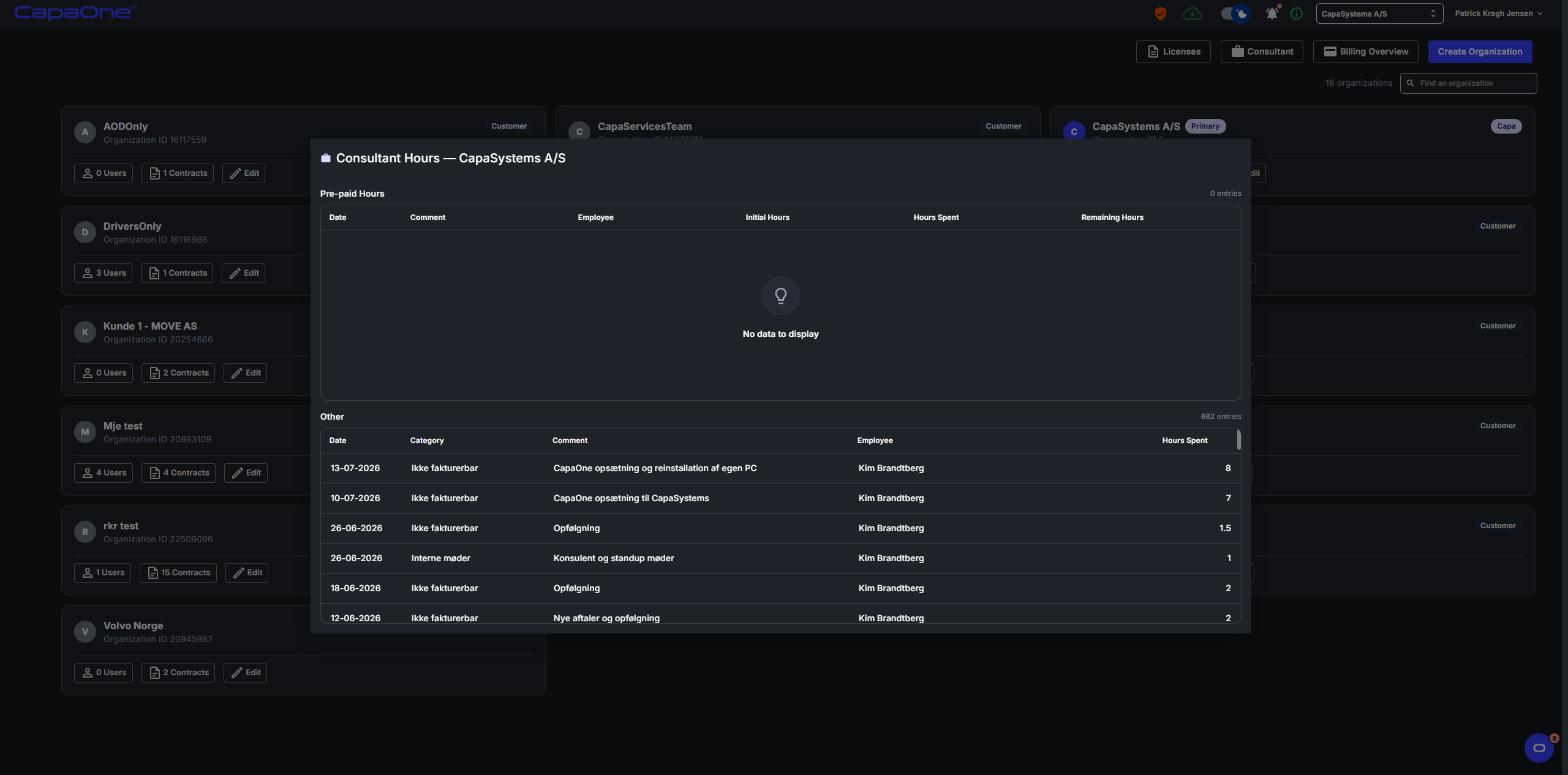
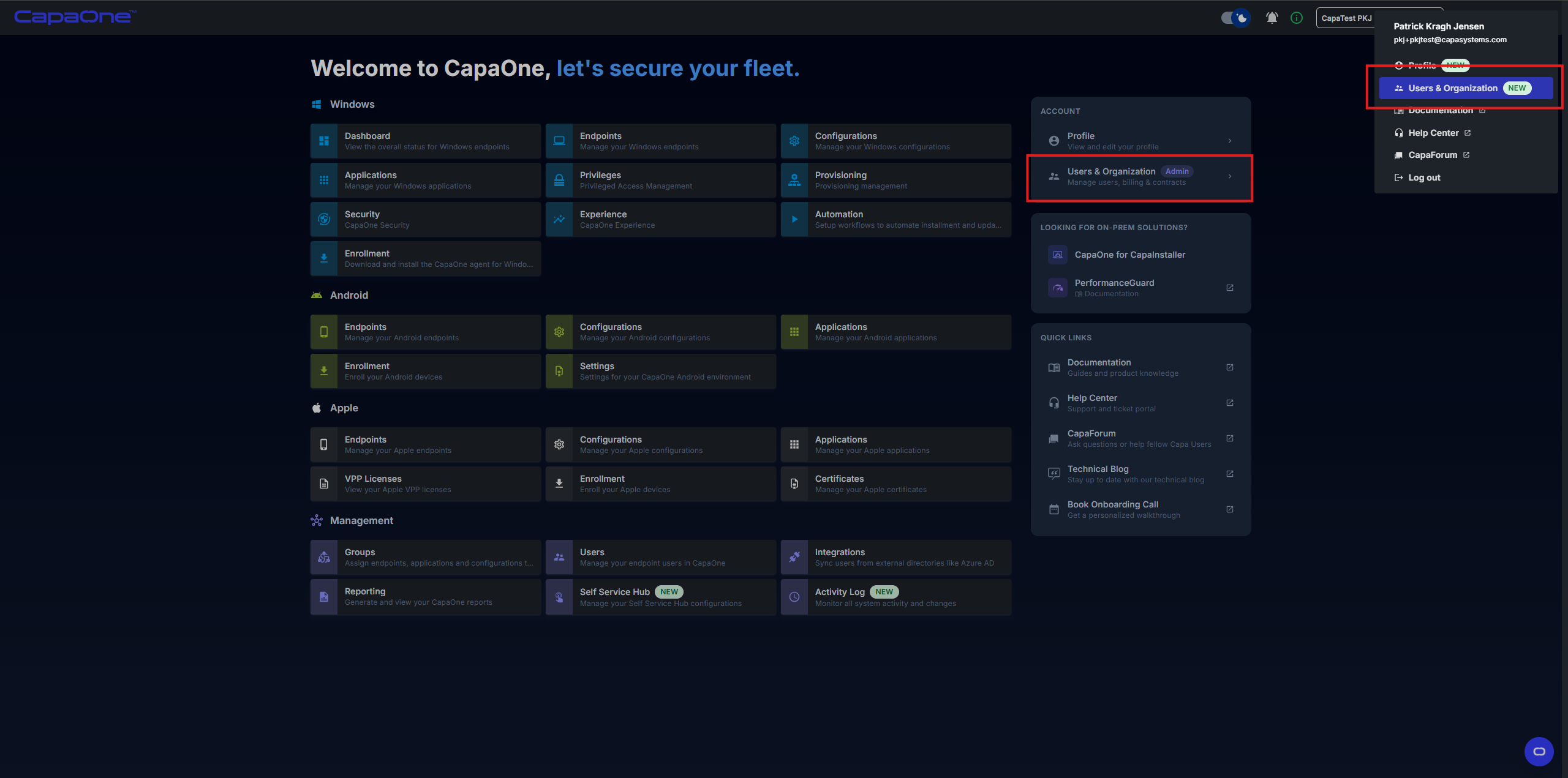
Create organizations and manage users, billing, licenses & contracts
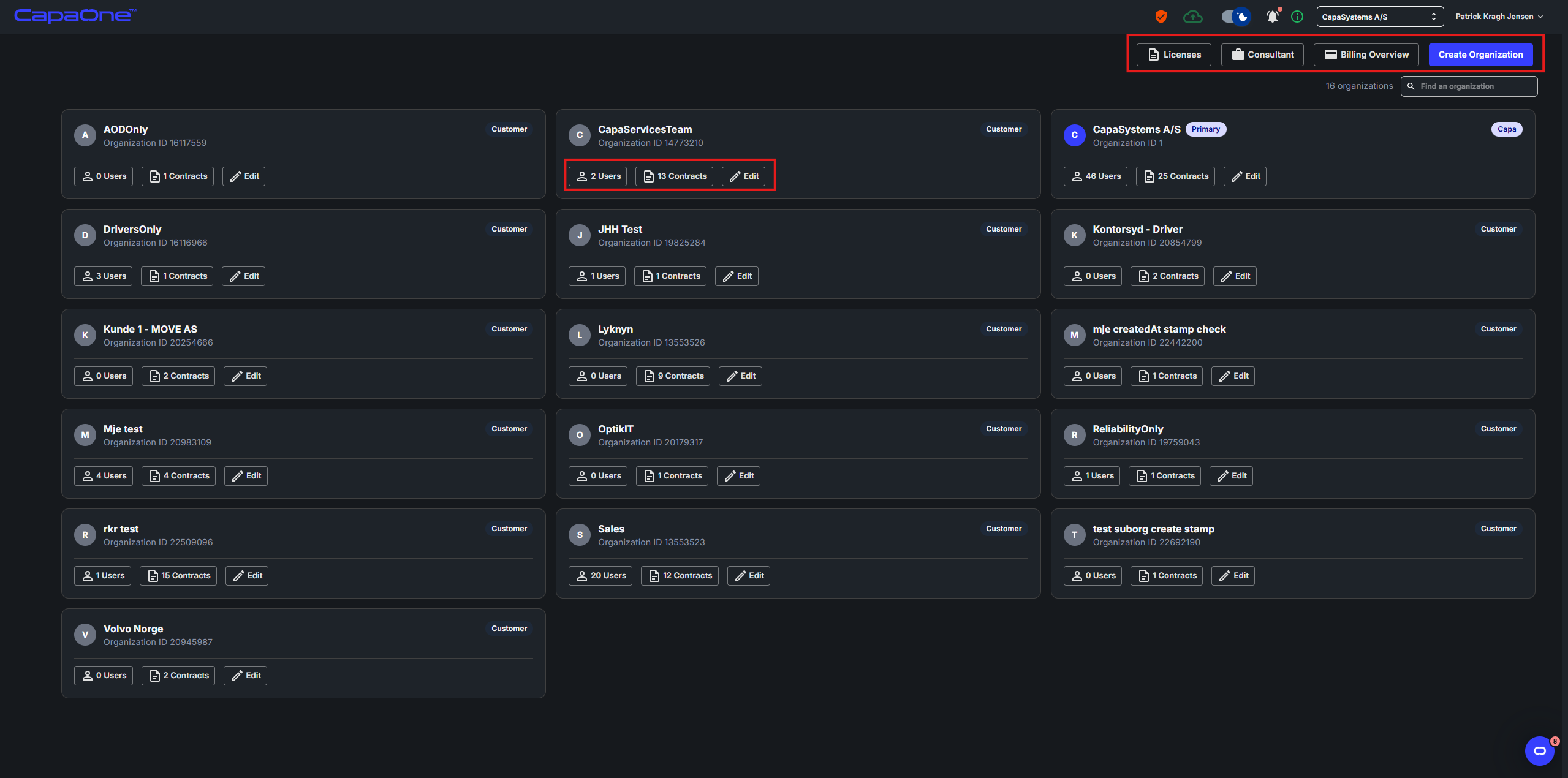
Users & Organization gives you a full overview of your organizations and everything attached to them — users, contracts, licenses, and billing. The main view lists all organizations along with quick-access actions for each.
Organizations
Section titled “Organizations”Create a sub-organization
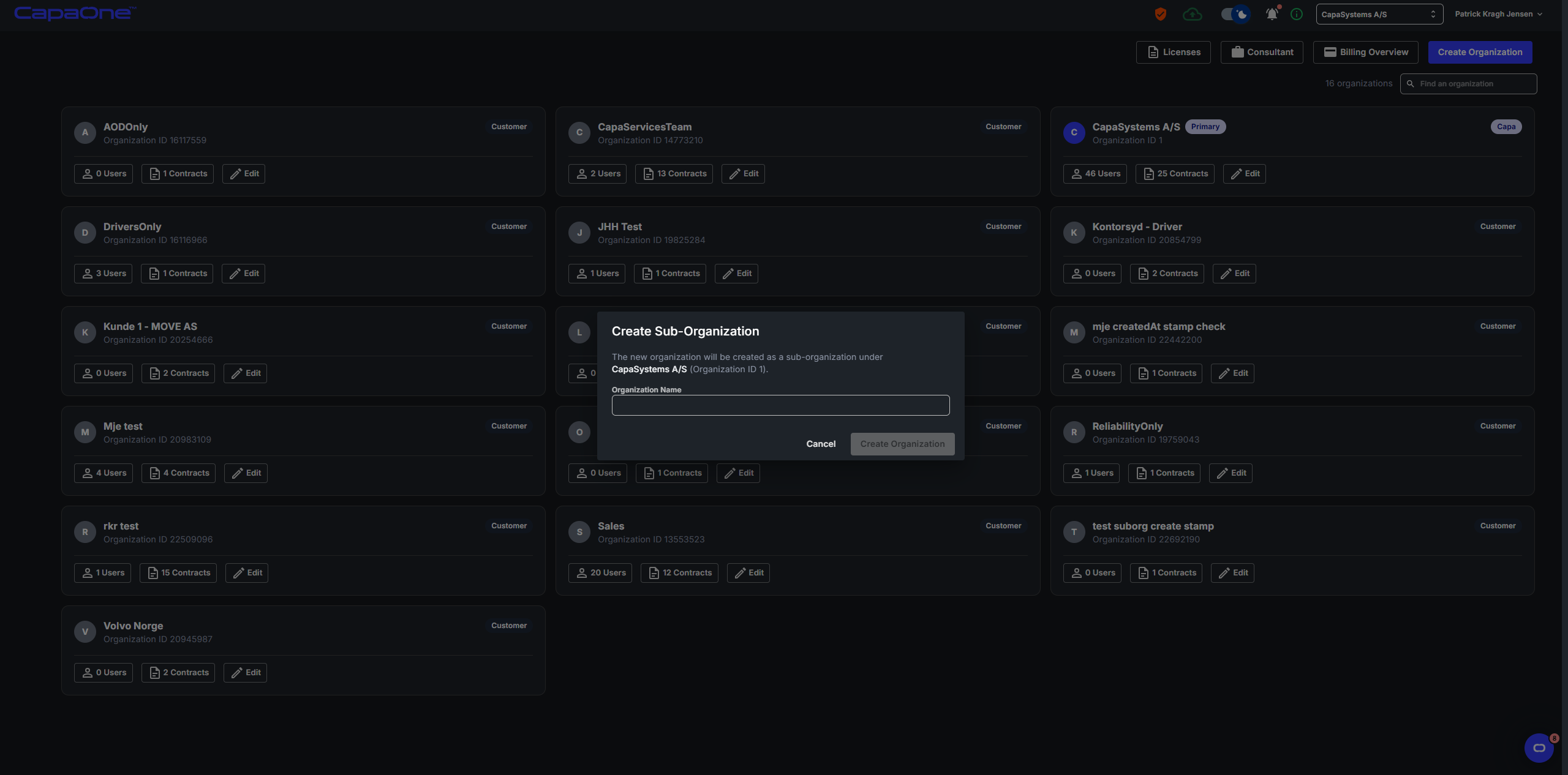
Section titled “Create a sub-organization”Click Create Organization in the top-right corner to create a new sub-organization under your primary organization. Give it a name and click Create Organization to confirm.
Edit an organization
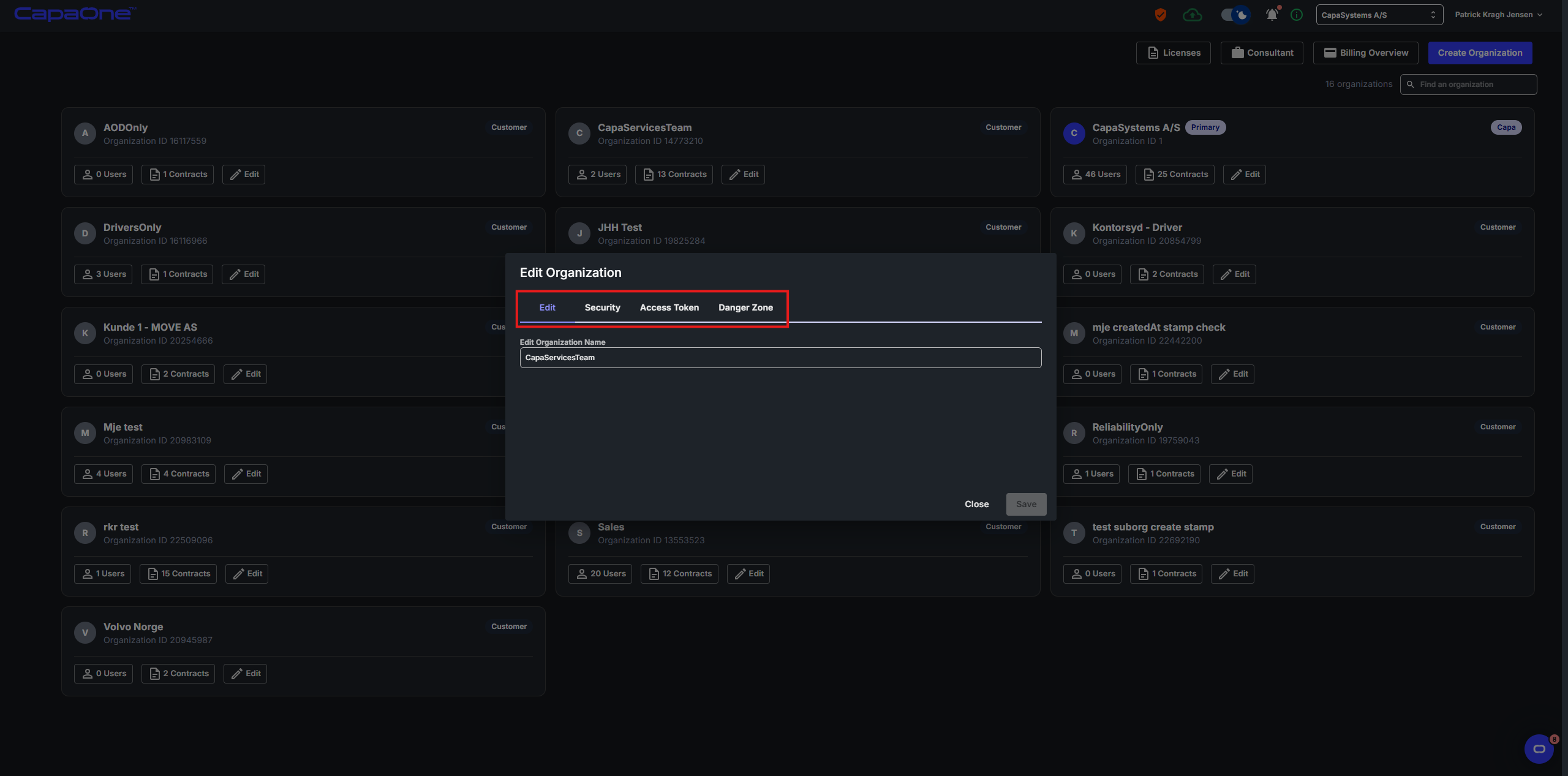
Section titled “Edit an organization”Click Edit on any organization row to open the Edit Organization dialog. This has four tabs:
- Edit — rename the organization
- Security — manage security settings
- Access Token — manage API access tokens
- Danger Zone — destructive actions such as deleting the organization
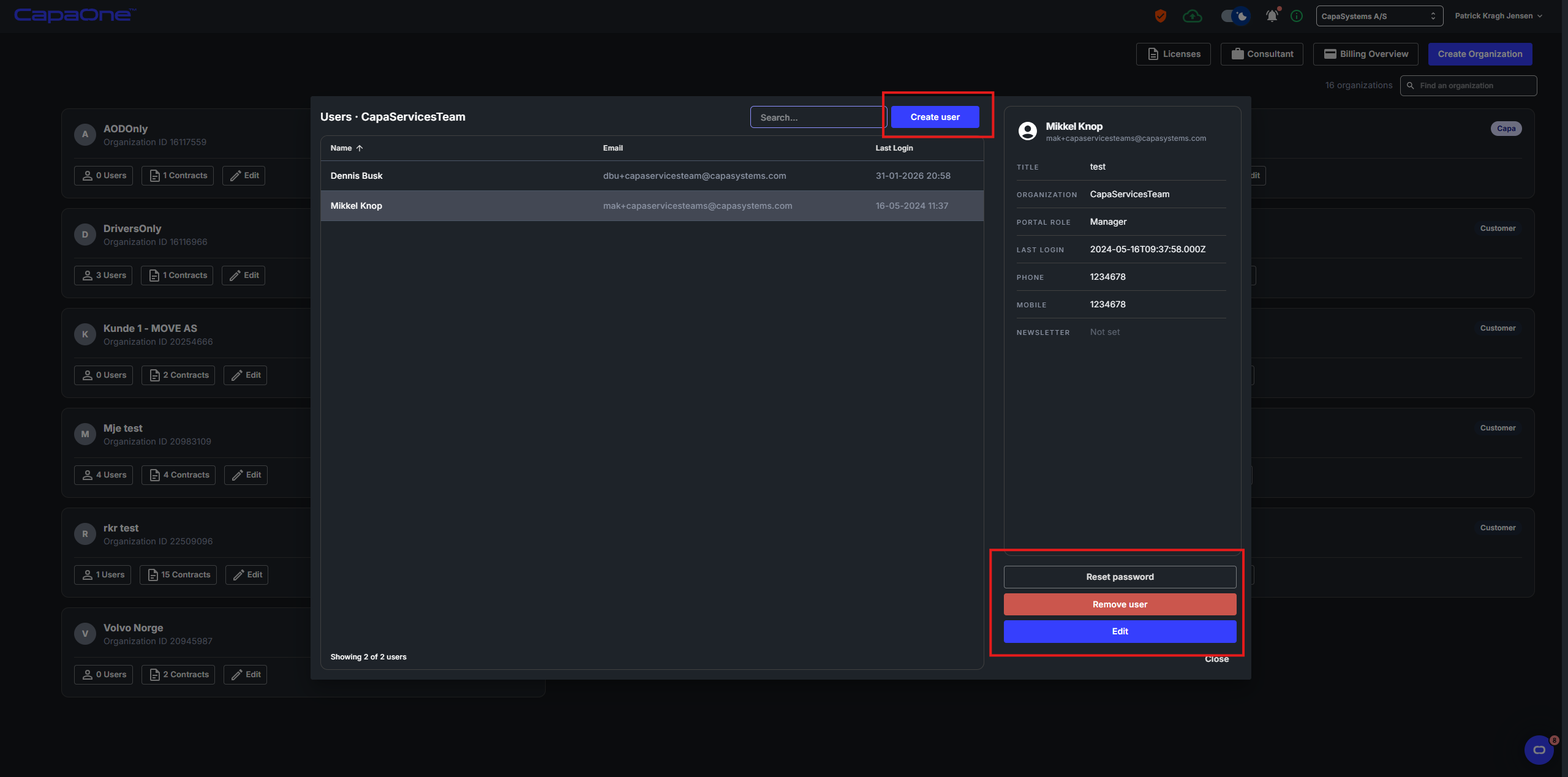
Click Users on an organization row to open the user list for that organization. From here you can create new users with the Create user button, or click an existing user to see their details and available actions — Reset Password, Remove User, and Edit.
Contracts
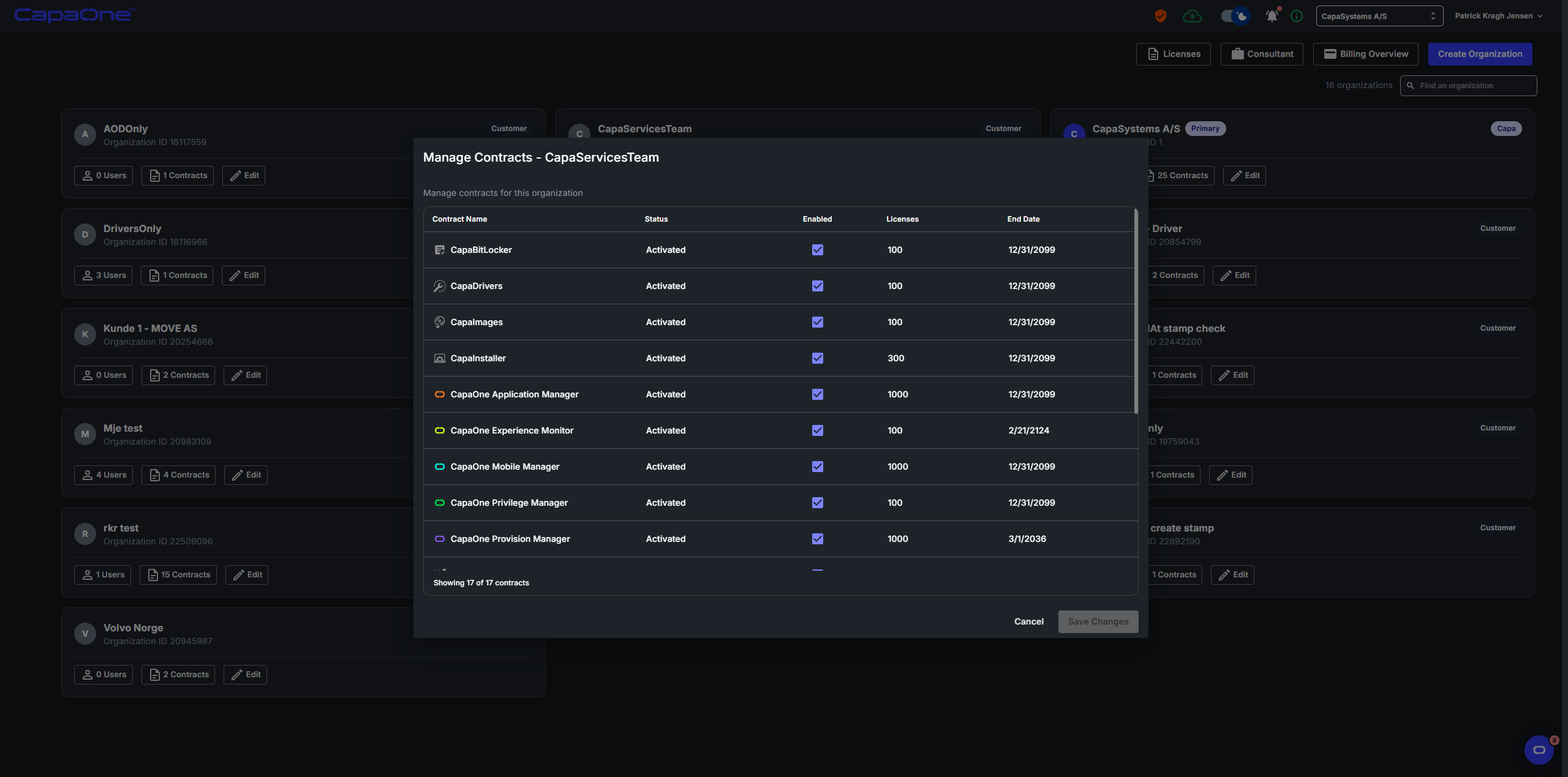
Section titled “Contracts”Click Contracts on an organization row to view all contracts associated with that organization. Each contract shows its name, status, whether it is enabled, the number of licenses, and the end date.
Licenses
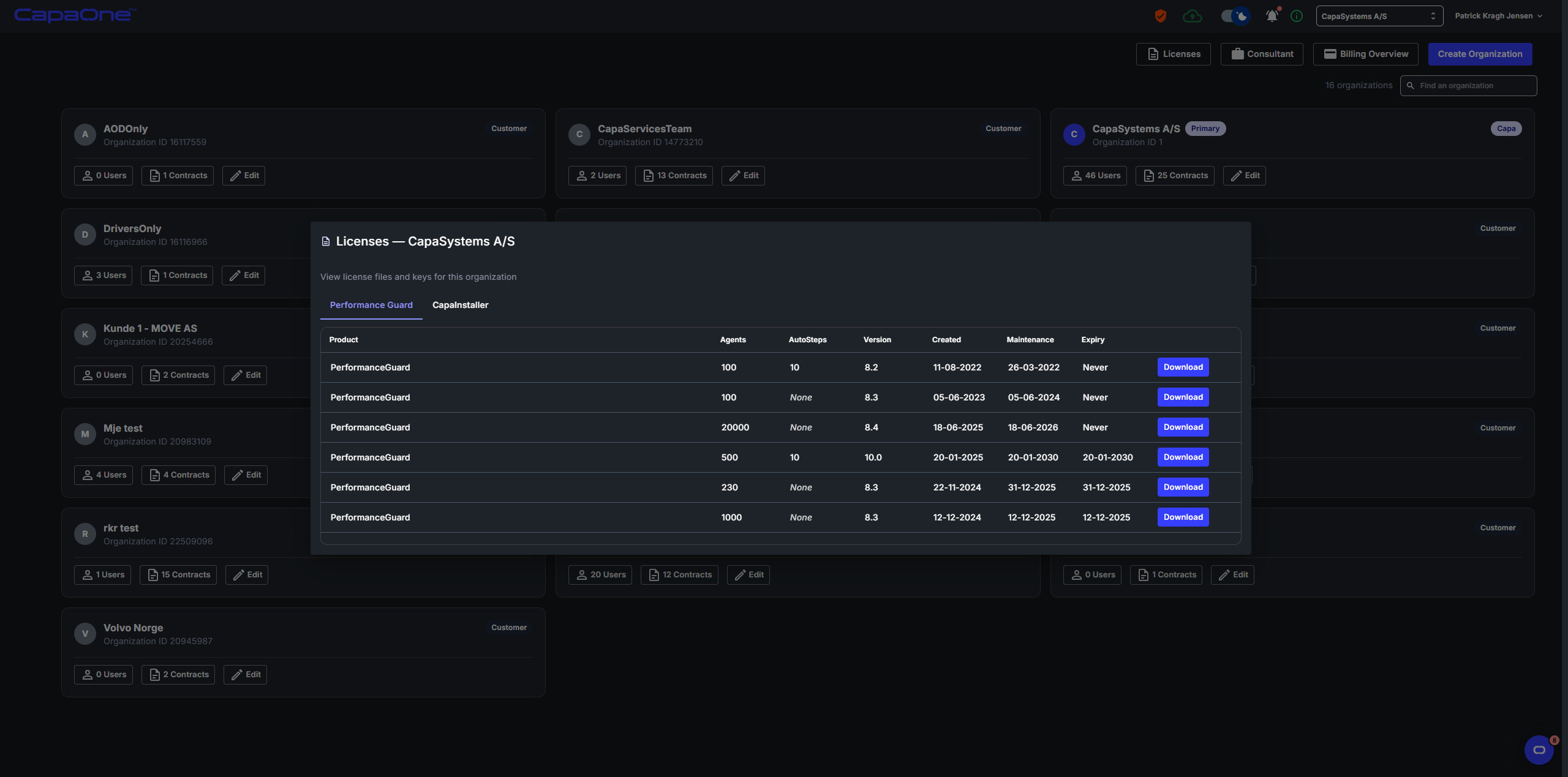
Section titled “Licenses”Click Licenses in the top toolbar to view license information for on-premises products such as PerformanceGuard and CapaInstaller, showing agents, AutoSteps, version, and expiry details.
Billing Overview
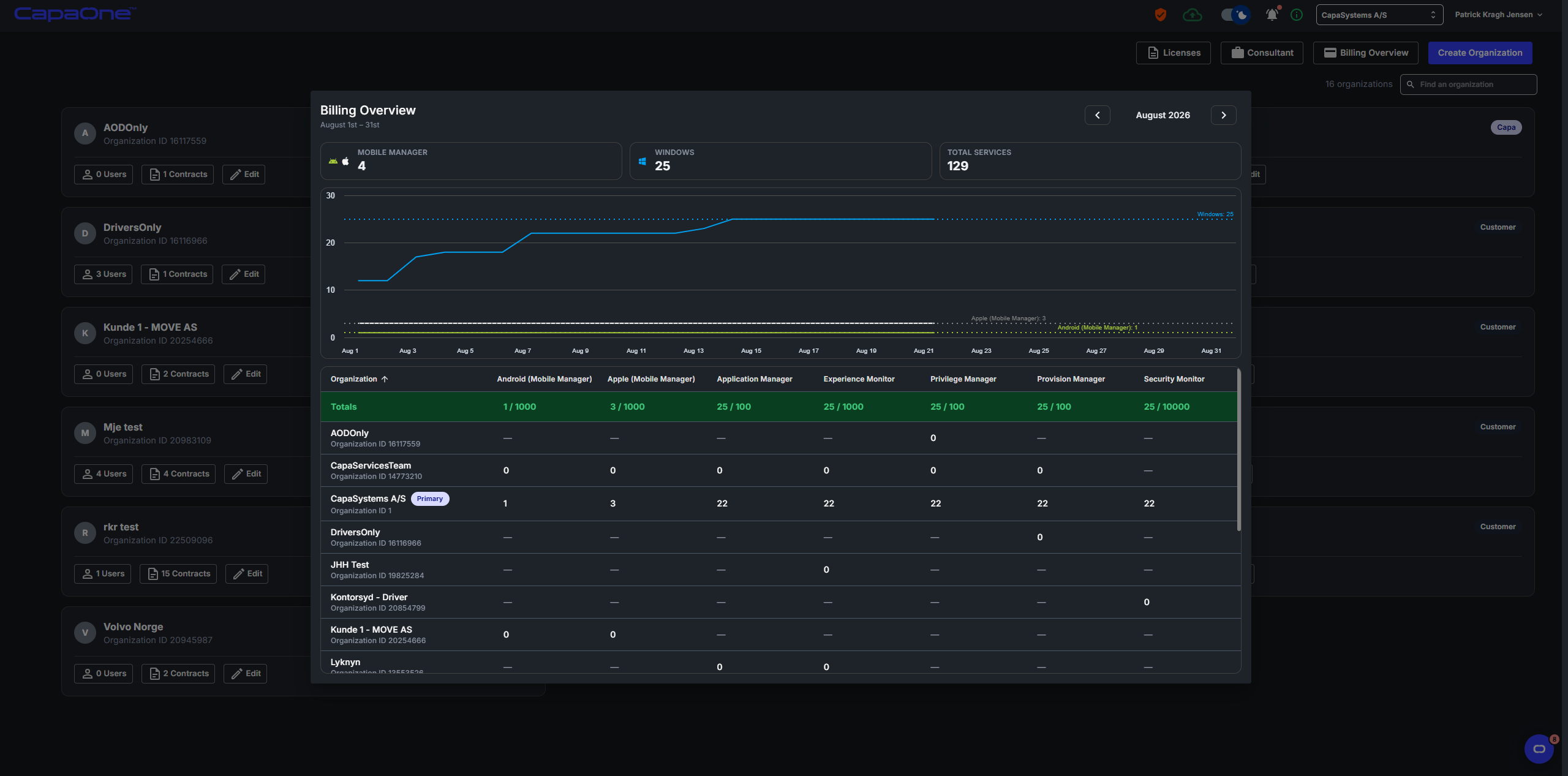
Section titled “Billing Overview”Click Billing Overview in the top toolbar to see a monthly breakdown of active devices across all organizations and modules. The chart and table give you a clear picture of usage per module — Mobile Manager, Windows, Application Manager, and more.
Consultant
Section titled “Consultant”Click Consultant in the top toolbar to view consultant hours for your primary organization. The page is split into two sections:
- Pre-paid Hours — shows any prepaid consultant hour packages, including the date, comment, employee, initial hours purchased, hours spent, and remaining hours.
- Other — shows a history of all other consultant hours logged against your organization, with the date, category, comment, employee, and hours spent.