Privilege Manager
How Privilege Manager works
Section titled “How Privilege Manager works”Privilege Manager enables specified users without local administrator permissions to perform actions with elevated privileges.
Session elevation enables specified users to control system settings and install or remove any application with elevated privileges. Session elevation is less restrictive than process elevation.
Process elevation enables specified users to execute EXE and MSI files with elevated privileges. Process elevation can be used to control exactly which processes users are allowed to execute with elevated privileges.
Session elevation
Section titled “Session elevation”If you want to use session elevation, you need to enable it in the “Security” section.
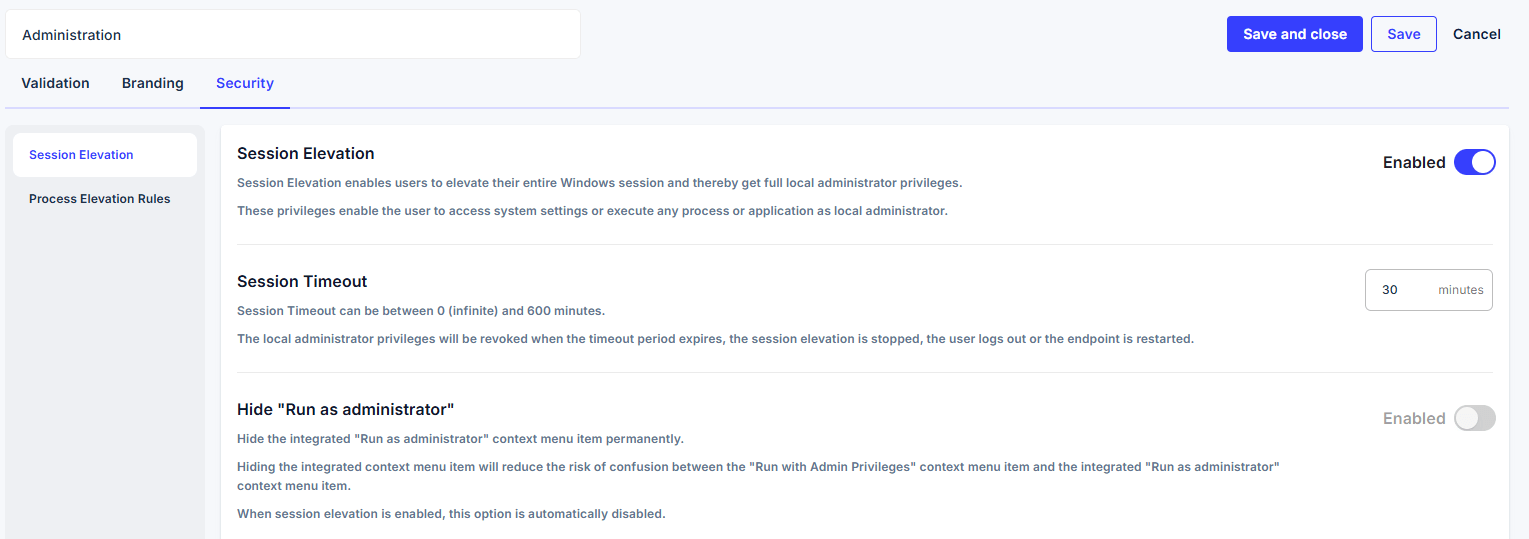
Afterward, specify the users/groups that are allowed to use session elevation in the “Validation” section.
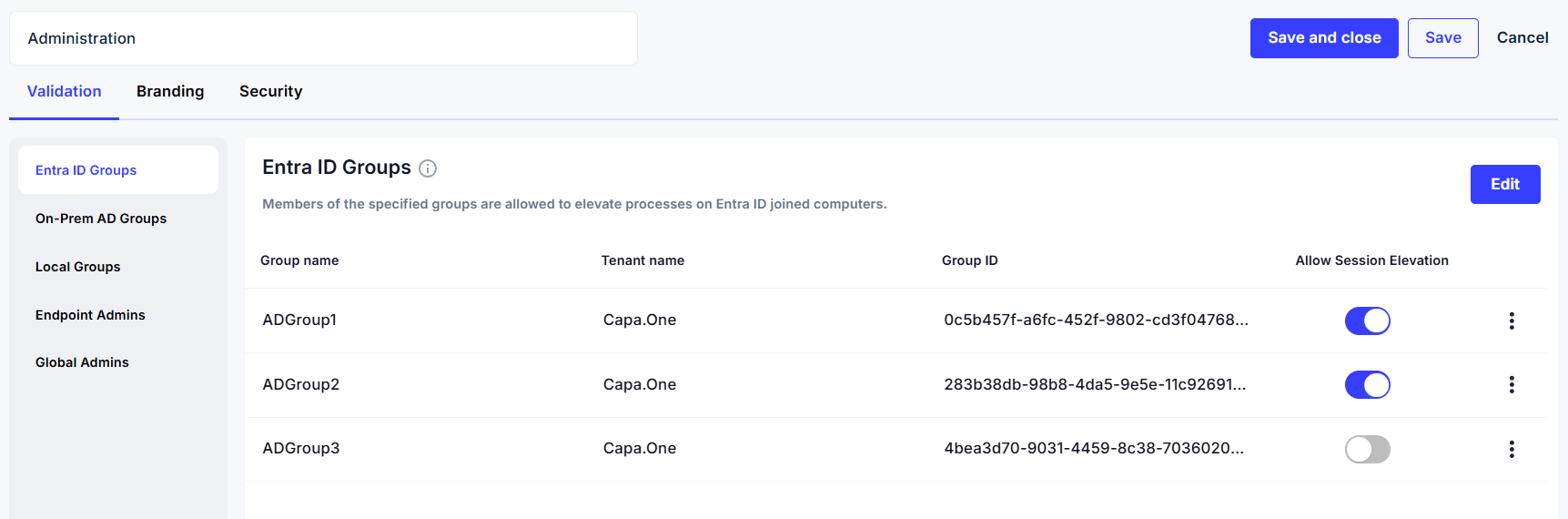
Users/groups that are “Denied” from session elevation can still use process elevation.
The process elevation rules are not effective during session elevation, unless process elevation is used.
To start a session elevation, a user must click on the CapaOne tray icon and then click the “Start” button.

Process elevation
Section titled “Process elevation”When users want to execute a single process with elevated privileges, all they have to do is right-click the process and select “Run with Admin Privileges”
If Informational Text is enabled it will be presented to the user.
If Confirmation Text is enabled it will be presented to the user and must be confirmed before proceeding.

Prerequisites
Section titled “Prerequisites”User Account Control
Section titled “User Account Control”General
Privilege Manager requires that User Account Control (UAC) is enabled and configured as described.
Configuration can be applied using Group Policy Objects (GPO) or Windows Registry Database (REGDB).
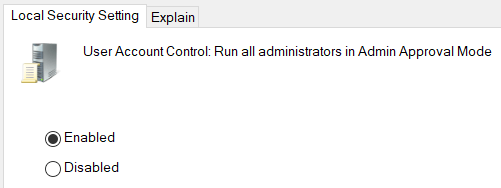
User Account Control: Run all administrators in Admin Approval Mode must be Enabled
GPO: Computer Configuration\Windows Settings\Security Settings\Local Policies\Security Options\User Account Control: Run all administrators in Admin Approval Mode
REGDB: HKEY_LOCAL_MACHINE\SOFTWARE\Microsoft\Windows\CurrentVersion\Policies\System\<EnableLUA>:1 (REG_DWORD)
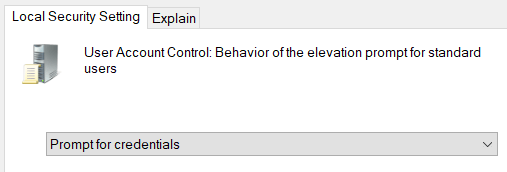
User Account Control: Behavior of the elevation prompt for standard users must be Prompt for credentials or Prompt for credentials on the secure desktop.
GPO: Computer Configuration\Windows Settings\Security Settings\Local Policies\Security Options\User Account Control: Behavior of the elevation prompt for standard users
REGDB: HKEY_LOCAL_MACHINE\SOFTWARE\Microsoft\Windows\CurrentVersion\Policies\System\<ConsentPromptBehaviorUser>:1 or 3 (REG_DWORD)
Configuration issues
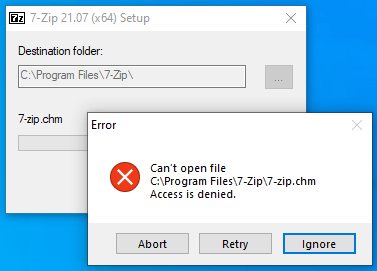
Section titled “Configuration issues”If User Account Control is disabled, an “access denied” message is presented.
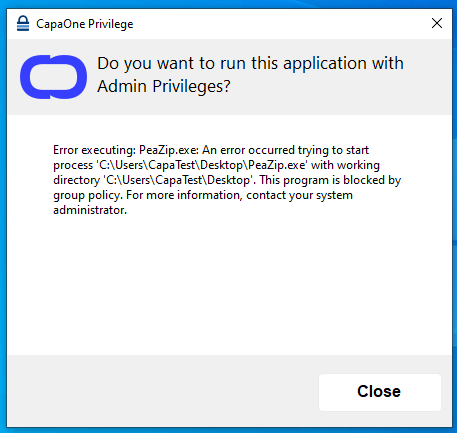
If User Account Control is enabled, but not configured correctly, a “blocking” message is presented.
Process elevation rules
Section titled “Process elevation rules”Child processes
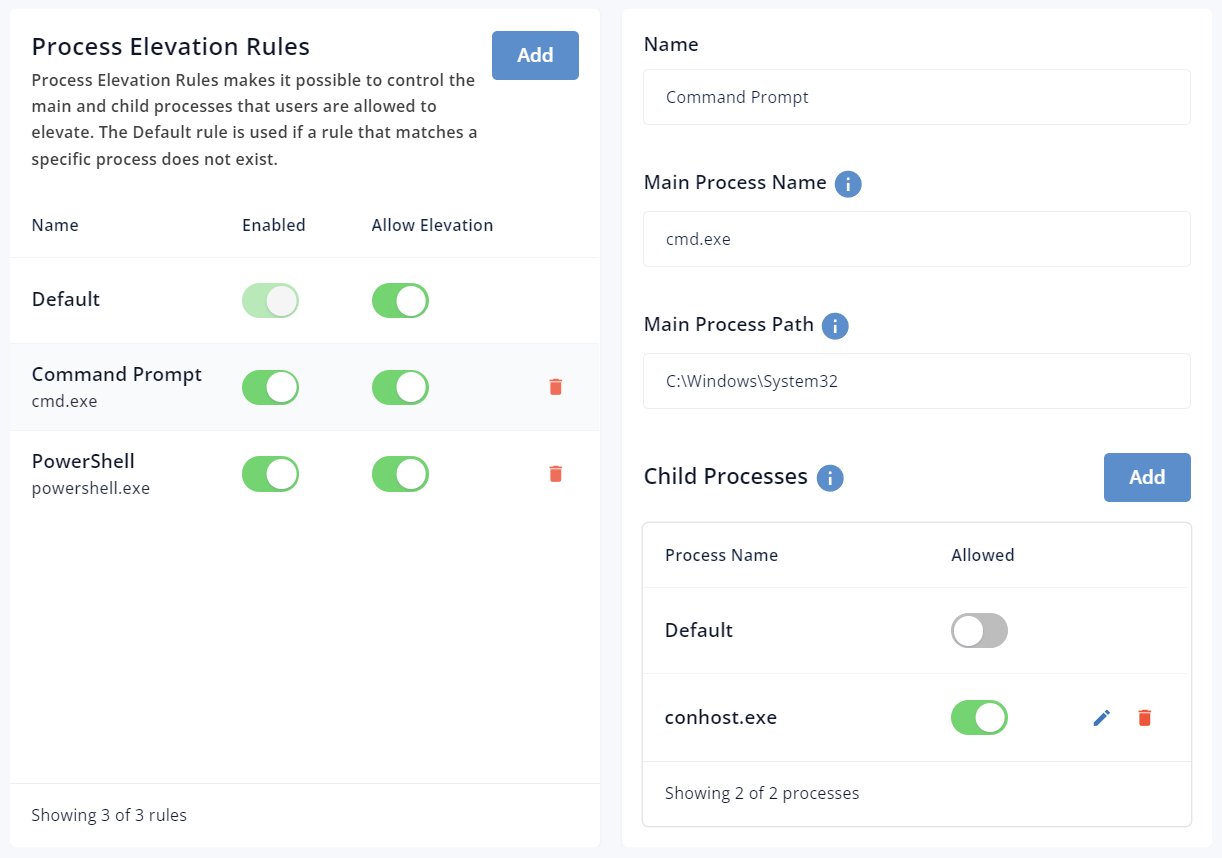
Section titled “Child processes”All applications that use the Windows Command Prompt (cmd.exe) rely on the Console Window Host (conhost.exe) process to interact with other Windows components.
As an example, the Console Window Host makes it possible to drag and drop files and folders from Windows Explorer to Windows Command Prompt.
It is not uncommon to see multiple instances of the Console Window Host in the Task Manager.
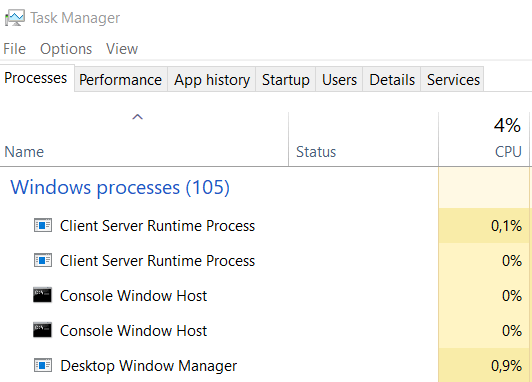
PowerShell and Command Prompt both rely on the Console Window Host. As a result, you need to either allow all child processes (default) or specifically conhost.exe when you create a process elevation rule that allows powershell.exe or cmd.exe
Hide Run as administrator
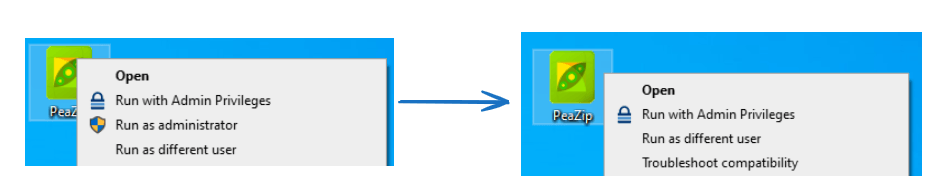
Section titled “Hide Run as administrator”You can hide the built-in “Run as administrator” option in the “Security” section.
The built-in option can only be hidden when session elevation is disabled.