

Security Dashboard
The Security Dashboard provides centralized insight into software vulnerabilities detected across your environment. By correlating vulnerable applications, affected endpoints, and CVE severity data, Security Monitor supports efficient vulnerability assessment and remediation planning.
Overview
Section titled “Overview”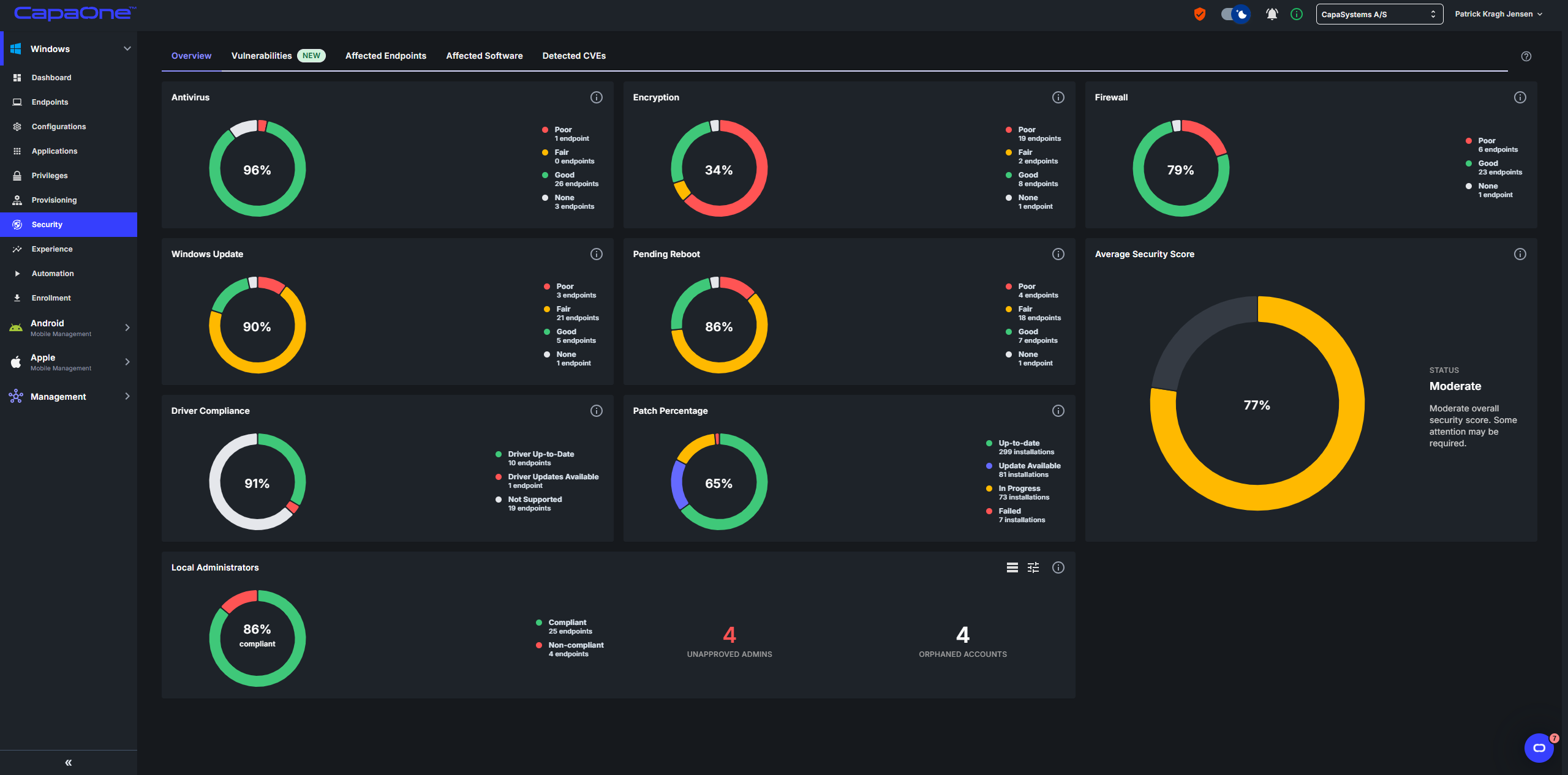
The Overview tab gives a fleet-wide picture of vulnerability exposure at a glance.
Overall Exposure is a score from 0 to 10 that reflects the average vulnerability exposure across all endpoints, weighted by CVSS severity. The score is labelled by risk level:
| Score | Risk level |
|---|---|
| 0.0 – 3.9 | Low |
| 4.0 – 6.9 | Medium |
| 7.0 – 8.9 | High |
| 9.0 – 10.0 | Critical |
The CVEs by Severity (30 days) chart shows how the volume and composition of detected CVEs has changed over the past month, split into Critical, High, Medium, and Low severity. Use this to spot trends — a sudden spike in Critical CVEs typically means a newly published vulnerability affects software that is common in your fleet.
The Top 20 Affected CVEs by CVSS table lists the highest-severity vulnerabilities currently detected in the environment. Each row shows the CVSS score, the date the CVE was published, and a description of the vulnerability. Clicking a CVE ID opens the full CVE details page.
Vulnerability views
Section titled “Vulnerability views”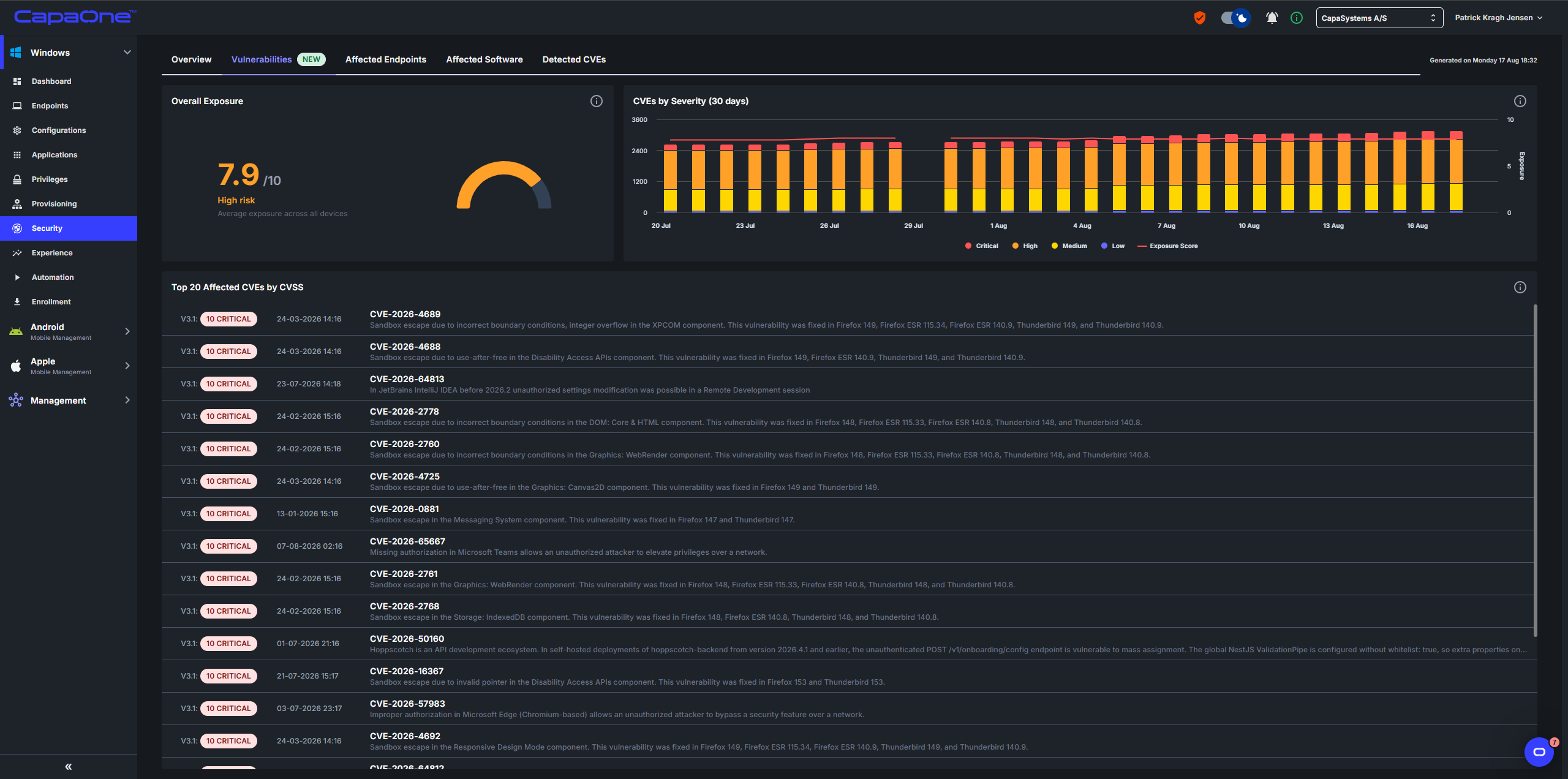
The Vulnerabilities page organizes security insights into three primary views:
- Endpoints – devices affected by vulnerable software
- Software – applications introducing vulnerabilities
- Detected CVEs – individual vulnerability records and severity scoring
These views allow administrators to analyze vulnerability exposure from different perspectives and prioritize remediation.
Endpoints
Section titled “Endpoints”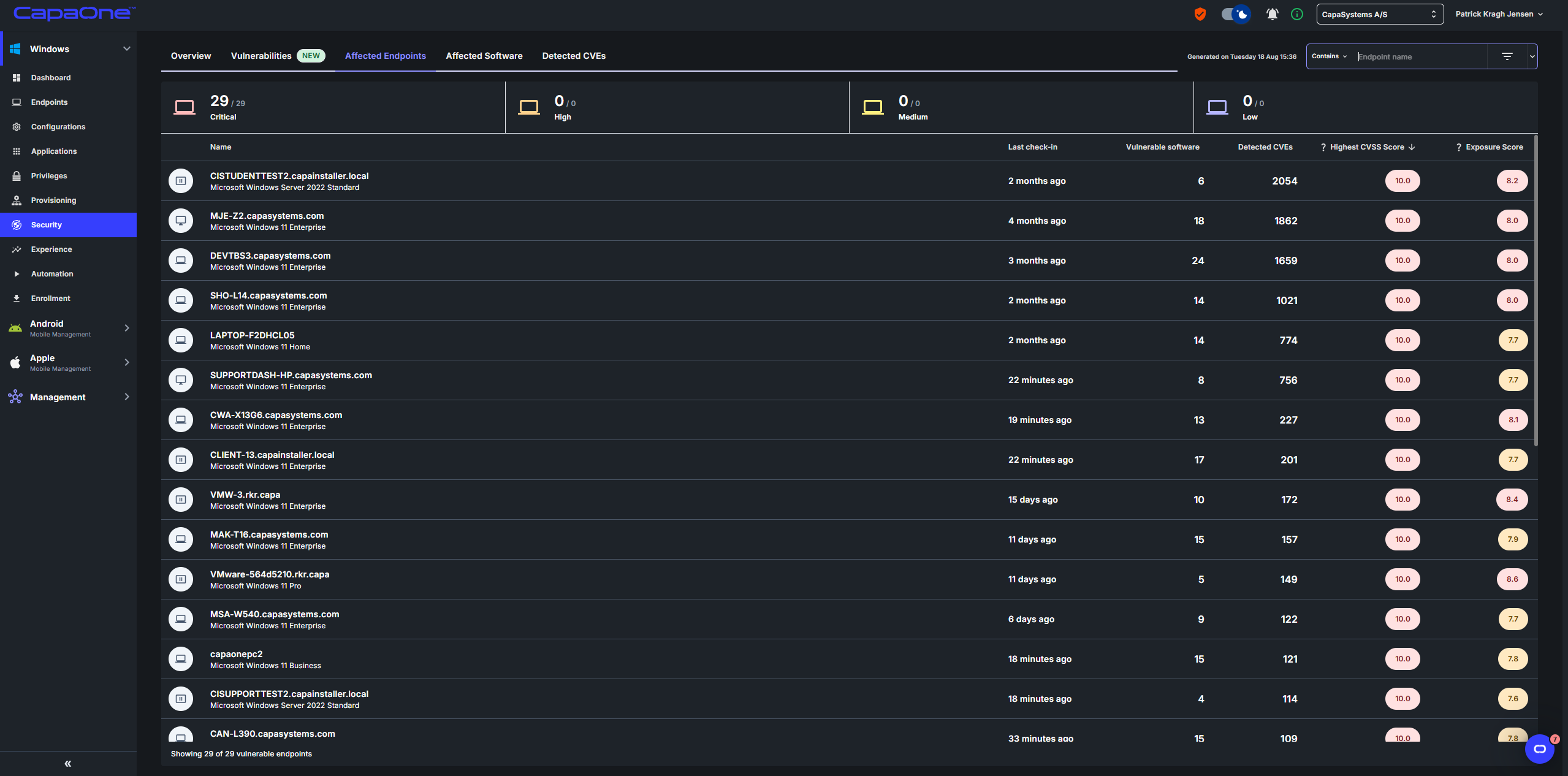
The Endpoints view highlights which devices are most exposed to security risks.
Each entry displays:
- Device Name
- Last Check-in
- Vulnerable Software Count
- Detected CVEs
- Highest CVSS Score
The CVSS Score (0–10) is a standardized severity rating indicating the criticality of a vulnerability.
Navigation
Section titled “Navigation”Selecting values within the table provides quick navigation:
- Device Name opens the device-specific security view.
- Vulnerable Software switches to the Software view filtered by the selected endpoint.
- Detected CVEs switches to the CVE view filtered by the selected endpoint.
Sorting and filtering
Section titled “Sorting and filtering”The list can be sorted by:
- Name
- Last Check-in
- Vulnerable Software
- Detected CVEs
- Highest CVSS Score
Filtering options allow further refinement based on endpoint-specific criteria.
Software
Section titled “Software”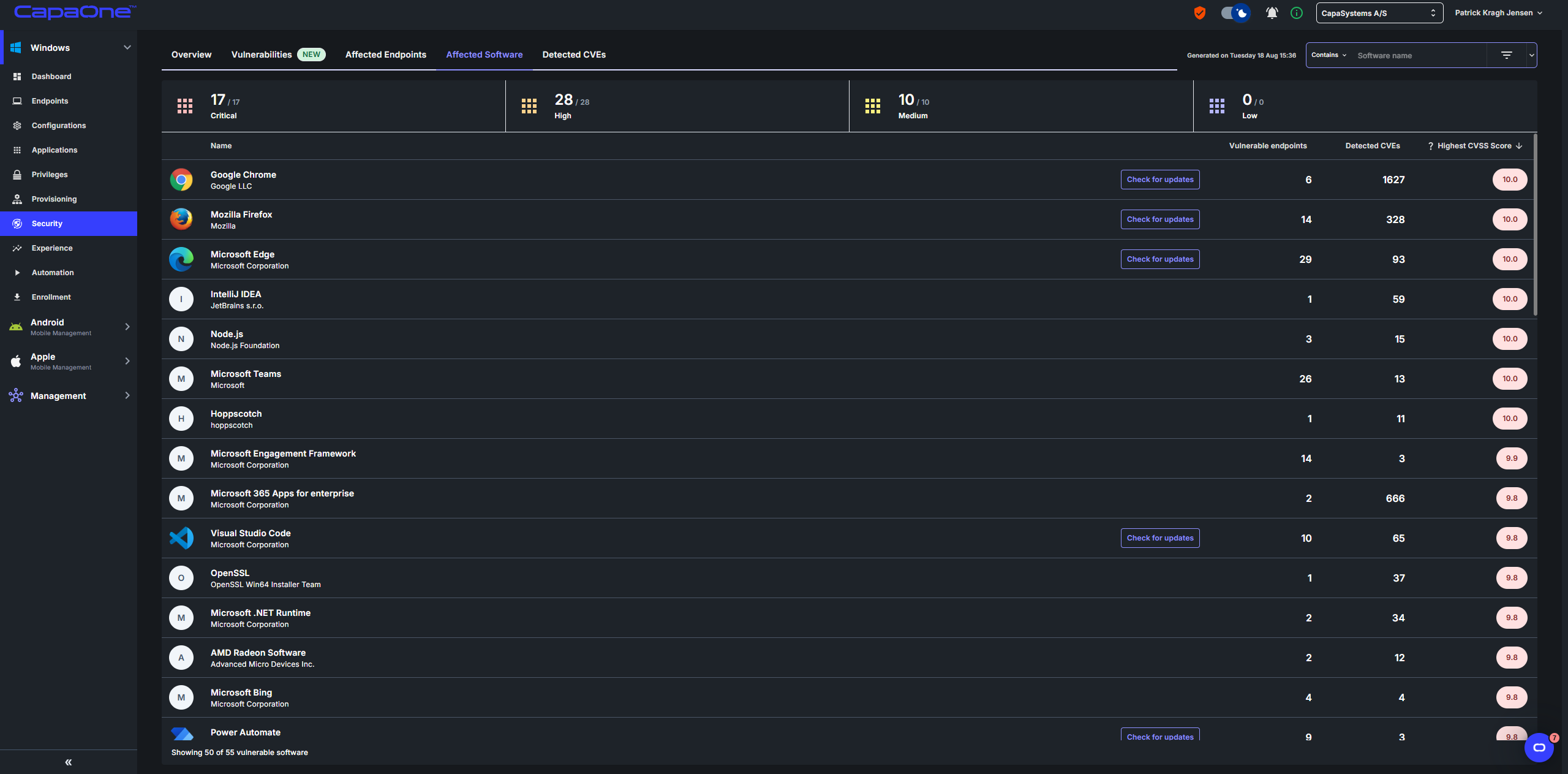
The Software view highlights applications that introduce security risks across the environment.
Each entry displays:
- Software Name and Vendor
- Vulnerable Endpoints Count
- Detected CVEs
- Highest CVSS Score
If the software is supported within Repository Apps, a Check for Updates option is available. This provides direct access to the corresponding repository application page to review available updates when endpoints are not running the latest published version.
Navigation
Section titled “Navigation”- Software Name opens the Detected CVEs view filtered by that software.
- Vulnerable Endpoints switches to the Endpoints view filtered accordingly.
- Detected CVEs performs the same filtered navigation.
Sorting and filtering
Section titled “Sorting and filtering”Sorting is available by:
- Name
- Vulnerable Endpoints
- Detected CVEs
- Highest CVSS Score
Filtering options are specific to the Software view.
Detected CVEs
Section titled “Detected CVEs”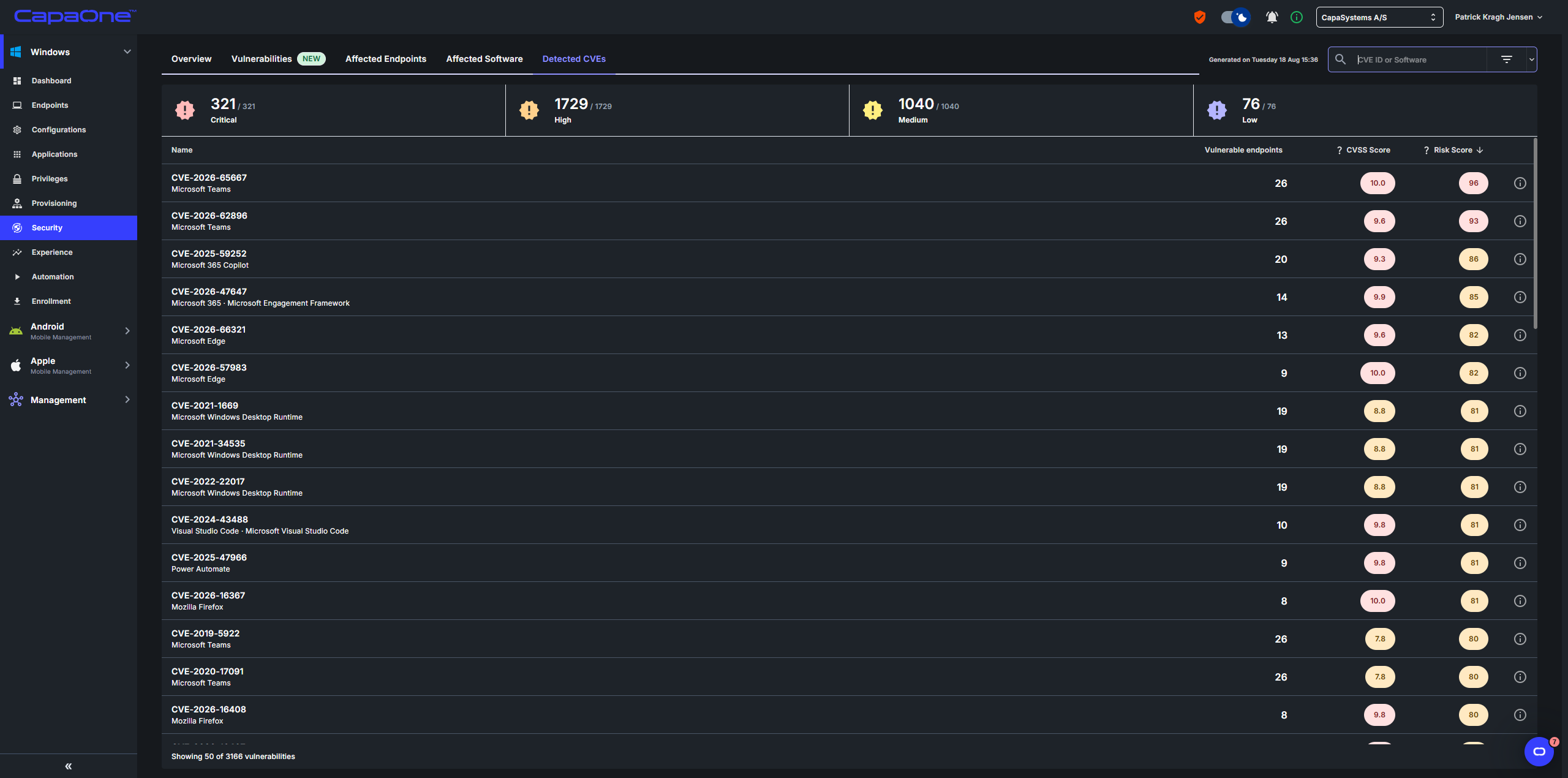
The Detected CVEs view provides insight into the specific vulnerabilities affecting your environment.
Each entry displays:
- CVE Identifier
- Vulnerable Endpoints Count
- CVSS Score
- Risk Score – CapaOne’s contextual scoring system reflecting organizational impact
Navigation
Section titled “Navigation”- Selecting a CVE opens a dedicated CVE details page.
- Selecting Vulnerable Endpoints switches to the Endpoints view filtered by the selected CVE.
Sorting and filtering
Section titled “Sorting and filtering”Sorting is available by:
- Name
- Vulnerable Endpoints
- CVSS Score
- Risk Score
Filtering options allow focused investigation based on severity and risk relevance.
CVE details
Section titled “CVE details”Selecting a CVE opens a details page providing comprehensive insight into the vulnerability.
The view includes three sections:
Endpoints
Section titled “Endpoints”Displays endpoints where affected software is installed, allowing administrators to quickly assess exposure.
Details
Section titled “Details”Provides structured vulnerability information including:
- Affected Software
- CVE Summary
This section explains how the vulnerability impacts the environment.
Resources
Section titled “Resources”Provides authoritative reference links related to the CVE, including external vulnerability databases and technical documentation containing mitigation guidance and additional information.
Overall, this view enables administrators to understand vulnerability impact, evaluate exposure across endpoints, and prioritize remediation efforts effectively.
Remediation
Section titled “Remediation”Security Monitor surfaces vulnerabilities — remediation happens by updating the affected software.
If the vulnerable application is covered by Repository Apps, the Software view shows a Check for Updates link that takes you directly to the repository app entry. From there you can confirm whether the latest version resolves the CVE and push the update to affected endpoints.
For software not in the repository catalog, update via a Company App entry or by distributing the updated installer through a Script.
A practical remediation workflow:
- Open the Overview tab and note the Overall Exposure score and top CVEs.
- Switch to Software and sort by Detected CVEs or Highest CVSS Score to find the most impactful applications.
- For each high-priority application, use Check for Updates if available, or plan a manual update deployment.
- After deploying updates, return to the Endpoints view and confirm that affected endpoints show a reduced CVE count following their next check-in.
Good to know
Section titled “Good to know”- CVSS scores are standardized — they come from the NIST National Vulnerability Database and are not calculated by CapaOne. A score of 10 means the vulnerability is remotely exploitable with no authentication required and full system impact.
- A high CVE count per endpoint is normal for Windows devices with many installed applications. Focus on Highest CVSS Score and Exposure Score rather than raw CVE counts when prioritising remediation.
- The Exposure Score per endpoint is distinct from the Overall Exposure score — it reflects that specific device’s vulnerability profile, not the fleet average.
- CVE data is refreshed daily from the NIST CVE database. Newly published CVEs appear in Security Monitor after the next scheduled sync.