

Automation
Automation lets you build workflows that run tasks — like patching applications and drivers — across many devices at once, on a schedule or on demand. You find it under Windows → Automation.
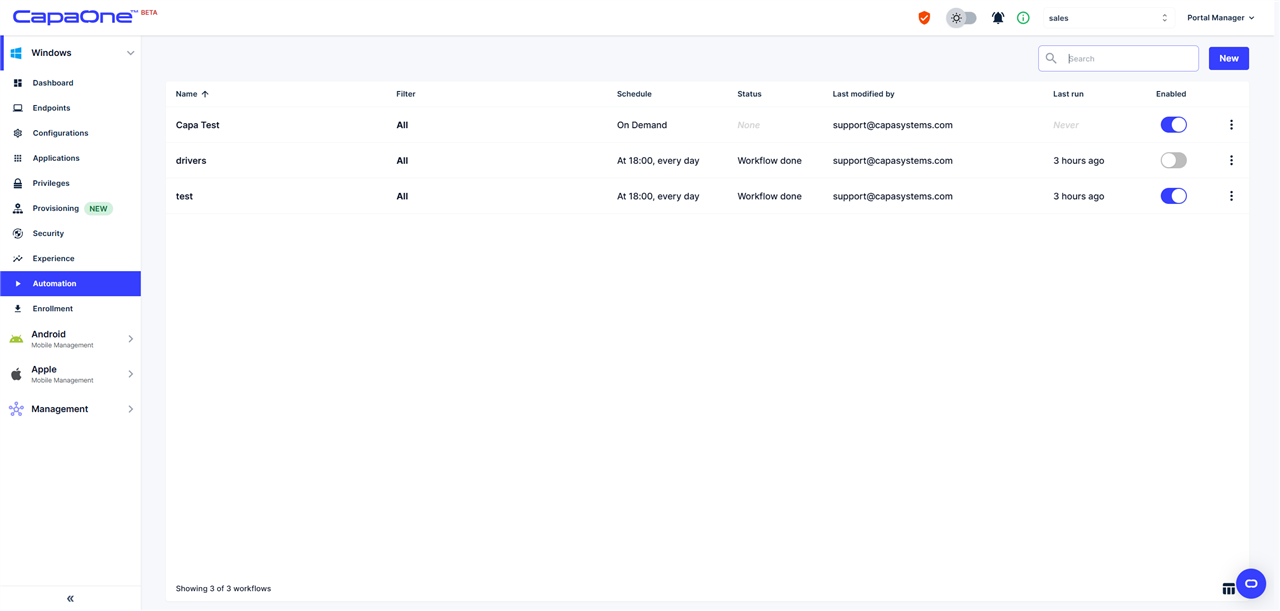
The list shows each workflow’s filter (which devices it targets), schedule, status, last run, and an Enabled toggle to turn it on or off.
Create a workflow
Section titled “Create a workflow”-
Go to Windows → Automation and click New in the upper right corner.
-
Give the workflow a name and choose its type:
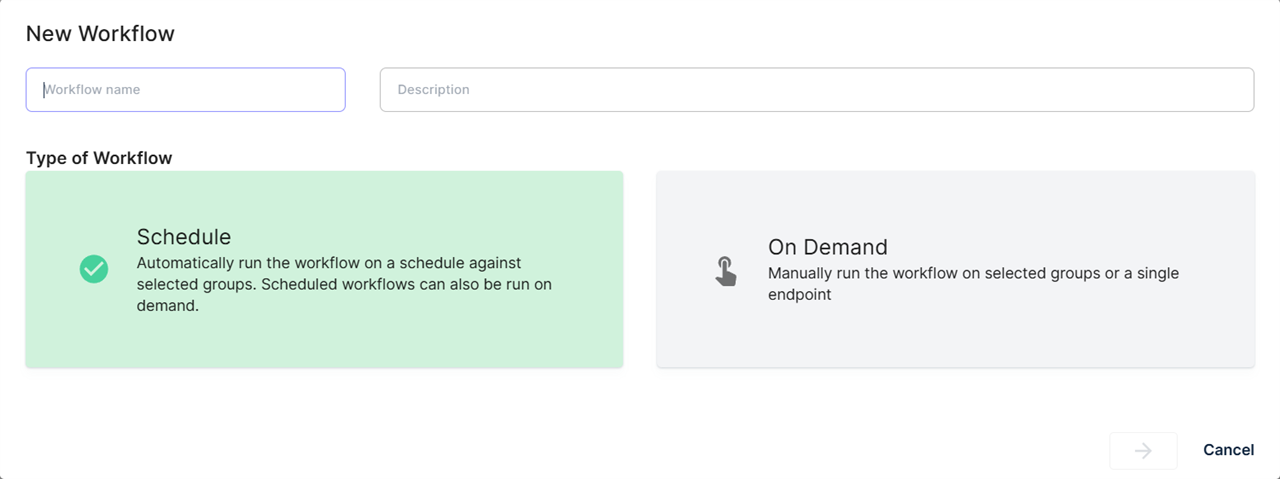
- Schedule — runs automatically on a schedule against selected groups. Scheduled workflows can also be run on demand.
- On Demand — run manually on selected groups or a single endpoint.
-
The workflow opens on a flow board:
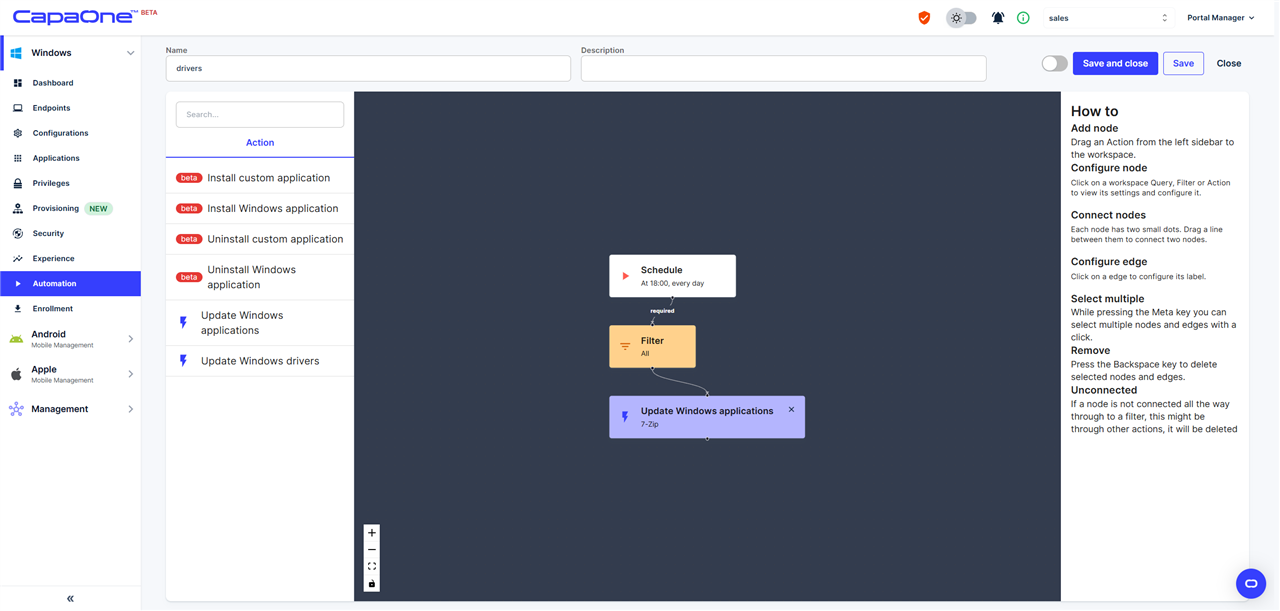
Drag an action from the Action bar on the left onto the board and connect the Filter block to it, as described in the How to box on the right. The Schedule block only exists for scheduled workflows. Available actions include installing and uninstalling Windows or custom applications, updating Windows applications, and updating Windows drivers.
-
Select an action on the board to configure it on the right-hand side.
-
Enable or disable the workflow with the toggle in the top right corner, then click Save and close. Your workflow is ready to run.
Options menu
Section titled “Options menu”The three vertical dots at the right of each row open the options menu with Edit, Clone, Run now, and Delete:
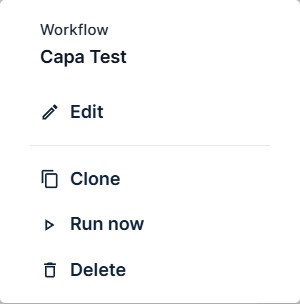
Run now
Section titled “Run now”Any workflow — including scheduled ones — can be run immediately: open the options menu and select Run now.