

Apple MDM Configuration Types
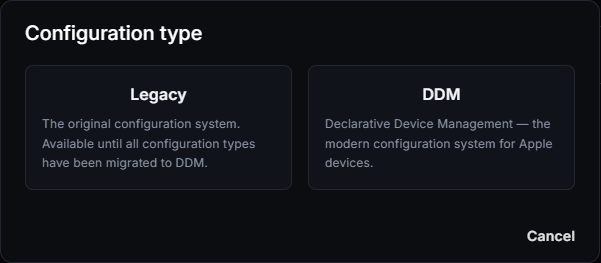
Apple configurations in CapaOne come in two kinds, each on its own tab under Apple → Configurations:
- Legacy — the original configuration profiles. They’re available until all configuration types have been moved to DDM.
- DDM — Declarative Device Management configurations. See DDM Configuration Types Reference.
This page lists the configuration types you can add to a Legacy configuration.
Create a legacy configuration
Section titled “Create a legacy configuration”-
Go to Apple → Configurations and click New.
-
Select Legacy.
-
Enter a configuration name.
-
In the list on the left, select the configuration types you want to add, and fill in their settings. Use Category or Configuration to search the list. A check mark shows which types the configuration uses, and an error icon shows a type with missing or invalid settings.
-
Save the configuration, then assign it on its Assignment tab.
When a device has more than one configuration, priority decides which one applies. See Configuration Priority.
Configuration types
Section titled “Configuration types”| Category | Configuration types |
|---|---|
| Accounts | LDAP |
| App Management | Kiosk Mode |
| Certificates | PEM Certificate, PKCS1 Certificate, PKCS12 Certificate, Root Certificate |
| Exchange ActiveSync | |
| Networking | Cellular, DNS Settings, Domains, Network Usage Rules, Wifi |
| Proxies | DNS Proxy |
| Restrictions | Restrictions |
| Security | Passcode |
| System Configuration | Lock Screen Message |
| User Experience | Home Screen Layout, Notifications, Wallpaper |
| VPN | App Layer VPN, VPN |
| Web | Web Content Filter |
Home Screen Layout applies to supervised devices only. The configuration’s page shows a Supervised only badge.
Web Clips are added as applications, not configurations. See Apple Applications.
Macros
Section titled “Macros”You can use macros in configuration values. CapaOne replaces them with values from the device or its user:
| Macro | Replaced with |
|---|---|
$hwi.imei$ |
The device’s IMEI number |
$hwi.serialNumber$ |
The device’s serial number |
$user.fullName$ |
The full name of the device’s user |
$user.userPrincipalName$ |
The user principal name of the device’s user |
$user.email$ |
The email address of the device’s user |
Point to Supported Macros in the configuration editor to see the list.
The configuration’s page
Section titled “The configuration’s page”Open a configuration to see its Summary, the Endpoints it applies to, and its Assignment to endpoints and groups.