Create a Custom Configuration for Apple
New custom configuration for Apple devices
Section titled “New custom configuration for Apple devices”-
Navigate to Dash.capaone.com.
-
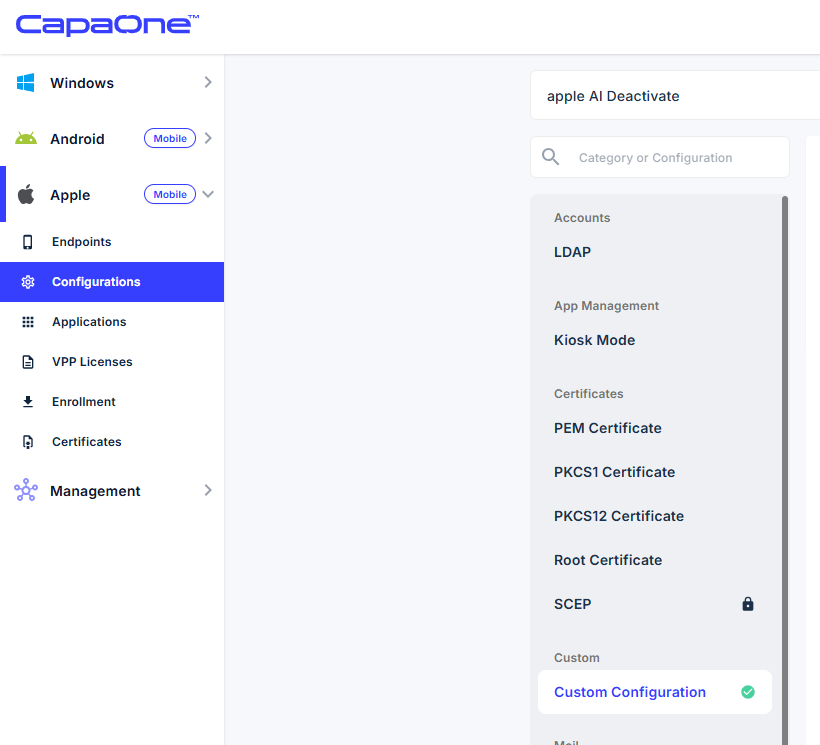
Go to Apple → Configurations → New.
-
Find “Custom Configuration” in the list and enable the feature.
-
Apple uses plist to define the restrictions. You can find the templates at the bottom of https://developer.apple.com/documentation/devicemanagement/restrictions.
Example: deactivating Apple Intelligence
Section titled “Example: deactivating Apple Intelligence”<plist version="1.0"><dict> <key>PayloadContent</key> <array> <dict> <key>allowAppleIntelligenceReport</key> <false/> <key>allowExternalIntelligenceIntegrations</key> <false/> <key>allowExternalIntelligenceIntegrationsSignIn</key> <false/> <key>allowVisualIntelligenceSummary</key> <false/> <key>allowWritingTools</key> <false/> <key>PayloadIdentifier</key> <string>com.example.myrestrictionspayload</string> <key>PayloadType</key> <string>com.apple.applicationaccess</string> <key>PayloadUUID</key> <string>53bec1be-ffec-4f88-acbd-b02aee8f04a9</string> <key>PayloadVersion</key> <integer>1</integer> </dict> </array> <key>PayloadDisplayName</key> <string>Restrictions</string> <key>PayloadIdentifier</key> <string>com.example.myprofile</string> <key>PayloadType</key> <string>Configuration</string> <key>PayloadUUID</key> <string>6020206c-12c2-4ada-987a-dd4c560ca73a</string> <key>PayloadVersion</key> <integer>1</integer></dict></plist>Steps to validate the configuration has been applied
Section titled “Steps to validate the configuration has been applied”-
Open the settings app on the device.
-
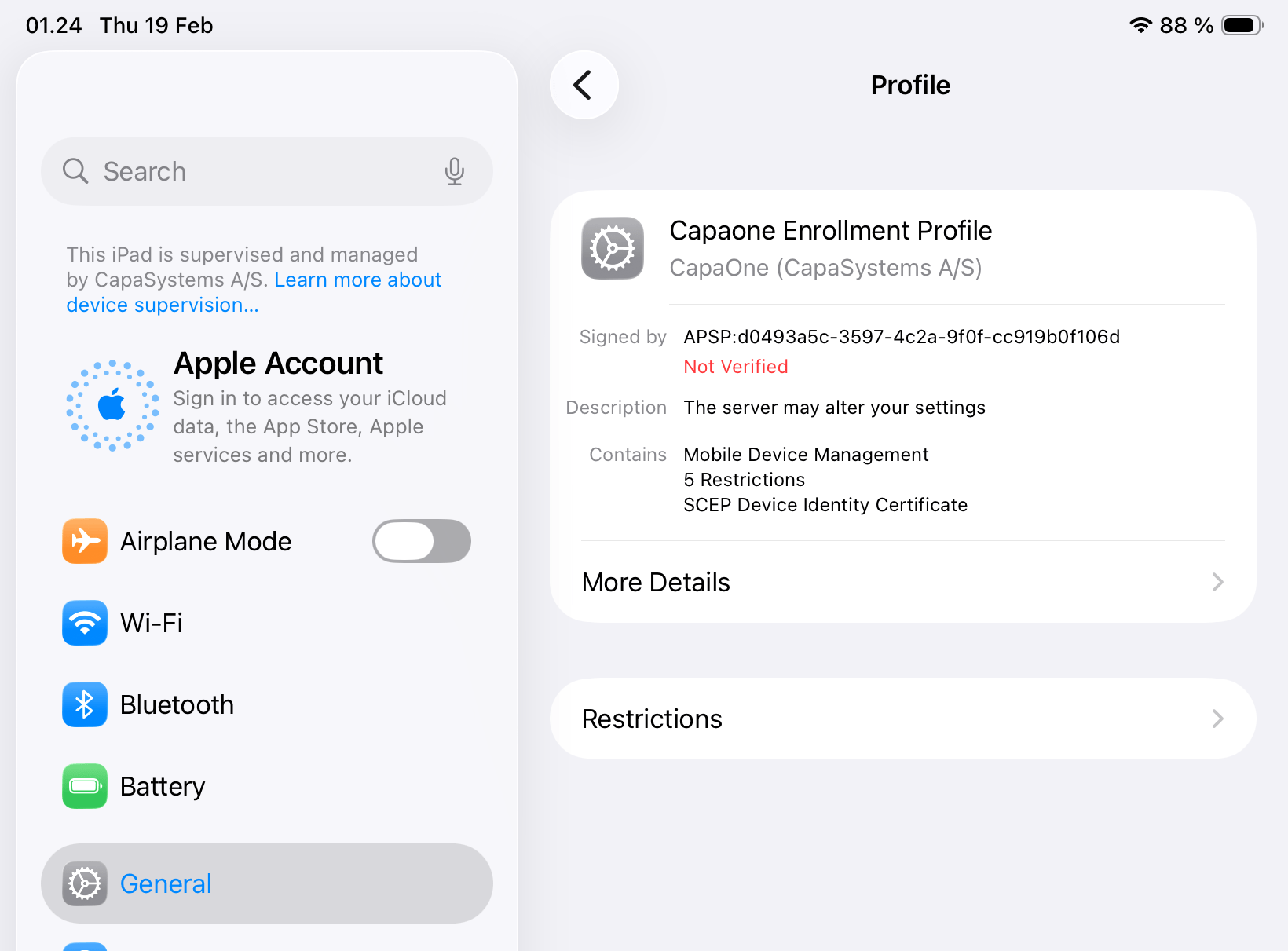
Find General → VPN And Device Management → open the MDM Profile.
-
Here you should see Restrictions.
-
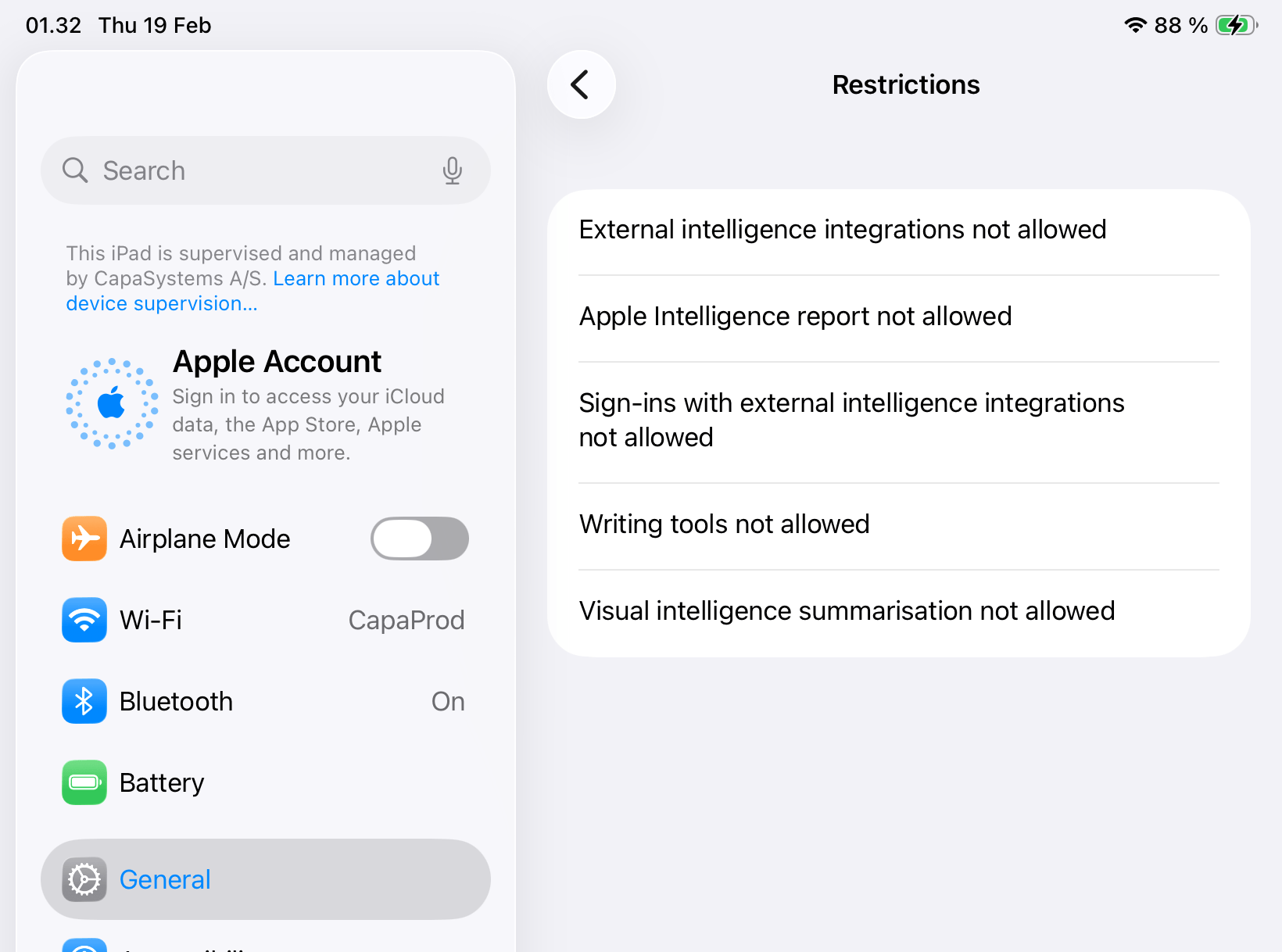
Open Restrictions to see the applied restrictions.