

Approve Local Administrators
Security Monitor checks the local administrator accounts and groups on every Windows endpoint against a list you approve. Anything not on the list is reported as an unapproved administrator in the Local Administrators widget. This page shows you how to build and maintain that list.
Open the approved list
Section titled “Open the approved list”- Go to Windows → Security and select the Overview tab.
- In the Local Administrators widget, select the tune icon.
The Approved Local Administrators dialog opens. It lists every local administrator account and group found on your endpoints, with its Name, Type, and Source.
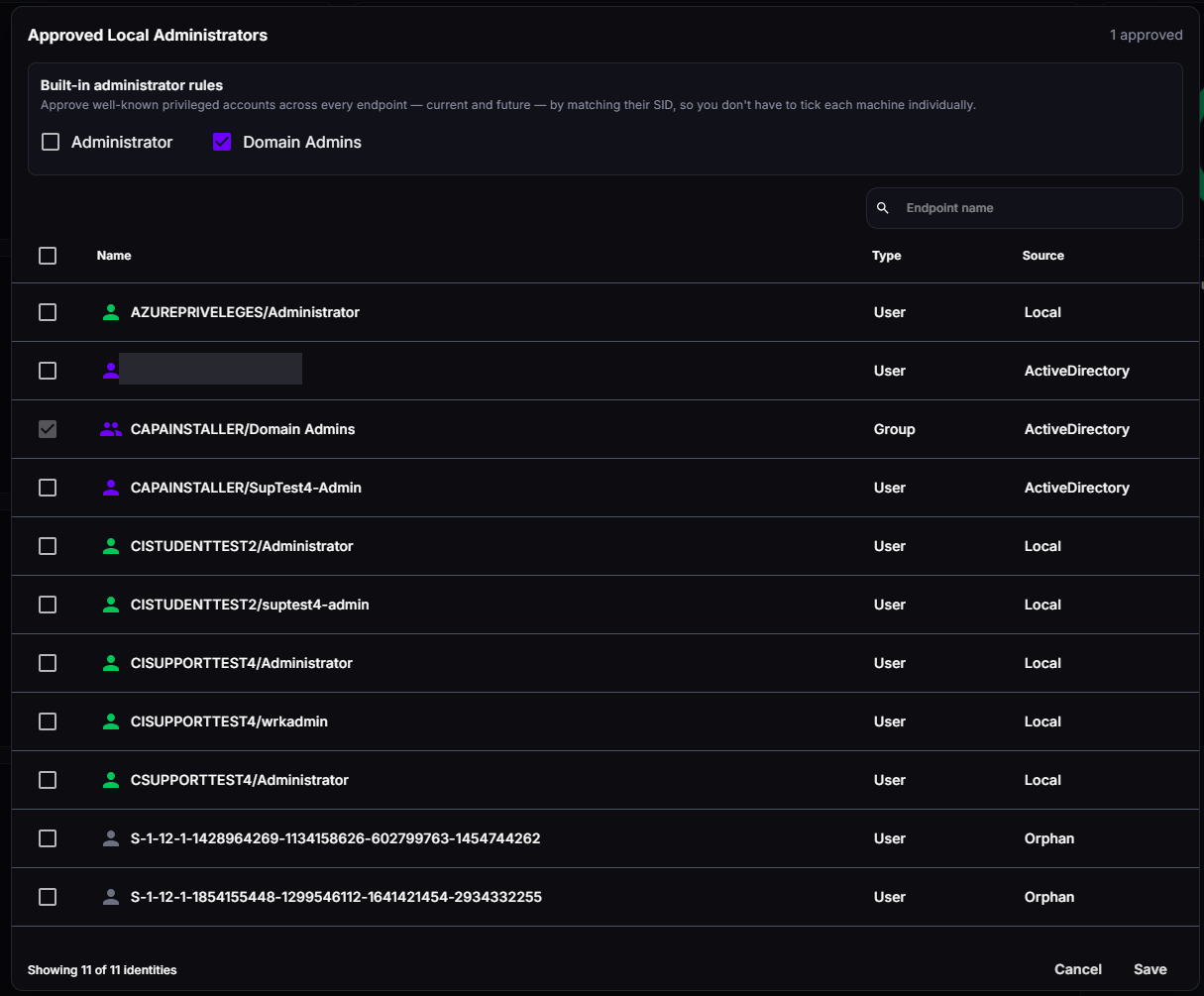
| Column | Values |
|---|---|
| Type | User or Group. |
| Source | Local for accounts and groups on the endpoint, ActiveDirectory for domain accounts and groups, or Orphan for accounts whose user no longer exists. |
Approve built-in administrators
Section titled “Approve built-in administrators”Under Built-in administrator rules, you can approve well-known administrator accounts on every endpoint at once, including endpoints you add later:
- Administrator approves the built-in local Administrator account on every endpoint.
- Domain Admins approves the Domain Admins group on every endpoint.
The rules match the accounts by their security identifier (SID), so they work even if an account has been renamed. Rows covered by a rule are marked as approved in the list.
Approve individual accounts and groups
Section titled “Approve individual accounts and groups”- Use the search field to find an account or group by name, type, or source.
- Select the check box next to each account or group you want to approve. Select the check box in the column header to approve every row that matches your search.
- Click Save.
The number of approved identities is shown in the top-right corner of the dialog. When you save, the Local Administrators widget recalculates.
Review the results
Section titled “Review the results”The widget shows the share of compliant endpoints, the number of Unapproved admins, and the number of Orphaned accounts. An endpoint is compliant when every local administrator on it is approved.
- Click the Non-compliant segment of the chart to list the endpoints with at least one unapproved administrator.
- Select the table icon to see each endpoint’s number of Admins, Unapproved administrators, and Orphaned accounts.
To remove an unapproved administrator from endpoints, you can deploy a PowerBrick such as Remove User From Local Group or Local Group Remove All Except.
Good to know
Section titled “Good to know”- The approved list applies to the whole organization. It isn’t tied to a configuration or group.
- Orphaned accounts still hold administrator rights on the endpoint. Remove them, or approve them only if you have a reason to keep them. See Orphaned User Accounts.
- The widget doesn’t change the endpoints. It reports what it finds. Privilege Manager controls temporary elevation separately. See Privilege Manager.