

Software Update Settings
Software Update Settings is the DDM configuration type that controls how a device handles software updates on its own: whether updates download and install automatically, how long new updates are hidden from users, whether users get notifications, and whether Background Security Improvements are offered.
It replaces the Legacy MDM software update restrictions (deferrals, recommended cadence, Background Security Improvements) that no longer function on iOS 27 and later. See iOS 27 and Software Update Management.
Settings vs. enforcement
Section titled “Settings vs. enforcement”| Software Update Settings | Software Update Enforcement Specific | |
|---|---|---|
| Purpose | General behavior: automatic actions, deferrals, notifications, BSI, beta. | Install one specific OS version by a specific date and time. |
| How many per device | One effective policy — several configurations are merged. | Several can be active at once. |
| Minimum version | iOS 18 / macOS 15 | iOS 17 / macOS 14 |
| Typical use | One baseline for all devices of a kind. | One per OS release you want to enforce. |
Create a Software Update Settings configuration
Section titled “Create a Software Update Settings configuration”- Navigate to Apple → Configurations → DDM.
- Click New.
- On the Configurations tab, select Software Update Settings.
- Give the configuration a descriptive name, for example
DDM - SU Settings - Supervised iPhone. - Configure the settings described below. Leave a setting on Not configured to keep Apple’s default.
- Save the configuration.
- Select the Assignment tab, and then Group. Click Assign and move the group to Assigned.
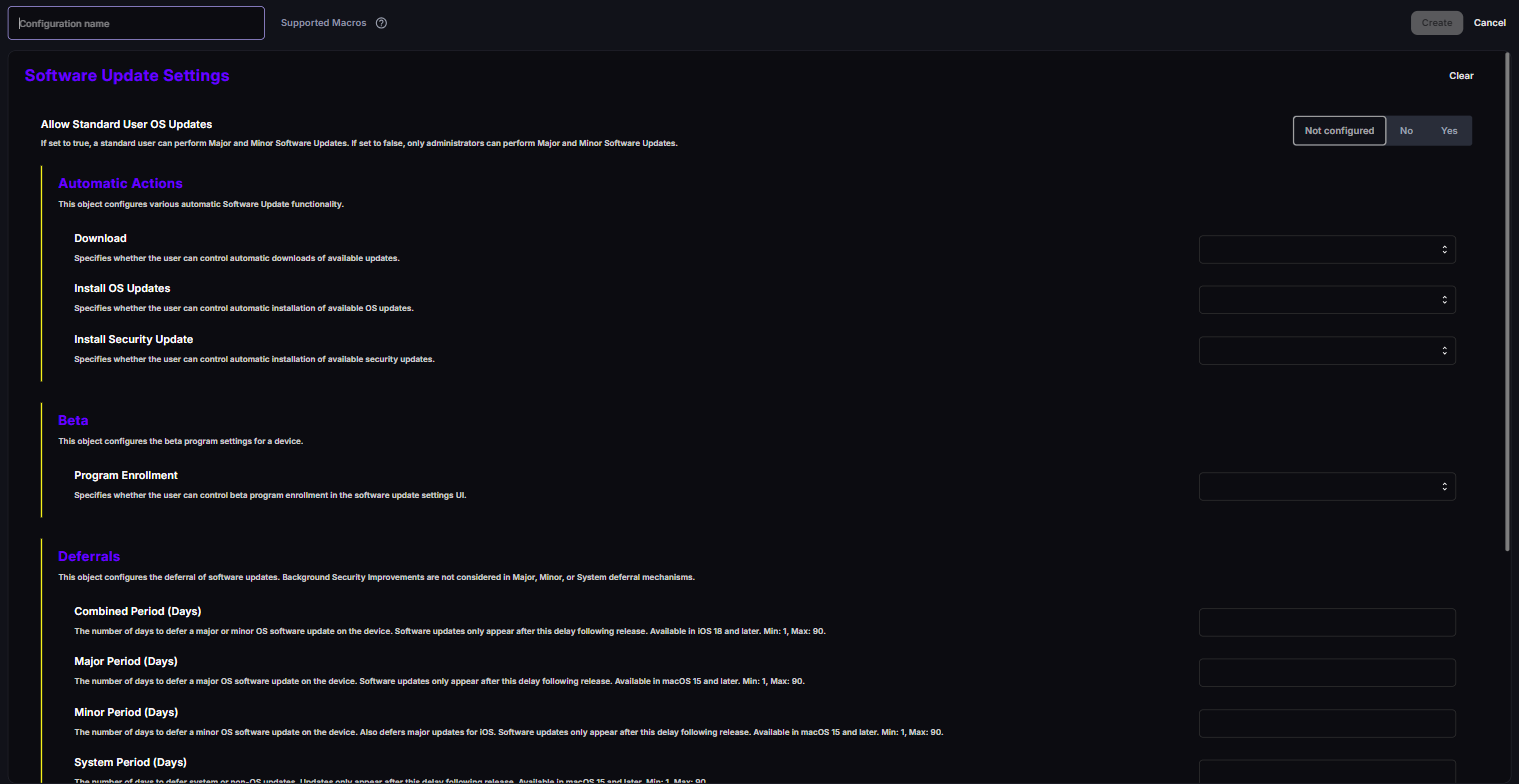
The editor groups the settings under Automatic Actions, Beta, Deferrals, Notifications, Rapid Security Response, and Recommended Cadence. Allow Standard User OS Updates is a single setting outside these groups.
The settings use three kinds of input:
- Yes / No settings have the options Not configured, No, and Yes. Not configured leaves the setting out of the configuration, so the device keeps its default.
- Automatic Actions and Program Enrollment are lists with the options Allowed, Always On, and Always Off. Each option has a short explanation in the list, for example Allowed - user can enable or disable. Deselect clears the setting.
- Deferrals are numbers of days that you enter yourself.
Settings reference
Section titled “Settings reference”Notifications
Section titled “Notifications”| Setting | Values | Default | Platforms | Supervision |
|---|---|---|---|---|
| Notifications | Not configured / No / Yes | Device default: Yes | iOS, macOS | Not required |
- Yes — the device shows all software update enforcement notifications leading up to a deadline.
- No — the device only shows the notification one hour before an enforcement deadline, and the restart countdown. Use this on shared or kiosk devices where nobody can act on earlier notifications.
This setting only affects notifications for updates enforced with Software Update Enforcement Specific.
Deferrals
Section titled “Deferrals”Deferrals hide a new update from the user for a number of days after Apple releases it. The update isn’t offered — in Settings or through automatic updates — until the period has passed.
| Setting | Values | Platforms | Supervision |
|---|---|---|---|
| Combined Period (Days) | 1–90 days | iOS, iPadOS | Supervised only |
| Major Period (Days) | 1–90 days | macOS | Supervised (all macOS DDM is supervised) |
| Minor Period (Days) | 1–90 days | macOS | Supervised |
| System Period (Days) | 1–90 days | macOS — non-OS updates such as Safari, XProtect, and printer drivers | Supervised |
Recommended Cadence (iOS and iPadOS)
Section titled “Recommended Cadence (iOS and iPadOS)”| Setting | Values | Platforms | Supervision |
|---|---|---|---|
| Recommended Cadence | All / Oldest / Newest | iOS, iPadOS | Not required |
When more than one update is available — for example, a minor update for the current major version and a new major version — this decides what the user sees:
- All — the user sees every available update and chooses.
- Oldest — only the lowest version is shown. Use this to keep users on the current major version, for example iOS 26.x, while still getting its security updates.
- Newest — only the highest version is shown, typically the new major version.
Automatic Actions
Section titled “Automatic Actions”| Setting | Values | Default | Platforms | Supervision |
|---|---|---|---|---|
| Download | Allowed / Always On / Always Off | Allowed | iOS, macOS | Supervised only on iOS |
| Install OS Updates | Allowed / Always On / Always Off | Allowed | iOS, macOS | Supervised only on iOS |
| Install Security Update | Allowed / Always On / Always Off | Allowed | macOS | Supervised |
- Allowed — the user can turn the setting on or off in Settings.
- Always On — the setting is on and locked.
- Always Off — the setting is off and locked.
Automatic installs only work when automatic downloads are on. Setting Install OS Updates to Always On while Download is Always Off has no effect.
Rapid Security Response
Section titled “Rapid Security Response”The editor calls this group Rapid Security Response. Apple now calls the feature Background Security Improvements (BSI): small security fixes Apple delivers between regular updates.
| Setting | Values | Default | Platforms | Supervision |
|---|---|---|---|---|
| Enable | Not configured / No / Yes | Device default: Yes | iOS, macOS | Supervised only on iOS |
| Enable Rollback | Not configured / No / Yes | Device default: Yes | iOS, macOS | Supervised only on iOS |
- Setting Enable to No stops the device from offering BSIs to the user. You can still install a specific BSI with Software Update Enforcement Specific by entering its build version with the letter suffix in Target Build Version (for example
24A341a). - Setting Enable Rollback to No stops the user from removing an installed BSI.
Allow Standard User OS Updates (macOS)
Section titled “Allow Standard User OS Updates (macOS)”| Setting | Values | Default | Platforms |
|---|---|---|---|
| Allow Standard User OS Updates | Not configured / No / Yes | Device default: Yes | macOS |
When No, only administrators can install major and minor macOS updates.
| Setting | Values | Platforms | Supervision |
|---|---|---|---|
| Program Enrollment | Allowed / Always On / Always Off | iOS 18+, macOS 15.4+ | Supervised only on iOS |
- Always Off removes the device from any beta program and blocks enrollment. This is the recommended value for production devices.
Recommended baselines
Section titled “Recommended baselines”Use these as starting points. Combine each with a Software Update Enforcement Specific configuration per release when you need a deadline.
| Setting | Supervised company iPhone/iPad | Unsupervised device | Kiosk / shared iPad | Managed Mac |
|---|---|---|---|---|
| Notifications | Yes | Yes | No | Yes |
| Deferrals | 7–14 days (Combined) | Not supported | 7 days (Combined) | Major 30–90, Minor 7–14, System 0–3 |
| Recommended Cadence | Oldest (stay on current major) or All | Oldest | Oldest | — |
| Download | Always On | Not supported | Always On | Always On |
| Install OS Updates | Allowed or Always On | Not supported | Always On | Allowed |
| Install Security Update | — | — | — | Always On |
| Rapid Security Response: Enable / Enable Rollback | Yes / No | Not supported | Yes / No | Yes / No |
| Allow Standard User OS Updates | — | — | — | Yes |
| Beta: Program Enrollment | Always Off | — | Always Off | Always Off |
Check that the settings applied
Section titled “Check that the settings applied”- Open the device in Apple → Endpoints.
- Select the Configurations tab, and check that Software Update Settings is listed under Assigned with the DDM label and no error icon.
- Select Applied and check the settings the device received.
- On the device, open Settings → General → Software Update → Automatic Updates. Locked settings are dimmed.
If the configuration shows an error, see DDM Status Reason Codes. A device on iOS 17 rejects the configuration — it requires iOS 18.
Good to know
Section titled “Good to know”- Keep one Software Update Settings per device — several configurations are merged with the most restrictive value winning, for example the longest deferral and Always Off over Always On. See How Multiple DDM Configurations Combine.
- Unsupervised devices get a reduced feature set — on Unsupervised iPhone and iPad, only Notifications and Recommended Cadence apply. Use enforcement to keep these devices current.
- Legacy equivalents stop working on iOS 27 — the Legacy restrictions
forceDelayedSoftwareUpdates,enforcedSoftwareUpdateDelay, the macOS major/minor/non-OS delay restrictions, and the BSI restrictions were deprecated in OS 26 and removed in OS 27. Recreate them here before devices update. - DDM takes precedence — if both a Legacy software update policy and a DDM configuration exist on a device, the DDM configuration wins.
- Source: Apple’s Software Update Settings declaration (Release v27.0) and Apple Platform Deployment: Software Update settings declarative configuration.