

DDM Passcode Settings
Passcode Settings is the DDM configuration type for passcode policy: whether a passcode is required, how complex it must be, how often it must change, and what happens after too many failed attempts.
Apple deprecated the Legacy Passcode profile payload (com.apple.mobiledevice.passwordpolicy) in iOS, iPadOS, macOS, and watchOS 27. It still works for now, but Passcode Settings is the replacement, and new passcode policy should be built in DDM.
Create a Passcode Settings configuration
Section titled “Create a Passcode Settings configuration”- Navigate to Apple → Configurations → DDM and click New.
- On the Configurations tab, select Passcode Settings.
- Name the configuration, for example
DDM - Passcode - Corporate. - Configure the settings described below.
- Save the configuration, select the Assignment tab, and assign it to a group.
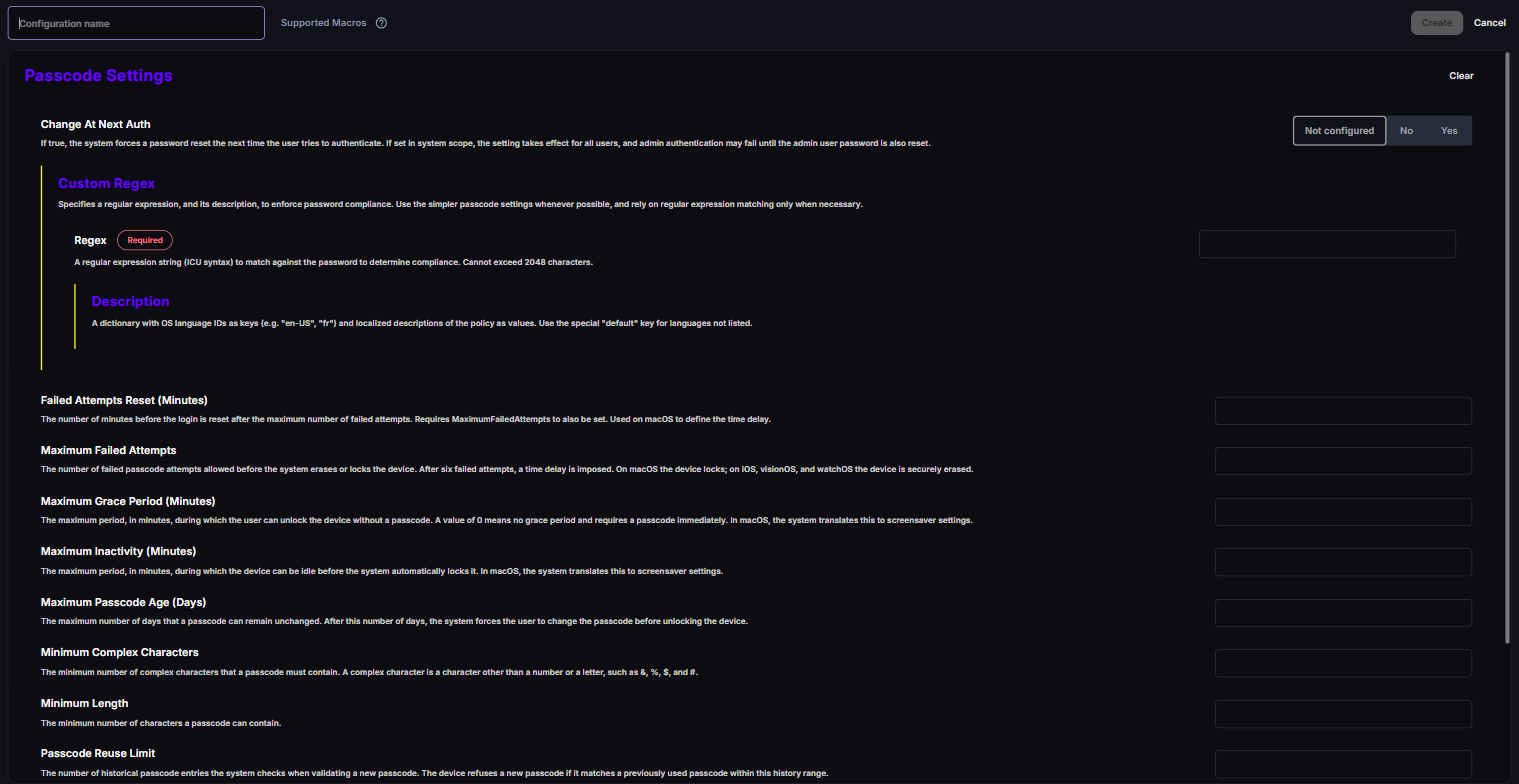
The editor lists the settings in alphabetical order. Most settings are values that you type yourself, such as a number of minutes or days. Change At Next Auth, Require Alphanumeric Passcode, Require Complex Passcode, and Require Passcode are Yes / No settings with the options Not configured, No, and Yes. Not configured leaves the setting out, so the device keeps its default.
Settings reference
Section titled “Settings reference”| Setting | Input | Default | Platforms | What it does |
|---|---|---|---|---|
| Change At Next Auth | Not configured / No / Yes | Not configured | macOS 13.1+ | Forces a password change the next time the user authenticates. |
| Custom Regex | Regex and Description | — | macOS 14+ | Enforces a password rule with a regular expression. Use only when the settings below can’t express the rule. See Custom Regex. |
| Failed Attempts Reset (Minutes) | Number | — | macOS 13.1+ | How long a Mac stays locked after the maximum failed attempts. Requires Maximum Failed Attempts. |
| Maximum Failed Attempts | 2–11 | 11 | iOS, macOS | After this many failed attempts, an iPhone or iPad is erased, and a Mac is locked. |
| Maximum Grace Period (Minutes) | Number, 0 = immediately | User’s choice | iOS, macOS | The longest time a user can choose before the passcode is required after locking. On Mac, it maps to the screen saver settings. |
| Maximum Inactivity (Minutes) | 0–15 | User’s choice | iOS, macOS | The longest idle time a user can choose before the device locks. On Mac, it maps to the screen saver settings. |
| Maximum Passcode Age (Days) | 0–730 | No expiry | iOS 16.2+, macOS 13.1+ | The user must change the passcode after this many days. |
| Minimum Complex Characters | 0–4 | 0 | iOS 16.2+, macOS 13.1+ | Minimum number of characters that are neither letters nor numbers, such as &, %, $, #. |
| Minimum Length | 0–16 | 0 | iOS, macOS | Minimum number of characters. |
| Passcode Reuse Limit | 1–50 | No check | iOS, macOS | How many previous passcodes the device checks to prevent reuse. |
| Require Alphanumeric Passcode | Not configured / No / Yes | Not configured | iOS 16.2+, macOS 13.1+ | The passcode must contain at least one letter and one number. |
| Require Complex Passcode | Not configured / No / Yes | Not configured | iOS, macOS | No repeated characters and no increasing or decreasing sequences, such as 123 or CBA. |
| Require Passcode | Not configured / No / Yes | Not configured | iOS, macOS | Requires a passcode with no further rules. Setting any other rule in this table also requires a passcode, regardless of this setting. |
Custom Regex
Section titled “Custom Regex”Custom Regex has two fields:
- Regex (required) — a regular expression in ICU syntax that the password must match. It can’t exceed 2048 characters.
- Description — a description of the rule, shown to the user. Provide it for each language by using an OS language ID such as
en-USorfr. Usedefaultfor languages you don’t list.
Recommended baselines
Section titled “Recommended baselines”| Setting | Corporate iPhone/iPad | Kiosk iPad (single user) | Managed Mac |
|---|---|---|---|
| Require Passcode | Yes | Yes (if the device is used with a passcode at all) | Yes |
| Minimum Length | 6 | 6 | 12 |
| Require Alphanumeric Passcode | No | No | Yes |
| Require Complex Passcode | Yes | Yes | Yes |
| Maximum Failed Attempts | 10 | 10 | 10 |
| Failed Attempts Reset (Minutes) | — | — | 15 |
| Maximum Inactivity (Minutes) | 5 | 2 | 10 |
| Maximum Grace Period (Minutes) | 0–5 | 0 | 0–5 |
| Maximum Passcode Age (Days) | Not set (follow NIST: no forced rotation) | Not set | Not set |
| Passcode Reuse Limit | 3 | — | 5 |
Adjust to your organization’s security policy. NIST SP 800-63B recommends against forced periodic rotation unless there’s evidence of compromise.
Move from the Legacy Passcode profile
Section titled “Move from the Legacy Passcode profile”Passcode rules from a Legacy Passcode profile and a DDM Passcode Settings configuration merge on the device — the device enforces the strictest combination of both. That makes the migration safe, as long as the DDM configuration isn’t stricter than you intend.
- Navigate to Apple → Configurations → Legacy and open the Legacy configuration that sets the passcode policy. Note every value.
- Create a Passcode Settings DDM configuration with the same values. Don’t tighten the policy in the same step — if you do, users are asked to change their passcode on the day of migration.
- Assign the DDM configuration to your DDM group. See Step 3 of Enable Apple DDM.
- Check on a pilot device that Passcode Settings applies without errors and that the user isn’t asked for a new passcode.
- Remove the Legacy passcode configuration from the pilot device’s groups. CapaOne sends the profile removal command to the device immediately. Because the values are identical, nothing changes for the user.
- Roll out to the rest of the fleet. Tighten the policy later, in its own change, if needed.
Check compliance
Section titled “Check compliance”Open the configuration and select its Endpoints tab to see each endpoint’s Status. On the device, Configurations → Applied shows the passcode settings it received.
In the background, DDM devices also report two passcode facts to CapaOne (not shown as separate fields today):
- Passcode present — whether the device has a passcode.
- Passcode compliant — whether the passcode meets every passcode policy on the device, DDM and Legacy combined. The device doesn’t report the passcode’s length or composition — only whether it complies.
A newly assigned policy doesn’t lock the user out immediately. The device asks the user to change the passcode, and reports not compliant until they do.
Good to know
Section titled “Good to know”- The strictest rule wins — when several Passcode Settings configurations, or a Passcode Settings configuration and a Legacy Passcode profile, reach the same device, the device combines them: longest minimum length, fewest failed attempts, shortest inactivity period. See How Multiple DDM Configurations Combine.
- Clear Passcode still works — Legacy MDM commands such as Clear passcode keep working on a device that runs DDM.
- Custom Regex is macOS only — and Apple warns that a mistake in the expression can make the policy impossible to satisfy. Test on a single Mac.
- Not supported on Shared iPad — Apple doesn’t support Passcode Settings on Shared iPad.
- Source: Apple’s Passcode Settings declaration and Legacy Passcode payload (Release v27.0).