

Enable Apple DDM
This guide walks you through migrating Apple devices from Legacy MDM to Declarative Device Management (DDM) in CapaOne.
Step 1: Plan your migration
Section titled “Step 1: Plan your migration”- Check device eligibility. The device must be running iOS 17 or later, whether it’s Supervised or Unsupervised (BYOD). Verify the OS version before proceeding — devices that don’t meet it can’t be enabled for DDM. If you plan to use a declaration that requires Supervised mode, confirm the device’s management mode as well.
- Check for Legacy software update policy. Before migrating a group to iOS 27, confirm whether it currently relies on Legacy MDM for software update management — cadence settings, deferrals, or BSI restrictions. If it does, you need a Software Update Settings or Software Update Enforcement Specific DDM configuration in place first; see iOS 27 and Software Update Management for how to audit and configure this.
- Communicate with your users. Let them know their device management configuration is changing. No user action is required, but it’s good practice to set expectations.
- Plan a phased rollout. Start with a pilot group or a single test device, confirm that configurations apply correctly, then expand to the rest of your fleet.
Step 2: Prepare configurations in DDM format
Section titled “Step 2: Prepare configurations in DDM format”Before enrolling any devices, review your existing Legacy MDM configurations and identify which ones need a DDM equivalent.
- Navigate to Apple → Configurations.
- Switch between the Legacy and DDM tabs to compare what already exists in each format.
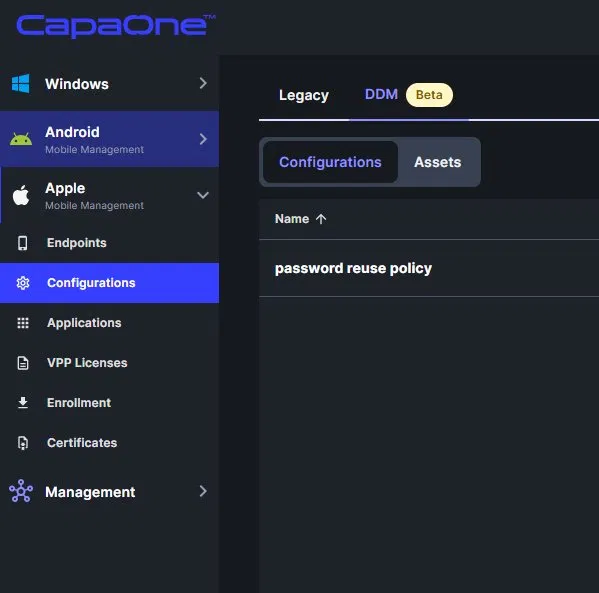
For each configuration that should be managed through DDM:
-
Navigate to Apple → Configurations → DDM.
-
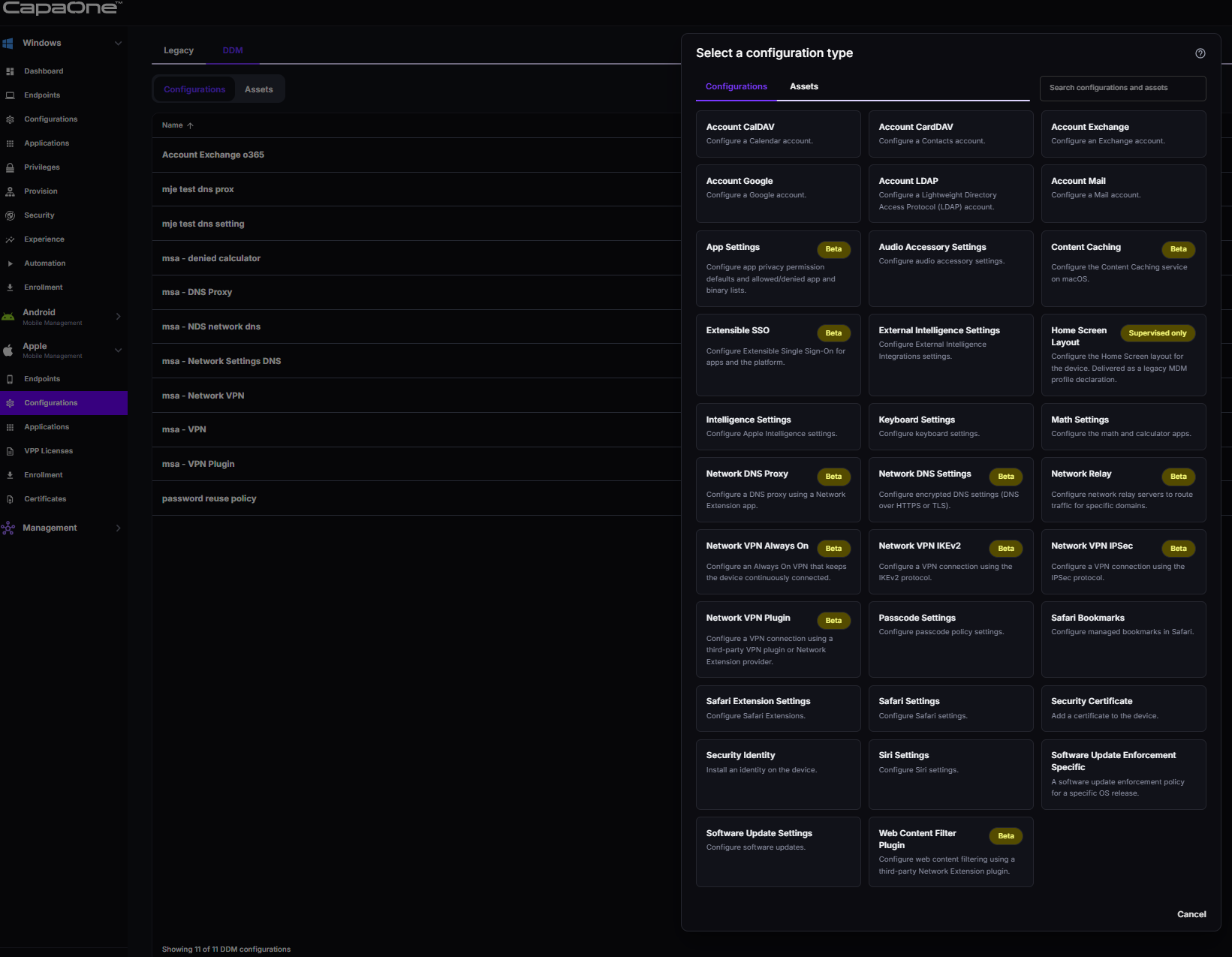
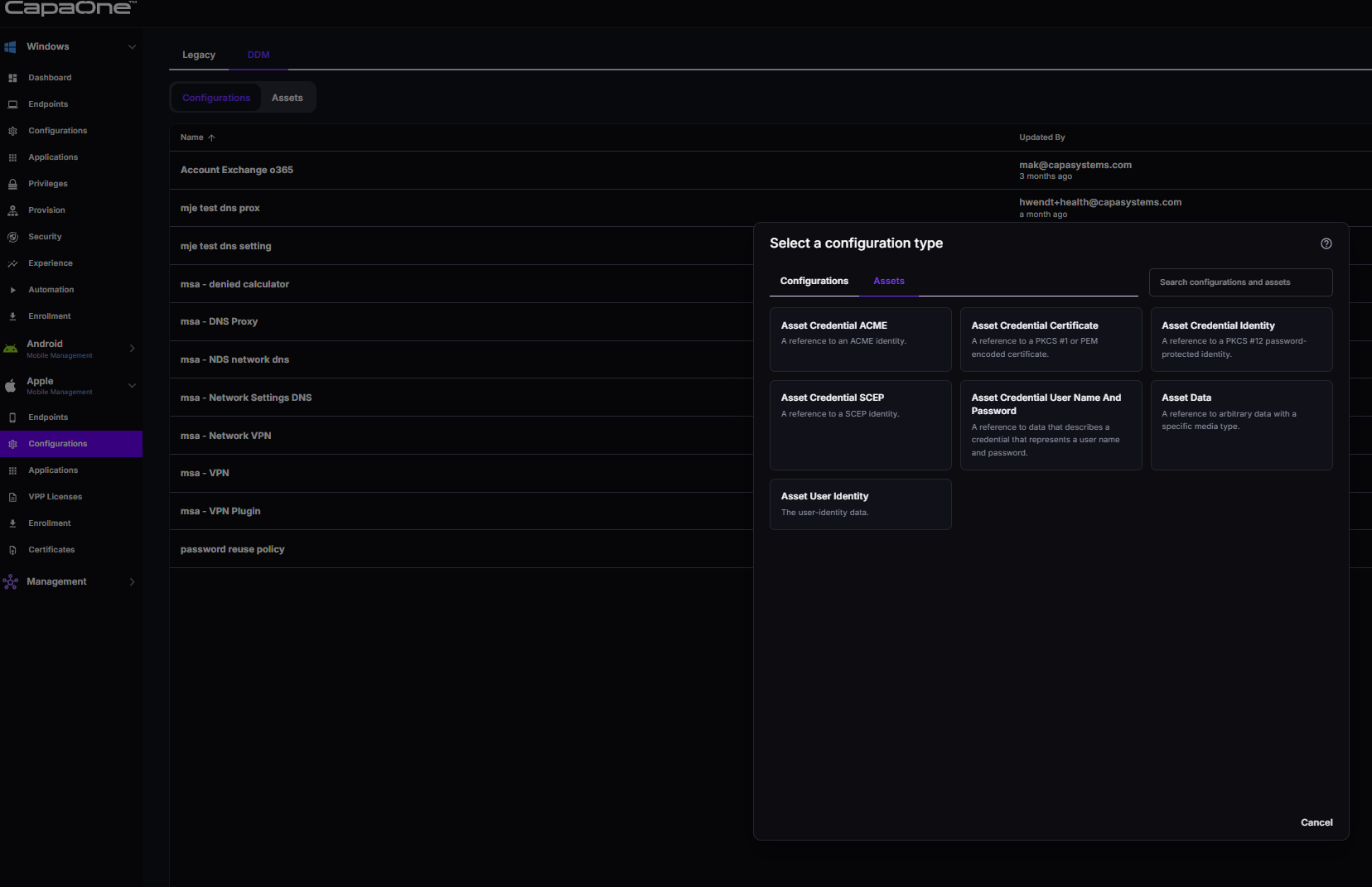
Click New. This opens the Select a configuration type picker, with two tabs:
- Configurations — every DDM configuration type, listed alphabetically. This is what you’ll use for most migrations. See DDM Configuration Types Reference for what each one does.
- Assets — credentials, identities, and data that a configuration can reference, rather than configurations in their own right (for example, a certificate a Wi-Fi configuration points to). See DDM Assets if the configuration you’re recreating uses a certificate, identity, or stored credential.
-
Create a new configuration matching your existing Legacy configuration.
-
Save and verify the configuration.
Step 3: Prepare a new group for DDM
Section titled “Step 3: Prepare a new group for DDM”Create a dedicated device group for DDM migration before you link any DDM configurations to devices. This keeps your rollout isolated from existing Legacy-managed groups and gives you a clear, at-a-glance view of migration progress.
- Navigate to Management → Groups.
- Click New and give the group a descriptive name, for example
DDM - PilotorDDM - Production. - Save the group. Don’t add devices yet.
Then link your DDM configurations to this group:
- Navigate to Apple → Configurations → DDM.
- Open each DDM configuration you prepared in Step 2.
- Under Group Assignment, link the configuration to your new DDM group.
- Save the configuration.
Step 4: Enroll and enable DDM on devices
Section titled “Step 4: Enroll and enable DDM on devices”Enroll the device as normal — see Apple Enrollment. The device enrolls under Legacy MDM initially.
To enable DDM on an already-enrolled device:
- Navigate to Apple → Endpoints.
- Open the device page for the device you want to migrate.
- Click the action menu (⋯) in the top right corner.
- Select Request → Enable Apple DDM.
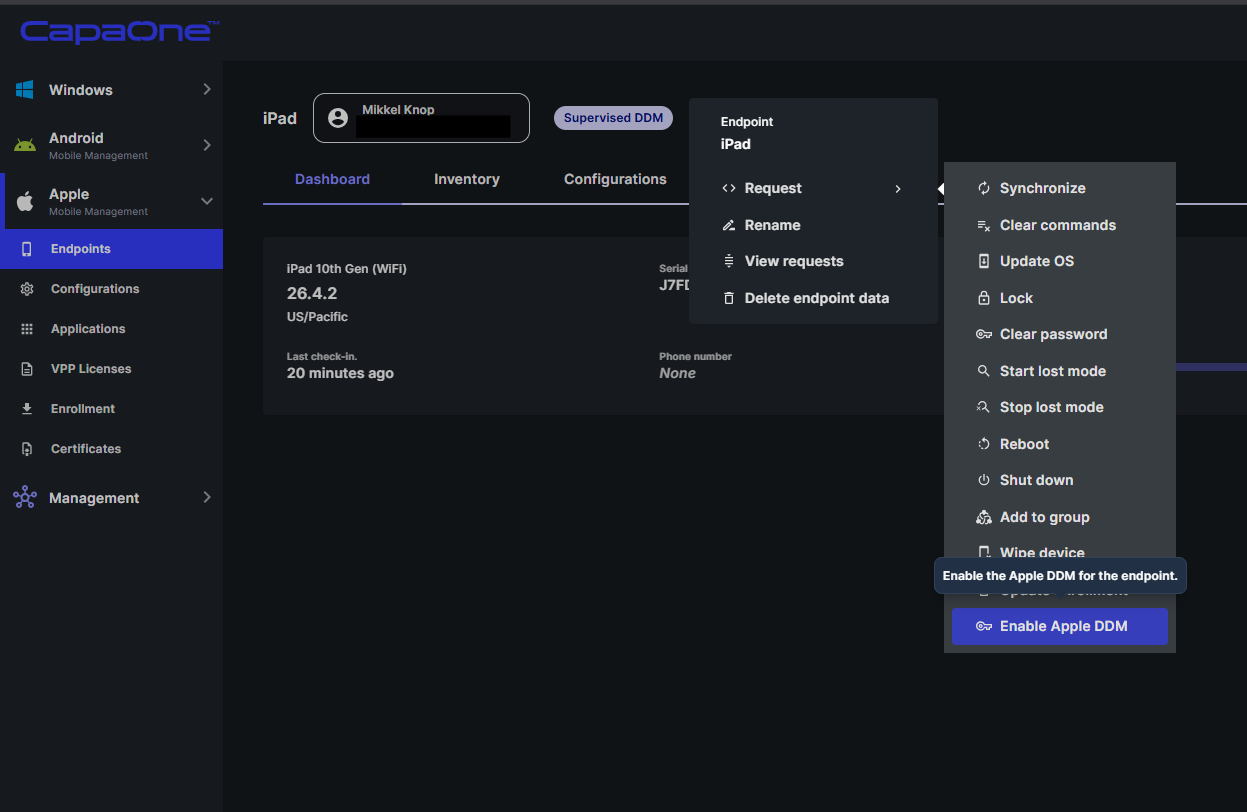
The device now runs under DDM management.
Step 5: Verify DDM enrollment
Section titled “Step 5: Verify DDM enrollment”- Open the device page in Apple → Endpoints. The device badge shows Supervised DDM or Unsupervised DDM, confirming DDM is active.
- Navigate to Apple → Configurations → DDM and confirm your configurations are assigned and applied to the device.
If a configuration doesn’t apply, check that the correct group is assigned to it and that the device is a member of that group.