

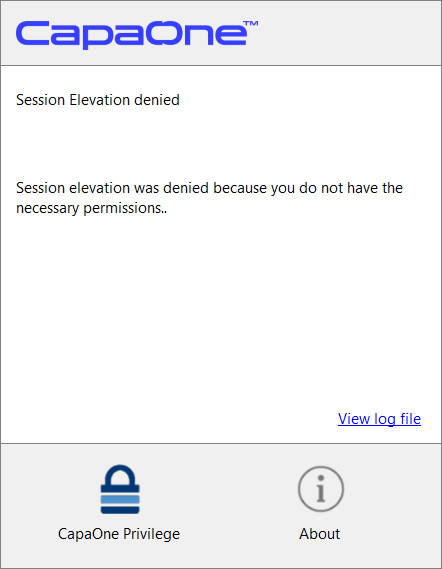
Session Elevation Denied
Problem
Section titled “Problem”Session Elevation is denied in CapaOne Privilege Manager
Solution
Section titled “Solution”Validate the Entra ID groups
Section titled “Validate the Entra ID groups”-
Ensure you are using the correct Privileges configuration, set up with the correct Entra ID groups, and validate with the correct Entra ID user.
-
Make sure that the CapaOne Entra ID Integration is configured correctly. Integrate CapaOne with Entra ID
-
Inspect logfile CapaOnAgent.log (The log file can be found in C:\ProgramData\CapaSystems\COA\Logs)
- Validation result…. (CapaOnAgent.log )
AzureAD\Simon is denied permission to elevate a session on client8 via the 'STH - AzureTest' configuration. Removing the 'Start' button:- No local security group has been configured- AzureAD\Simon is NOT member of the AD group 'domain users'- [email protected] is NOT member of the Azure group 'STH_Azure'- [email protected] is NOT member of the Azure group 'Test af æøå og mellemrum'Run the commands below in a regular PowerShell.
- Display current/available Azure contexts. Use this to check the contexts of the users on the device. If no or the wrong user context is shown, this might cause a problem.
Get-AzContext -ListAvailable- Clear the current context. If the wrong user is listed, this will clear it.
Clear-AzContext -Scope CurrentUser -Force;- Find the Current User.
whoami /upn- Display the device state. If the device is not AzureAdJoined/EnterpriseJoined or WorkplaceJoined, it might not prompt the user for Entra ID login.
dsregcmd /status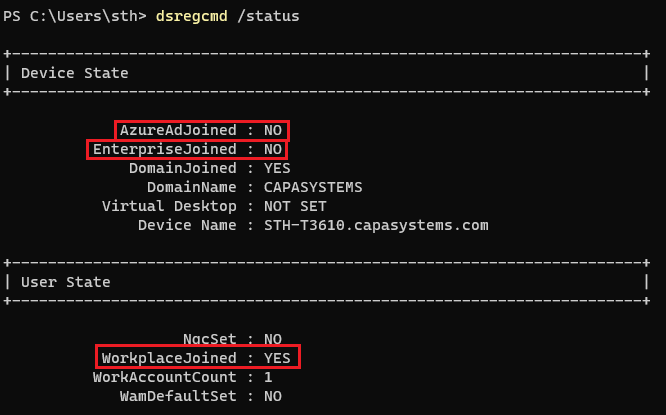
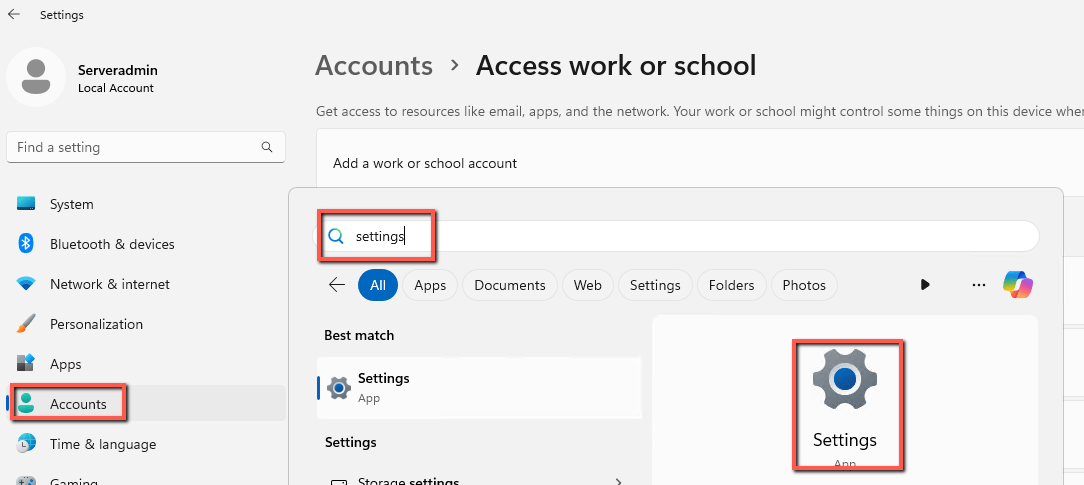
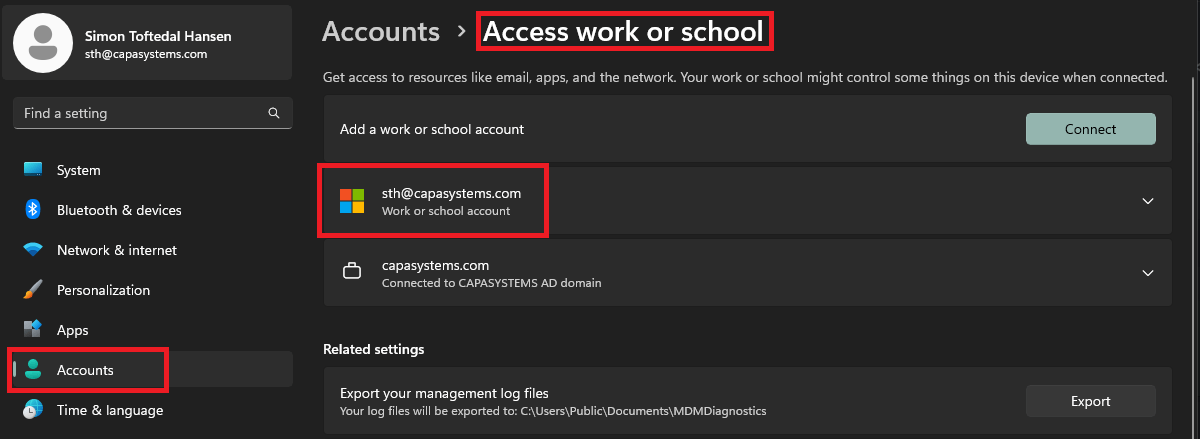
- Check Work or School user. Open Windows settings, click Accounts on the left and then click on Access Work of School. If no user is shown, then no user is connected.
-
Use the “Sign-in Diagnostic“ tool on your azure portal to see user sign-in events. This might give a hint as to why Privileges Entra ID validation is falling.
- Log in to the azure portal and select Microsoft Entra ID
- Click on Diagnose and solve problems in the left menu
- Click on the Troubleshoot text in the Sign-in Diagnostic box
- Click on All Sign-In Events, now search for the user who has trouble with Privileges, and look at the sign-in events
Validating with Entra ID groups when offline
Section titled “Validating with Entra ID groups when offline”Here are three scenarios you could run into where you will use Offline Validation
-
Entra login is down
- No Microsoft login will be shown; instead, it will use the WHOAMI /UPN command to determine the user it will use.
- It will still be looking up Entra ID Groups from CapaOne.
-
CapaOne is down
- It will get the UPN when you log in via the Microsoft login window.
- It will then use the cache file to match the UPN.
-
Entra ID login and CapaOne is down (offline)
- Again, no Microsoft login will be shown. Instead, it will use WHOAMI /UPN to determine the user it will use.
- Again, it will then use the cache file to match the UPN.
This would be a potential failure if the Entra ID UPN and the Windows UPN is different. We would either request groups for the wrong UPN or lookup the wrong cache file.