

Windows Enrollment
Windows endpoints are enrolled by installing the CapaOne Agent (see requirements). An enrollment configuration decides which groups, configurations, and tags a device receives once enrolled. Go to Windows → Enrollment, select a configuration, and click View:
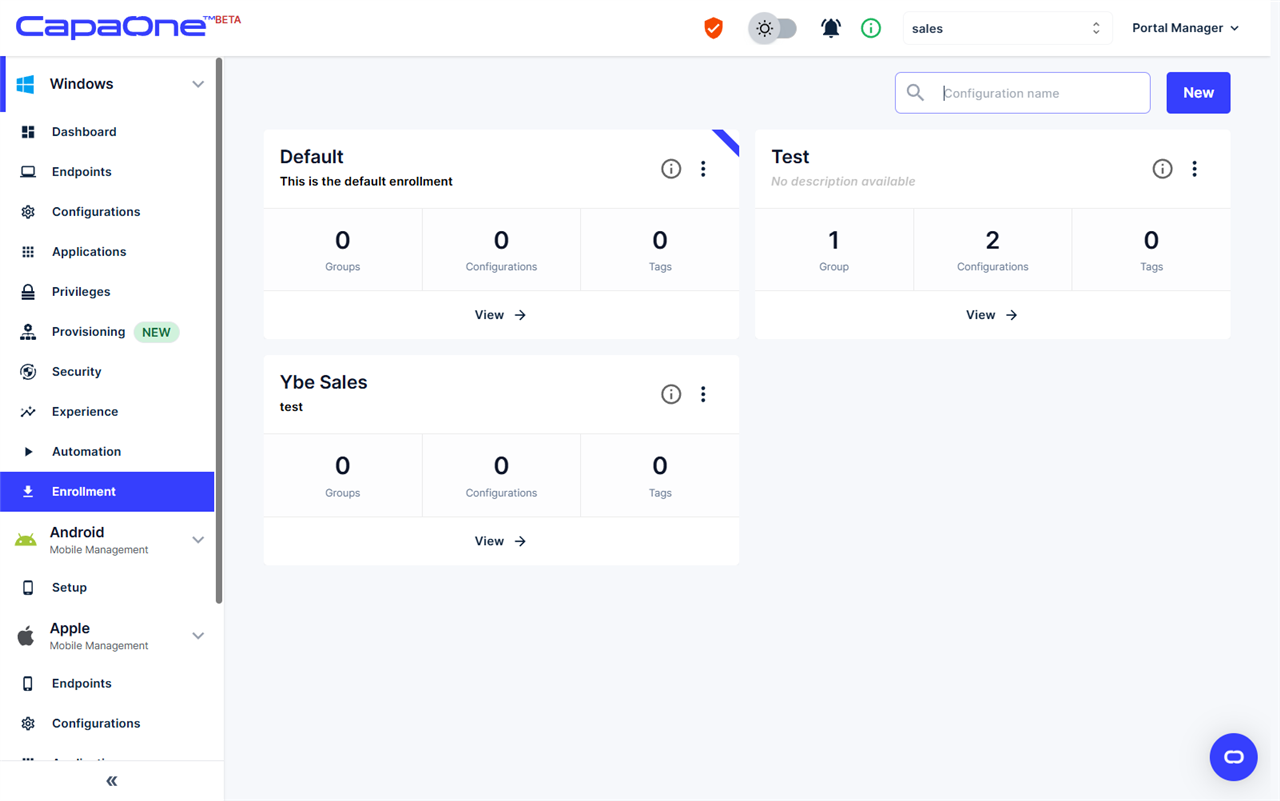
The configuration marked with a corner ribbon is the default — it is used when a device enrolls without specifying a configuration.
Installation methods
Section titled “Installation methods”The configuration drawer offers four ways to install the agent:
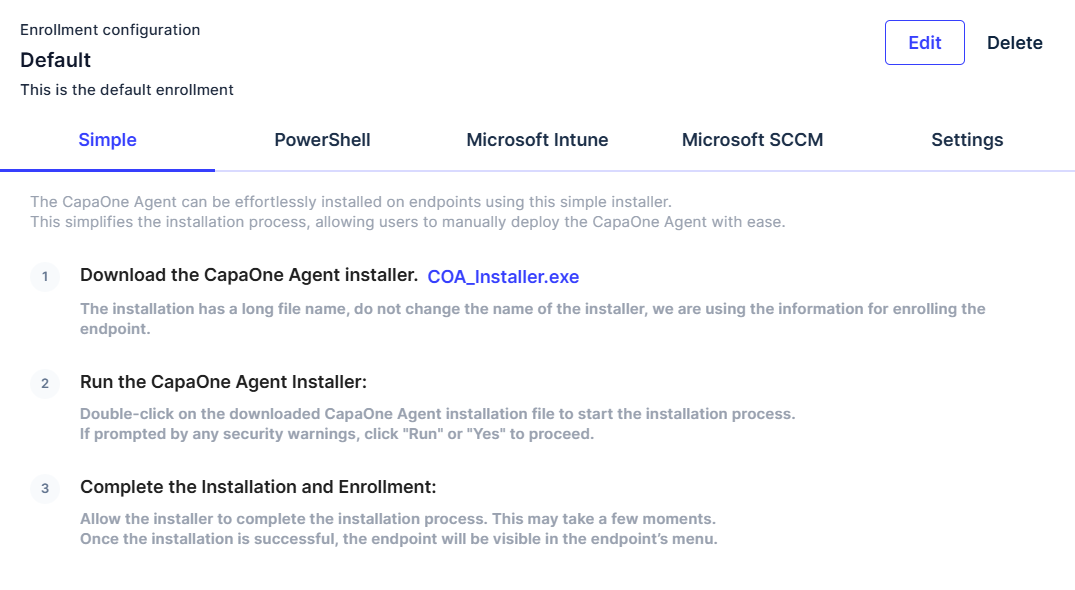
- Simple — download
COA_Installer.exeand run it on the endpoint. The enrollment information is encoded in the installer’s file name, so do not rename the file. - PowerShell — copy the generated command and run it in PowerShell with administrator rights. It downloads the agent and installs it silently with your organization key and enrollment configuration.
- Microsoft Intune — download the generated
InstallCapaOneAgent.ps1and assign it to a device group as a platform script. Optional compliance-check scripts are also provided. See Windows Enrollment with Intune. - Microsoft SCCM — download
COA SCCM.zip, which contains install and uninstall scripts ready to import into SCCM. See Windows Enrollment with SCCM.
After enrollment
Section titled “After enrollment”The device appears under Windows → Endpoints with the groups, configurations, and tags from the enrollment configuration applied. The Settings tab of the drawer shows exactly what will be applied, including an optional Provisioning Template used when provisioning Windows devices.
Having trouble with the agent? See CapaOne Agent installation.