

Apple Applications
Under Apple → Applications you add the apps you deploy to iPhones and iPads. There are two application types:
- App Store app — an app from the App Store, free or licensed through Apple Business Manager (VPP).
- Web Clip app — an icon on the home screen that opens a web page like an app.
Add an App Store app
Section titled “Add an App Store app”- Go to Apple → Applications and click New.
- Select App Store app.
- Search for the app and select it.
- Fill in the settings. See App Store app settings.
- Save the app, then assign it to endpoints or groups on its Assignment tab.
App Store app settings
Section titled “App Store app settings”| Setting | Description |
|---|---|
| ManagementFlags | Remove the app upon removal of the MDM Profile, Prevent backup of app data, or Both of the above. |
| Removable | If turned off, the user can’t remove the app while it’s managed. iOS 14 and later. |
| Tap to Pay | Allows the app to use Tap to Pay. |
| Associated Domains | Domains to associate with the app. iOS 13 and later. |
| Domains Enable Direct Downloads | Allows direct downloads for the associated domains. iOS 14 and later. |
| VPP Settings | Free app. No VPP licenses required, or VPP app. VPP licenses required. A VPP app uses a VPP license when it’s linked to a device, if one is available. |
| Change the management state | Select Managed to take over management of the app if the user already installed it. |
You can also create an app from a VPP license: on Apple → VPP Licenses, open the license’s menu and select Create Application. See Apple VPP License Tracking.
Add a Web Clip
Section titled “Add a Web Clip”- Go to Apple → Applications and click New.
- Select Web Clip app.
- Enter the URL to open and the Label to show under the icon.
- Click Select icon and upload a PNG or JPEG image. The icon can be up to 400 × 400 pixels and 1 MB.
- Set the options you need:
- Removable — the user can remove the Web Clip.
- Full Screen — opens the page as a full-screen web app.
- Ignore Manifest Scope — lets pages outside the web app’s manifest load in full screen.
- Precomposed — shows the icon without added visual effects.
- Application Bundle Identifier — the app that opens the URL.
- Save the Web Clip and assign it.
Add a managed app configuration
Section titled “Add a managed app configuration”A managed app configuration sends settings to an app, such as a server address, when the app is installed. The app’s developer decides which settings the app supports.
- On Apple → Applications, open the app’s menu and select Edit Managed Configuration.
- Enter the configuration in one of two ways:
- As XML (plist), starting with
<dict>. - As a list of keys, each with a type (string, float, boolean, datetime, or int) and a value.
- As XML (plist), starting with
- Click Save.
You can use macros in the values, such as $user.email$ or $hwi.serialNumber$. Point to
Supported Macros to see the list.
Update an app
Section titled “Update an app”Open the app’s menu and select Update Application. CapaOne tries to update the app to the latest version on all linked endpoints.
Follow version adoption
Section titled “Follow version adoption”Open an app and select the Versions tab. It shows how many endpoints run the newest version, and a table of the installed versions with the number and share of endpoints on each.
The application list
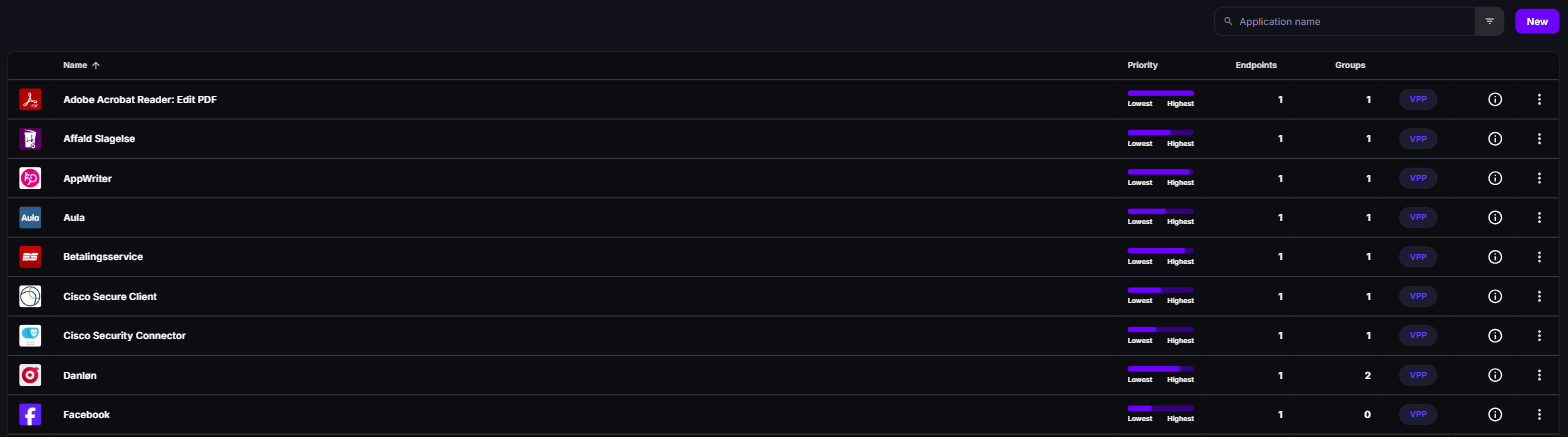
Section titled “The application list”The list shows each app’s name and vendor, Priority, the number of Endpoints and Groups it’s assigned to, and a VPP badge for licensed apps. Use the quick filters to find apps by OS type, whether they’re removable, or whether they use VPP.
An app’s page has the tabs Summary, Endpoints, Assignment, and Versions. Before you delete an app, CapaOne tells you how many endpoints are affected.