

Assign and Redeploy Windows Applications
An application or script only reaches endpoints once it’s assigned. This page shows you how to assign Windows applications, follow their status per endpoint, and redeploy or uninstall them.
Assign an application
Section titled “Assign an application”- Go to Windows → Applications and open the Company Apps or Scripts tab.
- Click the application’s name, and select the Assignment tab.
- Select Direct to assign endpoints, or Group to assign groups.
- Click Assign, select the endpoints or groups under Available, and move them to Assigned.
- Click View to return to the list of assigned items.
Group assignment is the recommended approach for anything that should apply broadly. New endpoints that join the group get the application automatically.
You can also assign applications from a group’s page under Management → Groups, and from an endpoint’s Applications tab.
Assign applications in Testing or Retired status
Section titled “Assign applications in Testing or Retired status”- When you assign an application in Testing status, CapaOne asks you to confirm, because the application hasn’t been thoroughly tested. Select I understand and want to continue to assign it.
- Applications in Retired status can’t be assigned to groups or endpoints.
See where an application is installed
Section titled “See where an application is installed”Open the application and select the Endpoints tab. For each endpoint you see:
- Status — the installation status on the endpoint.
- Assignment — whether the endpoint has the application directly, through one or more groups, or both.
Redeploy or uninstall an application
Section titled “Redeploy or uninstall an application”On the Endpoints tab, open an endpoint’s row menu:
- Redeploy — install the application again on the endpoint.
- View logs — read the installation logs.
- View groups — see which groups give the endpoint the application.
- Uninstall — uninstall the application from the endpoint. Not available for Repository Apps on this tab.
To redeploy or uninstall on several endpoints, select them and choose Redeploy selected or Uninstall selected, and confirm.
You can follow the queued installations under Operations in Progress.
Copy an assignment from another application
Section titled “Copy an assignment from another application”When you replace an application with a new one, for example a new version of a Company App, you can copy the endpoints and groups from the old application:
- Open the app’s menu on the Company Apps tab and select Copy assignment from….
- Select the Source application.
- Optionally, select the option to unassign the source application from the endpoints and groups and mark it as Retired. This may queue an uninstall of the source application on its endpoints.
- Click Copy assignment.
CapaOne also offers to copy an assignment when you save a Company App after changing its Release status to Released.
The application’s page
Section titled “The application’s page”An application’s page has the tabs Summary (the application’s settings), Endpoints, and Assignment. Company Apps, Scripts, and Repository Apps added from Available CapaPacks also have a Deployments tab. The header menu has the same actions as the application’s row menu on the list.
Follow deployments
Section titled “Follow deployments”The Deployments tab summarizes how the application’s installations went:
- Overall status — how many deployments were successful, are in progress, or failed, with the average transfer and execution time.
- Source type — where the endpoints got the application’s files from, with the average transfer time.
- Network interface — the network connections the endpoints used for the deployment.
- Deployment results — the results grouped by exit code, with the number of endpoints for each.
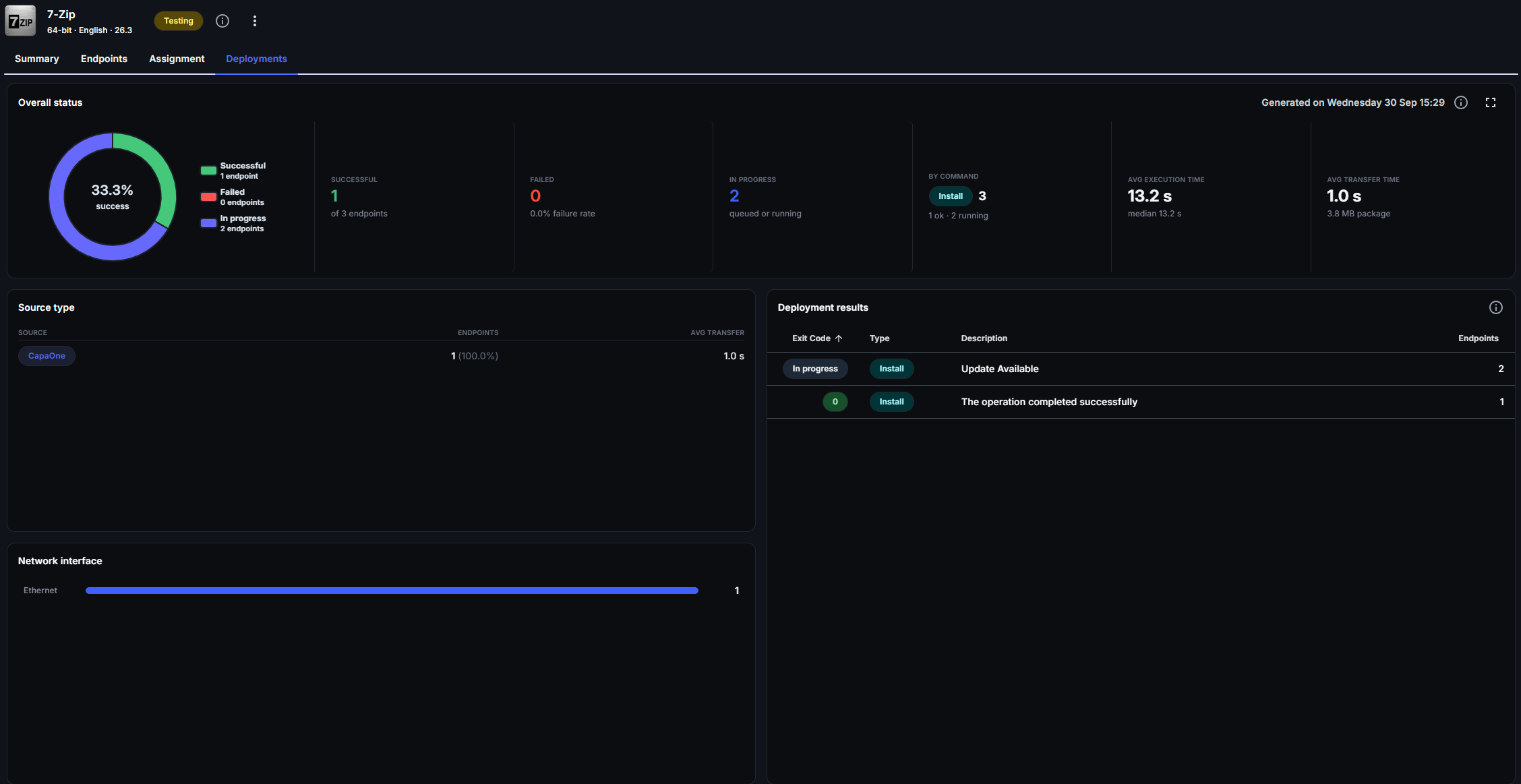
Source type, Network interface, and Deployment results cover recent deployments, about the last 14 days. Select an entry to see the endpoints behind it, and redeploy or uninstall the application on them.
Related
Section titled “Related”- Company Apps and Scripts
- Installation Tiers
- Automation — install and update applications with workflows.