

Set Up Microsoft Sign-in
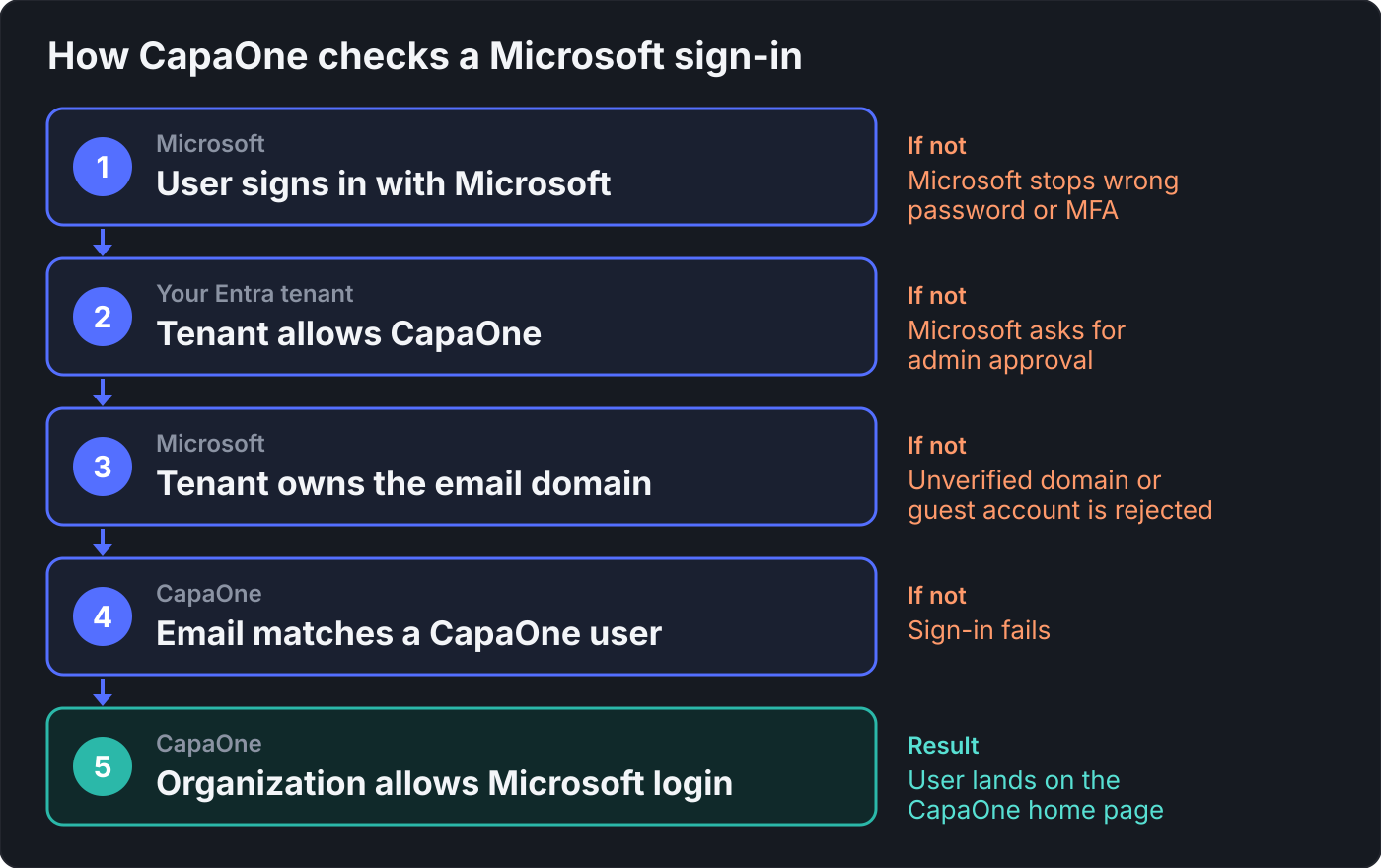
With Sign in with Microsoft, users sign in to CapaOne with their Microsoft work or school account, or with a personal Microsoft account. Microsoft handles the password, multifactor authentication, and any Conditional Access policies in your tenant. CapaOne then matches the account’s email address to a CapaOne user.
CapaOne uses its own multitenant application for sign-in, so you don’t register an application in your tenant. This is separate from Integrate CapaOne with Entra ID, which syncs users and groups.
Turn on Microsoft sign-in in CapaOne
Section titled “Turn on Microsoft sign-in in CapaOne”- Open Users & Organization. See Accessing account administration inside CapaOne.
- Click Edit on the organization, and select the Security tab.
- Select Allow Microsoft login.
- Click Save Changes, and confirm the change in the Confirm Login Security Changes dialog.
CapaOne now accepts Microsoft sign-ins for the organization. Users who sign in with a CapaOne password can keep doing so. See Manage Sign-in Methods.
Requirements for each user
Section titled “Requirements for each user”CapaOne accepts a Microsoft sign-in only when all of these are true:
-
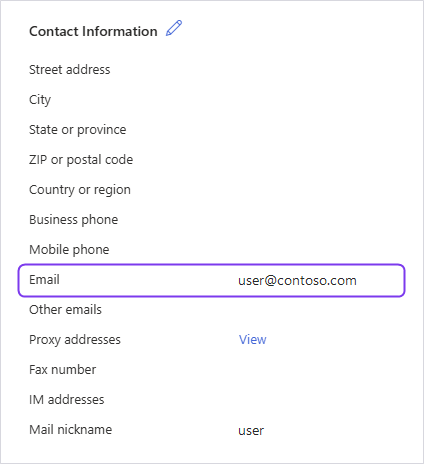
The email address matches a CapaOne user. CapaOne reads the email address from the Microsoft account. For a work or school account, that’s the Email field under Contact Information on the user in Entra ID. CapaOne doesn’t use the user principal name. If Email is empty, the sign-in fails, even when the user principal name matches the CapaOne user.
-
The email domain is verified in the user’s tenant. In the Microsoft Entra admin center, the domain must show Verified under Entra ID → Domain names. CapaOne rejects email addresses that the signing tenant doesn’t own. This blocks other tenants from signing in as your users.
-
The user signs in with their own account, not a guest account. A guest (B2B) account in another organization’s tenant uses a domain that tenant doesn’t own, so CapaOne rejects it.
-
The tenant lets the user use CapaOne. This depends on the consent and assignment settings in the next sections.
Personal Microsoft accounts, such as Outlook.com accounts, also meet the domain requirement.
Allow CapaOne in your Entra tenant
Section titled “Allow CapaOne in your Entra tenant”CapaOne needs admin consent once for your tenant. One of its permissions can only be granted by an administrator, so users can’t consent for themselves, whatever your user consent settings are.
The usual way is to let an administrator sign in to CapaOne with Microsoft first. If that doesn’t work, use the admin consent link.
Grant consent at the first sign-in
Section titled “Grant consent at the first sign-in”The first time someone in your tenant clicks Sign in with Microsoft on the CapaOne sign-in page, Microsoft shows a different page depending on the account:
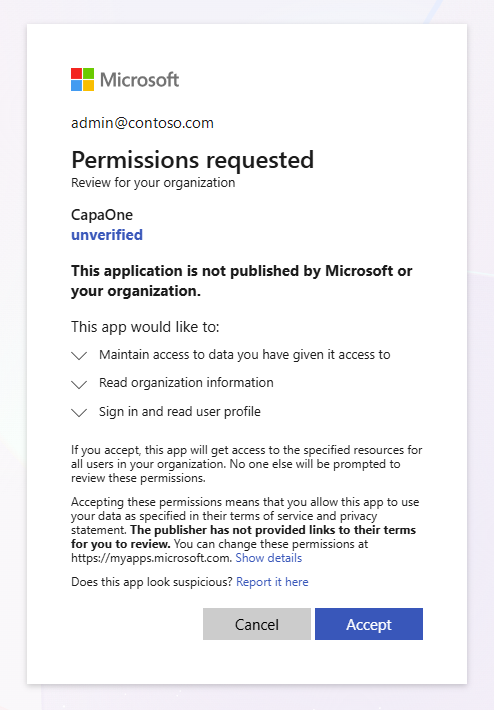
- An administrator sees Permissions requested. The administrator reviews the permissions and selects Accept. This grants consent for the whole organization.
- A user without an admin role sees Need admin approval, and sign-in stops. The user can select Have an admin account? Sign in with that account to let an administrator take over.
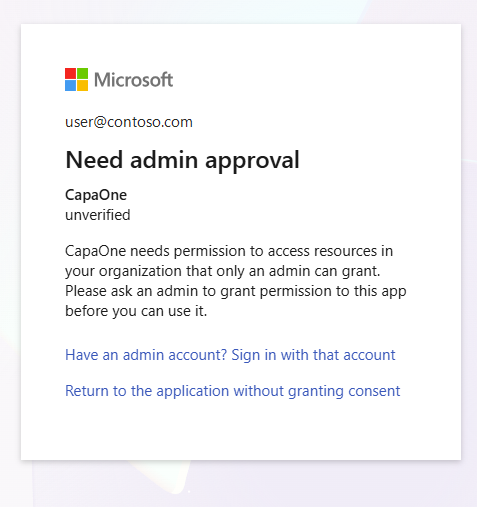
The administrator needs one of the Entra roles listed in Before you start. After the consent, every user in your tenant can sign in without seeing either page.
Grant consent with the admin consent link
Section titled “Grant consent with the admin consent link”Use this link to grant consent before anyone signs in, or when the first sign-in doesn’t show the Permissions requested page.
-
In a browser, open this URL. Replace
<tenant>with your tenant ID or a verified domain, for examplecontoso.com:https://login.microsoftonline.com/<tenant>/adminconsent?client_id=3bd688d1-ef6f-48c3-9af8-2287acd5dffb -
Sign in with an account that has one of the Entra roles listed in Before you start.
-
Review the Permissions requested dialog. It shows CapaOne as unverified, because CapaOne isn’t publisher-verified. To see the description of a permission, expand it.
-
Select Accept.
Microsoft then sends you back to CapaOne. The CapaOne sign-in page might show “Wrong username, password or login method not allowed.” This doesn’t mean that the consent failed.
Check the consent
Section titled “Check the consent”- In the Microsoft Entra admin center, go to Entra ID → Enterprise apps → All applications.
- Search for the application ID
3bd688d1-ef6f-48c3-9af8-2287acd5dffb, and open CapaOne. - Select Security → Permissions.
The permissions are listed under Admin consent. If CapaOne is listed but has no admin consent, select Grant admin consent for <your organization> on this page.
| Permission | Type | Shown in the consent dialog as | What Microsoft says it allows |
|---|---|---|---|
openid |
Delegated | Sign in and read user profile | Users sign in to the app. |
offline_access |
Delegated | Maintain access to data you have given it access to | The app keeps access to the data you gave it access to when the user isn’t using the app. It gives no additional permissions. |
Organization.Read.All |
Application | Read organization information | The app reads the organization and related resources, such as subscribed SKUs and tenant branding, without a signed-in user. |
Let users request approval
Section titled “Let users request approval”If no administrator can sign in first, turn on the admin consent workflow. Users who see Need admin approval can then send a request to an approver instead of being stopped.
- Sign in to the Microsoft Entra admin center as a Global Administrator.
- Go to Entra ID → Enterprise apps → Consent and permissions → Admin consent settings.
- Set Users can request admin consent to apps they are unable to consent to to Yes.
- Select the reviewers, and then select Save.
Reviewers see the request under Enterprise apps → Admin consent requests. See Configure the admin consent workflow.
Limit who can sign in
Section titled “Limit who can sign in”After CapaOne appears under Enterprise apps, you can control access from Entra ID:
- Assign users: open the app, select Properties, set Assignment required? to Yes, and select Save. Then add the allowed users or groups under Users and groups. Users who aren’t assigned can’t sign in to CapaOne with Microsoft.
- Require MFA or a compliant device: create a Conditional Access policy that targets the app.
Test Microsoft sign-in
Section titled “Test Microsoft sign-in”After you allow CapaOne in your Entra tenant, test with one user before you tell everyone.
-
Sign out of CapaOne.
-
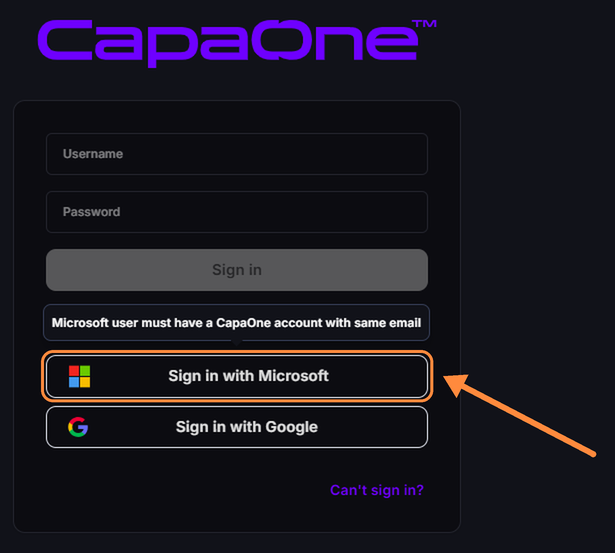
On the sign-in page, click Sign in with Microsoft.
-
On the Microsoft page, select or enter your Microsoft account and complete the sign-in.
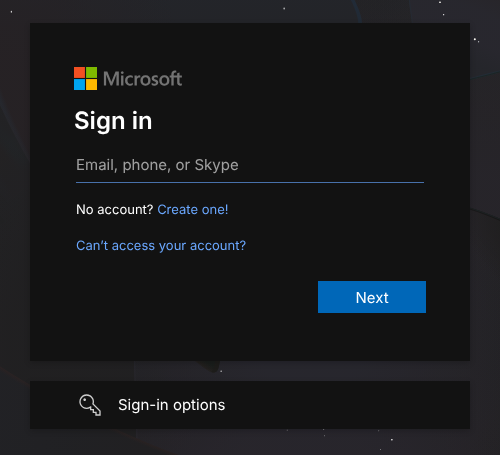
You land on the CapaOne home page. Microsoft always shows the account picker, so users with several accounts can choose the right one.
Troubleshoot Microsoft sign-in
Section titled “Troubleshoot Microsoft sign-in”| What the user sees | Cause | Fix |
|---|---|---|
Microsoft shows Need admin approval (AADSTS90094 or AADSTS65001) |
No administrator has granted consent for your tenant yet | Let an administrator sign in first, or use the admin consent link |
Microsoft says the user isn’t assigned to the application (AADSTS50105) |
Assignment required? is Yes and the user isn’t assigned | Add the user or a group under Users and groups |
Microsoft blocks the sign-in (AADSTS53003) |
A Conditional Access policy blocks access | Check the user’s sign-in logs in Entra ID |
| CapaOne shows “Wrong username, password or login method not allowed.” | Allow Microsoft login is off for the organization | Turn on Microsoft sign-in in CapaOne |
| The Email field of the user in Entra ID is empty | Enter the user’s email address under Contact Information → Email in Entra ID | |
| No CapaOne user has the account’s email address | Check the user’s Email field in Entra ID, and the email address of the CapaOne user | |
| The email domain isn’t verified in the tenant, or the user signed in with a guest account | Verify the domain under Domain names, or sign in with the account from the user’s own tenant |