Integrate CapaOne with Entra ID
-
Navigate to https://portal.azure.com/#home
-
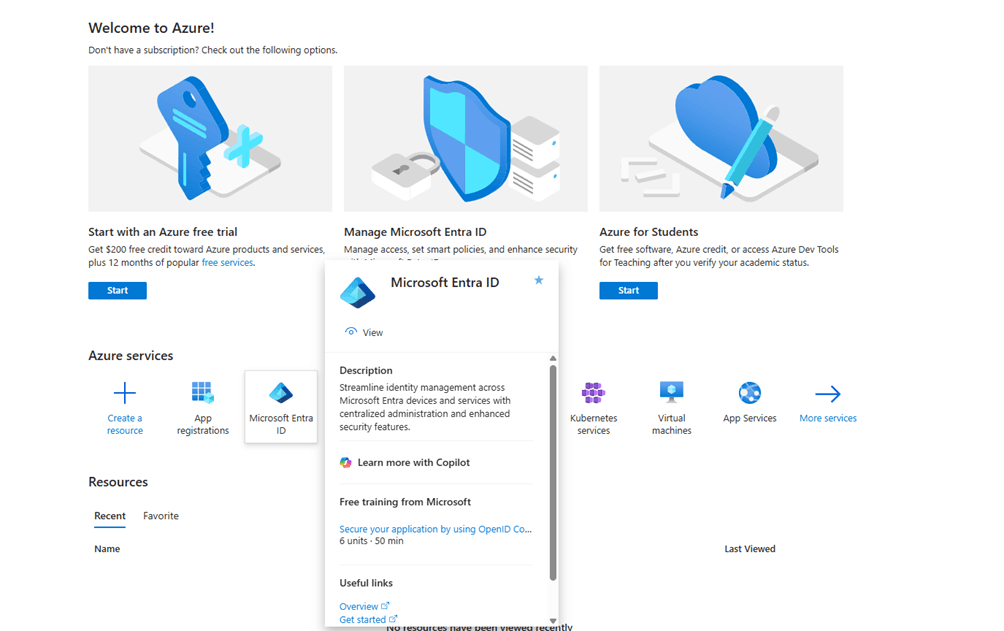
Click Microsoft Entra ID
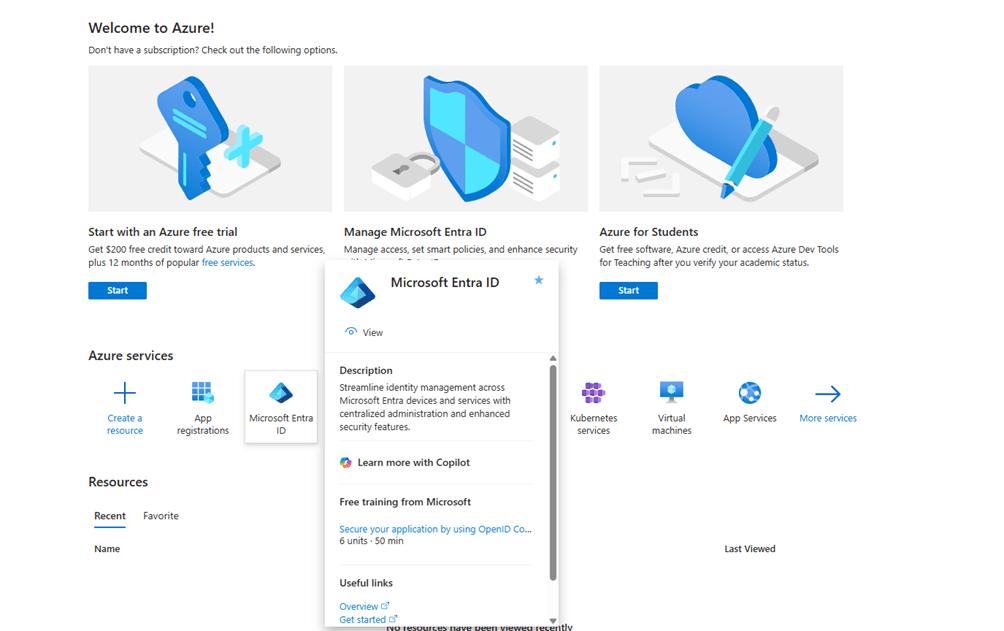
- Click App registrations
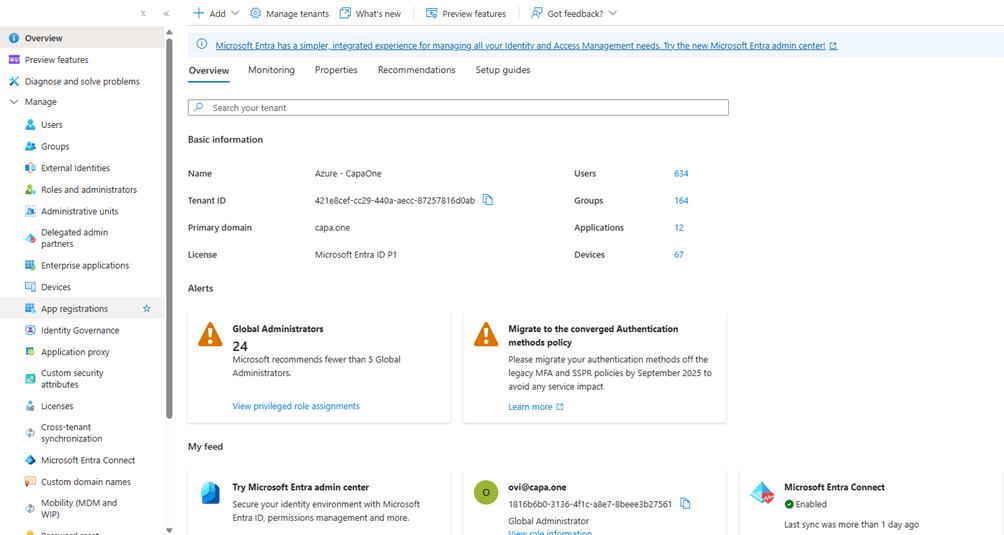
- Click New registration
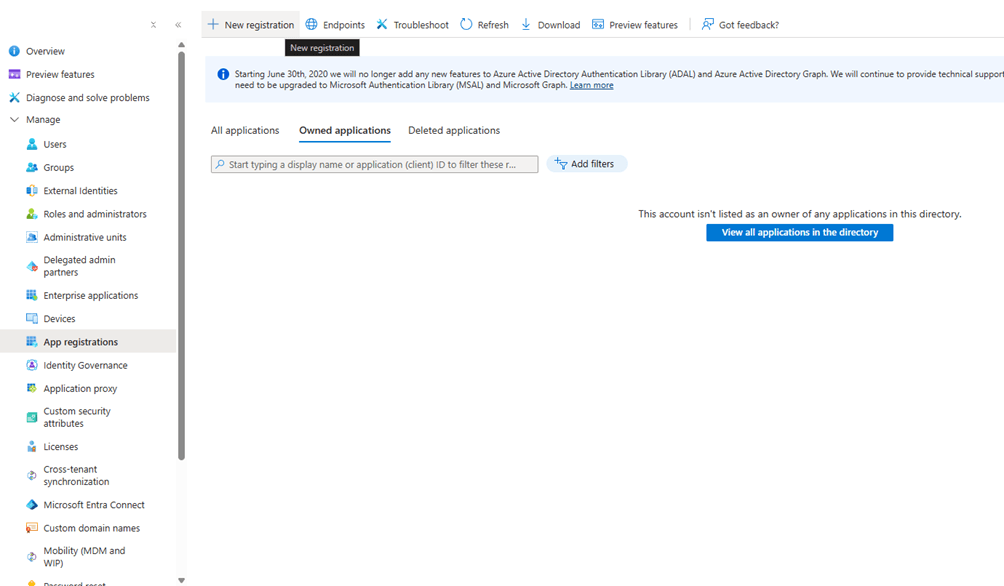
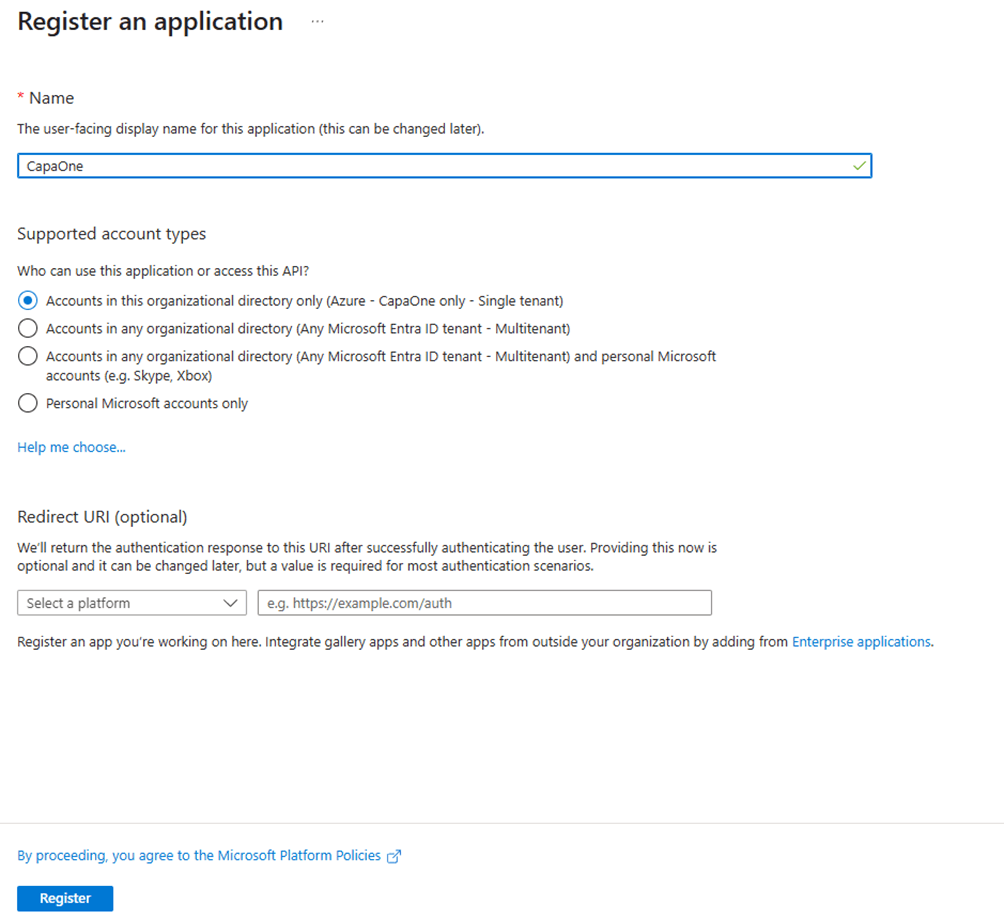
- Provide a name and select what organizational directory should be synced and click Register at the bottom of the page
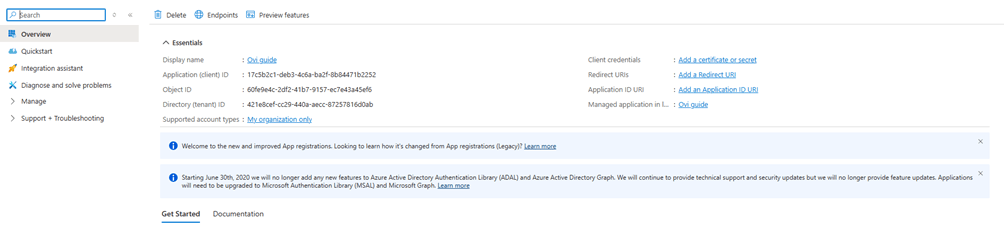
- Click on Add a certificate or secret
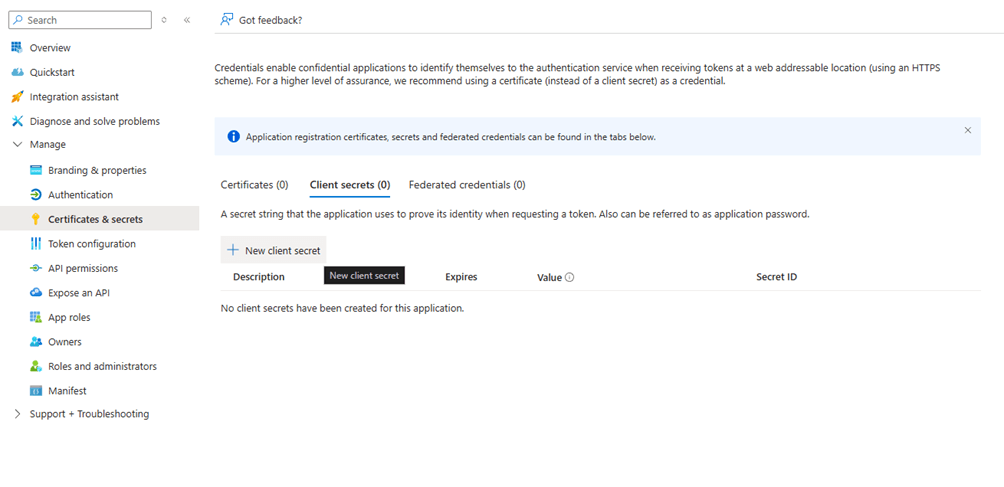
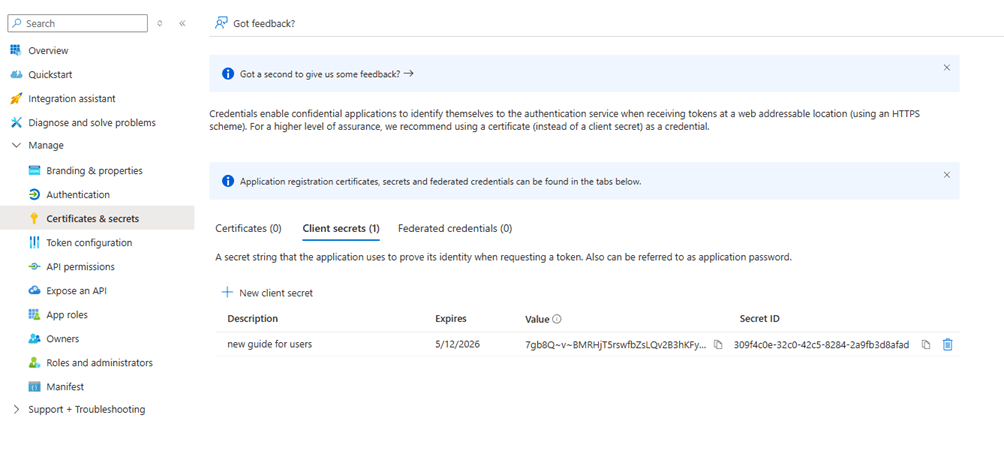
- Click on New client secret
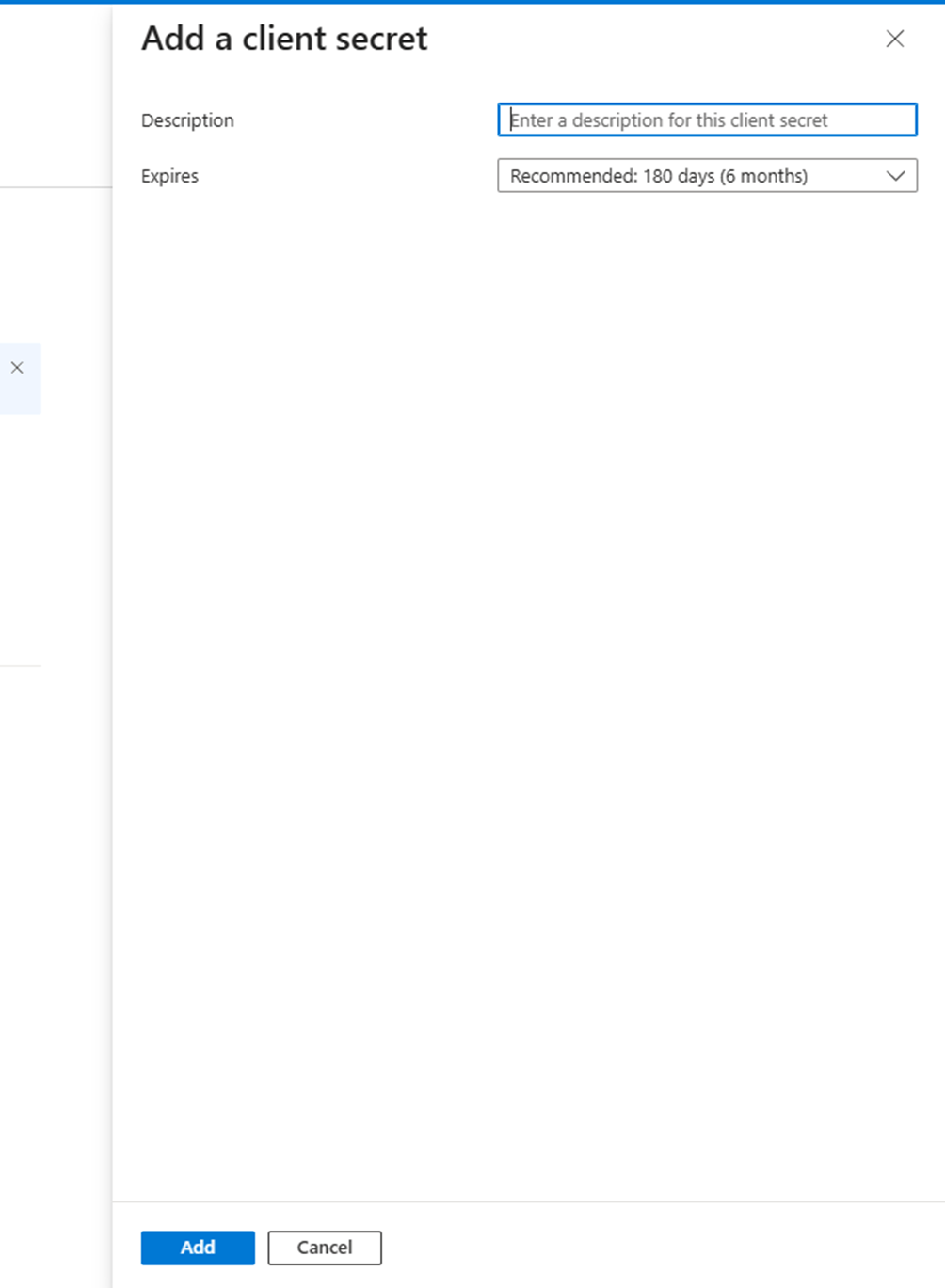
- Provide a description (not required) and set an expiration date. We suggest setting it to 24 months. Afterwards click Add at the bottom of the page
- After the client secret is created you need to copy the value and save it in a notepad. If you refresh or leave the page you will have to create a new client secret
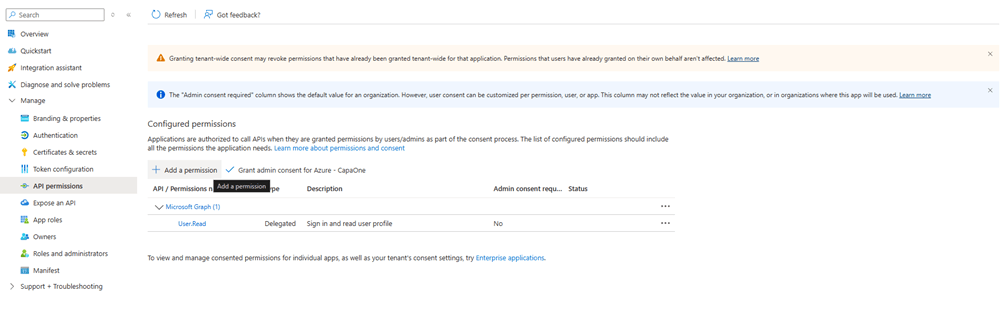
- Click on API permissions in the sidebar and then Add a permission
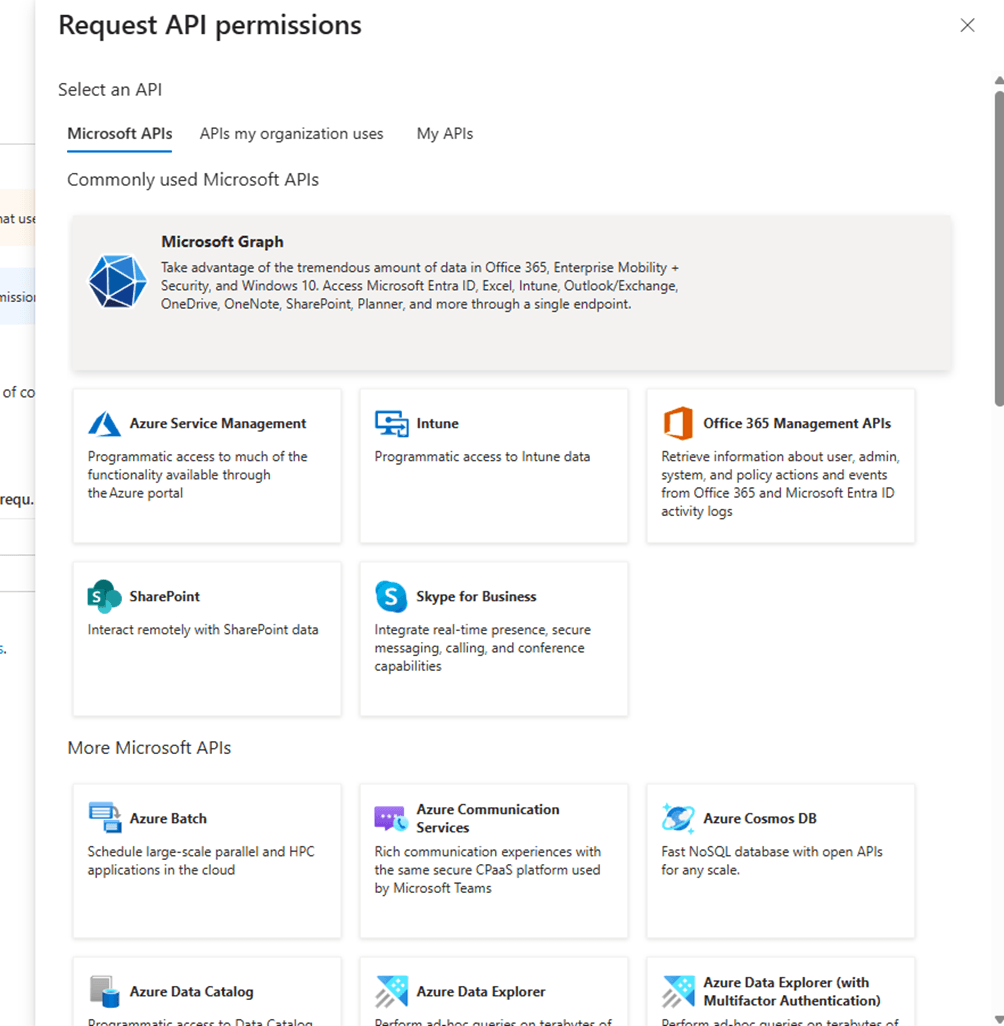
- Select Microsoft Graph
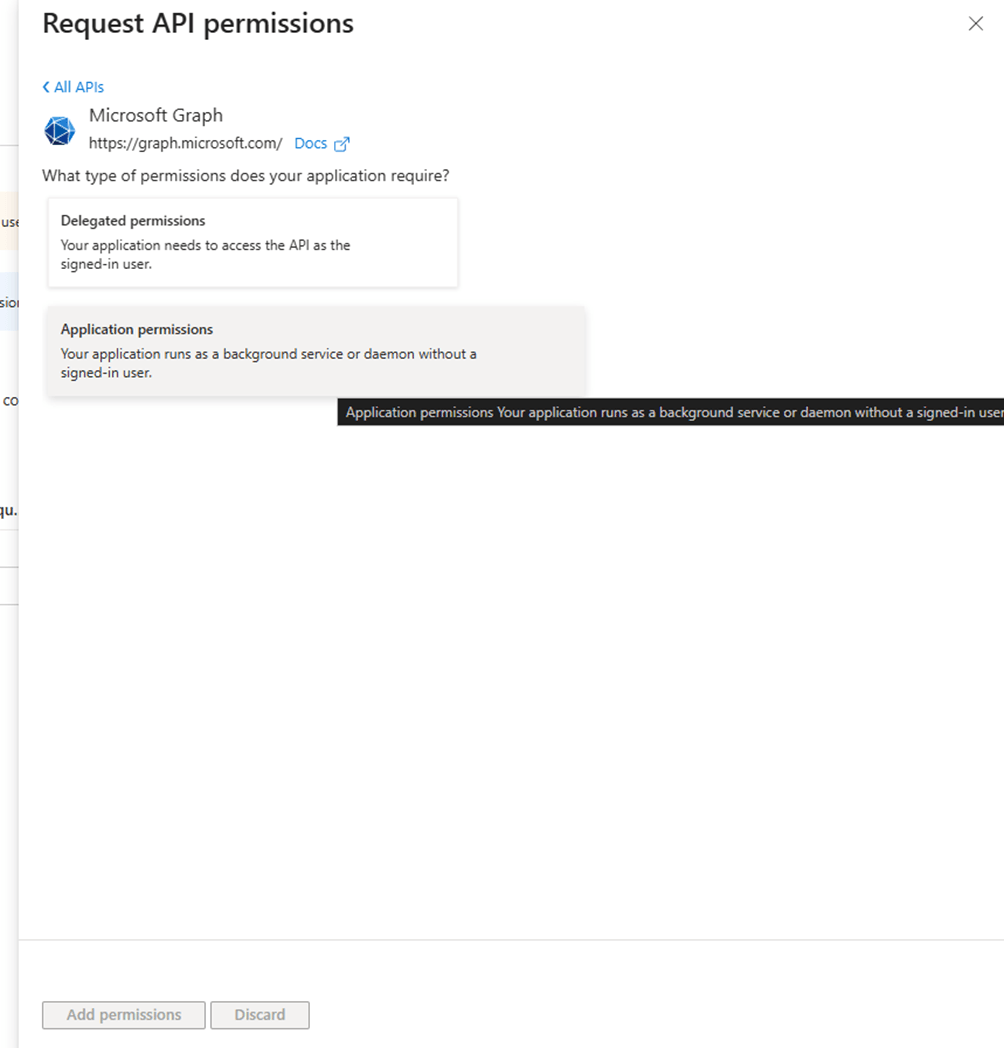
- Select Application permissions
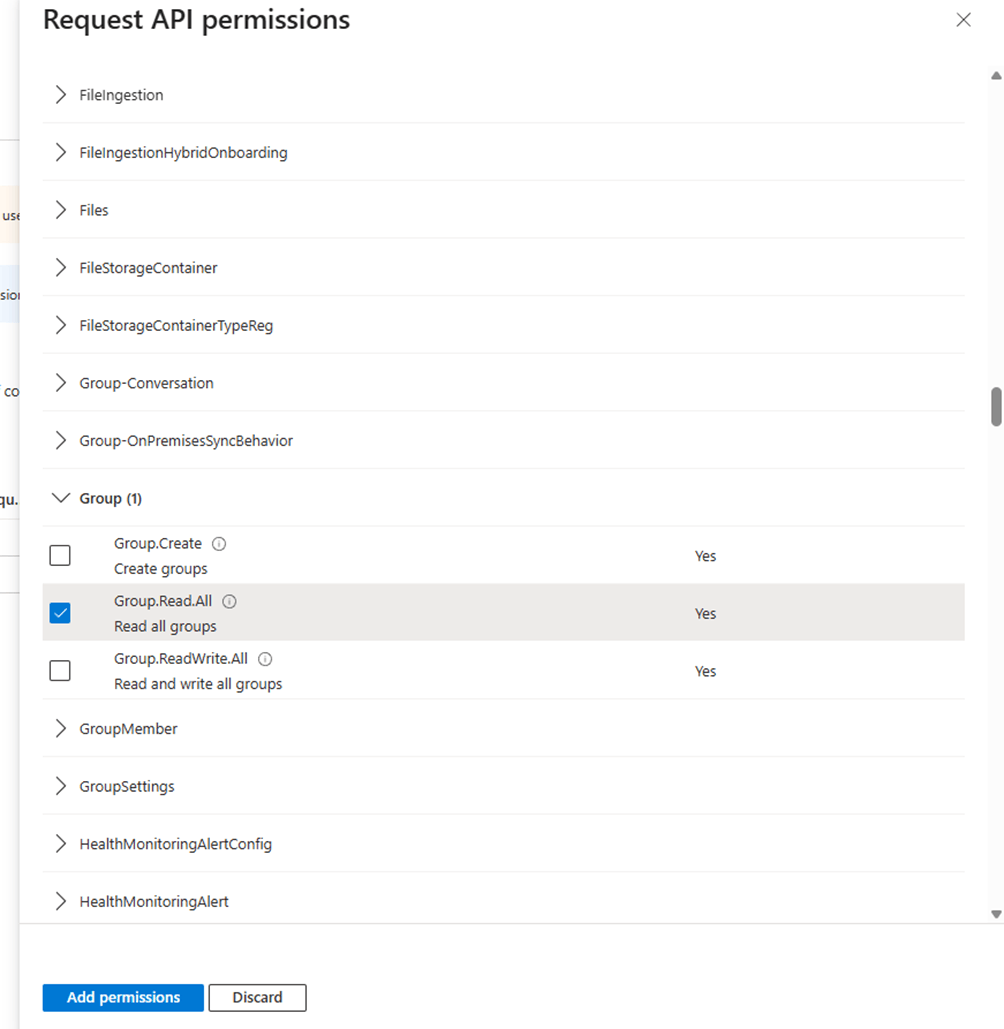
- Scroll down and expand Group and set a checkmark in Group.Read.All and then Add permissions at the bottom of the page
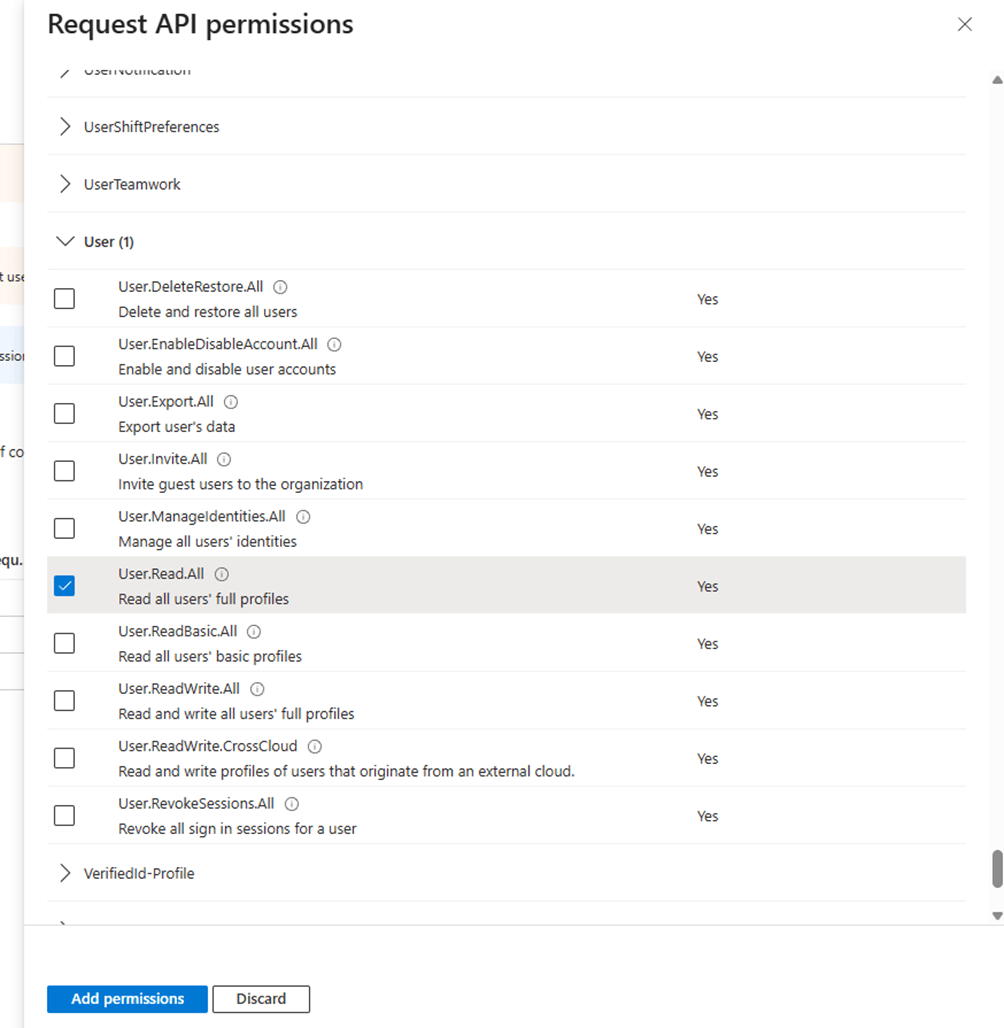
- Go through the same permission steps and set a checkmark in User for User.Read.All and Add permissions
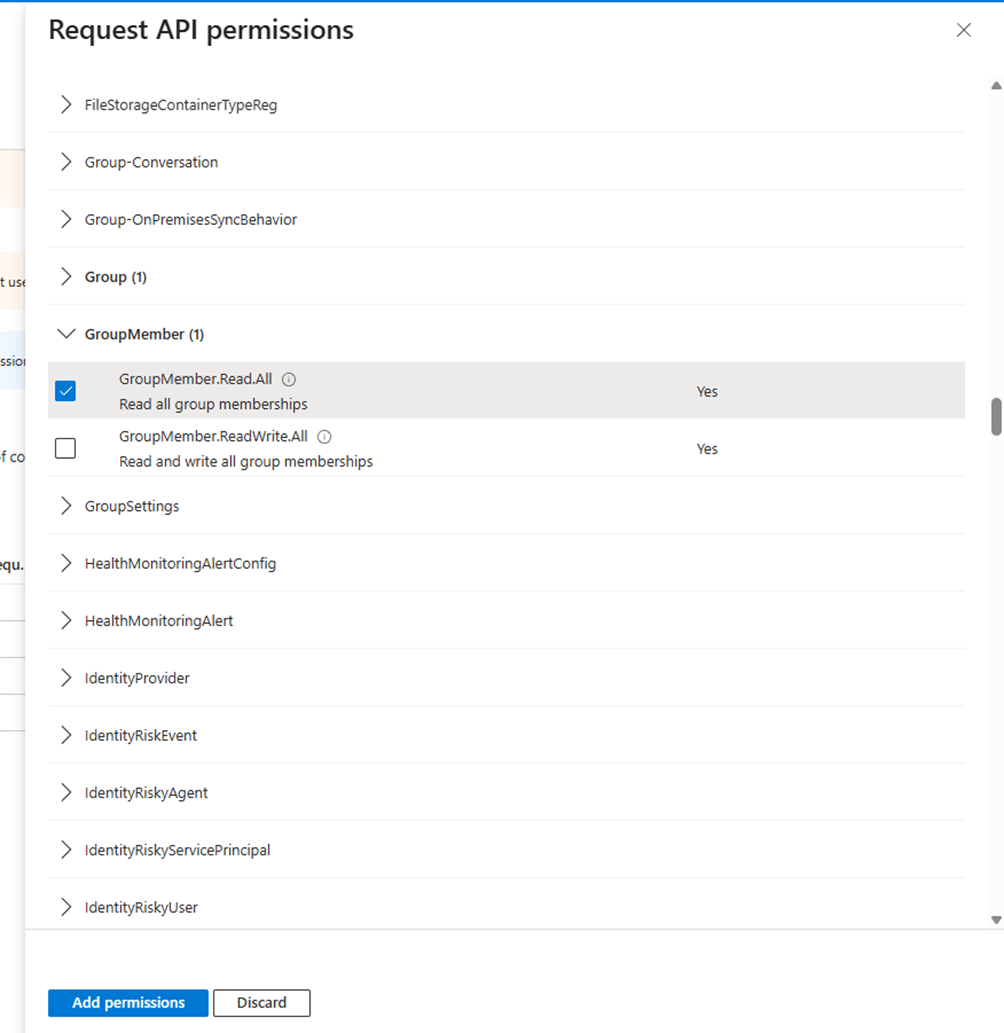
- Go through the same permission steps and set a checkmark in GroupMember for GroupMember.Read.All and Add permissions
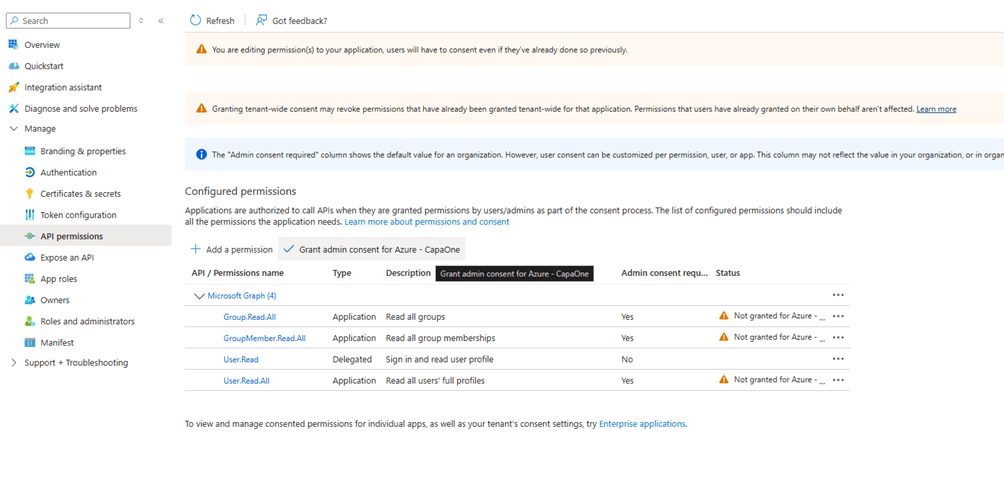
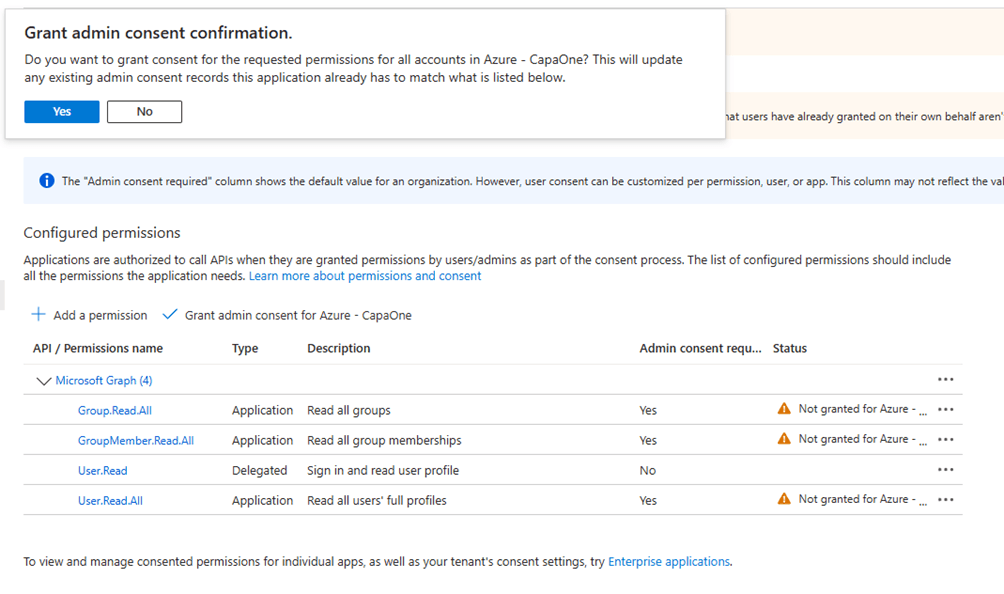
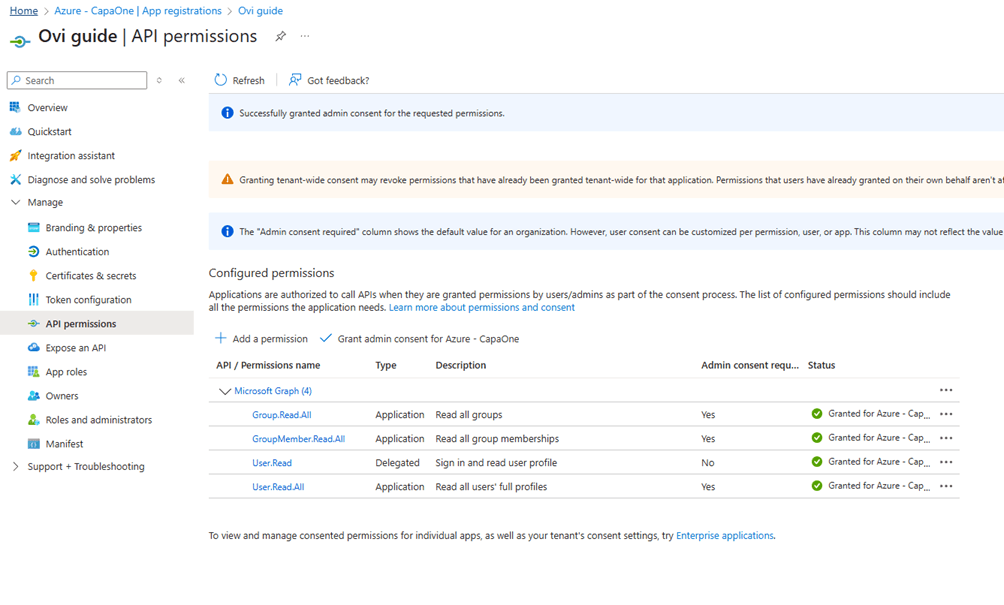
- Click on Grant admin consent for (name of directory)
- Click Yes to the popup
- Click on Home in the upper left corner
- Click on Microsoft Entra ID
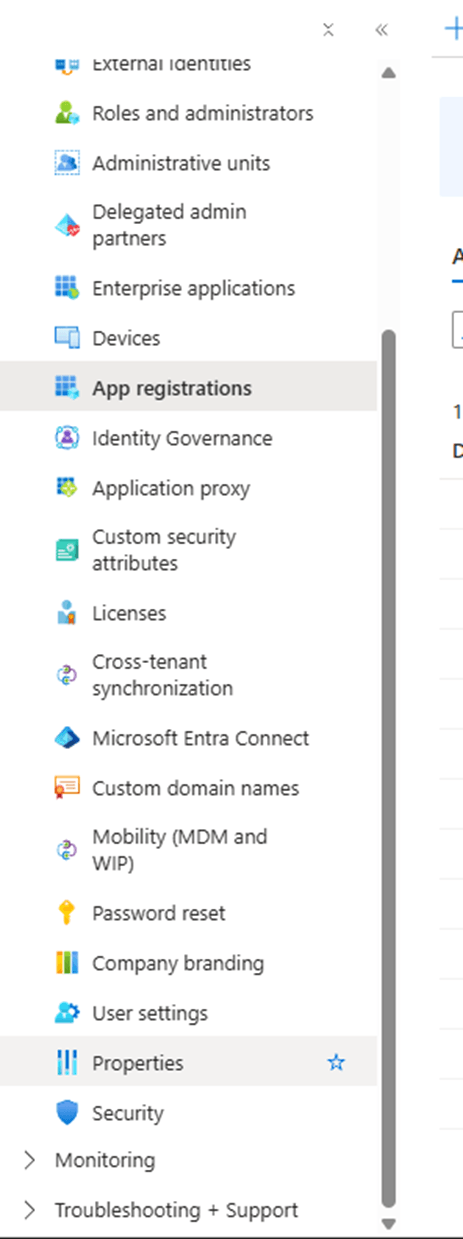
- Click on App registrations in the left pane
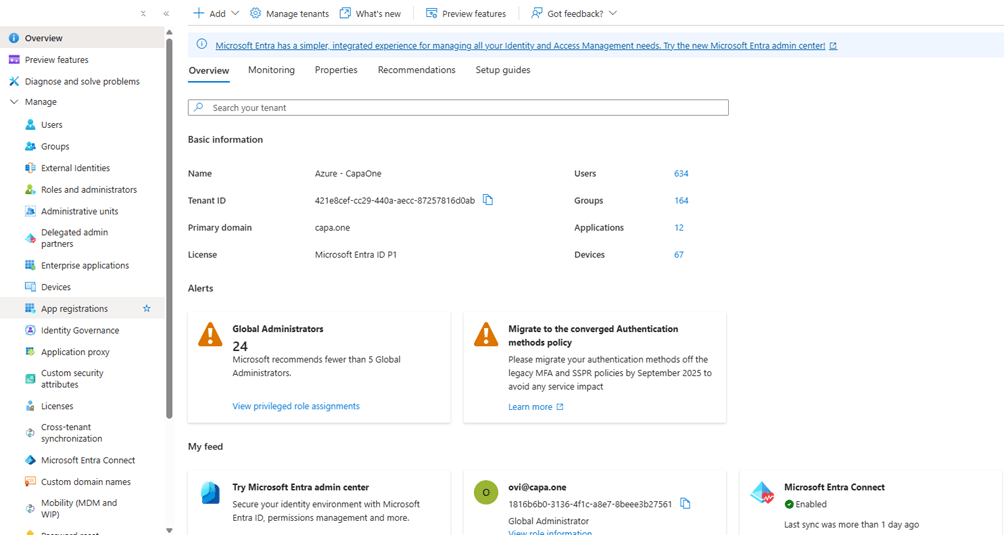
- Copy the Application client ID to your notepad

- Click on Properties in the left pane
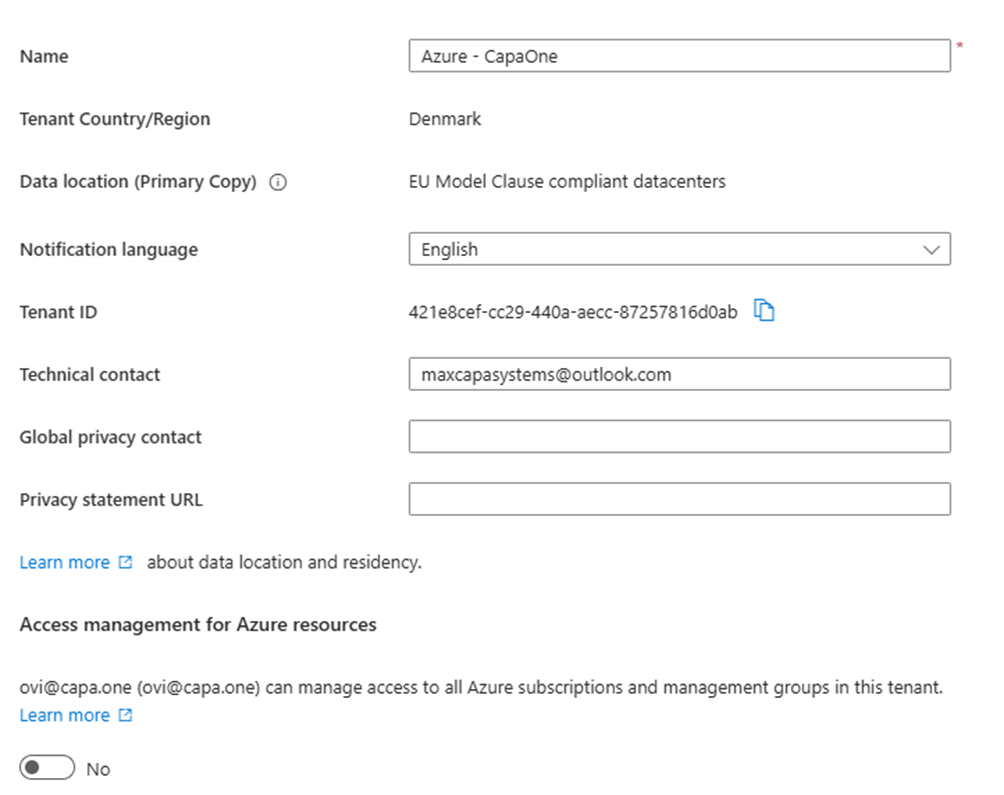
- Copy the tenant ID to your notepad
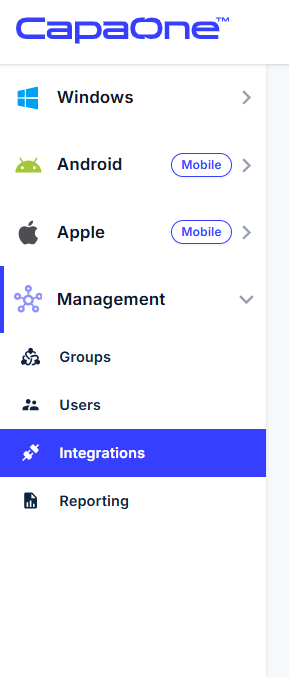
- Go to the CapaOne Management portal and select integrations in the left pane
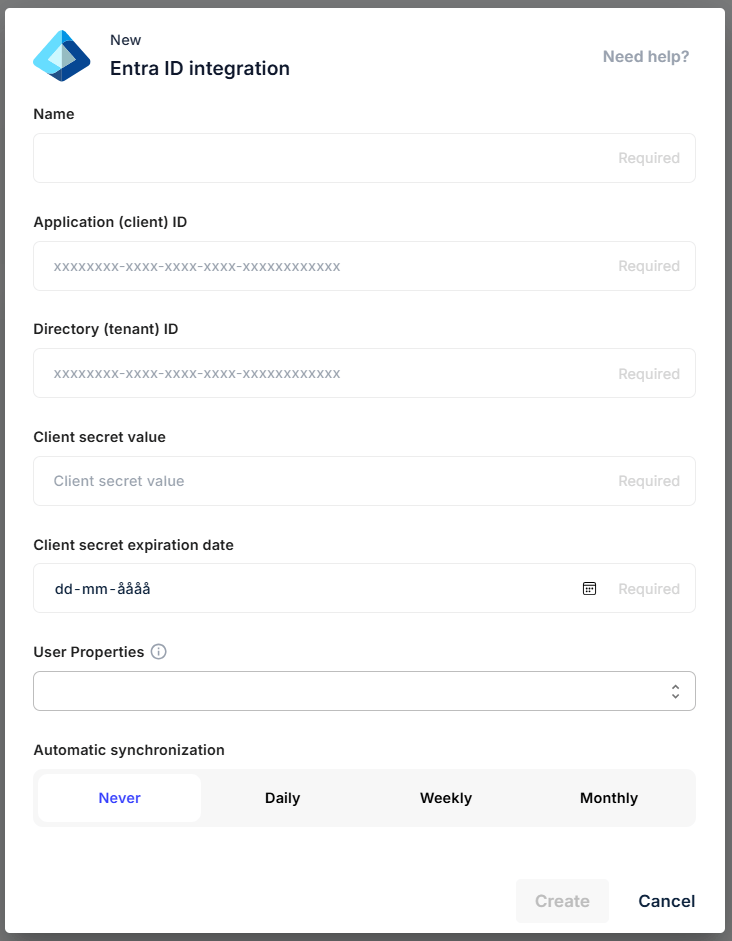
- Click on New to create a new integration

- Provide the following information for the new Entra ID integration
Name
Application Client ID
Tenant ID
Client secret value
(In your notepad you should have Tenant ID, Application ID and Client Value)
Then select a synchronization schedule and click on Create
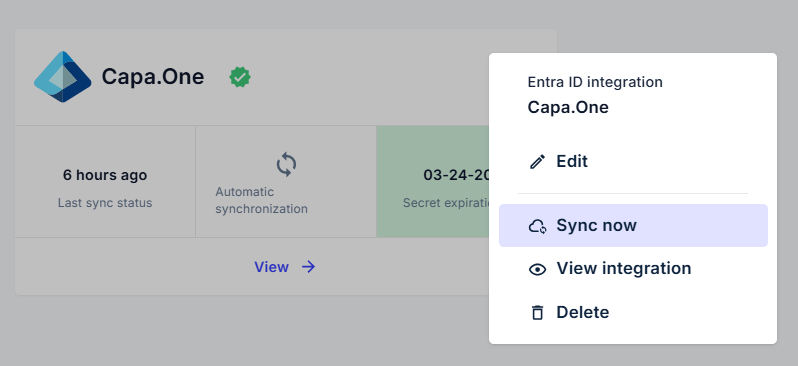
- If you click on the 3 dots to the right of the newly created integration you can do the following
- Edit
- Sync now
- View integration
- Delete
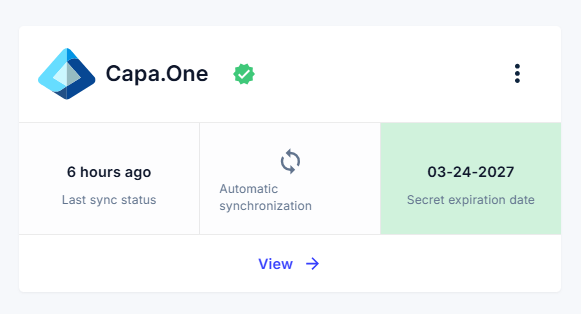
- Click on Sync now
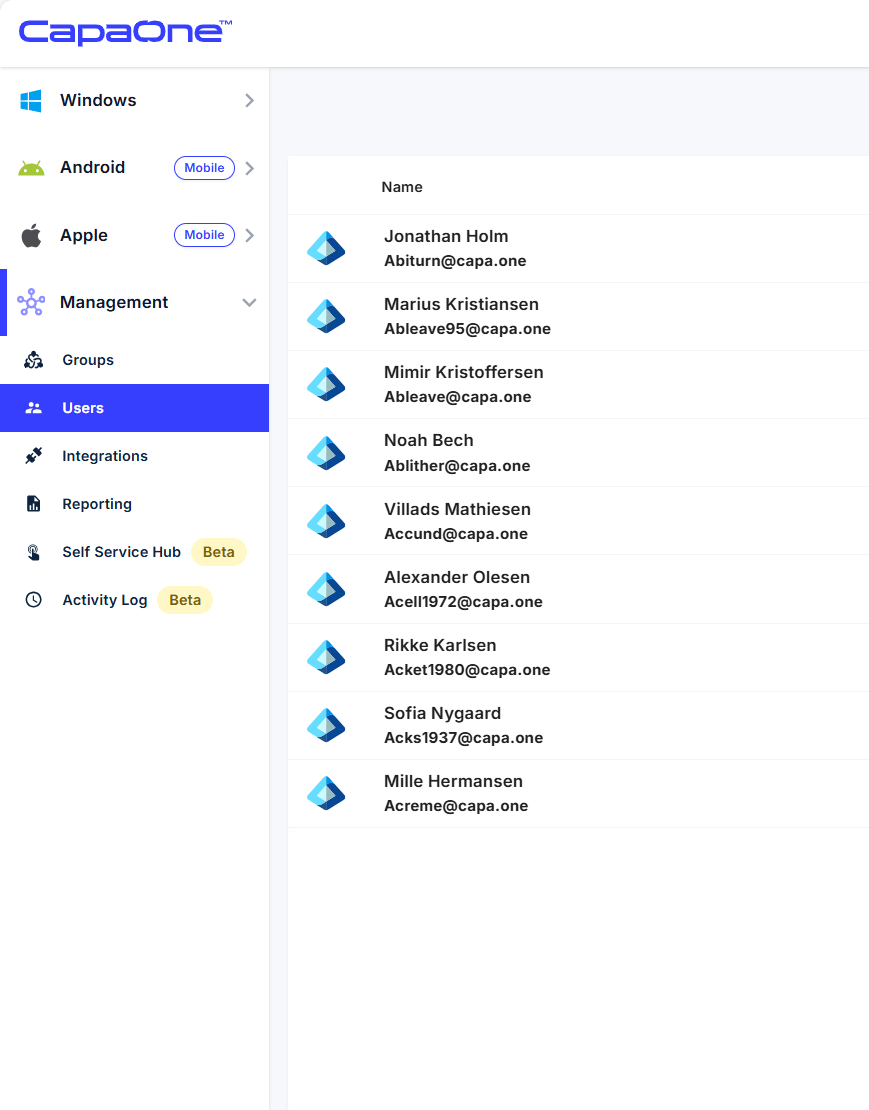
- When the sync is done, click on Users in the left pane and the users from the Entra ID will have a Entra icon to the left of their name