

Apple Enrollment
Apple devices (iPhone, iPad, Mac) are enrolled through Apple MDM.
Enrollment configurations
Section titled “Enrollment configurations”An enrollment configuration defines the management mode and what groups, apps, and settings a device receives once enrolled. Go to Apple → Enrollment → New to create one.
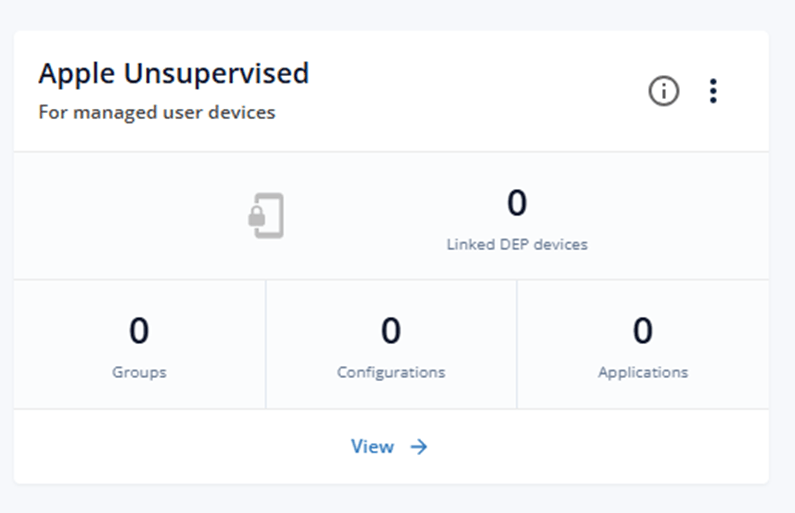
- Unsupervised (BYOD) — for personally owned devices. The user installs an enrollment profile manually; personal apps and data stay private.
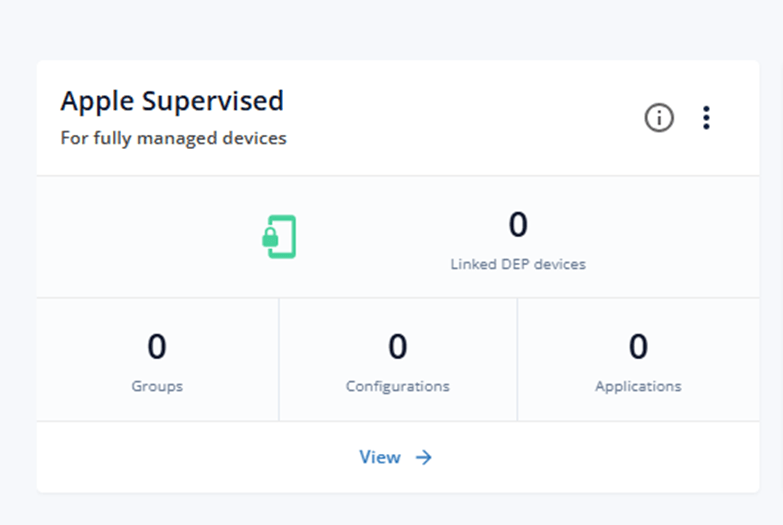
- Supervised (corporate) — for company-owned devices enrolled through Apple Business Manager (DEP). The device is fully managed from first boot, with no manual steps.
Create a BYOD configuration
Section titled “Create a BYOD configuration”- Go to Apple → Enrollment → New.
- Give it a name and description.
- Add groups, configurations, and applications to apply after enrollment.
- Save.
Create a supervised (corporate) configuration
Section titled “Create a supervised (corporate) configuration”- Go to Apple → Enrollment → New.
- Give it a name and description.
- Add groups, configurations, and applications for supervised enrollment.
- Under DEP Enrollment Profile, select an authentication method. Without Entra ID integration, choose No user authentication.
- Enable Skip items and select all — this improves the first-boot experience.
- Click the action menu (⋯) and select Set as default DEP.
Enroll devices
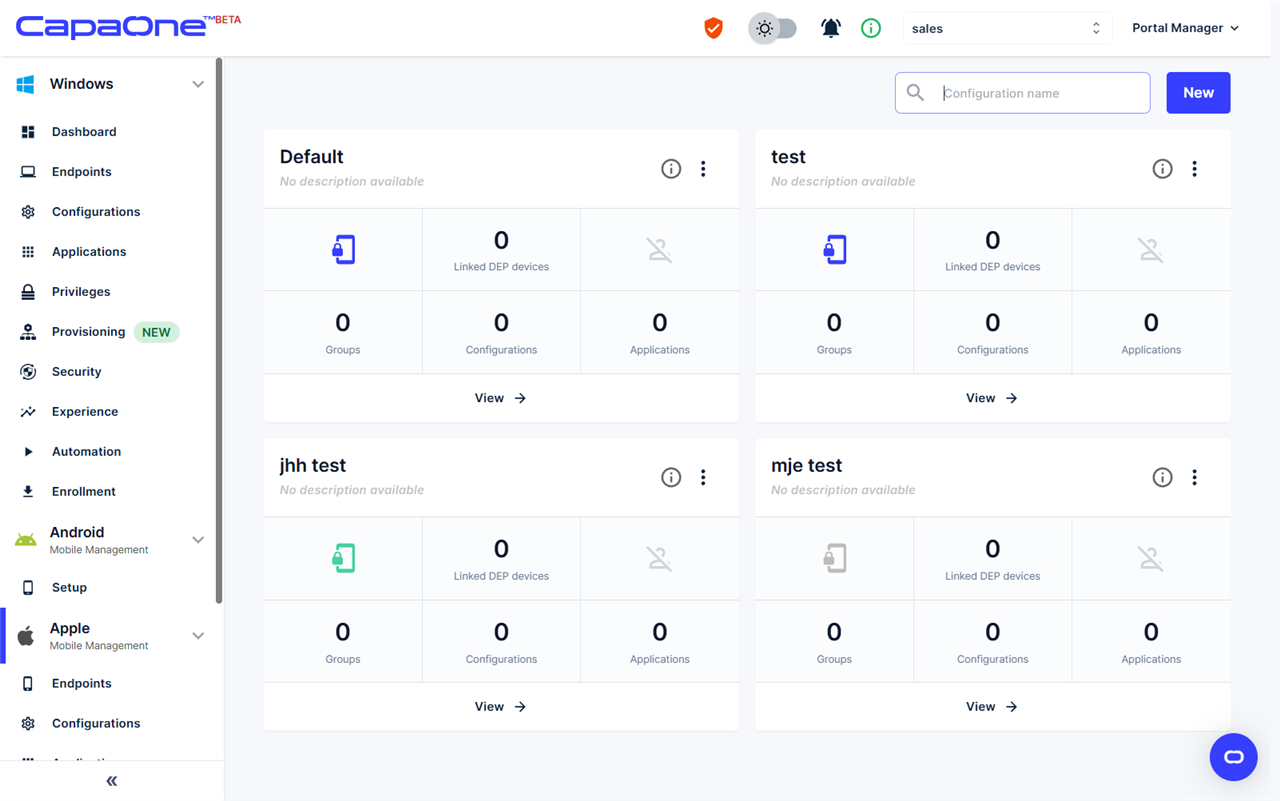
Section titled “Enroll devices”Open a configuration with View to access its enrollment materials.
BYOD devices
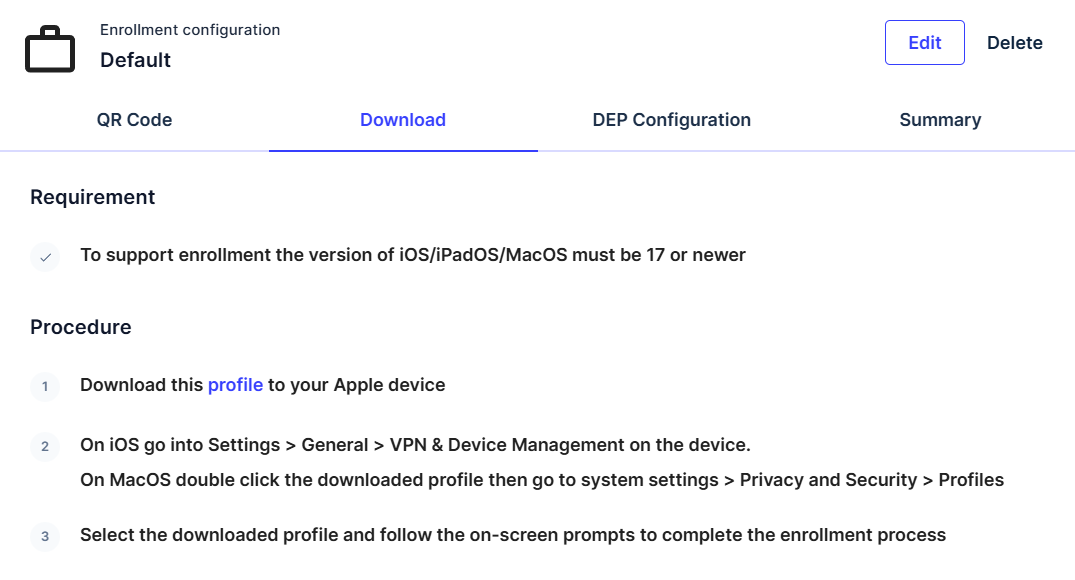
Section titled “BYOD devices”- Open a browser on the device, or scan the QR code from the configuration using the camera.
- Download the enrollment profile and install it:
- iOS/iPadOS: Settings → General → VPN & Device Management
- macOS: double-click the profile, then approve it under System Settings → Privacy & Security → Profiles
The device appears under Apple → Endpoints.

Supervised devices (DEP)
Section titled “Supervised devices (DEP)”Requires the Apple DEP Integration.
- Assign the device in Apple Business Manager to the CapaOne MDM server.
- Reset or unbox the device.
- The device auto-enrolls during initial setup. If Entra ID integration is enabled, the user signs in with their credentials.
The device is supervised and managed without manual steps.
