

Android Enrollment
Android devices are managed through Android Enterprise. If you just want to get devices enrolled, this article guides you through everything you need. If you want a deeper understanding of what Android Enterprise is, how the account settings work, and what the GDPR contact fields mean, see Android Enterprise Setup.
Link your Android Enterprise account
Section titled “Link your Android Enterprise account”The first time you open Android → Enrollment, CapaOne guides you through a one-time setup that registers your organization with Managed Google Play:
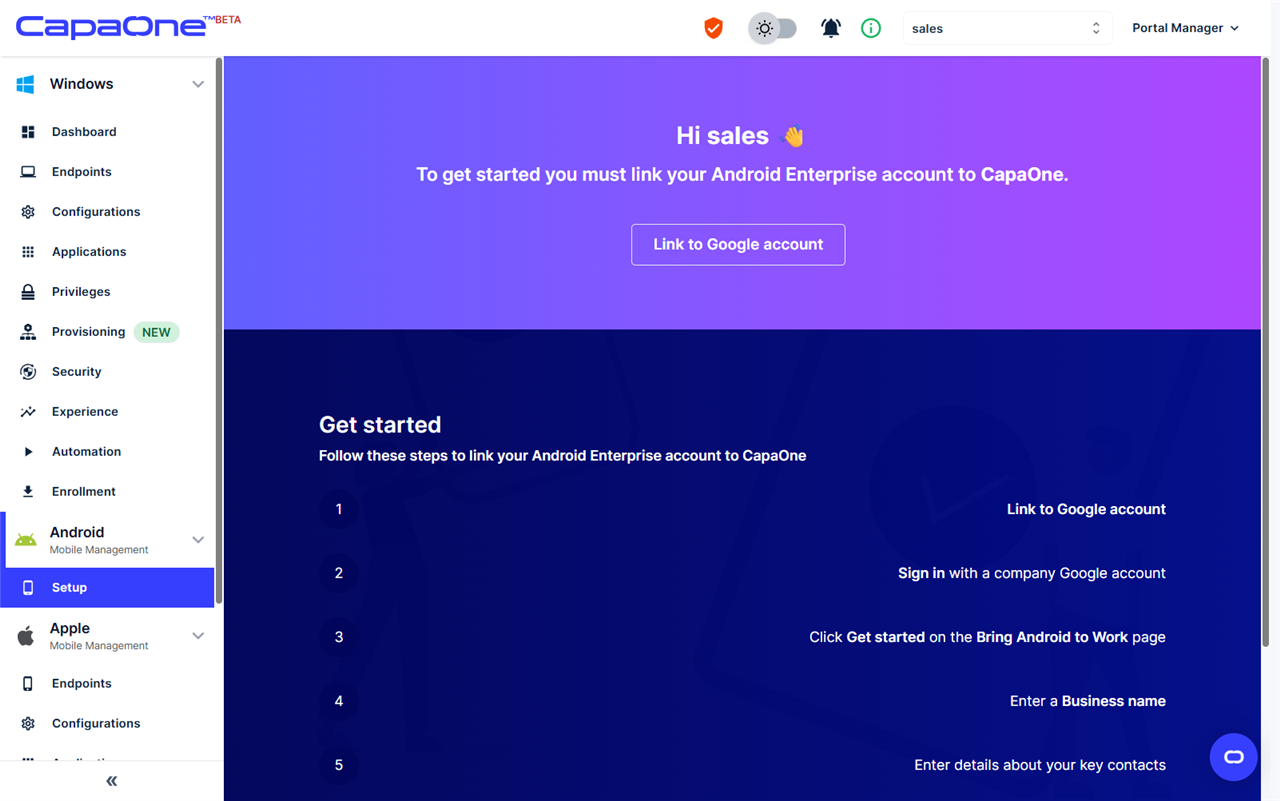
- Click Link to Google account.
- Sign in with a company Google account.
- Click Get started on the Bring Android to Work page.
- Enter a business name and details about your key contacts.
- Read and agree to the Managed Google Play agreement, then confirm and complete registration.
Management modes
Section titled “Management modes”An Android enrollment configuration defines how the device is managed:
- Fully managed device — company-owned devices used exclusively for work. The device must be factory reset or fresh out of the box, and is enrolled during initial device setup.
- Managed work profile — for personally owned devices (BYOD). Corporate apps and data live in a separate work profile; the user’s personal apps and data stay private.
Enrollment methods
Section titled “Enrollment methods”Open a configuration with View to access the enrollment methods, shown as tabs:
- QR code — on a company-owned device, tap the welcome screen six times to launch the QR reader and scan the code. On a personally owned device, install the Android Device Policy app and scan the code from there.
- Token — on a company-owned device, enter
afw#setupon the Google sign-in screen during setup, then enter the enrollment token manually. On a personally owned device, enter the token in the Android Device Policy app. - Zero Touch — for zero-touch compatible devices: create a configuration in the zero-touch portal with Android Device Policy as the EMM DPC, and paste the JSON snippet from CapaOne into the DPC extras field. Assigned devices enroll automatically out of the box.
- Samsung Knox — create a profile in the Knox Mobile Enrollment portal using the same JSON snippet, and assign it to your Samsung devices.
Once enrolled, the device appears under Android → Endpoints with the groups, configurations, and applications from the enrollment configuration applied. See Mobile Manager for app and configuration management.