

Privilege Manager Configuration Settings
A Privileges configuration has three groups of settings: Validation, Branding, and Security. You find them in the menu on the left when you create or edit a configuration under Windows → Configurations → Privileges.
To create a configuration, see Create a Privilege Manager Configuration.
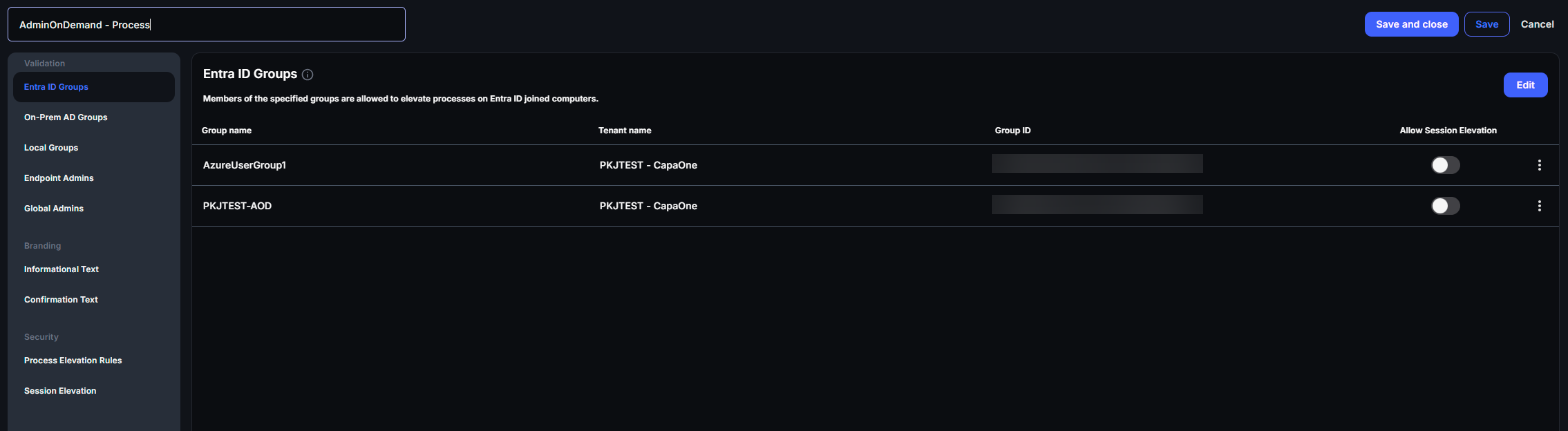
Validation
Section titled “Validation”Validation decides which users are allowed to elevate. A user who matches at least one validation method passes validation. You can use several methods in the same configuration.
Elevated privileges only apply while an elevation is in progress. Validation never makes a user a permanent administrator.
| Setting | Who it validates | Format and requirements |
|---|---|---|
| Entra ID Groups | Members of the selected Entra ID groups, on Entra ID joined computers. | Requires the Entra ID integration. Select the tenant and the groups from the drop-down lists. Users must be able to reach Entra ID when they request elevation. Nested groups are supported. |
| On-Prem AD Groups | Members of the specified Active Directory groups, on domain-joined computers. | Enter domain\groupname or groupname. Users must be able to reach Active Directory when they request elevation. Nested groups are supported. |
| Local Groups | Members of the specified local group on the endpoint where the group exists. | Enter groupname. You create and maintain the local group yourself, manually or with a script. |
| Endpoint Admins | Specific users, only on the endpoints you link them to. | Enter the user as domain\username, username, or [email protected], and select one or more endpoints from the drop-down list. |
| Global Admins | Specific users, on all endpoints that use the configuration. | Enter the user as domain\username, username, or [email protected]. |
Use Endpoint Admins and Global Admins for users who can’t reach Active Directory when they request elevation.
If your endpoints are hybrid-joined, use only on-prem AD groups for validation.
Allow Session Elevation
Section titled “Allow Session Elevation”Every list under Validation has an Allow Session Elevation column. Turn it on for the users and groups that may elevate their whole Windows session. The column is only available after you turn on Session Elevation under Security.
Users who aren’t allowed session elevation can still use process elevation.
Branding
Section titled “Branding”Branding controls the text that users see in the dialog before a process is elevated. The preview next to each field shows how the dialog looks on the endpoint.
| Setting | Default | What it does |
|---|---|---|
| Informational Text | On | Shows a message to the user. If you leave the text empty, the default text is shown: “When asked for admin user name and password during installation, just use your Windows logon information.” Turn it off to show no message. |
| Confirmation Text | On | Shows a statement that the user must confirm before the process is elevated. If you leave the text empty, the default text is shown: “I confirm that the application is used only for professional or educational purposes.” Turn it off to elevate without confirmation. |
Both texts are limited to 210 characters and three lines. Lines longer than 70 characters wrap to the next line.
Security
Section titled “Security”Process Elevation Rules
Section titled “Process Elevation Rules”Process elevation rules control which applications, and which child processes, users can run with elevated rights. Every configuration has a Default rule that applies when no other rule matches.
For the fields and how CapaOne evaluates rules, see Process Elevation Rules.
Session Elevation
Section titled “Session Elevation”| Setting | Default | What it does |
|---|---|---|
| Session Elevation | Off | Lets validated users elevate their entire Windows session and get full local administrator rights. When you turn it on, CapaOne asks you to confirm. |
| Session Timeout | 30 minutes | How long an elevated session lasts. Enter a value from 0 to 600 minutes. 0 means the session has no time limit. |
| Hide “Run as administrator” | Off | Hides the built-in Windows Run as administrator menu item, so users don’t confuse it with Run with Admin Privileges. |
Local administrator rights from a session elevation are removed when any of these happens:
- The session timeout expires.
- The user stops the session elevation.
- The user signs out.
- The endpoint restarts.
Process elevation rules are not active during a session elevation.
You can only hide Run as administrator while session elevation is off. Turning on session elevation turns the option off.