Skip to content

CapaOne Changelog

End-of-Life Information for Applications
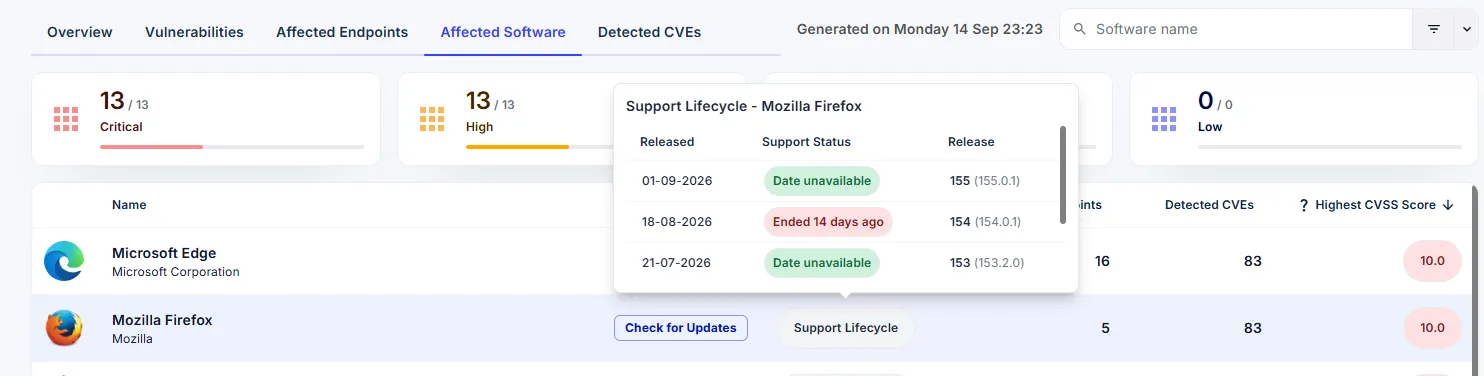
The Support Lifecycle panel for Mozilla Firefox, listing each version with its release date and support status, including one that ended 14 days ago

Software that has reached end of life stops receiving security updates. Every vulnerability found after that date stays open, and no patch is coming. Security Monitor now shows you where that applies in your own environment.

Open Affected Software and select Support Lifecycle on any application. You see each version installed on your endpoints, when it was released, and whether its support has ended.

For the security team, this answers three questions that used to mean checking vendor sites by hand:

  • Which applications in our environment are past their support date?
  • Is a fix still coming for this CVE, or is the version already end of life?
  • What do we put in front of an auditor about our exposure?

Working in deployment? Pass this on to your security colleagues. End-of-life dates are the kind of thing they track by hand today, and this puts the answer next to the vulnerability data they already use.


Local Administrators Widget

The Local Administrators widget showing 94% of endpoints compliant, one unapproved admin, and six orphaned accounts

Security Monitor now shows which local administrator accounts and groups exist on your endpoints β€” and which of them nobody approved.

You define the accounts and groups that belong there. Security Monitor checks every endpoint against that list and does the rest:

  • Unapproved admins β€” accounts or groups holding local administrator rights that are not on your list
  • Orphaned accounts β€” local accounts whose user no longer exists

The widget shows how many of your endpoints are compliant, so you can see the whole fleet at a glance and go straight to the ones that are not.

See Provision Manager Run β€” Live Webinar πŸš€

Webinar banner: Boot the machine. Scan a QR code. Walk away. Dennis Busk Nyehuus presents Provision Manager live on 24 September at 10 CEST

Boot the machine. Scan a QR code. Walk away.

That is the whole job when you set up a Windows endpoint from scratch with Provision Manager. No image to maintain. No code to write.

On Thursday 24 September, Dennis Busk Nyehuus runs the full flow live β€” from an empty machine to a finished Windows endpoint.

πŸ–₯️ What you will see

  • The complete deployment flow β€” a new machine boots, a QR code is scanned with a phone, and the machine ends up ready to use
  • Image and driver pack matched automatically to the exact model, from a library covering 1,500+ models across Lenovo, HP and Dell
  • An installation built entirely without code β€” the same PowerBricks you know from CustomApps β€” plus an app pulled from the 150+ ready-made ones in the repository

πŸ—“οΈ Thursday 24 September, 10:00–11:00 (CEST). Online.

The last 15 minutes are yours. Dennis answers live.

The webinar is held in Danish.

πŸ‘‰ Sign up here

πŸ’¬ Got a deployment scenario you want Dennis to tackle? Drop it in the comments πŸ‘‡

13 New PowerBricks 🧱

PowerBricks are the building blocks you snap together to automate a task without writing the script yourself. This release adds 13 of them and updates 55 more.

Disk encryption is the headline of this release. Five new bricks cover the full lifecycle, so you can turn BitLocker on during provisioning and keep it healthy afterwards:

  • πŸ›‘οΈ Configure BitLocker
  • πŸ”‘ Backup BitLocker Recovery Key
  • ⏸️ Suspend BitLocker
  • ▢️ Resume BitLocker
  • 🚫 Disable BitLocker

⭐ Suspend and Resume are the pair you want around a firmware or BIOS update. Without them, an encrypted disk meets the changed hardware and greets your user with a recovery prompt.

Chrome and Firefox now have the same add and remove bricks that Microsoft Edge already had:

  • βž• Add Google Chrome Extension
  • βž– Remove Google Chrome Extension
  • βž• Add Mozilla Firefox Extension
  • βž– Remove Mozilla Firefox Extension

Three bricks handle the regional settings that every new machine needs:

  • πŸ—£οΈ Configure Windows Language
  • ⌨️ Configure Windows Keyboard Layout
  • πŸ•’ Configure Windows Time Zone

Local Group Remove All Except empties a local group but keeps the accounts you name. Point it at the local Administrators group to strip out everything that drifted in over time, without locking yourself out.

We rewrote the PowerShell behind 55 bricks for more reliable error handling and clearer log output.

⚠️ Two changes are visible in the interface:

  • Install Microsoft365 is now named Install Microsoft 365, and takes updated parameters.
  • The permission bricks β€” Set and Remove File, Directory, and Registry Permissions β€” take updated parameters.

Review any app that uses those bricks the next time you edit it.

πŸ’‘ Got an idea for the next PowerBrick? Let us know in the comments πŸ‘‡

Improvements & Enhancements πŸ’‘

πŸŽ‰ 16 New PowerBricks Released!

We’ve expanded the PowerBricks library with 16 new bricks, making it even easier to automate, configure, and standardize Windows endpoints.

πŸ“ Archive & File Handling

  • Extract Archive
  • Zip Directory

πŸ”€ Font Management

  • Install Font
  • Uninstall Font

☁️ Microsoft 365

  • Install Microsoft365

πŸ–₯️ Windows Configuration

  • Configure Power Settings
  • Configure Start Menu Layout
  • Windows Configure Right Click Menu
  • Windows Tray Icon Pin

πŸ‘€ Local User Management

  • Add User To Local Group
  • Change Local User Password
  • Create Local User
  • Delete Local User Account
  • Remove User From Local Group

πŸ”„ Windows Update

  • Configure Windows Update
  • Reset Windows Update

πŸš€ The new PowerBricks are ready to use and help save time, reduce manual work, and ensure more consistent endpoint configurations.

12 New PowerBricks

PowerBricks are the building blocks that unlock new possibilities β€” making development simpler and faster than ever. Say goodbye to complex coding and hello to a new era of effortless innovation.

Last week we released 12 new PowerBricks, making CustomApps even more powerful and efficient:

  • Install Driver
  • Install MSIX
  • Import Registry File
  • Install Windows Update
  • Uninstall Windows Update
  • Configure Windows Service
  • Add Microsoft Edge Extension
  • Register DLL
  • Update Windows Group Policy
  • Uninstall Program
  • Remove Microsoft Edge Extension
  • Unregister DLL

Got an idea for the next PowerBrick? Let us know in the comments πŸ‘‡

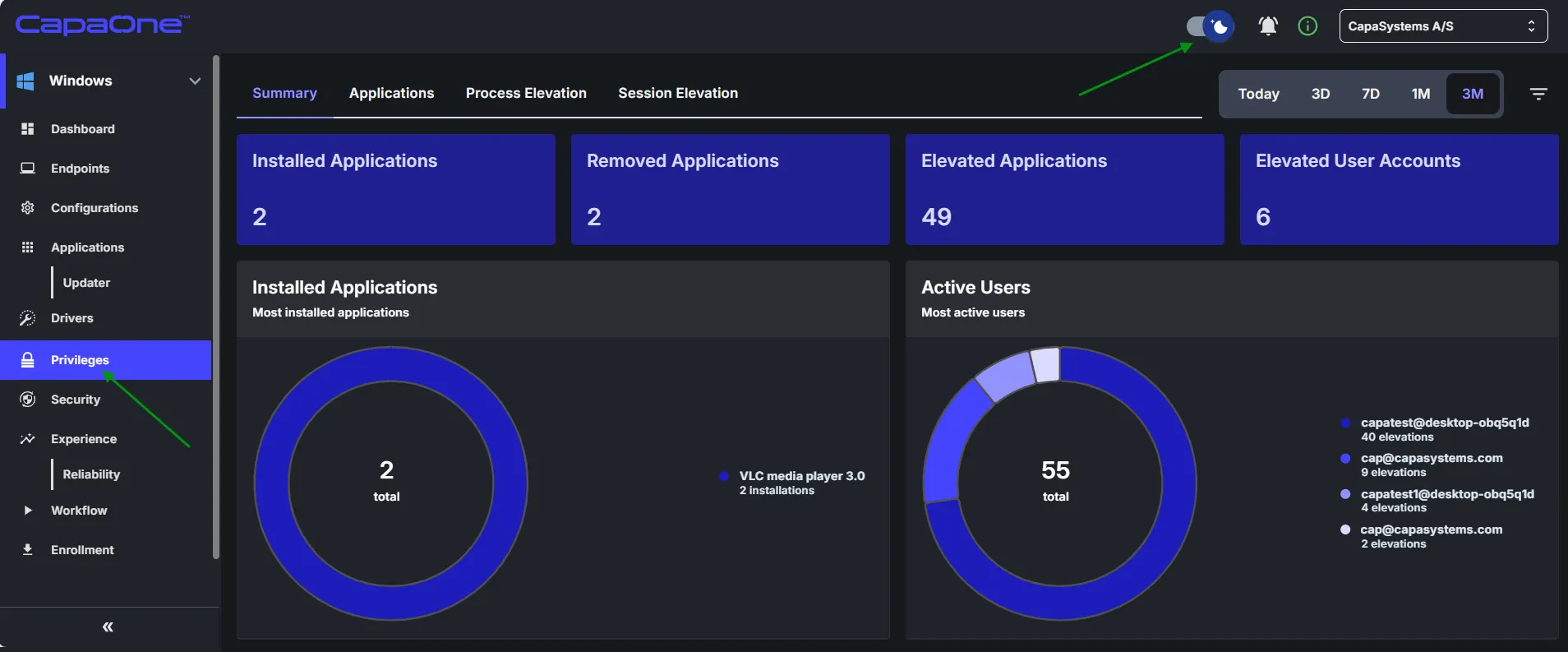
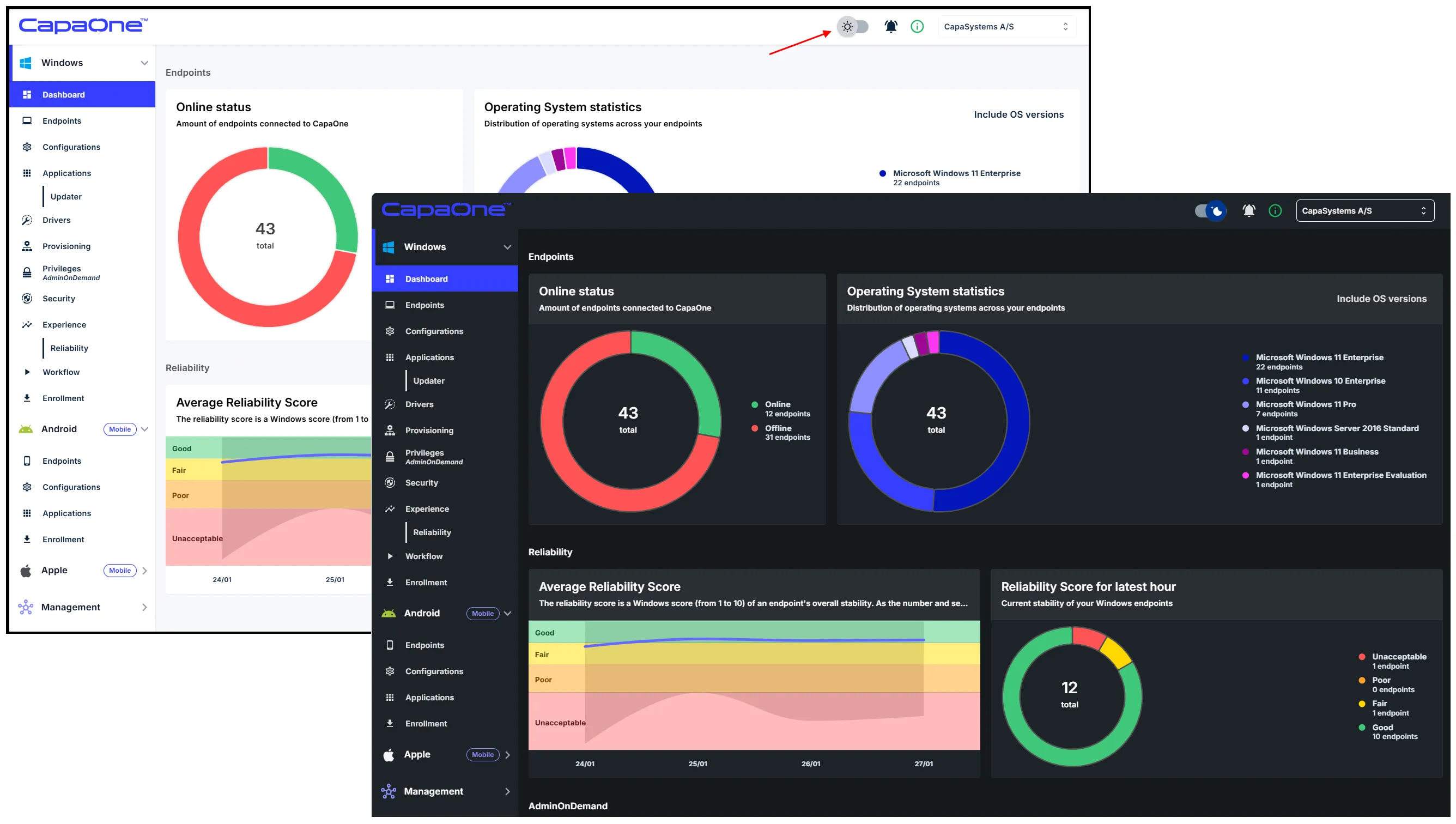
Dark mode and updated product names

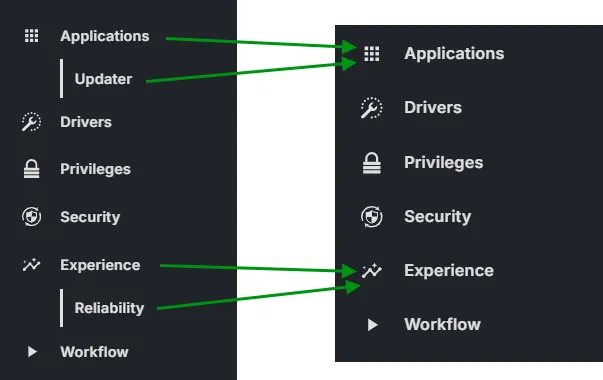
Dark mode and updated product names

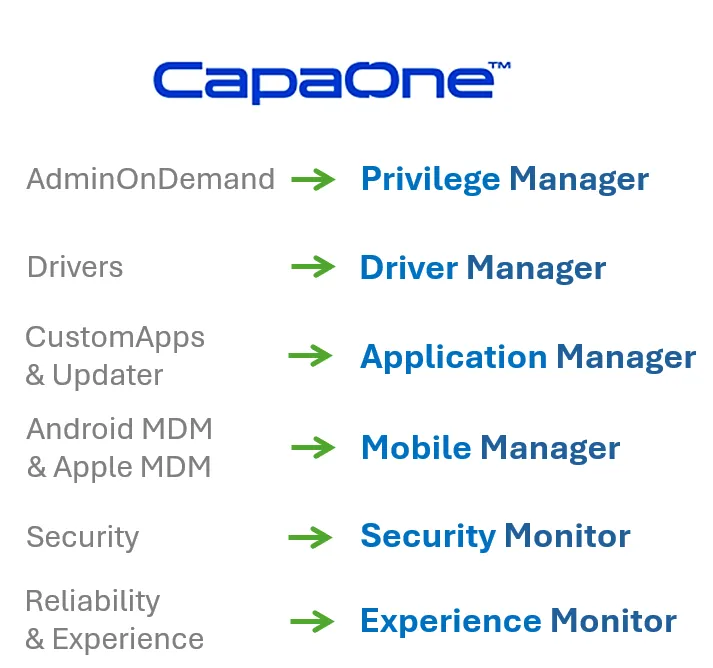
Last week, Dark mode arrived and AdminOnDemand became Privilege Manager πŸš€

Next week, CustomApps & Updater will become Application Manager and Experience & Reliability will become Experience Monitor.

You can read more about the changes to Privilege Manager here.

2

New product names and new icons

New product names and new icons

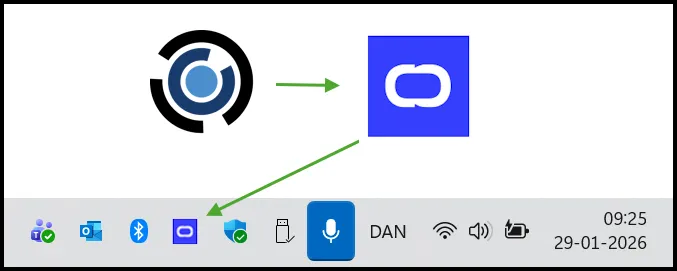
Following our announcement in November 2025, we are moving into the next phase of our rebranding by transitioning to the new product names and the new CapaOne icon.

Over the next few weeks, you will see the new icon appear in the notification area, agent menu, and system messages. AdminOnDemand will also officially become Privilege Manager.

πŸ‘‰ Please note that while our visual identity is evolving, the functionality remains exactly the same.

2

Dark Mode on the horizon

Dark Mode on the horizon

We are excited to announce one of the most requested UI enhancements to date: Dark Mode!

Whether you prefer the familiar Light Mode or want to reduce eye strain with the new Dark Mode, you can customize the CapaOne interface with ease. Toggle between the classic and the modern with a single click. Dark Mode is just weeks away - get ready to flip the switch!