# Transaction Filters Don't Work
> Fix transaction filters that do not work for some or all of your organization's computers.
Source: https://docs.capaone.com/performanceguard/troubleshooting/troubleshoot-server/transaction-filters-don-t-work/
Product: PerformanceGuard — a separate CapaSystems product; do not apply this page to any other.
:::caution
You can only do this if you're a PerformanceGuard administrator.
:::
If you have set up [Transaction Filters](/performanceguard/technical-reference/concepts/transaction-filters/), and you subsequently find that those transaction filters don't work for some or all of your organization's computers, consider the following:
## **Agent Configuration Settings**
Your transaction filters must be applied to relevant [Manage Agent Configuration Groups](/performanceguard/administration/manage-agent-configuration-groups/). For Internet Explorer transaction filters to work, your agent configuration must also support collection of Internet Explorer data. To verify this, do the following in the PerformanceGuard web interface:
1. Select **ADMINISTRATION > Agent Configuration > Configurations**.
2. Click the **Edit** link next to the agent configuration group that the required computers belong to.
3. On the **Agent configuration** tab, scroll down to the **Network Report** section and verify that **Enable IE Reports** is selected. This setting is important for Internet Explorer transaction filters to work.
4. Now scroll further down to the **Filters** section and verify that the required transaction filters are selected.
If you make any changes to the agent configuration, make sure to click the **Save Configuration** button at the bottom of the page.
## **Internet Explorer Helper Incompatibility**
PerformanceGuard agents use an add-on called the PerformanceGuard Internet Explorer Helper to collect data such as Internet Explorer response times on computers.
The add-on may not always be immediately compatible with Internet Explorer. If the two are not compatible, Internet Explorer may show error messages that say that the add-on isn't compatible.
To solve the problem, you can change a setting in Internet Explorer:
1. On affected computers, open Internet Explorer and select **Tools > Internet Options**.
2. Select the **Advanced** tab and clear the **Enable Enhanced Protected Mode** option.
:::caution
In older versions of Internet Explorer the option is called *Enable Protected Mode* and is available on the *Security* tab.
:::
3. Click **OK**.
4. Close all open instances of Internet Explorer.
5. Open Internet Explorer again.
## **Internet Explorer Helper Not Loaded**
PerformanceGuard agents use an add-on called the PerformanceGuard Internet Explorer Helper to collect data such as Internet Explorer response times on computers.
Such add-ons may be disabled, for example through group policies, and if the PerformanceGuard Internet Explorer Helper add-on is disabled, IE transaction filters won't work.
To learn more about how to enable add-ons, go to [**msdn.microsoft.com**](https://msdn.microsoft.com/) and search for *Enable and disable add-ons*.
Note that when you manage add-ons in Internet Explorer, the PerformanceGuard Internet Explorer Helper will appear under the name *Premitech PerformanceGuard Helper* from the publisher *CapaSystems A/S*.
## **Syntax**
Incorrect syntax in your transaction filters may prevent them from working. See [Web Applications](/performanceguard/administration/network-applications/web-applications/).
## **Debug Transaction Filters**
The following will help you locate and correct errors in your transaction filters.
## **Check Log for Error Messages**
If there are errors when parsing the tag configuration, the agent will log error messages. You can view these in the PerformanceGuard web interface (**ADMINISTRATION > Status > Errors**).
You can only do this if you're a PerformanceGuard administrator.
## **Edit HTTP and IE Transaction Filter Configurations Locally on Agent**
If a transaction filter doesn't work, you may want to edit it to find out what's wrong. When you edit transaction filters, you often want to avoid the delay that can occur from the moment that you create a transaction definition in the PerformanceGuard web interface and until the new configuration arrives at the PerformanceGuard agent. To avoid the delay you can edit transaction filters directly on an agent.
Modifications only affect the agent on which they are made.
Before you edit anything, you should consider if you want data from a locally modified agent to be transmitted to the Frontend server. In order to avoid such data being sent to the Frontend server, you can configure the agent so that it won't communicate with the Frontend server:
:::caution
4007 is the default port number. If the port number has been changed in your organization, PerformanceGuard administrators can view it in the PerformanceGuard web interface: Select **ADMINISTRATION > Agent Configuration > Configurations**, click the **Edit** link next to the agent configuration group that the agent belongs to, select the **Agent Configuration** tab, scroll down to **Agent Service Parameters** section and look for the **Web Server TCP port** number.
:::
1. On the computer that has the agent installed, open a browser and connect to .
2. In the agent information window that opens, find the yellow menu ribbon and select **Config**. Make sure that the **Send Reports** option is disabled (that is there is no **>>** in front of the option in the menu) before applying any modified configurations.
When you edit the configuration locally on an agent (**Actions > Edit Configuration** in the agent window's yellow menu ribbon), you must use a slightly different syntax for the transaction configuration lines than when using the PerformanceGuard web interface. The following example shows a local configuration of a HTTP transaction filter:
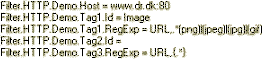
Note that all transaction filter configuration lines in the example start with *Filter.HTTP.Demo*. The *Filter.HTTP* prefix specifies that the transaction filter is of the type HTTP (rather than IE). *Demo* is simply the name of the example transaction filter. Note that there is no specific line that creates the named filter, the filter is implicitly created by the first line that sets an attribute for it.
When you have edited the agent configuration locally, you must apply the new configuration to the agent (**Actions > Reconfigure** in the yellow menu ribbon). After a few moments the agent will show the status view (the same view that you can obtain by selecting **View > Status** in the yellow menu ribbon).
:::caution
If you later want to revert to the configuration supplied by the Frontend server you should select **Actions > Reset Configuration**. This will make the agent contact the Frontend server and tell the Frontend server that it has an unknown configuration (configuration ID is set to 0). This will cause the Frontend server to send a new configuration to the agent, and the agent will reconfigure itself with the configuration it received from the Frontend server. If you locally modify an agent in a production environment, you should always remember to reset the agent's configuration when you are finished.
:::
## **IE Transaction Filters**
When you edit IE transaction filters as described in the previous, you need to specify *Filter.IE* instead of *Filter.HTTP*.
Example of IE transaction filter with HTTPS:
:::note[Important]
Filter.IE.MPS\_Front.Host = www.ourcompany.com:443
Filter.IE.MPS\_Front.Tag1.id=MPS\_FrontPage
Filter.IE.MPS\_Front.Tag1.RegExp1 = URL,/MPS/Controller
Filter.IE.MPS\_Front.Tag1.RegExp2 = do\_displayMainPage,true
:::
When you define IE transaction filters for use with HTTPS sites you must include the SSL port (443 in the example) in the host attribute of the filter.
The Internet Explorer Agent will assign the port number 443 to the host when an HTTPS URI is used to access the resource.
Remember to apply the modified configuration (**Actions > Reconfigure** in the agent window's yellow menu ribbon). The Internet Explorer Agent will then load the new configuration after the next web page is loaded.
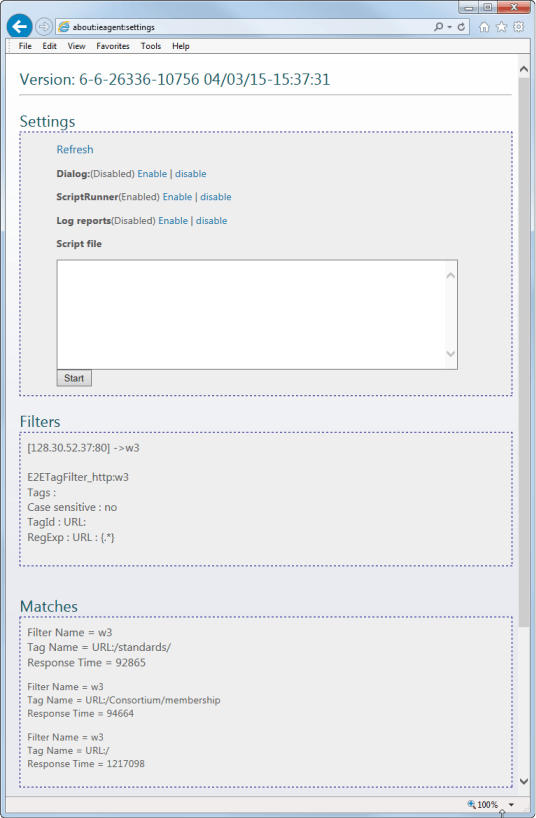
When the Internet Explorer Agent has reloaded the transaction definitions, you can check that they have been parsed correctly by entering **about:ieagent:settings** in Internet Explorer to look at the interface of the Internet Explorer Agent itself (click thumbnail to view image in full size):
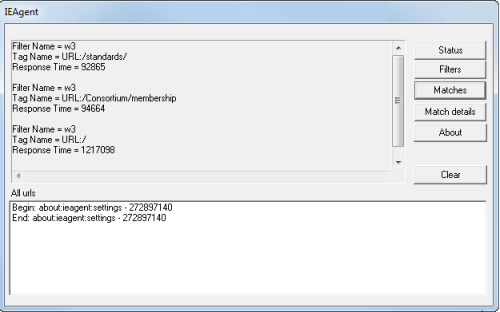
To check the matches generated by the Internet Explorer Agent you can enable the Internet Explorer Agent console window: Click the Dialog > **Enable** link on the **about:ieagent:settings** page. In the console window that appears, click the **Matches** button in the upper right part of the window to get a list of the tags that have been generated:
:::tip
If you use the **about:ieagent:settings** page to visit a web page while you have the console window open, you can verify events that have been intercepted by the Internet Explorer Agent in the **All URLs** box in the lower part of the console window. This can be useful when you create filters for HTTPS-based applications, because HTTPS request URLs are encrypted inside Internet Explorer, and this means that they are not visible in network packet traces.
:::
## **Use Agent to Debug Request Packets**
You can make the agent log regular expression sources extracted from HTTP requests as well as any tags generated by running the transaction filter on those requests.
:::caution
This method only works for HTTP transaction filters, not IE transaction filters.
:::
In order to capture the request packets you need to do two things:
1. Specify Logging = true for the transaction filter.
2. Under HKEY\_LOCAL\_MACHINE\SOFTWARE\PremiTech\E2EAgent, create a registry key called TagDebugDir with the value set to the folder where you want the log file to be created.
:::caution
**Stop the PerformanceGuard Agent service while you change agent registry keys:** The agent only reads the registry when it starts. This means that it won't respond to changes made to the registry while it's running. While the agent is running, it will periodically write the registry values. This means that changes that are made to the registry values will be lost. If you want to change registry values for the agent manually, you should therefore stop the agent while you make the changes.
A log file will then be created for each transaction filter that has logging enabled.
:::