# AutoSteps can't find executable
> Fix AutoSteps not finding the scripting language program because the PATH environment variable was not updated.
Source: https://docs.capaone.com/performanceguard/troubleshooting/troubleshoot-autosteps/autosteps-can-t-find-executable/
Product: PerformanceGuard — a separate CapaSystems product; do not apply this page to any other.
Symptom: AutoSteps can not find the scripting language program after AutoSteps has been installed.
- **The System Environment Variable 'PATH' has not been updated**
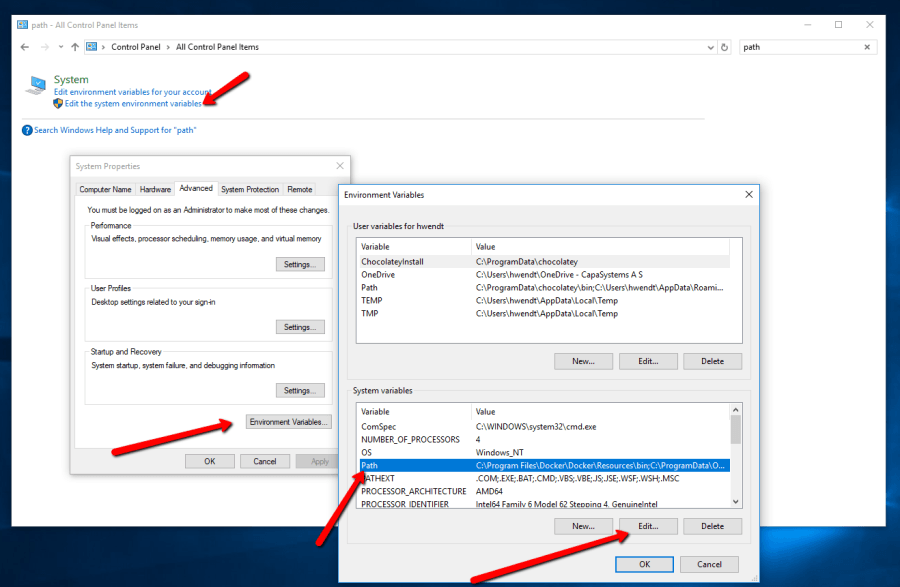
When you install a program that can execute your Scripts e.g. **AutoHotkey**, you need to ensure that the programs installation folder has been added to the PATH variable under System Environment Variables in Windows.
:::note[Important]
**Example:**Click thumbnail to view image in full size.
:::
:::caution
You must reboot your machine in order for AutoSteps to be able to find the program.
:::
:::caution
You can also restart AutoSteps by closing the program and run it again after saving the updated PATH variable. REMEMBER to also restart your explorer window as this also only reads the PATH variable upon start.
:::