# Install PerformanceGuard License
> Install the license file you receive when you purchase PerformanceGuard.
Source: https://docs.capaone.com/performanceguard/installation/install-performanceguard-server/install-performanceguard-license/
Product: PerformanceGuard — a separate CapaSystems product; do not apply this page to any other.
When you purchase PerformanceGuard, you receive a license file that you must install together with PerformanceGuard in order to use the solution.
You may receive the license file via e-mail or directly from your PerformanceGuard consultant.
The license file is an XML file, and it contains information about the number of PerformanceGuard agents that you are allowed to run, the expiry date of your license agreement, etc.
- Tells you that License file is missing.
- Upload the License file.
:::note[Important]
What's the file name of my license file?
Each license has a unique file name according to this syntax:
CreationDate\_CreationTime\_Issuer\_Partner\_Customer\_ExpiryDate.xml.
:::
- When you have installed the license, click **> About PerformanceGuard** to verify that the license data shown on the page matches your expectations i.e. displays how many number of licenses do you have including Agents and AutoSteps and how many are in use.
- Log in to the PerformanceGuard web interface.
:::note[Important]
What's my user name and password?
If you are an administrator using a new PerformanceGuard installation for the first time, and you haven't been given another user name/password combination by a CapaSystems consultant, use *admin* as user name and *admin* as password, and make sure to [Manage Users](/performanceguard/administration/manage-users/) afterwards. If you are not an administrator, ask your PerformanceGuard administrator for your login credentials.
:::
:::note[Important]
Why am I getting a warning sign on menu icon?
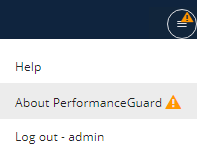
It means that you are still missing some license files and you need to add them, simply click New License and upload the file so  turns to  . The green tick indicates that the valid license(s) are in use.
:::