# Agents and Software VPN Solutions
> Why PerformanceGuard agents and some software VPN solutions conflict, and what to do about it.
Source: https://docs.capaone.com/performanceguard/installation/install-performanceguard-agents/agents-and-software-vpn-solutions/
Product: PerformanceGuard — a separate CapaSystems product; do not apply this page to any other.
If you plan to install PerformanceGuard agents on computers that connect to your network using a software VPN solution, you must know that PerformanceGuard and certain software VPN solutions can't coexist without problems.
The problems are:
- Network connectivity is lost
- Windows crashes (on older versions on windows)
The problems are usually due to a non-conforming implementation of the NDIS interface in the VPN low-level driver.
# **Software VPN Implementations that Are Known to Cause Problems**
These software VPN clients are known to cause problems when used together with the PerformanceGuard agent:
- **Check Point VPN-1 Secure Client** (network interface name: cp\_scvna Check Point Virtual Network Adapter)
- VPN solutions based on **Microsoft Whale driver** (network interface name: Whale Network Connector)
- **Cisco VPN Client**
When PerformanceGuard agents identify one of the listed adapters they will disable the driver that conflicts with the faulty NDIS implementation. This means that PerformanceGuard won't make any measurements that rely on passive network data capture, such as TCP and UDP statistics and HTTP transaction filters.
# **If You Suspect that There's a Software VPN Conflict**
If you experience problems on a computer with a software VPN client running when you install the PerformanceGuard agent:
- Verify that the problem only occurs when the PerformanceGuard agent and the VPN solution run at the same time.
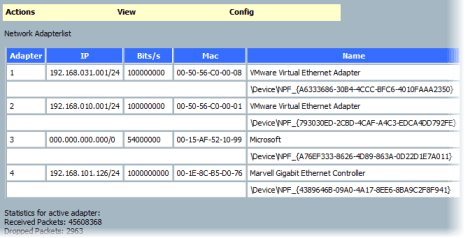
- Use the PerformanceGuard agent web interface to get the name of the network adapter: On the computer that has the agent installed, open a browser and connect to [*http://localhost:4007*](http://localhost:4007). In the agent information window that opens, select **View > Adapters**. Make sure that you do this with the VPN client connected to the VPN server.
:::caution
4007 is the default port number. If the port number has been changed in your organization, PerformanceGuard administrators can view it in the PerformanceGuard web interface: Select **ADMINISTRATION > Agent Configuration > Configurations**, click the **Edit** link next to the agent configuration group that the agent belongs to, select the **Agent Configuration** tab, scroll down to **Agent Service Parameters** section and look for the **Web Server TCP port** number.
:::
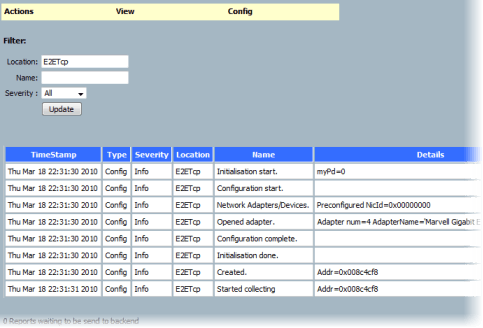
- Check the PerformanceGuard agent error log (**View > Errors**), and pay special attention to information from the *E2ETcp* module.
- Collect the information from the two last steps and send it to CapaSystems support, together with details on the VPN solution.