# Dashboard reports
> Schedule a dashboard to be generated as a PDF at a frequency you choose.
Source: https://docs.capaone.com/performanceguard/dashboards-and-widgets/dashboard-reports/
Product: PerformanceGuard — a separate CapaSystems product; do not apply this page to any other.
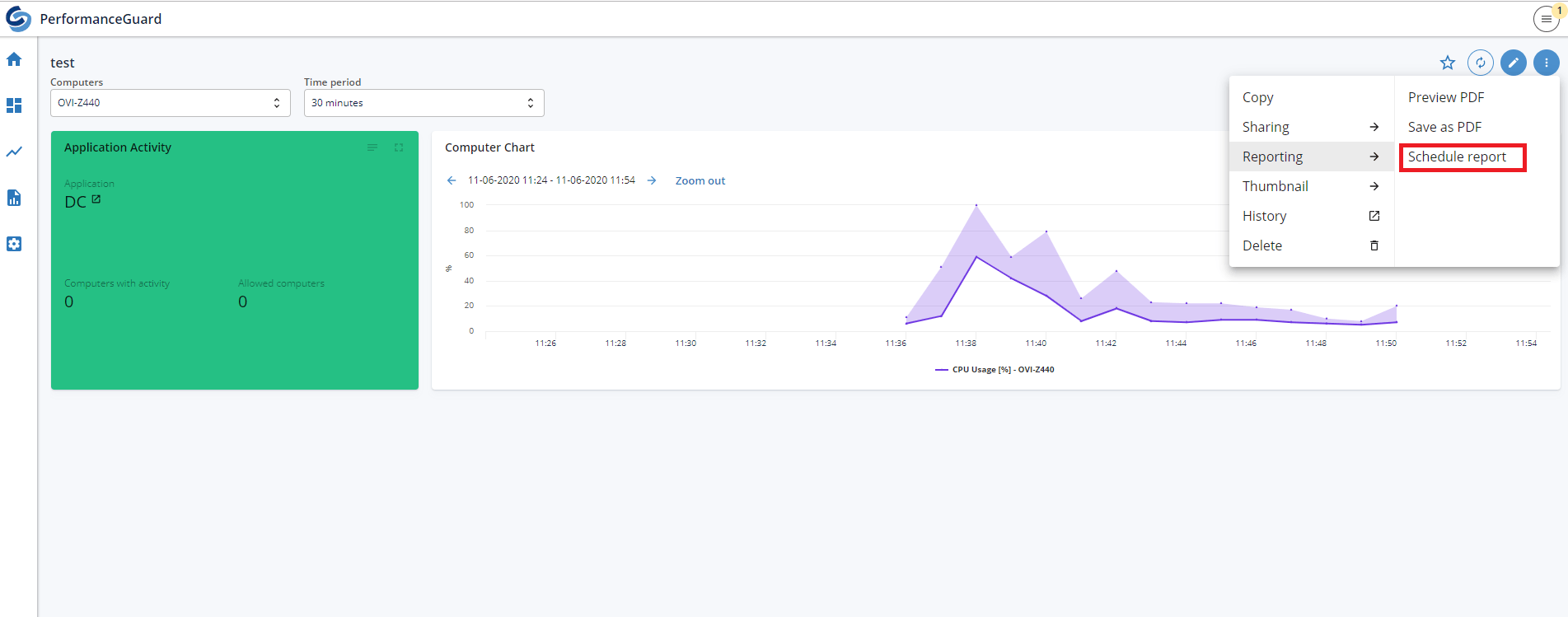
Dashboard reports are a way to schedule the creation of pdf files of a dashboard with a user-defined frequency. Viewing and creating dashboard reports is done by going to a dashboard and clicking on the menu button. The Schedule report button is found under the Reporting tab. As an administrator, the same view can also be found by going to Administration → Dashboard → Scheduled reports.
:::note[Important]
**Example:** Click thumbnail to view the picture in full size.
:::
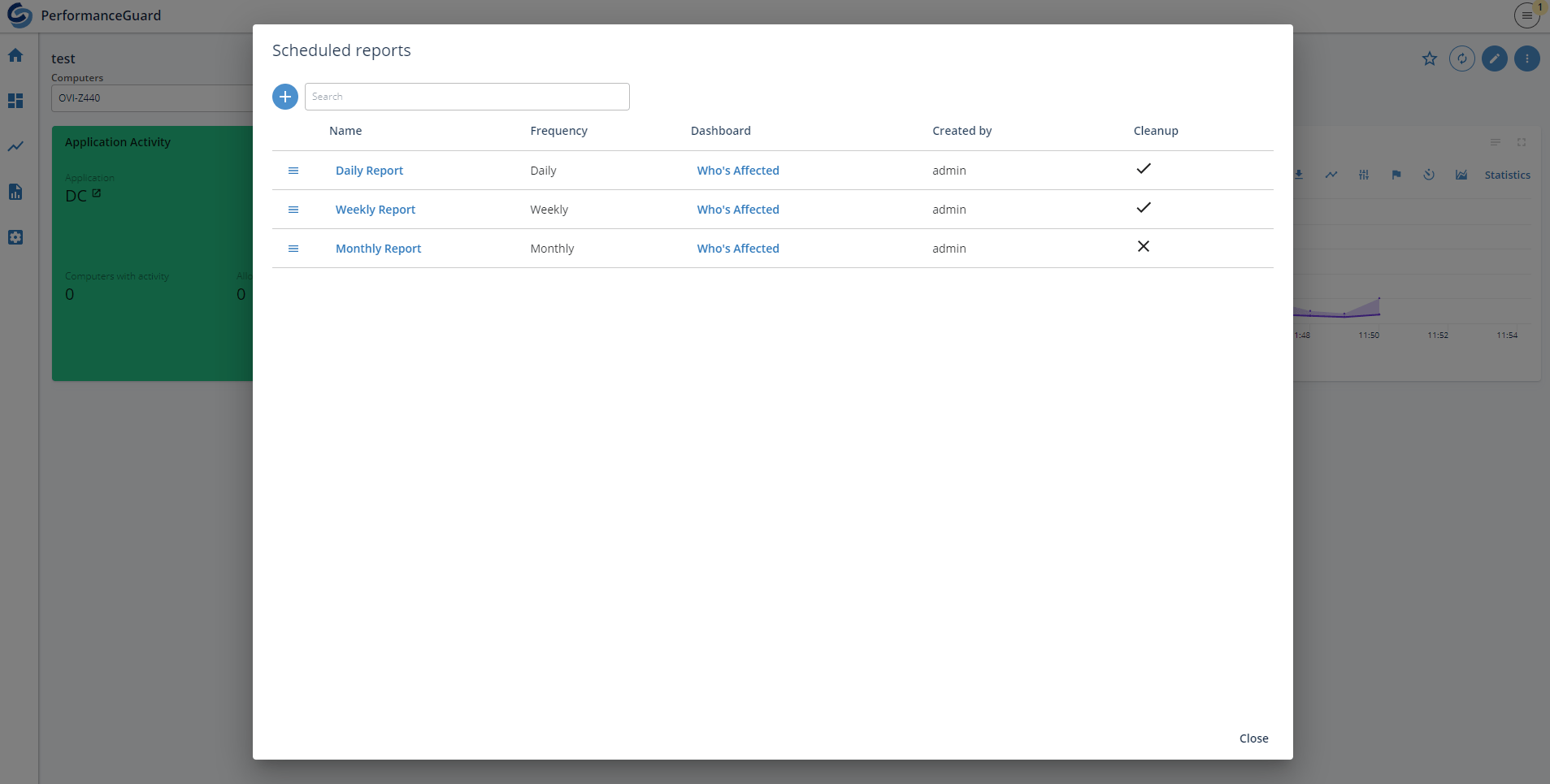
After going to Scheduled reports either through a dashboard or the administration, a list of the current created scheduled reports is shown. From the administration, a list of all created scheduled reports will be shown whereas if you go to Scheduled reports through a dashboard only the created scheduled reports for that specific dashboard will be shown.
:::note[Important]
**Example:** Click thumbnail to view the picture in full size.
:::
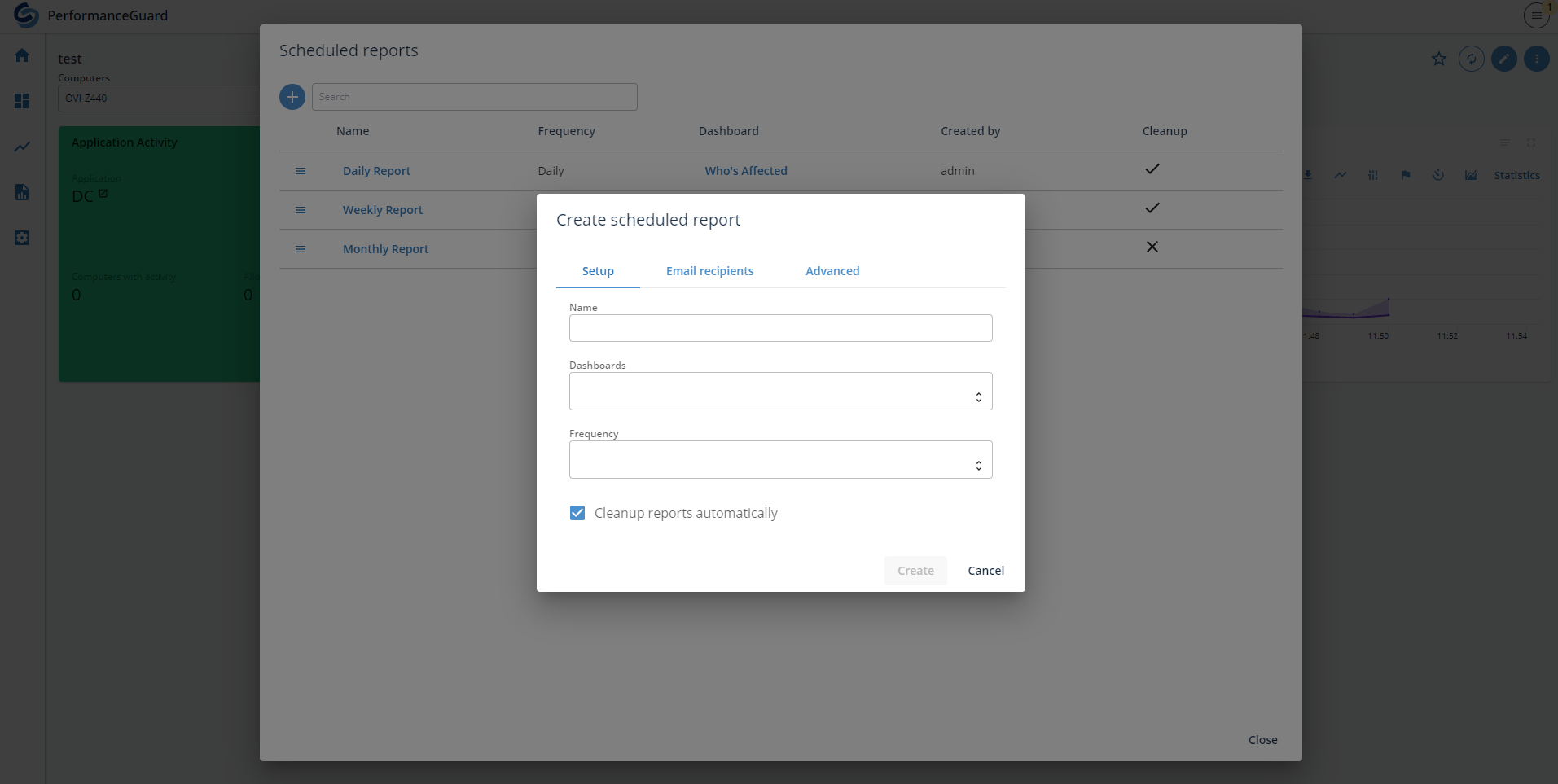
Creating a new scheduled report is done by clicking the Create button next to the search field. This will open the setup to create a new scheduled report. Name, Dashboard, and Frequency are all required to create a scheduled report.
Uncheck the **Cleanup** reports automatically checkbox to have the reports created from this job not be deleted when the scheduled cleanup happens (Every 90 days).
Under the **Email recipients** tab, you can add email receivers to receive a pdf file whenever a report is created from this job.
Under the Advanced tab, you can customize the dashboard parameters such as **Time Period** to be used for the report.
When selecting multiple dashboards or frequencies, a report will be created for each combination with the same name postfixed with dashboard name and frequency.
:::note[Important]
**Example:** Click thumbnail to view the picture in full size.
:::
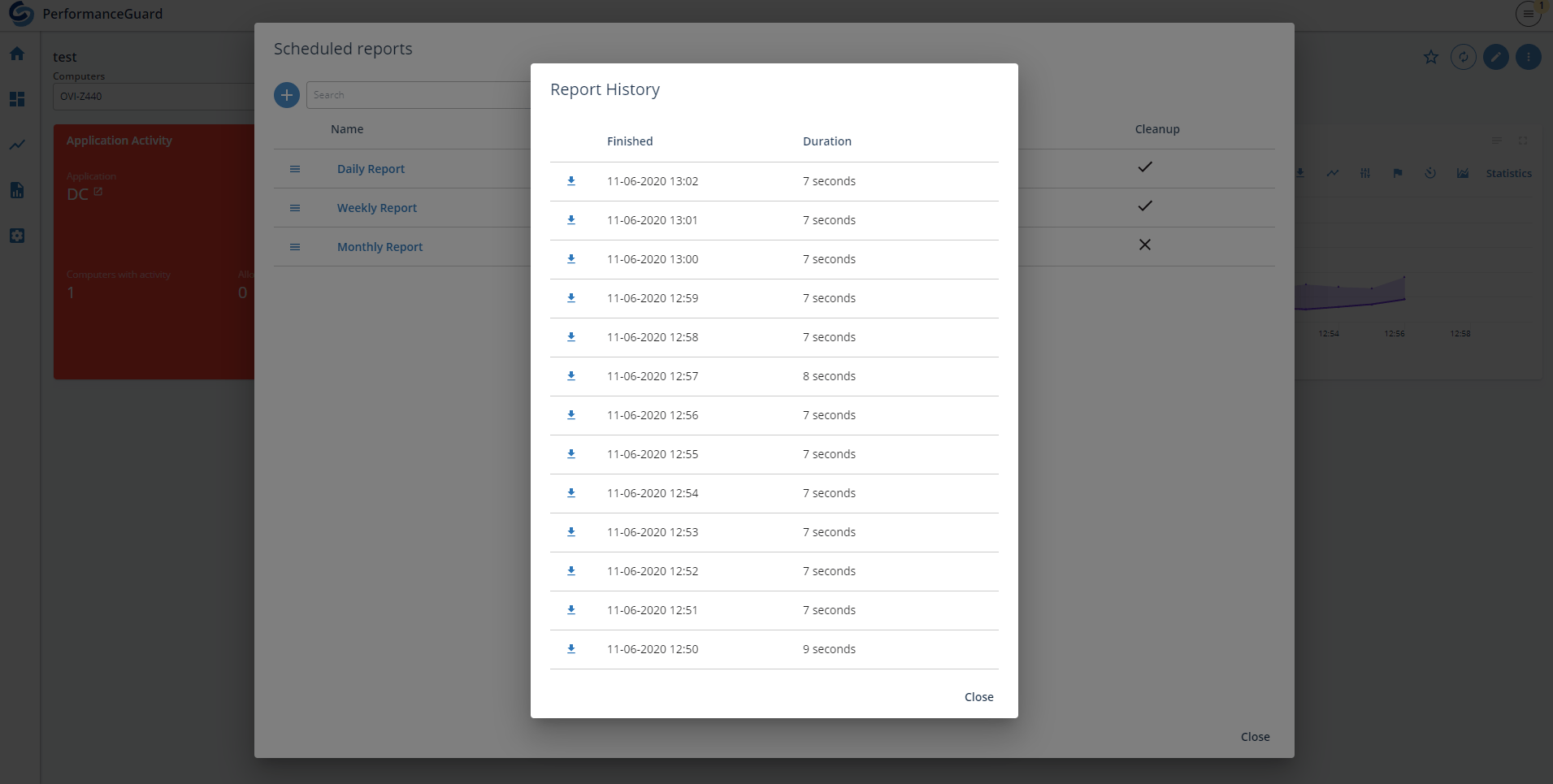
After creating a scheduled report it will be added to the list. It is possible to edit, disable (Sets frequency to never), and delete a scheduled report. Deleting it will also delete all created reports. When viewing the list it is also possible to click on the dashboard in the Dashboard column which will redirect the user to the linked dashboard. Clicking on the name of the scheduled report will open a new list where all the created reports are shown. Here it is possible to download the pdf files for each report.
:::note[Important]
**Example:** Click thumbnail to view the picture in full size.
:::