# Create a Script
> Write an AutoSteps script and structure the data it reports back to the PerformanceGuard agent.
Source: https://docs.capaone.com/performanceguard/administration/about-autosteps/autosteps-user-interface/create-a-script/
Product: PerformanceGuard — a separate CapaSystems product; do not apply this page to any other.
# How is the communication between a Script and the PerformanceGuard Agent structured?
The structure for the data reported by AutoSteps script must follow the same structure as outlined for the ****[Autosteps Chart Widget](/performanceguard/dashboards-and-widgets/widgets/autosteps-chart-widget/)****. The documentation on how a script can communicate with the PerformanceGuard agent is described in [Monitor Complex Activity with AutoSteps](/performanceguard/administration/more-setup/monitor-complex-activity-with-autosteps/).
You can use the following parameters:
| **Property** | **Description** | **Examples** |
|:----------------------|:-------------------------------------------------------------------------------------------------------------------------------------------------------------------------------------------------------------------------------------|:---------------------------------------------------------------------------------------------------------------|
| **Transaction Group** | Defines the BTM Transaction Group - Mostly used as an overall category.
⚠️ The length of the characters can not exceed more than 64. | TransactionGroup = PG Demo Scripts |
| **Transaction Name** | Defines the BTM Transaction Name - Mostly used to define a more narrow category like the application or website being tested.
⚠️ The length of the characters can not exceed more than 64. | TransactionName = NOTEPAD Document |
| **Tags** | Defines the BTM Tags - Mostly used to describe the exact operation performed by the script.
⚠️ The length of the characters can not exceed more than 64. | - ComPG1.setTag = NOTEPAD startup
- ComPG1.setTag = Type in text
- ComPG1.setTag = Save NOTEPAD document |
To create a new script click  . You can select a category from the menu or you can  create a new **Script Category** while creating a new Script.
**Category:** Used to organize your scripts and also makes it easier to search for a particular script.
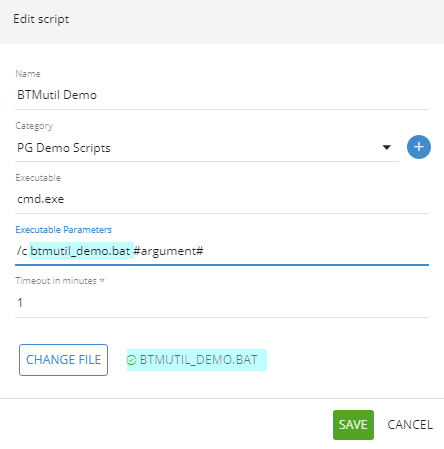
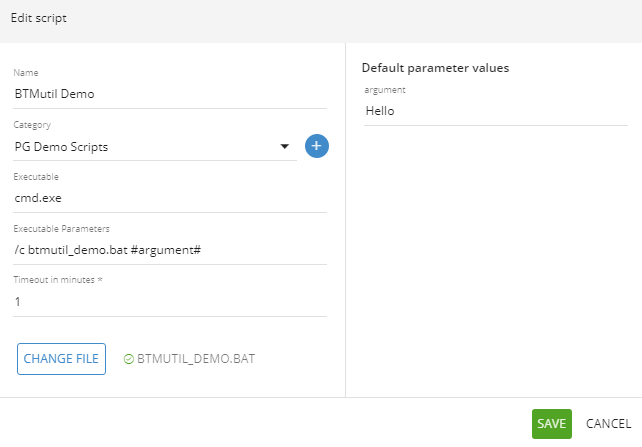
**Executable and Executable Parameters:** Used to define what and how a script is executed.
# Creating Executable and Executable Parameters
You can create the line of arguments for the executable and set values to each parameter while creating a new Script.
:::caution
In order to ensure that a file attachment is used please make sure to add the **name of the uploaded file** to the list of Executable Parameters.
:::
When AutoSteps executes the script, it is done using the parameters in the order they are written and thus it is important to type the parameters according to the syntax for your executable.
:::caution
Parameters can be defined as variables. A variable can be left as is or overwritten when the script is used to create an AutoSteps Job. You must create and close each parameter variable with a hashtag **#** i.e. **#\#** otherwise will not be recognized as a variable, e.g. **/c #parameter1# #parameter2#**.
:::
After creating a parameter you will be able to add Default Parameter Values to each parameter.
:::note[Important]
**Example:**Click thumbnail to view image in full size.
:::
:::caution
 allows you to edit, delete, download these scripts locally on your computer and create a job.
:::
# Creating a Script with an executing binary file
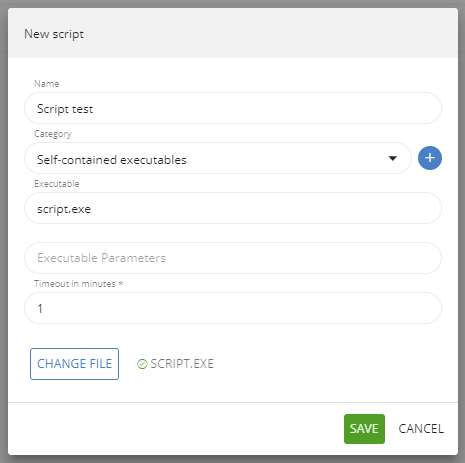
AutoSteps supports the use of self-contained executable (.exe files). This allows you to distribute the executable and thus no installation of an executable program on the AutoSteps computer is necessary in order to execute the script.
- Go to Administration > AutoSteps > Scripts and Create a script 
:::caution
In order to ensure that a self-contained executable will run, make sure to specify the **name of the file** in the '**Executable**' field. If your self-contained executable takes parameters, these are specified as usual in the filed '**Executable Parameters**', e.g. **/c dir c:**.
:::
- Upload the file and Click Save
:::note[Important]
**Example:** Click thumbnail to view image in full size.
:::