# Windows Enrollment with Intune
> Deploy the CapaOne Agent from Microsoft Intune in three steps, then add a compliance check that verifies it is installed.
Source: https://docs.capaone.com/capaone/enrollment/windows-enrollment-with-intune/
Product: CapaOne — a separate CapaSystems product; do not apply this page to any other.
You can deploy the CapaOne Agent from Microsoft Intune in three steps.
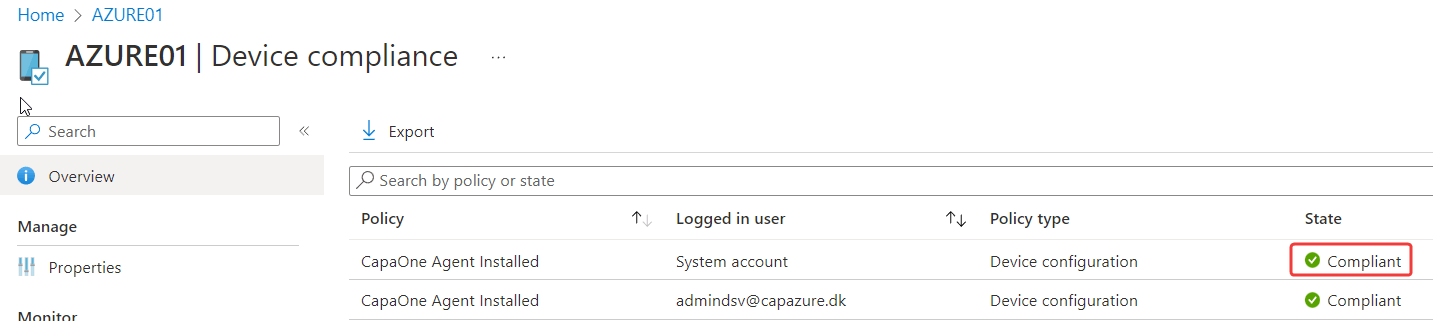
With a few more steps, you can also add a compliance check to verify that the CapaOne Agent is installed.
## Deploy the CapaOne Agent
1) Create a group containing the endpoints that should have the CapaOne Agent installed.
2) Download the *InstallCapaOneAgent.ps1* script from [CapaOne](https://dash.capaone.com/) Enrollment
3) Import the PowerShell script in Microsoft Intune and assign the newly created group
## Create a compliance check (optional)
1) Download the *CapaOneAgentInstalled.ps1* and the *CapaOneAgentInstalled.json* file from [CapaOne](https://dash.capaone.com/) Enrollment
2) Add the *CapaOneAgentInstalled.ps1* as a discovery script
3) Create and assign the compliance policy
## Additional information
According to [Microsoft](https://learn.microsoft.com/en-us/mem/intune/configuration/device-profile-troubleshoot), device compliancy is evaluated about every 8 hours on existing devices.
On newly enrolled devices, device compliancy is evaluated every 3 minutes for 15 minutes, then every 15 minutes for 2 hours, and then around every 8 hours.
The **device compliance state** will be "Not evaluated" until the device compliance policy has been applied.

When the compliance policy has been applied, the device compliance state will either be "Compliant" or "Not Compliant"