# Deploying an MDM Service
> Requirements and steps for deploying the Mobile Device Management service.
Source: https://docs.capaone.com/capainstaller/the-capainstaller-console/system-administration/what-is-system-administration/services/mobile-device-management-service/deploying-an-mdm-service/
Product: CapaInstaller — a separate CapaSystems product; do not apply this page to any other.
# Introduction
Requirements and guide for deploying the Mobile Device Management (MDM) service.
### Requirements
:::note[Important]
- To secure your MDM communication you need an SSL/TLS certificate issued to the domain where the MDM server resides.
- [Certificate handling in CapaInstaller](/capainstaller/the-capainstaller-console/system-administration/how-to-use-system-administration/certificate-handling-in-capainstaller/) describes how to secure your communications with a certificate
:::
### Service Deployment
:::note[Important]
Make sure the server set to host the service is [CapaInstaller Console Network Communication](/capainstaller/the-capainstaller-console/general-console-settings-and-views/capainstaller-console-network-communication/) by [The Operator Computer](/capainstaller/the-capainstaller-console/general-console-settings-and-views/the-operator-computer/).
:::
How to deploy a CapaInstaller Service
- In System Administration **expand** *Services* and **right-click** the service type to deploy
- Prerequisite check - Make sure that the required prerequisites are met. If they are not, you are able to click the status link to install the missing requirements.
- **Input** target computer for the service
- **Input** Public URL and port
- Configure the service-specific options
*Below example: Deploying the CapaInstaller OSD service*

### MDM Service configuration options
Configuration settings for the MDM service...
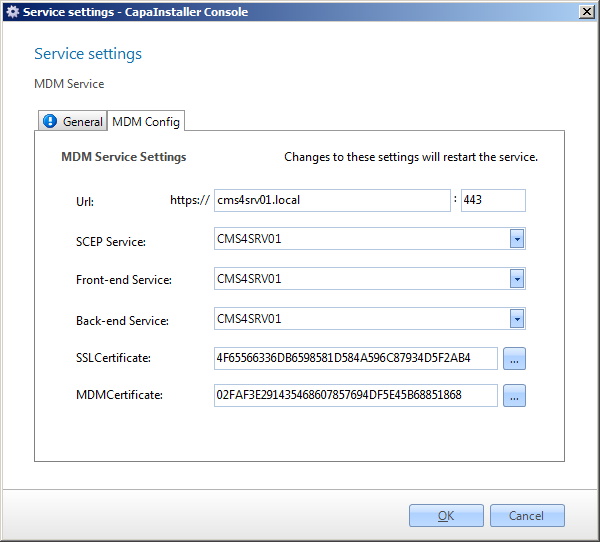
| Service configuration | Description |
|:--------------------------------|:-----------------------------------------------------------------------------------------|
| URL | The URL and port the service listens on. |
| Organization Name | Organization name displayed on managed devices |
| SCEP Service | The SCEP service used to enroll devices Defaults to the same server as the target server |
| Front-end Service | The Front-end service used to deliver agent data too. |
| Back-end Service | The Back-end Service used to require entities from the database |
| Transfer Encryption Certificate | Certificate to secure CapaInstaller service communication |
| Apple Push Certificate | Certificate to enable data communication with the Apple Cloud |
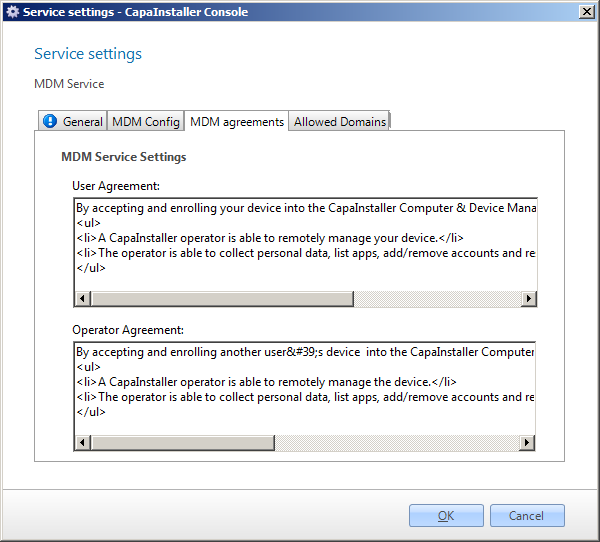
| User Agreement | Text presented to a normal user when enrolling the device |
| Operator Agreement | Text presented to an operator when enrolling the device |
On the Agreements tab, you can change the User and Operator agreements.
****
### Offline service deployment
:::note[Important]
For services planned to be hosted on a server unreachable by [The Operator Computer](/capainstaller/the-capainstaller-console/general-console-settings-and-views/the-operator-computer/)... (e.g. in a DMZ zone or similar) offline deployment via the Back-end service can be used.
:::
Below is a description, with examples showing an offline deployment.
Offline deployment method...
- **Input** target computer for the service and **check** *Enable offline installation*
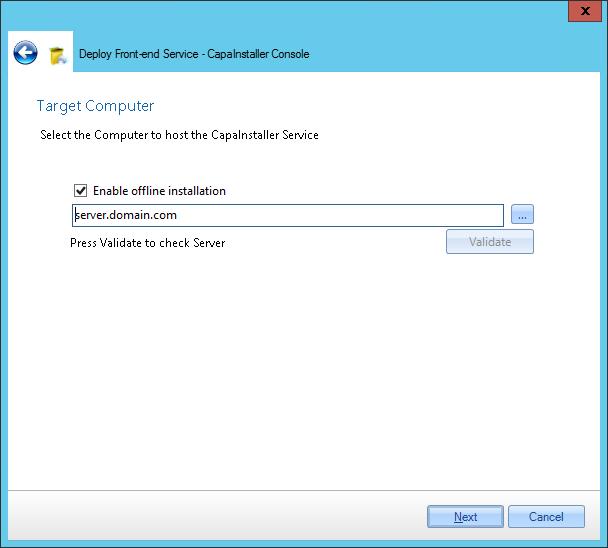
- **Log in** as an administrator on the target computer
- Open a browser and c**heck** that the browser is in a state where downloads are allowed.
- **Insert URL** to the Back-end service appending */Install* and *fqdn=The target computers DNS name*
```java
http://\:\/ciBackend/Install?fqdn=\
```
- Microsoft .NET Framework 4.6.2 is a prerequisite - if. NET4.6.2 is not available on the server **Click the link** to install
- **Click** *Install the Service* - The installer executable file will be downloaded
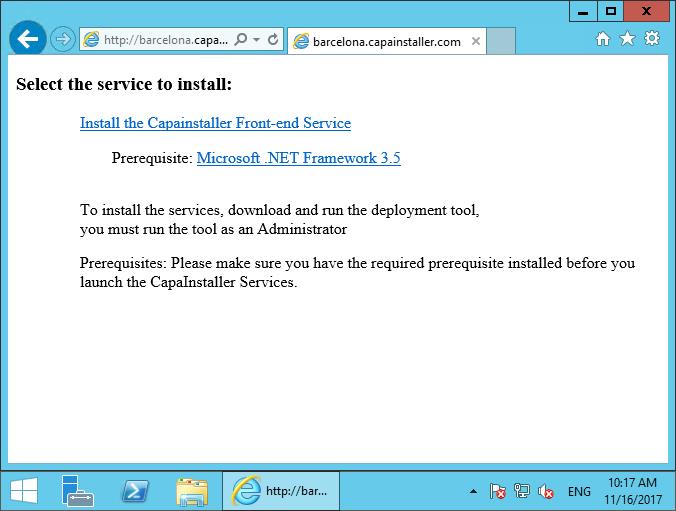
- **Execute** the downloaded installer file
### Configuring or Updating a Certificate
When a signed certificate is imported correctly into the Windows Personal Certificate Store, adding it to a CapaInstaller service is simple.
Example: Adding a certificate to the Mobile Device Management (MDM) Service
- Locate the **Service** in System Administration. **Right**-**Click.**
- In the **Service Settings >** **Configuration** tab, locate the certificate type you want to add or update
- **Click** the browse button to browse the local personal certificate store and select the correct certificate
:::tip
If you are not managing certificates for your organization and have received the certificate details in an e-mail or the like just paste the domain name and thumbprint into the dialog.
:::