# Deploy Management Server to Windows Server

> Deploy a management server on a Windows Server, which you need in order to deploy units and packages.

Source: https://docs.capaone.com/capainstaller/the-capainstaller-console/system-administration/how-to-use-system-administration/how-to-use-servers/deploy-management-server-to-windows-server/  
Product: CapaInstaller — a separate CapaSystems product; do not apply this page to any other.

**Introduction**

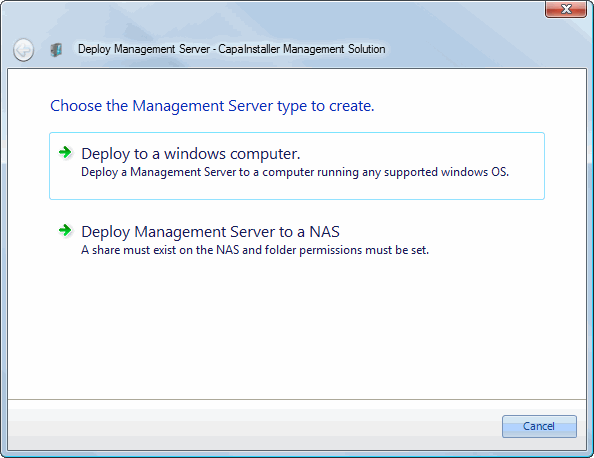
In order to deploy units and packages, a Management Server is required. The step below will guide you through the deployment of a Management Server that resides on a Windows computer within the same domain as the parent Management Point or Server.

|          |                                                                                                                                                                                                                                                                                                                                       |
|:---------|:--------------------------------------------------------------------------------------------------------------------------------------------------------------------------------------------------------------------------------------------------------------------------------------------------------------------------------------|
| **Step** | **Action**                                                                                                                                                                                                                                                                                                                            |
| 1        | Right-click on either the Management Servers node or on a Management Server depending on to which the Management Server should refer to.                                                                                                                                                                                              |
|          | ![](/attachments/capainstaller/c48f1960-b382-40f3-ac00-e8b590a1ca0f.webp)                                                                                                                                                                                                                                                              |
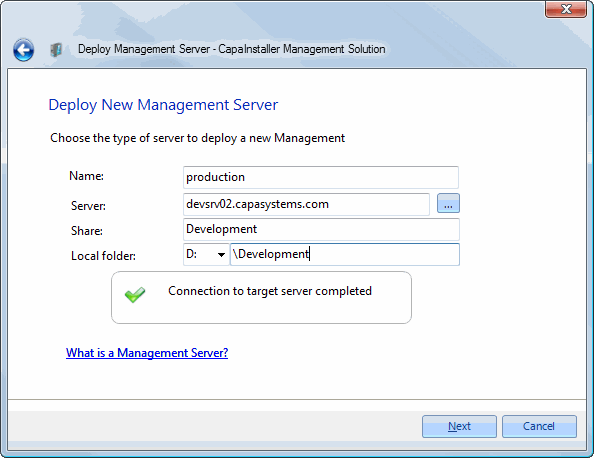
| 2        | Enter the name of the Management server as you would like it to be displayed en the Management Solution. <br/> Enter the name of the server on which to deploy the Management Server. <br/> The share name will follow the Management Point. <br/> Specify the local drive letter and folder on which to place the files and folders. |
|          | ![](/attachments/capainstaller/03ab5632-f27f-4760-9510-f31e8bf5a538.webp)                                                                                                                                                                                                                                                              |
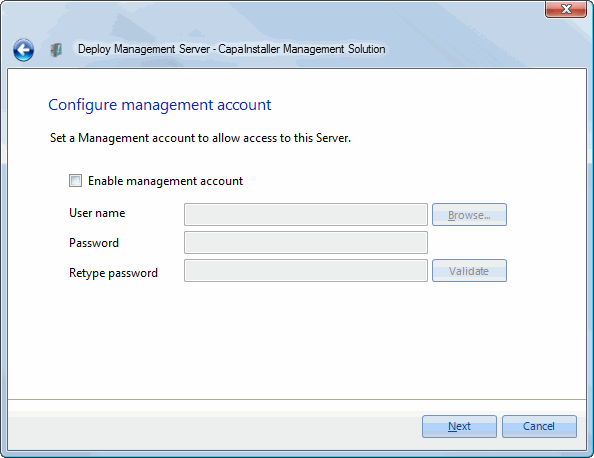
| 3        | Click on 'Enable Management account' and enter the user name and password.                                                                                                                                                                                                                                                            |
|          | ![](/attachments/capainstaller/88cc579c-d267-4875-9361-5f22f496d69f.webp)                                                                                                                                                                                                                                                              |
| 4        | Now, select a Replicator that should process this Management Server. <br/> If you do not have deployed a Replicator, it can be assigned later as well as you always can change the assigned Replicator.                                                                                                                               |
|          | ![](/attachments/capainstaller/9ae43919-5316-41f1-ac96-306e16d2a693.webp)                                                                                                                                                                                                                                                              |
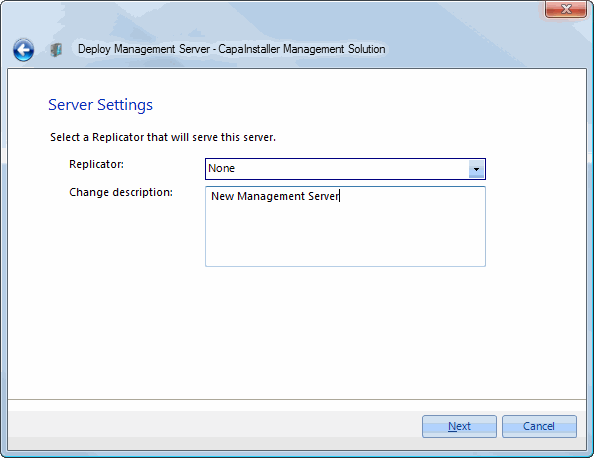
| 5        | Determine whether to enable synchronization or not. Normally Windows authentication should be used, however, it is possible to use SQL authentication.                                                                                                                                                                                |
|          | ![](/attachments/capainstaller/f8b577fa-4738-40f1-9416-0b72647600ae.webp)                                                                                                                                                                                                                                                              |
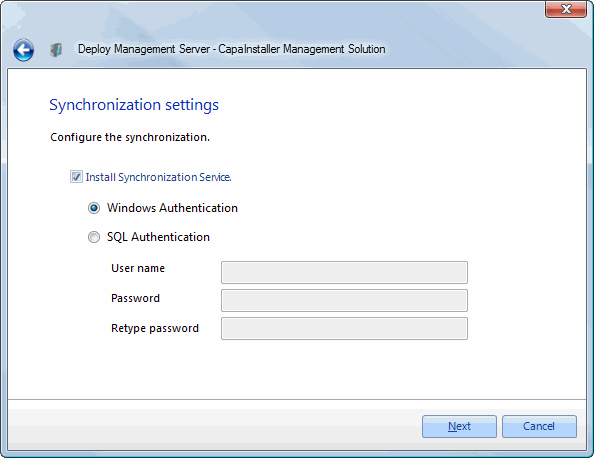
| 6        | - Select how service files are copied to target Server  - Select how framework files are copied to target Server  - Select the source server                                                                                                                                                                                          |
|          | ![](/attachments/capainstaller/ecb1ced9-697b-438f-ac18-9ab56ca6d013.webp)                                                                                                                                                                                                                                                              |
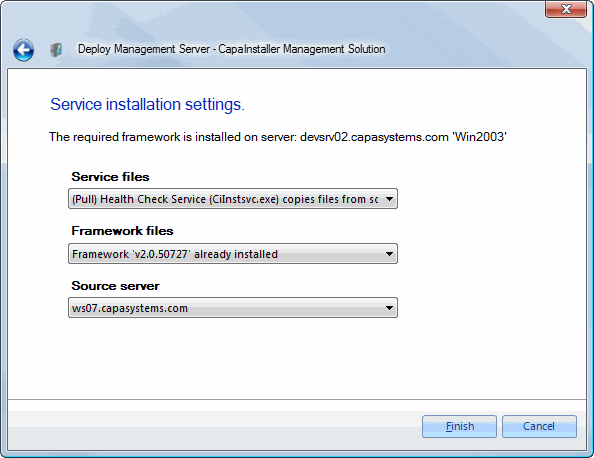
| 7        | The deployment process will now start. The share will be created and security will be applied. Initial files and folders will be copied to the share. <br/> If Synchronization is enabled, the service will be installed and initial package synchronization will be performed.                                                       |
|          | ![](/attachments/capainstaller/ae00012f-8ec4-4d88-ad23-d2309c45661f.webp)                                                                                                                                                                                                                                                              |
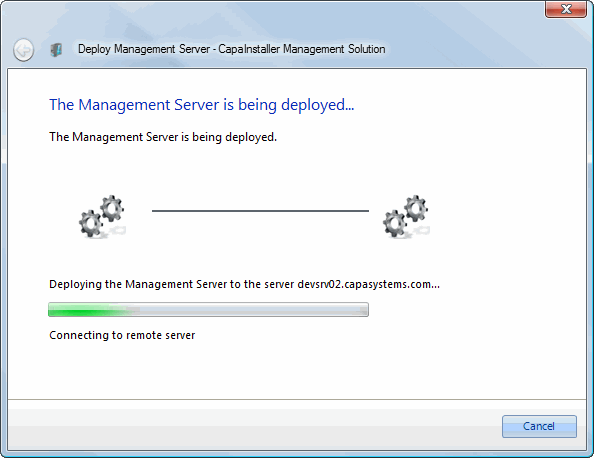
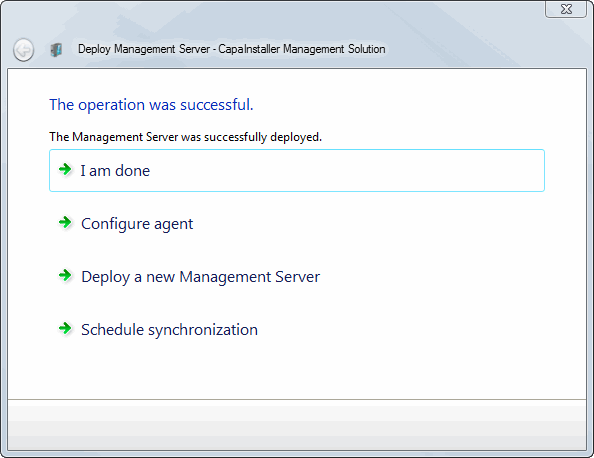
| 8        | Deployment completed.                                                                                                                                                                                                                                                                                                                 |
|          | ![](/attachments/capainstaller/d85e40f8-3e75-4e0b-87cc-424e46379e6d.webp)                                                                                                                                                                                                                                                              |