# Check application group license
> Validate application group licenses per department, and see registered against used licenses.
Source: https://docs.capaone.com/capainstaller/the-capainstaller-console/reporting-and-queries/how-to-use-reporting/check-application-group-license/
Product: CapaInstaller — a separate CapaSystems product; do not apply this page to any other.
Application group licenses can be used to validate licenses per department and get an overall status on registered and used licenses.
| | |
|:---------|:-----------------------------------------------------------------------------------------------------------------------------|
| **Step** | **Action** |
| 1 | Choose the *Reporting and Queries* plugin. |
| 2 | Click on *Software* in the toolbar  |
| 3 | Right-click on the *Application groups* treenode
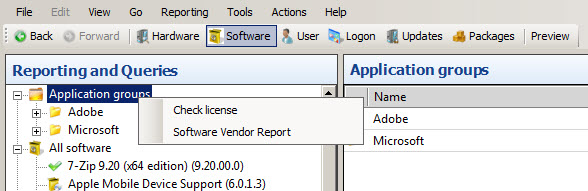 |
| 4 | Click*Check license* and this view is displayed
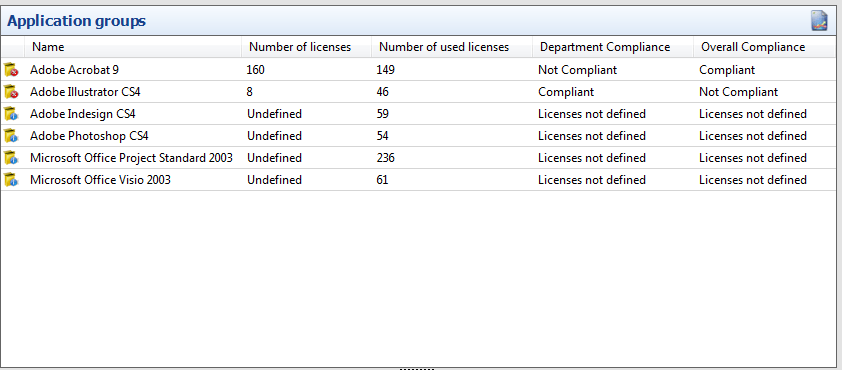 |
The compliance check is based on the specifications in Options for Reporting and Queries ([Reporting and Queries options](/capainstaller/the-capainstaller-console/general-console-settings-and-views/options/reporting-and-queries-options/))
| | |
|:--------------------------|:-----------------------------------------------------------------------|
| **Department Compliance** | |
| Compliant | All departments have the number of licenses required. |
| Not Compliant | One or more of the departments is using more licenses than registered. |
| Licenses not defined | Licenses have not been entered for any departments. |
| | |
|:-------------------------|:--------------------------------------------------------------------------|
| **Overall Compliance** | |
| Compliant | The number of registered licenses is higher then the used licenses. |
| Not Compliant warning | The number of registered licenses is between zero and the warning number. |
| Not Compliant | More licenses are used, than the number of registered licenses. |
| Licenses not defined | Licenses have not been entered. |
:::note
The overall license check is based on all the licenses entered and used, including the licenses for the departments.
:::
| | |
|:---------------------------------------|:-----------------------------------------------------------------------------------------------------------------------------------------------------------------------------------------------------------------------------------------------------------------|
| **If you want to...** | **You can...** |
| Work with application groups | [Work with application groups](/capainstaller/the-capainstaller-console/asset-management/how-to-use-asset-management/work-with-application-groups/) |
| Create a new application group | [Create an application group](/capainstaller/the-capainstaller-console/asset-management/how-to-use-asset-management/create-an-application-group/) to see how. |
| Work with an application group license | [Work with application group license](/capainstaller/the-capainstaller-console/asset-management/how-to-use-asset-management/work-with-application-group-license/) to see how. |
| Set software license warning | [Reporting and Queries options](/capainstaller/the-capainstaller-console/general-console-settings-and-views/options/reporting-and-queries-options/) |
| Process Software Group | [Process Software Group](/capainstaller/the-capainstaller-console/asset-management/how-to-use-asset-management/process-software-group/) |