# Approve from All updates
> Approve updates and change their status from the All Updates folder.
Source: https://docs.capaone.com/capainstaller/the-capainstaller-console/patch-management/how-to-use-patch-management/approve-from-all-updates/
Product: CapaInstaller — a separate CapaSystems product; do not apply this page to any other.
The following is a description of how to approve updates and change their status under All Updates. Updates can hold one of three statuses: Approved for installation, Approved for removal, or Not Approved. (Declining an update is a separate action — see [Decline Updates](/capainstaller/the-capainstaller-console/patch-management/how-to-use-patch-management/decline-updates/).) For further information about the different statuses, go to [Updates](/capainstaller/the-capainstaller-console/patch-management/what-is-patch-management/updates/).
| | |
|:---------|:----------------------------------------------------------------------------------------------------------------------------------------------------------------------------------------------------------------------------------------------------------------------------------------------------------------------------------------------------------------|
| **Step** | **Action** |
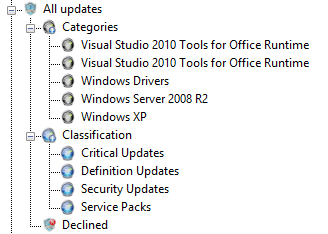
| 1 | Go to the All Updates folder and select one of the categories or classifications, with the Updates you want to change status on
 |
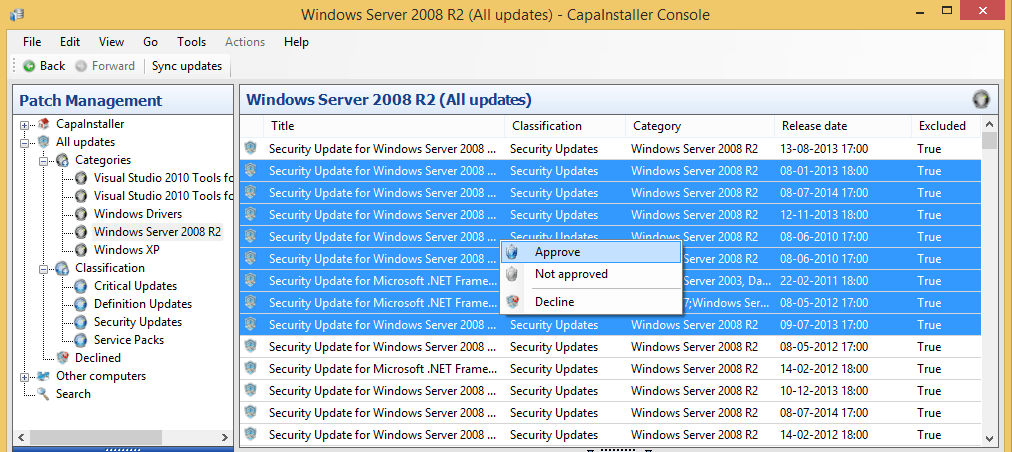
| 2 | Select one or more of the Updates in the gridview. Right-Click and choose either *[Approve updates](/capainstaller/the-capainstaller-console/patch-management/how-to-use-patch-management/approve-updates/)*, *Not approve* or *[Decline Updates](/capainstaller/the-capainstaller-console/patch-management/how-to-use-patch-management/decline-updates/)*.
 |
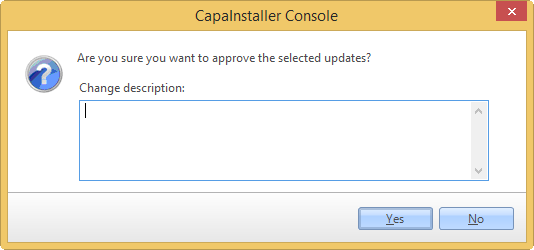
| 3 | Confirm that you want to approve the selected updates, and enter a Change description if needed.
 |
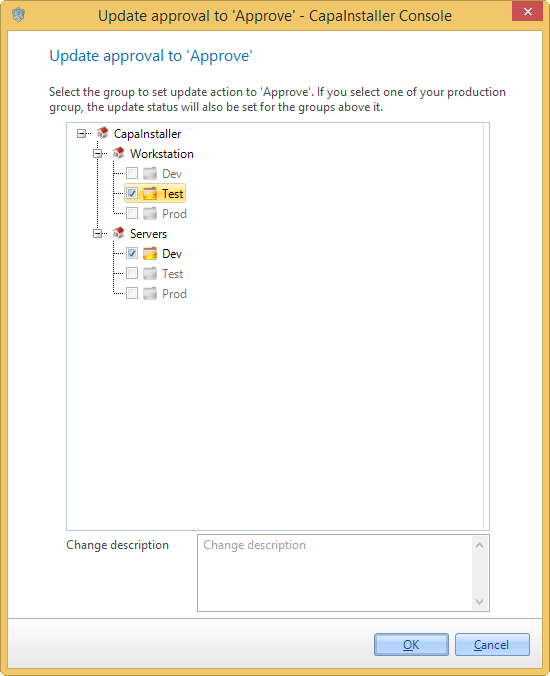
| 4 | In this step you select the Wsus groups, you want to Approve or Not Approve the selected Updates.
You can only select one Wsus group for each Point.
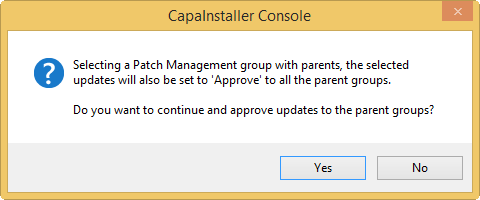
If you have selected one or more groups with parents, the selected Updates are also changed for the parent groups.
 |
| 5 | If you have selected one or more groups with parents, the following message is displayed for information.
 |
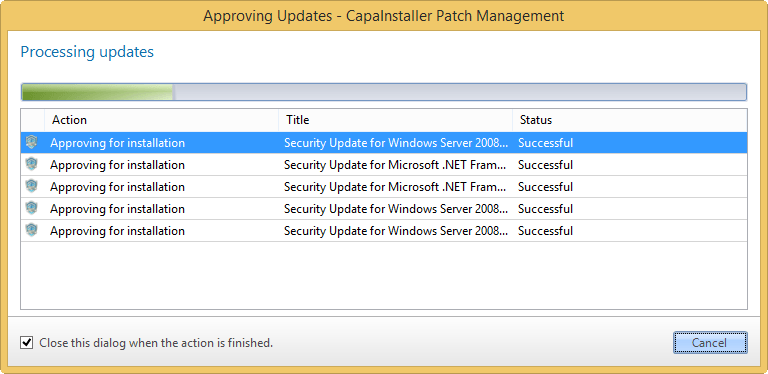
| 6 | Progress when approving the selected update.
 |
:::tip
To learn more about the flow of Patch Management, [All updates](/capainstaller/the-capainstaller-console/patch-management/what-is-patch-management/all-updates/).
:::
| | |
|:---------------------------------|:-------------------------------------------------------------------------|
| **If you want to...** | **You can...** |
| Approve updates | [Approve updates](/capainstaller/the-capainstaller-console/patch-management/how-to-use-patch-management/approve-updates/) |
| Automatically install updates | [Approval rules](/capainstaller/the-capainstaller-console/patch-management/how-to-use-patch-management/approval-rules/) |
| Learn more about classifications | [Classifications](/capainstaller/the-capainstaller-console/patch-management/what-is-patch-management/categories-and-classifications/). |
| Learn more about categories | [Categories](/capainstaller/the-capainstaller-console/patch-management/what-is-patch-management/categories-and-classifications/). |