# Scheduling in Configuration Management
> Which Configuration Management operations can be scheduled, and how to manage those schedules.
Source: https://docs.capaone.com/capainstaller/the-capainstaller-console/configuration-management/what-is-configuration-management/scheduling-in-configuration-management/
Product: CapaInstaller — a separate CapaSystems product; do not apply this page to any other.
There are a number of operations in Configuration Manager that can be scheduled, below is a description of how to manage the different scheduling options
By default, the CapaInstaller Client will run all day, every day, following the schedule established when it was deployed. However, you may wish to configure some or all client computers with a limited range of days and/or times during which the client should run. There are several reasons why you might do this, including:
- To help ensure that users are not interrupted during business hours.
- To limit the network traffic generated by software installations to off-peak hours
- To stage larger deployments, by running schedules that spreads out the network traffic generated by CapaInstaller.
The calendar groups feature of the CapaInstaller Console enables you to establish one or more schedules and to assign computer units to each of them, just as you would with other types of static groups. When a computer belongs to a calendar group, it will only run its CapaInstaller client during the days and times established by that group. During these “on periods,” the client will follow the schedule defined for the CapaInstaller Management server
### Package Scheduling
The schedule of a package determines when the package is allowed to run on clients. Without a schedule, a package will not run.
How to manage package schedules...
### Creating a package schedule
How to create or update a schedule...
### Activating a schedule
How to activate and configure a schedule...
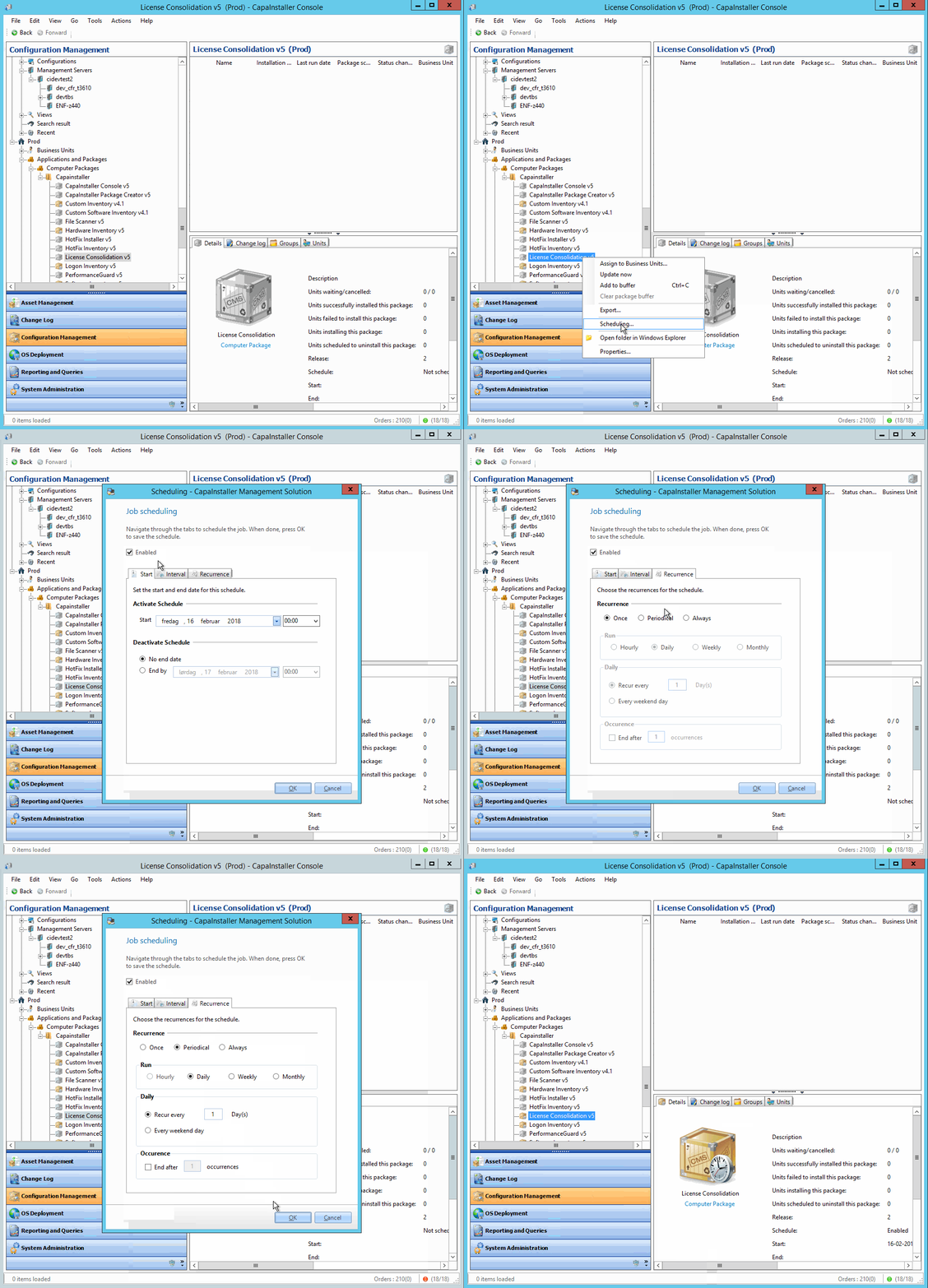
- **Right-click** and **select** *Schedule*.
- **Check** or **uncheck** the *Enabled* checkbox.
- **Click** *OK*.
- **Select** the date and time where this schedule will take effect.
The start time defaults to the last time a change was made to the schedule.
- Optionally **select** a date and time where the schedule will expire.
By default, the schedule will never expire.
### Setting an Interval
How to set up an time interval for execution...
Execution times can be restricted by configuring an interval. The interval is the period in time each day in which the schedule will be active.
- **Input** a *start time* and an *end time* for the period each day where the scheduled object will be allowed to run
- Optionally **input** a *duration* for each day where the schedule will be active. The values will adjust automatically to the correct interval time.
### Setting a schedule Recurrence
Executions can be configured to repeat at a certain recurring rate. Recurrences define when executions of the scheduled object will occur.
- **Select** a recurrence
- *Once*. The schedule will run once. This is the default setting. This would be typical for the installation of a software package.
- *Periodical*. The schedule will run periodically. The periods that can be configured are *Hourly, Daily, Weekly, and Monthly*.
If *Daily* is selected, configure a number of days between executions by *Recur everyday(s)*
- - *Always*. This schedule will run every time an agent run is triggered. Typically used to keep critical inventory information updated.
- Optionally **check** *End after occurences* and **input** after how many runs the execution should stop.
:::caution
Setting an *Always* recurring execution can result in a heavy load! When many computers contact the system it will create a peak in database and network activity!
:::
**
### Computer Scheduling
A computer can be scheduled to be reinstalled on two general types of schedules: The next time the agent runs or on a custom schedule.
How to work with computer schedules...
### Create a reinstall Schedule
How to create a custom schedule for a reinstall...
- **Right-click** on a *Computer*
- **Select** *Reinstall*
- In the *Schedule type,* dropdown menu **Select** *Custom Schedule*
- **Fill out** the tabs according to the schedule you want to set. Refer to [Scheduling](/capainstaller/the-capainstaller-console/general-console-settings-and-views/scheduling/)to see the description of the tabs.
- The Schedule can be disabled or enabled by **checking or unchecking** the *Enabled* checkbox
- *Click* **OK**.
:::note[Important]
If more groups are selected, right clicking gives the following submenus to Schedule:
- Modify Schedule - The schedule form opens, and the schedule you configure will be for all of the selected groups
- Disable Schedule - Disables the schedule for the selected groups that already have a schedule.
- Enable Schedule - Enables the schedule for the selected groups that already have a schedule.
:::
---
OLD
| | |
|:-----------------|:-------------------------------------------------------------------------------------------------------------------|
| **Introduction** | The following is a description of how the schedule is used in the configuration of reinstalling a single Computer. |
---
Create the schedule
| | |
|:---------|:-------------------------------------------------------------------------------------------------------------------------------------------------------------------------------------------------------------|
| **Step** | **Action** |
| 1 | Right-click a computer, click *Reinstall*. |
| 2 | Select the Custom Schedule. 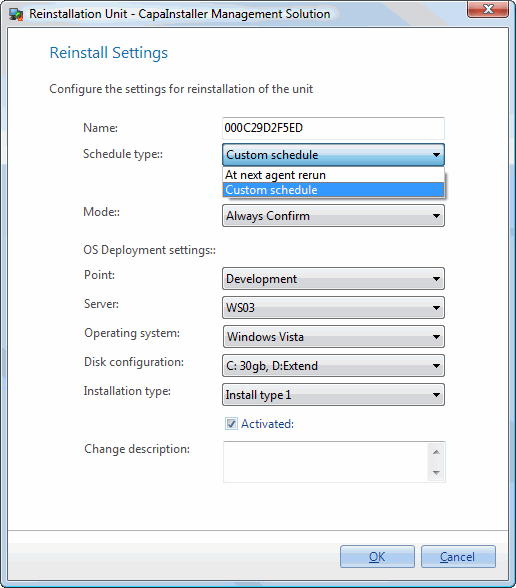 |
| 3 | Select the rest of the settings, click *OK.* 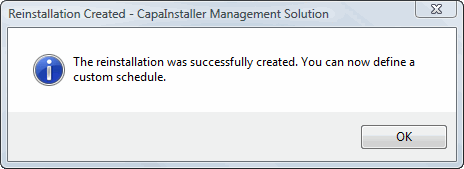 |
| 4 | The Schedule window opens and you can define when the reinstall will occur. |
Edit the schedule
| | |
|:---------|:---------------------------------------------------------------------------------------------------------------------------------------------------------------------------------------|
| **Step** | **Action** |
| 1 | Right-click a computer, click *Reinstall*. |
| 2 | Click *Edit Schedule.* 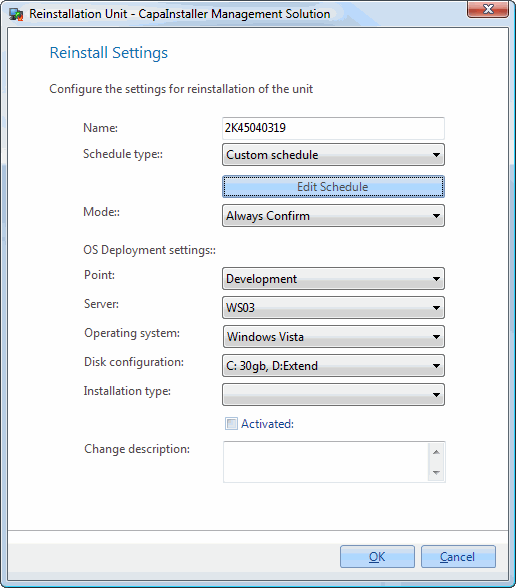 |
| 3 | The Schedule window opens and you can define when the reinstall will occur. |
:::tip
See [Scheduling in Configuration Management](/capainstaller/the-capainstaller-console/configuration-management/what-is-configuration-management/scheduling-in-configuration-management/) for more information on scheduling in Configuration Management.
:::
### Group scheduling
The schedule of a group has different purposes depending on the type of the group. Three types of group scheduling is possible: General Calendar Scheduling, Reinstall scheduling and Wake-on LAN scheduling.
How to manage group schedules...
### Wake on LAN schedule
You can schedule a Wake-on-lan on computer groups. This will send a Wake On LAN request to the computers linked to the groups at the scheduled time
Scheduling Wake on LAN on a computer group...
- **Right-click** on a computer group of one of the following types: *Static, Department, AD or Dynamic*
- **Select** *Schedule WOL*.
- **Fill out** the tabs according to the schedule you want to set. Refer to [Scheduling](/capainstaller/the-capainstaller-console/general-console-settings-and-views/scheduling/)to see the description of the tabs.
- The Schedule can be disabled or enabled by **checking or unchecking** the *Enabled* checkbox
- *Click* **OK**.
### Schedule a Calendar or Reinstall group
The schedule settings establish the permitted run times for the agent on computers that belong to the group. Outside this installation window, the agent will not run.
Scheduling agent run or reinstalls...
- **Right-click** on a *Calendar* or *Reinstall* group
- **Select** *Schedule*
- **Fill out** the tabs according to the schedule you want to set. Refer to [Scheduling](/capainstaller/the-capainstaller-console/general-console-settings-and-views/scheduling/)to see the description of the tabs.
- The Schedule can be disabled or enabled by **checking or unchecking** the *Enabled* checkbox
- *Click* **OK**.
:::note[Important]
If more groups are selected, right clicking gives the following submenus to Schedule:
- Modify Schedule - The schedule form opens, and the schedule you configure will be for all of the selected groups
- Disable Schedule - Disables the schedule for the selected groups that already have a schedule.
- Enable Schedule - Enables the schedule for the selected groups that already have a schedule.
:::